- Install latest GoldenDict - https://github.com/goldendict/goldendict/wiki
- Download GT-bash-client
master branch as ZIP and unzip translate.sh file into any regular folder (I would recommend to use default GoldenDict dictionaries folder);
- Launch GoldenDict;
- Go to menu "Edit > Dictionaries...";
- On "Dictionaries" window go to tab "Sources > Program" and click Add... button;
- In new program entry row set:
| Enabled |
Type |
Name |
Command line |
Icon |
| ☑ (check it for enable) |
Plain Text |
GT: source lng > target lng (or name it as you wish) |
bash <path_to>/translate.sh <source_lng> <new_lng> %GDWORD% |
(add link to any icon, otherwise it would be shown as "gear" icon) |
- Click Apply and then OK buttons;
- Now input words or text string you wish to translate into word input field and hit Enter key on your keyboard (until Enter not pressed GoldenDict will not execute programs);
- That is all!
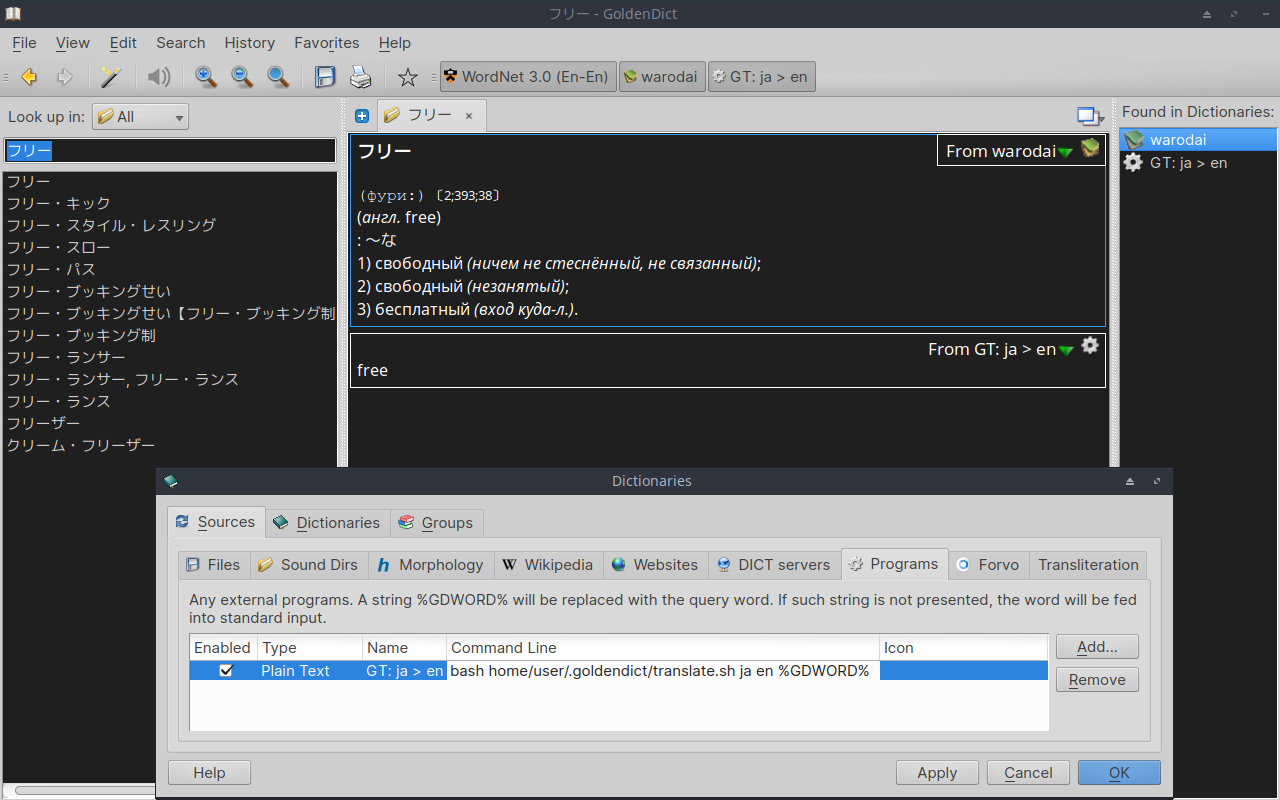
If you need few directions (ja > en and en > fr, etc.) just repeat steps above and add few program entries with custom <source_lng> <new_lng> arguments.
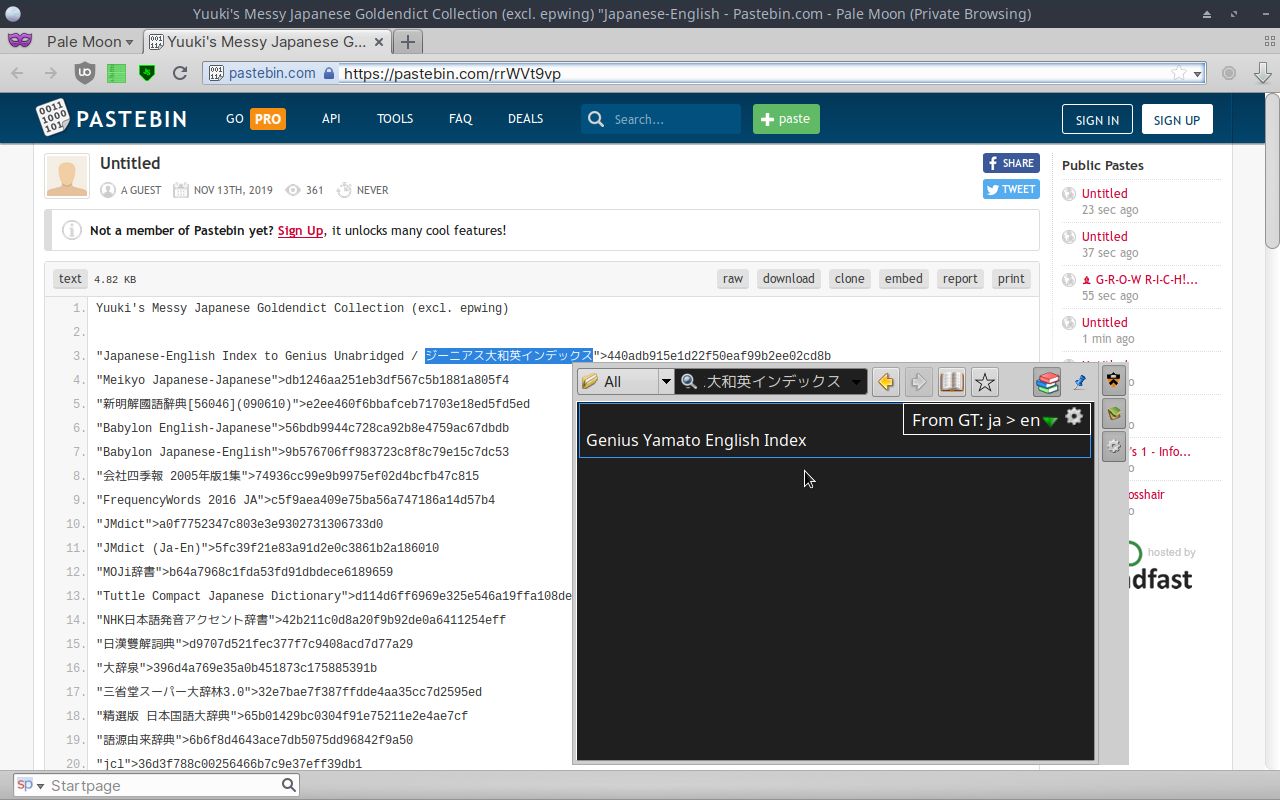
Also, now you could use "Scan Popup" function to translate in any external program (web browser, text editor, book reader, etc) — just select word/text string and hit CTRL+C+C shortcut (or set custom hotkey shortcut in GoldenDict preferences).

masterbranch as ZIP and unziptranslate.shfile into any regular folder (I would recommend to use default GoldenDict dictionaries folder);bash <path_to>/translate.sh <source_lng> <new_lng> %GDWORD%If you need few directions (
ja > enanden > fr, etc.) just repeat steps above and add few program entries with custom<source_lng> <new_lng>arguments.Also, now you could use "Scan Popup" function to translate in any external program (web browser, text editor, book reader, etc) — just select word/text string and hit CTRL+C+C shortcut (or set custom hotkey shortcut in GoldenDict preferences).