This script will convert zone information into a Kofax Transformation project. The import data needs to by in a text file with this format. It contains class name, field name, zone coordinates, OCR profile name, optional Formatter name and the sample image required by the Advanced Zone locator.
| ParentClass | Class | Field | Available | X(mm) | Y(mm) | W(mm) | H(mm) | Profile | Formatter | SampleFile |
|---|---|---|---|---|---|---|---|---|---|---|
| ApplicationForm | DOC-1000-01 | F01NAME | Yes | 54.3 | 63.6 | 81.4 | 9.4 | OP_MachineAlphanum | tiffs\DOC-1000-01\02-1.xdc | |
| ApplicationForm | DOC-1000-01 | F02PLAN | Yes | 77.6 | 225.4 | 107.5 | 9.2 | OP_MachineAlphanum | AmountOneOfMany | |
| ApplicationForm | DOC-2000-01 | F01NAME | Yes | 54.3 | 97.5 | 81.4 | 9.4 | OP_MachineAlphanum | tiffs\DOC-2000-01\03-1.xdc | |
| ApplicationForm | DOC-2000-01 | F02PLAN | Yes | 77.6 | 45.4 | 107.5 | 9.2 | OP_MachineAlphanum | AmountOneOfMany |
The script
- Creates the Class under the Parent Class (which must already exist in the project)
- Creates an Advanced Zone Locator. Creates the Zone and Subfield with the same name and attaches an OCR profile. You must give a sample document per class.
- Creates the field, adds the optional field formatter and links the field to the AZL's subfield.
- create the file zones.txt and put it into the project folder.
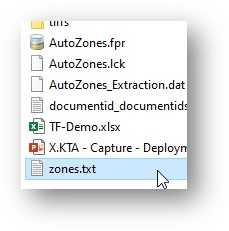
- the coordinates need to be in millimeters.
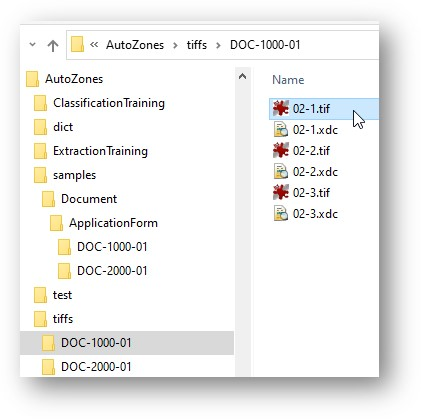
- the sample document path must be within the project folder.
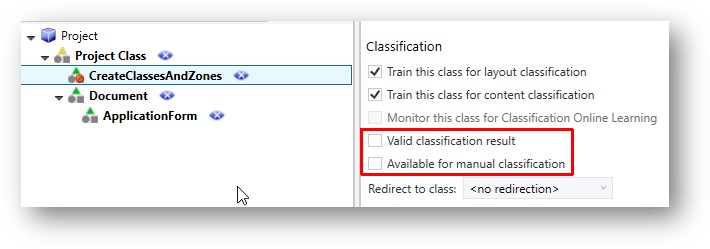
- Create a new project with a top-level class called CreateClassesAndZones. Deselect Valid Classification Result and Available for Manual Classification. We never want this class to be used at runtime. it is only to host our zone import script.
- Add a script locator called SL_CreateZoneLocators.
- Add the Script down below to this class.
- Open your sample documents in Project Builder so that the XDocs get created.
- Select any document in the Documents window and Test the Script Locator.
- You will see a pop-up warning you to close and re-open the project. The script has added classes, locators and fields to your project, but Project Builder doesn't know they are there, so you need to close and re-open the project so that Project Builder is synzchronized to the new classes, fields and zone locators.
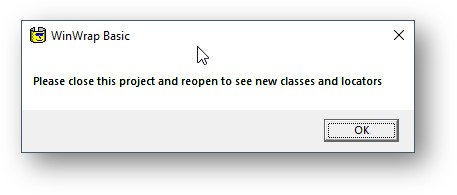
- WARNING! There is still a bug in the script. You will see warnings when you reopen the project. DO NOT look at the fields in the classes. Open the Zone Locator first, otherwise the fields will erase their locator linkings. After you have opened the Zone Locators, the fields will be happy. hopefully I will find a solution to this, so that there are no warnings when re-opening the project.
'#Language "WWB-COM"
Option Explicit

' Class script: Document

Private Sub SL_CreateZoneLocators_LocateAlternatives(ByVal pXDoc As CASCADELib.CscXDocument, ByVal pLocator As CASCADELib.CscXDocField)
   Dim FileName As String, Row As String, Values() As String, ParentClassName As String, ClassName As String, FieldName As String
   Dim ZoneLeft As Double, ZoneWidth As Double, ZoneTop As Double, ZoneHeight As Double, ZoneProfileName As String, ZonePage As Long
   Dim Formatter As String, SampleFileName As String, LocatorName As String, SubFieldName As String
   'WARNING!!! This script is dangerous - it makes changes to the project file. You could destory or corrupt your project. Make a backup before running!!
   ' Read the file zones.txt in the project directory.
   ' Create Classes, Fields, Zone Locators and Zones

   FileName=Project_Path() & "zones.txt"
   Open FileName For Input As #1
   Line Input #1, Row 'ignore header
   While Not EOF(1)
      Line Input #1, Row
      Values=Split(Row & vbTab & vbTab & vbTab,vbTab)  ' We add a few extra vbtab to the end as "Line Input" trims trailing tabs.
      ParentClassName=Values(0)
      ClassName=Values(1)
      FieldName=Values(2)
      ZoneLeft=CDbl(Values(4))
      ZoneTop=CDbl(Values(5))
      ZoneWidth=CDbl(Values(6))
      ZoneHeight=CDbl(Values(7))
      ZoneProfileName = Values(8)
      Formatter = Values(9)
      SampleFileName=Values(10)
      ZonePage=0
      'Create class if missing
      LocatorName="AZL"
      Project_CreateClass(ParentClassName, ClassName)
      'Create zone locator if missing, add zone and profile, add sample image
      Class_AddAZLZone(ClassName, LocatorName, FieldName, ZonePage,ZoneLeft,ZoneWidth, ZoneTop,ZoneHeight,ZoneProfileName, SampleFileName)
      'create field and give it formatter and link to locator and subfield
      SubFieldName=FieldName  'the subfield in the zone locator has the same name as the field
      Class_AddField(ClassName, FieldName, Formatter, LocatorName, SubFieldName)
   Wend
   Close #1
   Project.Save(Project.FileName)
   MsgBox ("Please close this project and reopen to see new classes and locators")
End Sub

Public Sub Project_CreateClass(ParentClassName As String, ClassName As String)
   'Add a Class to the Parent Class if it doesn't already exist
   'WARNING!!! You will have to reload the project in Project Builder to see the new class.
   Dim ParentClass As CscClass, ProjectClass As CscClass
   Set ParentClass = Project.ClassByName(ParentClassName)
   If ParentClass Is Nothing Then Err.Raise(123,,"The class '" & ParentClassName & "' is missing from the project")
   Set ProjectClass = Project.ClassByName(ClassName)
   If ProjectClass Is Nothing Then Project.AddClass(ClassName,ParentClassName)
End Sub

Public Sub Class_AddAZLZone(ClassName As String, AZLName As String, FieldName As String, ZonePage As Long,ZoneLeft As Double,ZoneWidth As Double, ZoneTop As Double,ZoneHeight As Double,ZoneProfileName As String, SampleFileName As String)
   'Add a zoneLocator to a class, add the zone, and add the subfield in the zone locator
   Dim ProjectClass As CscClass, ProfileId As Long, AZL As CscLocatorDef, FieldDef As CscFieldDef
   'Check that the class name exists
   Set ProjectClass = Project.ClassByName(ClassName)
   If ProjectClass Is Nothing Then Err.Raise(123,,ClassName & " is not a class")
   'Check that the recognition profile exists
   ProfileId=Project.RecogProfiles.ItemByName(ZoneProfileName).ID
   'Add an empty Advanced Zone Locator to the class if it doesn't exist
   If Not ProjectClass.Locators.ItemExists(AZLName) Then
      Set AZL=ProjectClass_AddZoneLocator(ProjectClass,AZLName)
   Else
      Set AZL=ProjectClass.Locators.ItemByName(AZLName)
   End If
    AZL_AddZone(AZL.LocatorMethod,FieldName,ZoneLeft,ZoneTop,ZoneWidth,ZoneHeight,ZonePage,ProfileId)
    AZL_AddSampleFile(ClassName,AZLName,SampleFileName)
End Sub

Public Sub Class_AddField(ClassName As String, FieldName As String, Formatter As String, LocatorName As String, SubFieldName As String)
   'Add the field definition to the class if it doesn't exist and add the field formatter to the field
   Dim ProjectClass As CscClass, FieldDef As CscFieldDef
   Set ProjectClass = Project.ClassByName(ClassName)
   If Not ProjectClass.Fields.ItemExists(FieldName) Then
      Set FieldDef = New CscFieldDef
      FieldDef.Name=FieldName
      ProjectClass.Fields.Add(FieldDef)
   Else
      Set FieldDef=ProjectClass.Fields.ItemByName(FieldName)
   End If
   FieldDef.FieldFormatter=Formatter
   'Link the locator to the field
   FieldDef.Locator=LocatorName
   FieldDef.LocatorSubField=SubFieldName
End Sub

Public Sub AZL_AddSampleFile(ClassName As String, AZLLocatorName As String, SampleXDocFileName As String)
   'You will need to create XDocs for all the sample files before running this script.

   If SampleXDocFileName="" Then Exit Sub
   Dim ClassPath As String, XDoc As New CscXDocument, F As Long, Path As String
   Path=Project_Path()
   ClassPath=Path & "samples\" & Project_ClassPath(ClassName) & "\"
   MakeFolder(ClassPath)
   XDoc.Load(Path & SampleXDocFileName)
   XDoc.SaveAs(ClassPath & "\Sample0.xdc",True)
   For F=0 To XDoc.CDoc.SourceFiles.Count-1
      'FileCopy Path & XDoc.CDoc.SourceFiles(F).FileName, ClassPath
   Next
End Sub

Public Function Project_ClassPath(ClassName As String) As String
   'recursively find the class path in the project tree
   Dim C As CscClass
   Set C=Project.ClassByName(ClassName)
   If C.ParentClass Is Nothing Then Return ClassName
   Return Project_ClassPath(C.ParentClass.Name) & "\" & ClassName
End Function

Public Function Project_Path() As String
   'The Folder that the Project is saved in
   Return Left(Project.FileName, InStrRev(Project.FileName,"\"))
End Function

Public Sub MakeFolder(Path As String)
   ' Make a folder and all of it's parent Folders
   Dim BuildPath As String, Folder As String
   If Right(Path, 1) = "\" Then Path = Left(Path, Len(Path) - 1)
   For Each Folder In Split(Path, "\")
      BuildPath = BuildPath & Folder & "\"
      If Dir(BuildPath, vbDirectory) = "" Then MkDir BuildPath ' if directory does not exist
   Next
End Sub

Public Function AZL_CreateSubfields(pXDoc As CscXDocument, AZL As CscXDocField) As CscXDocSubFields
   'Add an alternative and then all the subfields listed in the AZL definition
   Dim AZLDef As CscAdvZoneLocator, Subfields As CscXDocSubFields, s As Long, Alts As CscXDocFieldAlternatives
   Set Alts=AZL.Alternatives
   With AZL.Alternatives
      While .Count>0
         .Remove(0)
      Wend
      .Create()
      .ItemByIndex(0).Confidence=1
      Set Subfields=.ItemByIndex(0).SubFields
   End With
   Set AZLDef=Project.ClassByName(pXDoc.ExtractionClass).Locators.ItemByName(AZL.Name).LocatorMethod
   For s=0 To AZLDef.SubFields.Count-1
      Subfields.Create(AZLDef.SubFields(s).Name)
   Next
   Return Subfields
End Function

Function AZL_AddZone(AZL As CscAdvZoneLocator, Name As String, Left As Double, Top As Double, Width As Double, Height As Double, pageNr As Integer, ProfileId As Long) As Integer
   'On Edit Menu/References.. add a reference to "Kofax Cascade Advanced Zone Locator"

   Dim Zone As New CscAdvZoneLocZone
   Zone.ID=AZL.Zones.GetNextId()
   Zone.Name=Name
   Zone.Left=Left
   Zone.Top=Top
   Zone.Width=Width
   Zone.Height=Height
   Zone.PageNr=pageNr
   'Zone.GroupId=Zone.ID
   Zone.RecogProfileId=ProfileId
   AZL.Zones.Append(Zone)
   ' Make the subfield and connect it to the zone
   AZL_AddSubfieldAndMapping(AZL, Zone)
   ' Return value
   AZL_AddZone=Zone.ID
End Function

Sub AZL_AddSubfieldAndMapping(AZL As CscAdvZoneLocator, Zone As CscAdvZoneLocZone)
   Dim Subfield As New CscAdvZoneLocSubfield
   Subfield.ID=AZL.SubFields.GetNextId
   Subfield.Name=Zone.Name
   Subfield.ResultType=CscAdvZoneLocSubfieldResultTypeBest
   AZL.SubFields.Append(Subfield)
   Dim Mapping As New CscAdvZoneLocMapping
   Mapping.SubfieldId=Subfield.ID
   Mapping.ZoneId=Zone.ID
   AZL.Mappings.Append(Mapping)
End Sub

Private Function ProjectClass_AddField(cl As CscClass, FieldName As String, Optional AlwaysValid As Boolean=False) As CscFieldDef
   'Adds a KC index field to a KTM document class
   Dim FieldDef As New CscFieldDef
   FieldDef.Name = FieldName
   FieldDef.FieldType = CscExtractionFieldType.CscFieldTypeSimpleField
   cl.Fields.Add(FieldDef)
   FieldDef.AlwaysValid=AlwaysValid
   Return FieldDef
End Function

Private Function ProjectClass_AddZoneLocator(ProjectClass As CscClass,AZLName As String) As CscLocatorDef
   'Adds an empty Advanced Zone Locator to a KTM class
   Dim locdef As New CscLocatorDef
   locdef.AssignLocatorMethod(New CscAdvZoneLocator)
   locdef.Name=AZLName
   ProjectClass.Locators.Add(locdef)
   With locdef.LocatorMethod
      .RegMetaMode = CscRegMetaType.CscRegMetaTypeNone
      '.RegModes = CscRegType.CscRegTypeNone
   End With
   Return locdef
End Function