I recommend using Firefox for its ease-of-use. I visited https://us18.api.mailchimp.com/3.0/ somewhat arbitrarily. MailChimp may assign you a different API URL but its almost certain the certificates would be the same, regardless:
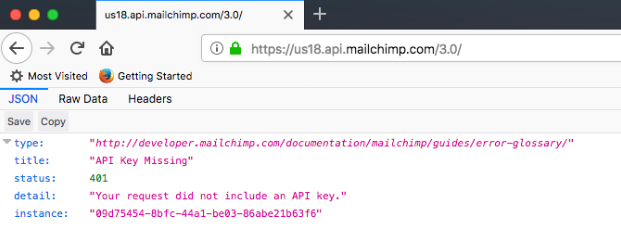
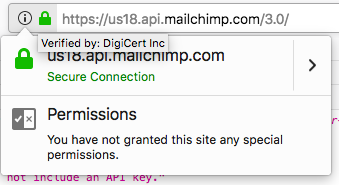
Then click on the right-arrow to access 'More information'.
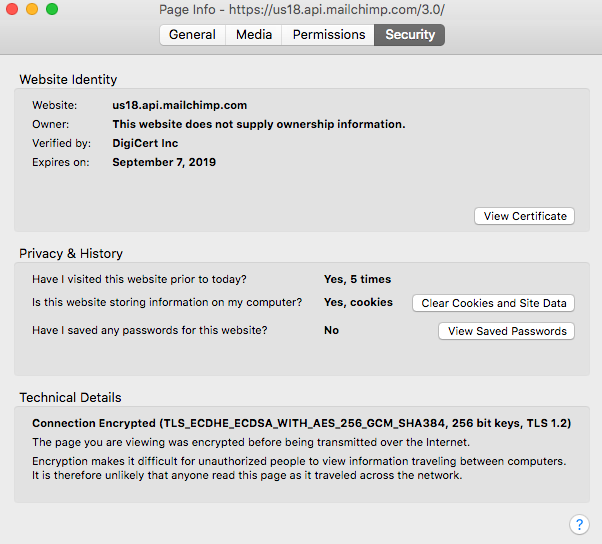
Click on 'View Certificate'
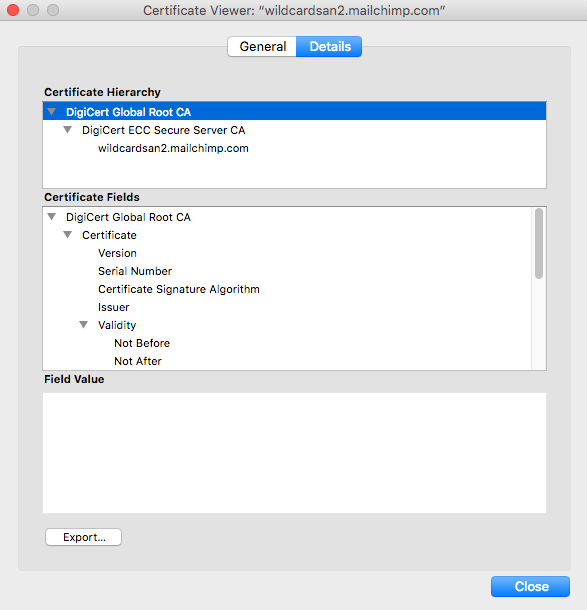
For the certificate chain, you want to export the top 2 certificates. In this case, that describes 'DigiCert Global Root CA' and 'DigiCert ECC Secure Server CA'. Don't export the wildcard certificate, apparently.
You can reuse an existing wallet but there's no down-side to starting a new one. I favor managing my wallets with the orapki command-line utility.
[oracle@server]$ orapki wallet create -wallet /home/oracle/orapki_wallet -pwd Oradoc_db1 -auto_login
Oracle PKI Tool : Version 12.2.0.1.0
Copyright (c) 2004, 2016, Oracle and/or its affiliates. All rights reserved.

Operation is successfully completed.
After moving your previously download certificates to your server, you can add them to your wallet with the orapki utility:
[oracle@server]$ orapki wallet add -wallet /home/oracle/orapki_wallet/ -cert DigiCertGlobalRootCA.crt -trusted_cert -pwd Oradoc_db1
Oracle PKI Tool : Version 12.2.0.1.0
Copyright (c) 2004, 2016, Oracle and/or its affiliates. All rights reserved.

Operation is successfully completed.

[oracle@server]$ orapki wallet add -wallet /home/oracle/orapki_wallet/ -cert DigiCertECCSecureServerCA.crt -trusted_cert -pwd Oradoc_db1
Oracle PKI Tool : Version 12.2.0.1.0
Copyright (c) 2004, 2016, Oracle and/or its affiliates. All rights reserved.

Operation is successfully completed.
Note: The above was performed on a 12.2 Oracle Datbase. On as 12.1 Database I got an 'PKI-04001: Invalid Certificate' error with the DigiCertECCSecureServerCA.crt certificate. Ultimately, it didn't matter, the wallet worked fine with only the root certificate.
You can validate the contents of your wallet with the 'display' command:
[oracle@server]$ orapki wallet display -wallet /home/oracle/orapki_wallet/
Oracle PKI Tool : Version 12.2.0.1.0
Copyright (c) 2004, 2016, Oracle and/or its affiliates. All rights reserved.

Requested Certificates:
User Certificates:
Trusted Certificates:
Subject:        CN=DigiCert ECC Secure Server CA,O=DigiCert Inc,C=US
Subject:        CN=DigiCert Global Root CA,OU=www.digicert.com,O=DigiCert Inc,C=US
If all the necessary certificates are present, the below Rest Request (replacing the p_wallet_path to match your configuration) should not give you a 'ORA-29024: Certificate validation failure':
select apex_web_service.make_rest_request(
     p_url         => 'https://us18.api.mailchimp.com',
     p_http_method => 'GET',
     p_wallet_path => 'file:/home/oracle/orapki_wallet'
    ) from dual;
If you get the error 'ORA-24263: Certificate of the remote server does not match the target address.', it must mean that you are on a 12.2 database (or higher) and you need to add a parameter to your request:
select apex_web_service.make_rest_request(
      p_url         => 'https://us18.api.mailchimp.com'
    , p_http_method => 'GET'
    , p_wallet_path => 'file:/home/oracle/orapki_wallet'
    , p_https_host  => 'wildcardsan2.mailchimp.com'
    ) from dual;
The 'HTTPS Host' refers to the 'Common Name' of the URL you are trying to reach and must now be specified when it does not match the destination URL. See my notes on solving the ORA-24263 error.