



A one-click bridge from the VS Code Explorer into the cmux desktop app. No shell helpers, no symlinks, no env vars — the extension hands the folder path to cmux through the macOS Service the app already registers.
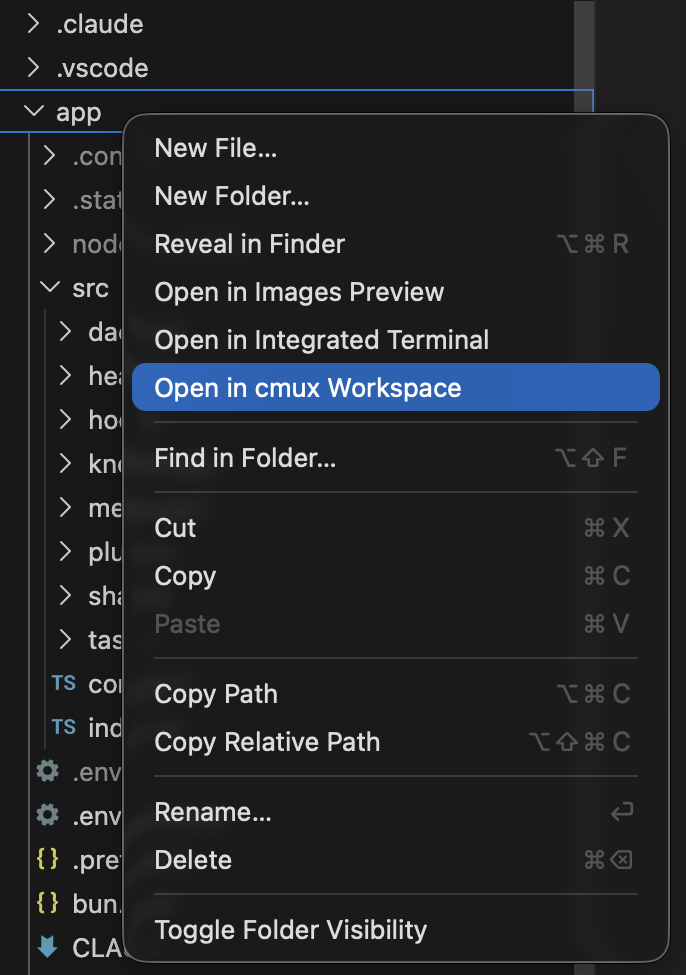
| Step | Action |
|---|---|
| 1 | Right-click any folder in the Explorer |
| 2 | Choose Open in cmux Workspace |
| 3 | A fresh cmux workspace opens, scoped to that folder |
- macOS. The extension drives a native macOS Service, so Linux and Windows are not supported.
- cmux desktop app installed and launched at least once, so the
New cmux Workspace HereService is registered with macOS. - VS Code
1.98.0or newer.
Right-click a folder in the Explorer and pick Open in cmux Workspace, or open the Command Palette (⌘⇧P) and run the same command.
File selections resolve to their parent directory, so right-clicking a file inside the folder you want works too.
"NSPerformService failed for: New cmux Workspace Here"
The macOS Service isn't registered. Launch the cmux app once, then open System Settings → Keyboard → Keyboard Shortcuts → Services and confirm New cmux Workspace Here is enabled. A logout/login may be required after first install.
Nothing happens on click
Run the command from the Command Palette (⌘⇧P → "Open in cmux Workspace") so the error toast surfaces. Check the VS Code Output panel for stderr from the underlying osascript call.
This VS Code extension is built and maintained by AgentLayer, we ship AI agent infrastructure and use cmux heavily in our day-to-day for parallel, agent-driven development.
Released under the MIT License · See the changelog for release notes.