A modern Discord client built specifically for bots.
Use your bot like a real Discord client — directly from your browser.





DisbotClient is an open-source web client built around one simple idea:
Bot accounts should have a proper client too.
Instead of building a separate dashboard for every Discord bot, DisbotClient provides a Discord-like interface for interacting with the servers, channels, members, messages and bot tooling available to a bot account.
It runs entirely from the browser, connects directly to the Discord Gateway, and uses a small same-origin proxy for Discord REST requests.
No account. No sign-up. No database. No server-side message store.
🌐 Live: https://disbotclient.xyz
| Feature | Description | |
|---|---|---|
| 💬 | Messaging | Read, send, reply to, edit, delete, pin and react to messages |
| ⚡ | Live Gateway | Real-time messages, edits, deletes, reactions and typing events |
| 🧵 | Threads | Browse active threads and create new threads |
| 🔎 | Search | Discord search when available, with a loaded-history fallback |
| 👥 | Members | Online/offline members, roles, statuses and activities |
| 🏷️ | Badges | Public Discord badges and server-booster status where exposed |
| 🎨 | Profiles | Avatars, decorations, banners, roles, permissions and activities |
| 😀 | Emoji | Server custom emoji, animated emoji and emoji picker |
| 📎 | Attachments | Images, video, audio, uploads, embeds and image lightbox |
| 📌 | Pins | Browse and manage pinned messages |
| 💌 | DMs | Open direct conversations by user ID and remember them locally |
| 🔔 | Notifications | Desktop notifications, unread badges and local mutes |
| 🛠️ | Bot tooling | Manage slash commands and handle incoming interactions |
| 🏛️ | Server management | Create, edit and delete channels, categories and roles; per-channel/category permission overwrites |
| 🖱️ | Context menus | Discord-style right-click menus on servers, channels, categories, members and messages |
| 🛡️ | Moderation | Kick, ban, time out, change nicknames and manage member roles, permissions permitting |
| 🎙️ | Voice | Join voice channels, mute/deafen the bot, moderate other members |
| 🔈 | Soundboard | Upload MP3/OGG sounds and play them into the channel the bot sits in |
| 🎧 | Live audio | Microphone, audio files and listening, through a voice worker the deployment hosts |
| 🔐 | Privacy-first | Tokens and local preferences remain in the browser |
The normal Discord client is primarily designed around user accounts. DisbotClient takes the opposite approach and builds its interface around what a bot token can actually access.
That includes:
- Servers the bot has joined
- Categories and channels
- Channel permissions relevant to the bot
- Member lists and roles
- Message history
- Live Gateway events
- Custom server emoji
- Threads and pins
- Voice/stage channel occupancy, and sitting in a voice channel
- Bot-accessible profile information
- Slash commands
- Incoming interactions
The client also intentionally respects Discord's bot-account API boundaries instead of trying to imitate a user account.
DisbotClient provides a full Discord-style messaging experience with:
- Infinite message history scroll-back
- Live Gateway events
- New messages, edits and deletes
- Reactions and typing indicators
- Replies
- Message editing and deletion
- Pinning
- File uploads
- Embeds and attachments
- Images, video and audio playback
- Image lightbox
- Custom and animated emoji
- Role-coloured mentions
- Discord timestamps such as
<t:...> - Spoilers
- Inline and fenced code
- Blockquotes
- Lists
- Headers and subtext
- Bold, italic, underline and strikethrough
The Markdown renderer is implemented specifically for the project without relying on a third-party Markdown parser.
Profiles are rendered using information that is available to the bot through Discord's APIs.
Depending on the available data, a profile can show:
- Avatar
- Avatar decoration
- Banner
- Username and display name
- Account creation date
- Server join date
- Roles and role colours
- Relevant permissions
- Online/offline presence
- Custom status
- Rich activities
- Activity artwork
- Activity elapsed time
- Public account flags / badges
- Server booster status
Badges use Discord's public flag information where available and are displayed using Discord-style icons, with the badge name available on hover.
Some profile information is only available to user accounts. DisbotClient does not attempt to bypass Discord's API restrictions.
Browse active threads directly from the channel interface and create new threads when the bot has the required permissions.
Open pinned messages without leaving the normal channel experience.
The client first attempts to use Discord's search endpoint. If server-side search is unavailable to the bot, DisbotClient can fall back to searching message history that has already been loaded in the browser.
Fallback search is therefore intentionally limited to data already available to the client.
Bot accounts do not receive the same DM-list functionality as normal Discord user accounts.
DisbotClient handles this limitation transparently: DMs can be opened using a user ID or from a member card.
Recently opened conversations can be remembered locally together with:
- Display name
- Username / handle
- The server where you met the user
- Their roles there
- A local note you can add
This information is stored in browser localStorage and is not uploaded to the application server.
The client shows voice and stage channels together with their current state:
- Current participants
- Microphone state
- Headphone/deafened state
- Camera state
- Go Live state
- Channel user limit
- Voice-channel text chat
Hover a voice channel in the sidebar and press the microphone button (or use the
channel's right-click menu) to put the bot in it. Joining, moving and leaving all
go over the Gateway (op 4), which a browser can speak, so no extra service is
needed.
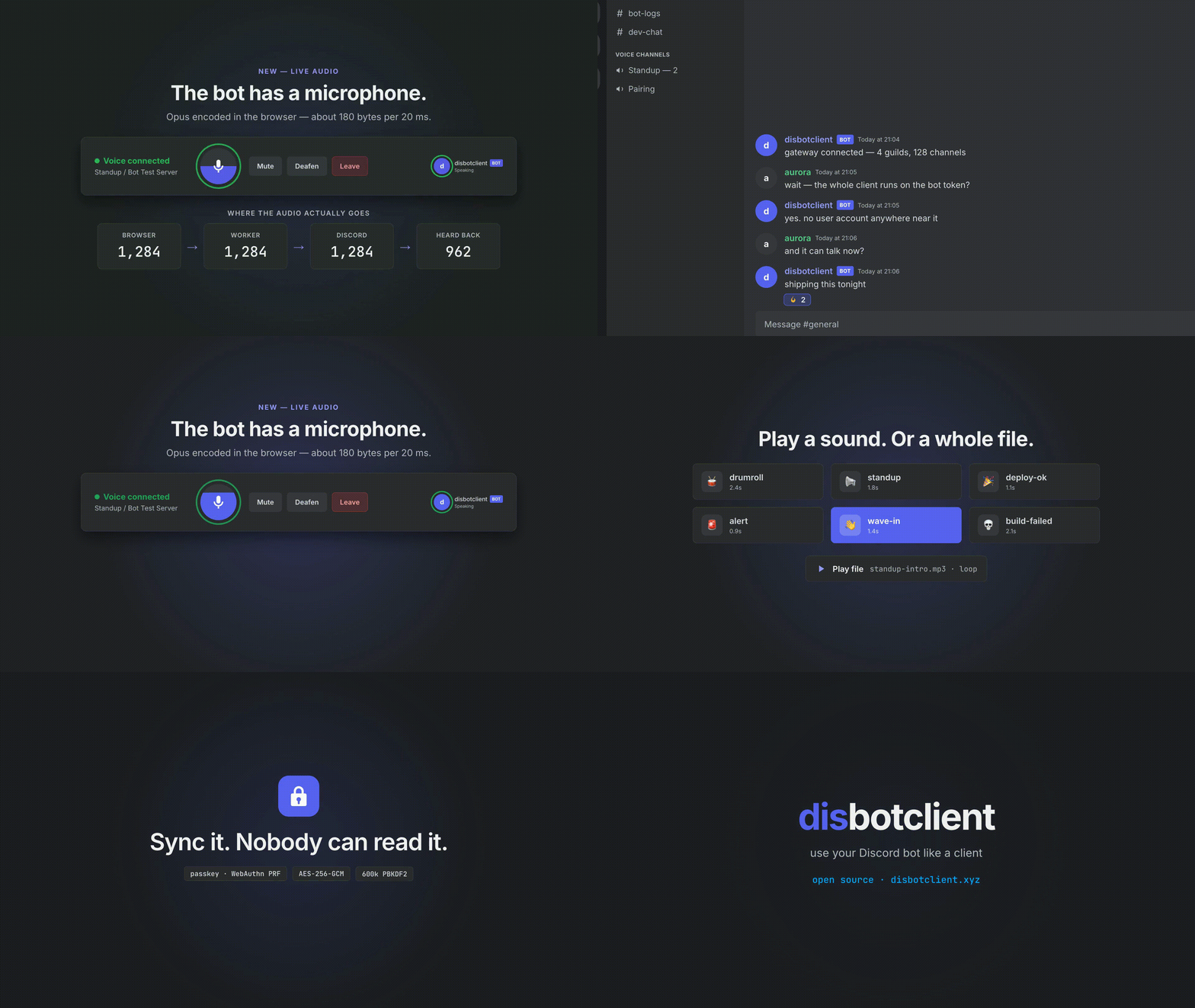
Once connected, a Voice connected strip appears above the account panel with:
- Mute and Deafen for the bot itself — exactly the
self_mute/self_deafflags Discord shows to everyone else in the channel - Leave, and Go on stage in a stage channel (needs Mute Members)
- A shortcut to the soundboard
The voice state survives a dropped socket: if the Gateway session cannot be resumed, the client re-joins the channel after it identifies again. A moderator moving, disconnecting, muting or deafening the bot is picked up live.
Other members can be server muted, deafened or disconnected from their right-click menu, permissions and role hierarchy permitting.
A web page cannot open the UDP socket Discord's voice servers exchange Opus
frames over. A small worker opens it instead — and the deployment hosts that
worker itself, at /api/voice/bridge, so there is nothing to install or
start. The client connects to it on sign-in, and the voice strip grows its live
controls:
- Mic on / off — your microphone, straight into the channel. Self-mute keeps it open and sends silence, so unmuting is instant.
- A speaking indicator: the bot gets the same green ring in the channel list as anyone else who is talking, and the mic button fills with the level of what is actually being sent — the quickest answer to "is anything coming out of me?"
- A live count of where the audio actually gets to — packets leaving this browser, arriving at the worker, put on the wire to Discord, and coming back from the channel. "Nobody can hear me" has several very different causes, and the four numbers tell them apart instead of leaving you to guess.
- Calls survive a worker going away: the page reconnects for as long as it takes, rebuilds the call, and watches for one that has quietly died — a socket that is open in name only, or audio going in with nothing coming out — and starts it again by itself.
- Play file — any audio the browser can decode (MP3, OGG, WAV, FLAC, M4A), with an optional loop and a "hear it here" monitor. No length limit.
- Mic and output volume, and deafen, which silences this browser too.
- Whoever is talking gets a green ring in the channel list, because the bridge is the side that receives their audio.
Where WebCodecs is available — every current browser — the page encodes the Opus itself, so what leaves the browser is what Discord receives: around 180 bytes per 20 ms instead of 3840, with no transcoding on either side. A browser without an encoder sends PCM and the worker encodes it.
What crosses the wire to the worker is that audio and the two voice handshake
events. The bot token never leaves the browser: Discord's voice protocol
authenticates with the voice token from VOICE_SERVER_UPDATE, and the worker
has no gateway connection of its own — when it needs an op 4 sent, it hands
the payload back to this page to send.
The route runs on the Node runtime and uses Vercel's WebSocket support, which needs Fluid compute enabled for the project (the default for projects created since April 2025). Nothing else to configure.
One limit comes with it: a WebSocket is pinned to one function instance and
closes when that instance reaches its maximum duration — 300 seconds on every
plan, more on Pro and Enterprise. The worker warns the page 20 seconds before
that, and the call is moved onto a fresh instance: the bot briefly leaves the
channel and comes straight back, because Discord only issues a voice server
when a member joins one. You hear a gap of about a second every few minutes.
Raising maxDuration in
src/app/api/voice/bridge/route.ts on a
plan that allows it makes those gaps rarer.
Whether a given deployment can carry voice at all comes down to whether its functions may open a UDP socket. Settings → Voice bridge → "Can this deployment carry voice?" answers that from the deployment itself: it sends a real datagram and waits for the reply, and reports the Opus, voice and encryption libraries alongside it.
| Environment variable | Meaning |
|---|---|
VOICE_BRIDGE_ALLOWED_ORIGINS |
Extra origins allowed to use the hosted worker, comma separated. By default only pages from the same deployment may, so another site cannot quietly spend your compute. * allows any. |
next dev and self-hosted Node servers cannot upgrade WebSocket connections, so
local development uses the standalone worker — as does anyone who would rather
not have a call interrupted every few minutes:
cd bridge
npm install
npm start
Paste the address it prints (secret included) into Settings → Voice bridge →
Use a worker of your own. It is the same worker with the same protocol and no
duration limit. bridge/README.md covers its flags, its
security model and the protocol itself.
Without any bridge the client still joins voice channels, mutes and moderates, and plays soundboard sounds; it just carries no audio of its own.
Discord's soundboard is mixed by Discord's own voice servers and driven by a plain REST call, so it works from the browser alone:
- Open the soundboard from the voice strip or a voice channel's menu.
- Upload an MP3 or OGG file (Discord's limits: max 5.2 seconds and 512 KB; the upload form checks both before sending). This needs Create Expressions.
- Click a sound to play it into the channel the bot is in. The ▶ button beside it previews the sound in this browser only.
Discord refuses a soundboard sound from a member who is muted or deafened, so the panel says so instead of letting the call fail. Playing needs Speak and Use Soundboard in the channel; a sound borrowed from another server also needs Use External Sounds.
One honest caveat: Discord requires the sender to be connected to the voice channel, and this client's connection is the Gateway voice state alone. If Discord ever declines a sound on that basis, the panel shows the error it returned rather than hiding it.
Right-click a server, channel, category, member or message to get a Discord-style context menu with the actions the bot's permissions and role hierarchy actually allow:
- Create, edit and delete channels and categories
- Create and edit roles, and manage which roles a member has
- Per-channel and per-category permission overwrites
- Kick, ban and time out members
- Server-mute, server-deafen and disconnect members from voice
- Change member nicknames
- Mark servers, categories and channels as read, and mute/unmute them
Every destructive or permission-gated action is disabled with an explanation when the bot lacks the permission or is outranked by the target's roles, rather than failing silently against the Discord API.
DisbotClient is more than a message viewer.
Manage application commands directly from the client:
- List global commands
- List server commands
- Create commands
- Edit commands
- Delete commands
Incoming slash-command invocations can be viewed and handled from the interaction inbox.
You can respond inside Discord's interaction response window, or defer an interaction and complete it using a follow-up.
This makes DisbotClient useful as a lightweight operational interface for bot developers and administrators.
Desktop notifications are available for incoming activity, with local controls for:
- Per-channel mute
- Per-server mute
- Unread badges
Notification preferences remain in the browser and do not require an application account.
Privacy is a core design goal of DisbotClient.
By default your bot token is stored only in this browser's localStorage under:
disbotclient:token
Signing out removes it. If you turn on the optional account sync described below, the token is also kept on the server — encrypted in your browser first, with a key the server never receives.
⚠️ Never enter a user account token. DisbotClient is designed for bot tokens only.
Discord REST requests go through the same-origin proxy:
/api/discord/*
The proxy forwards the request to Discord and streams the response back. It is designed to be stateless and forwards only the headers required by the request, including authorization, content type and audit-log reason.
The proxy does not intentionally persist:
- Bot tokens
- Messages
- User data
- Sessions
- Application state
Messages are fetched from Discord into the browser while the tab is open. They are not copied into a server-side message database.
The Discord Gateway connection is made directly by the browser rather than being proxied through the application server.
The public instance at disbotclient.xyz uses Vercel Web Analytics for anonymous page-view analytics. This is separate from Discord data and does not provide the application with your bot token or message content.
If you want the smallest possible trust boundary, self-host the application.
Sync is optional. With no account configured — or no account signed in — DisbotClient behaves exactly as it always has: everything lives in the browser and the server stores nothing.
Sign in with Discord and the app gains a vault: your saved bots, the DM list and your notification preferences follow you between devices.
| Stored on the server | Readable by the server |
|---|---|
| Your Discord user id, username and avatar | ✅ yes — this is how the account is identified |
| Bot tokens, DM entries, preferences | ❌ no — AES-256-GCM ciphertext |
| The key that decrypts them | ❌ never sent |
| How many items of each kind you have | ✅ yes — the row's kind and an opaque reference are in the clear |
The vault key is a random AES-256 key generated in your browser. What the database holds is that key wrapped (encrypted) by a key only you can reproduce:
- A passkey, through WebAuthn's PRF extension. The authenticator derives 32 bytes from the credential and a stored salt; nothing else can produce them, and they never leave the device. Touch ID, Windows Hello, a phone or a security key all work — as long as the authenticator supports PRF (most modern ones do; some older security keys do not).
- A recovery code — 24 characters, generated once, shown once. Run through PBKDF2-SHA256 with 600,000 iterations.
- A passphrase, optional, for browsers without passkey support. Same KDF.
Each of these is stored as a separate wrapper, so you can add a passkey per device and still keep the code in a safe place. Removing the last one is refused: without a wrapper the key is unrecoverable.
The passkey is not used to log in — the Discord session does that. It exists only to hold a key, which is why there is no WebAuthn verification on the server and no attestation stored.
After a successful unlock the key is kept in this browser's IndexedDB so a reload does not ask again. That is a convenience with a cost: anyone who can run code in your browser profile can use it. "Lock this device" in Settings → Sync → Passkeys and recovery removes it. The server is unaffected either way.
Settings → Sync → Passkeys and recovery → Delete account wipes the user row, every session, every key wrapper and every encrypted item. It cannot be undone, and there is no backup — the key only ever existed in your browsers.
Copy .env.example to .env and fill in:
| Variable | What it is |
|---|---|
CLOUDFLARE_ACCOUNT_ID |
Cloudflare account that owns the D1 database |
CLOUDFLARE_DATABASE_ID |
The D1 database id |
CLOUDFLARE_D1_TOKEN |
API token with D1 Edit permission |
DISCORD_CLIENT_ID / DISCORD_CLIENT_SECRET |
Your Discord application's OAuth2 credentials |
DISCORD_REDIRECT_URI |
Optional; defaults to <origin>/api/auth/callback |
Add that redirect URI to the OAuth2 page of your Discord application. Only the identify scope is requested.
Then create the tables:
npm run db:push      # applies prisma/migrations/*.sql to D1 over its HTTP API
npm run db:status    # shows which migrations are applied
db:push talks to the same …/d1/database/<id>/query endpoint a curl would, and records what it applied in a _migrations table, so it is safe to re-run.
To develop without a Cloudflare account, set DATABASE_URL=file:./prisma/dev.db instead and run npm run db:local.
After changing prisma/schema.prisma, generate the next migration and apply it:
npm run db:sql > prisma/migrations/0002_whatever.sql
npm run db:pushFor the fullest experience, enable these intents in the Discord Developer Portal:
MESSAGE CONTENT INTENTSERVER MEMBERS INTENTPRESENCE INTENT
| Intent | Used for |
|---|---|
| Message Content | Reading message content |
| Server Members | Member lists and member information |
| Presence | Online/offline state, custom status and activities |
If an intent is disabled, Discord will not provide the corresponding data. DisbotClient attempts to use the intents that are actually available instead of unnecessarily failing the entire connection.
These limitations primarily come from Discord's bot API:
- No DM list: direct messages must be opened using a user ID or member card.
- No bot server-side message search: fallback search only covers history already loaded into the browser.
- Only invited servers are visible: a bot cannot browse arbitrary servers.
- Presence requires the Presence Intent.
- No user bios: bot accounts cannot use the user-profile endpoint in the same way as user accounts.
- No Nitro / Quest-style user badges: these are not exposed through the bot-accessible profile data.
- Live audio runs through a worker, not the page: a browser cannot open Discord's voice UDP socket. The deployment hosts that worker itself, at the cost of a short gap whenever a serverless function reaches its time limit;
bridge/is the same worker without that limit. Everything else, the soundboard included, works from the browser alone.
- Guild management
- Channel management
- Role management
- Permission management
- Incoming interaction components
- Button interactions
- Select menu interactions
- Modal interaction responses
- Invite management
- Stickers
- Polls
- More bot administration tools
The roadmap may change as Discord's APIs evolve.
┌──────────────────────────────┐
│           Browser            │
│                              │
│  Next.js / React / Zustand   │
│          │        │          │
│          │        └─────────────────┐
│          │                          │
│          ▼                          ▼
│   Discord REST proxy        Discord Gateway
│          │                          │
└──────────┼──────────────────────────┼─────┘
           │                          │
           ▼                          ▼
      Discord REST               Discord Gateway
- Next.js App Router
- React
- TypeScript
- Tailwind CSS
- Zustand
- Custom Discord REST client
- Custom Discord Gateway client
discord-api-types
Browser-local state is used for information such as:
- Bot token
- Opened DM information
- Mutes
- Notification settings
- Client preferences
With sync turned on, the same information is mirrored into the vault as ciphertext.
- Cloudflare D1 over its HTTP API
- Prisma 7 with the D1 driver adapter
- SQL migrations applied by
scripts/d1-migrate.mjs
The server-side component is intentionally small: the same-origin REST proxy, the Discord OAuth handshake, and a handful of endpoints that store and return ciphertext for the signed-in account.
- Node.js
- npm
- A Discord bot application
git clone https://github.com/B3ni15/DiscordBotClient.git
cd DiscordBotClient
npm installnpm run devnpm run build
npm run startnpm run lintThe hosted instance is convenient, but self-hosting gives you complete control over the deployment.
With your own instance you can:
- Control the server
- Control the deployment
- Remove hosted analytics
- Inspect the source yourself
- Run everything under your own infrastructure
This is especially useful when working with bots that have sensitive permissions.
Treat a Discord bot token like a password.
Never commit it to Git. Never put it in an issue. Never send it to another person.
If a token is exposed, rotate it immediately in the Discord Developer Portal.
DisbotClient supports bot tokens only. User-account tokens / selfbots are not supported.
The project is intentionally lightweight and currently uses:
- Next.js 16 — application framework
- React 19 — UI
- TypeScript 5 — type-safe development
- Tailwind CSS 4 — styling
- Zustand 5 — client state
- discord-api-types — Discord API types
- Vercel Web Analytics — anonymous analytics on the hosted instance
The project also contains its own Discord REST and Gateway clients, Markdown renderer and emoji picker.
DisbotClient is released under the MIT License.
See LICENSE for the complete license text.
If DisbotClient is useful to you, consider giving the repository a star. It helps the project get discovered and makes continued development easier to justify.
⭐ Star on GitHub · 🐛 Report an issue · 🌐 Open DisbotClient
Made with TypeScript, React, Next.js and a lot of Discord API experimentation.