As part of the KDAN ecosystem, ComPDF Salesforce SDK enables you to open PDF file inside Salesforce. This unlocks the full functionality of ComPDF Web SDK in Salesforce, including view, annotations, manipulate, and signatures PDF.
This README explains how to integrate ComPDF Web SDK into a new Salesforce project. The integration works as a Lightning web component (LWC) that you can add to any Salesforce organization.
ComPDF Salesforce SDK shares the same APIs as ComPDF Web SDK Standalone. For more information on customizing your Salesforce application, see the ComPDF SDK for Web Standalone documentation.
If you find this library helpful, please consider giving us a ⭐ Star on GitHub! Have feedback or questions? Join the conversation in our Discussions.
Why ComPDF SDK?
-
Easy to Integrate: Integrate PDF functionalities easily with our powerful SDK and clear documentation and guides with few lines of code.
-
Fully Customizable UI: Design a unique interface for your products with fully customizable UI source code by a high-performing SDK.
-
Comprehensive PDF Features: Supports generation, viewing, annotation, page editing, content editing, conversion, OCR, redaction, signing, forms, parsing, measurement, compression, comparison, color separation, batch processing, and more.
-
Faster Time-to-Market: Comprehensive SDK libraries save your time and expenses and roll out your applications and projects.
-
High-quality Service: We provide 24/7 professional one-to-one technical support, including onsite service and remote assistance via phone and email.
- Supported Features
- Obtain your license key
- Requirements
- Deploying the Package to your Salesforce
- Changing the Security Settings
- Using the ComPDF Web SDK in Salesforce
- Implementation Details for Developers
- Changelog
-
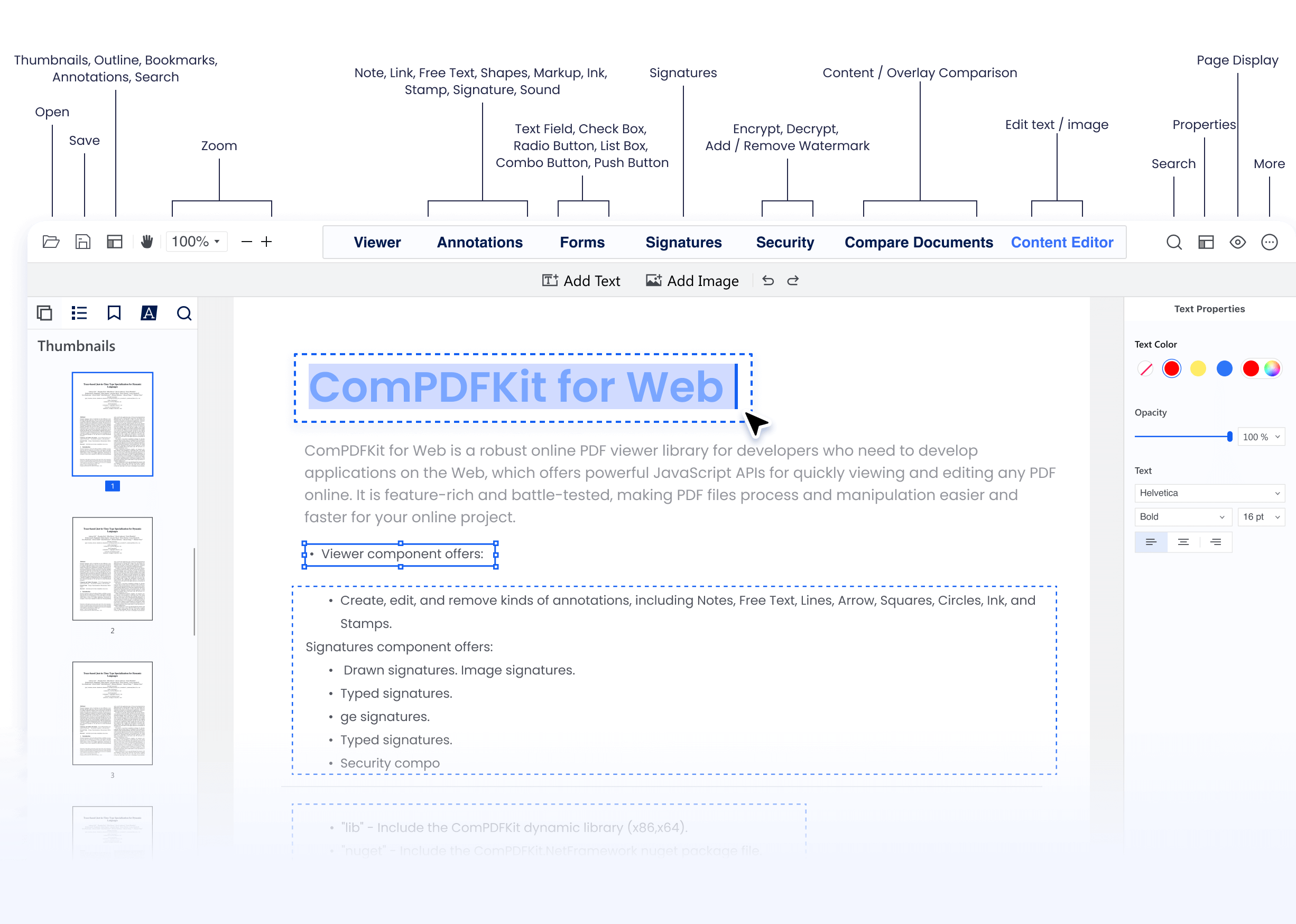
Viewer:
-
Fast and smooth PDF rendering and viewing
-
Display Modes - single/double page, vertical & horizontal scrolling, cover mode, crop mode
-
Text Search & Selection
-
PDF Navigation - outlines, bookmarks
-
-
Annotations:
-
Notes - add longer comments with adjustable icon shape and color
-
Ink - freehand drawing with customizable color, opacity, line thickness
-
Text - add, move, resize text directly on page
-
Inspector - adjust annotation looks (line styles, borders, colors, opacity, font)
-
Comment on Annotations and Update Status
-
Import & Export & Flatten Annotations (XFDF, FDF, JSON)
-
Highlight, Underline, Strikeout, Squiggly
-
Shapes - Rectangle, Oval, Line, Arrow, Polygon, Polyline, Cloud
-
Stamps, Sound, Movie, File Attachment, Link, Distance, Perimeter, Area
-
-
Document Editor:
-
Page manipulation - insert, delete, rotate, reorder, extract, crop
-
Split PDF, Merge PDF
-
-
Content Editor: Edit PDF text and images directly like in Word
-
Signatures:
-
Electronic Signatures - draw, type, image signatures
-
Digital Signatures - certificate-based signature validation
-
-
Forms:
-
Process fillable and static PDF forms
-
Form filling, form creation, form flattening
-
-
Security:
-
Encryption - set open password, permission password
-
Restrict printing, copying, editing
-
-
Redaction: Permanently remove sensitive content from PDFs
-
Layers: View, edit, display, lock, and export specific layers within a file
-
Color Separation: Identify color models like CMYK, PMS. Toggle color visibility and view details.
-
Measurement: Distance, area, perimeter measurement tools
-
Compare Documents: Side-by-side document comparison to highlight differences
ComPDF SDK for Web supports flexible licensing options. You can click to apply for a license online. You can refer to our license help guide to obtain a license key.
If you need more information, you can contact our sales team. Each license is valid only for the root domain name and any of its subdomains. Please note that it is not allowed to distribute any documents, sample code, or source code from the ComPDF SDK package to third parties.
Before continuing, perform all of the following actions:
- Install the [Salesforce CLI](Salesforce Developers | Salesforce CLI | Developer).
- Install the latest stable version of Node.js and NPM.
To deploy the ComPDF Web SDK package to your Salesforce organization, follow these steps.
- Set up your Salesforce development environment. Follow the instructions in the Setup Development Guide or in the Setup Development Trailhead Trailhead module. The steps include:
- Enable Dev Hub in you project.
- Install Salesforce CLI. Or see the Salesforce CLI Setup Guide for complete installation instructions.
- (Optional) Install Salesforce Extensions for Visual Studio Code.
-
Clone the ComPDF Salesforce SDK repository from GitHub repo:
git clone https://github.com/ComPDFKit/compdf-web-example-salesforce.git
-
In the terminal, go to the ComPDF Salesforce SDK project folder and run the following command to install the npm module.
npm install
-
The ComPDF Salesforce SDK integration example now makes use of the ComPDF Web SDK available from our server at
https://static.compdf.com, which means it's no longer limited by Salesforce's upload assets size 5MB limit.In order to set the ComPDF Web SDK version you want to use, open
./force-app/main/default/lwc/compdfViewer/compdfViewer.jsand edit the line 16 to reflect the ComPDF Web SDK version. For example, in order to use version 2.8.2, you should change the URL pointing to the CDN to:@api assetBase = 'https://static.compdf.com/compdf-webviewer@2.8.2'
-
If you have a paid license key, you can add the
licenseKeyproperty value to theWebViewerconstructor here./force-app/main/default/lwc/compdfViewer/compdfViewer.js.licenseKey: 'YOUR_LICENSE_KEY' -
If you have not already done so, authenticate with your hub org and provide it with an alias (DevHub in the command below):
sf org login web --set-default-dev-hub --alias DevHub
-
Enter your Dev Hub org credentials in the browser that opens. After you log in successfully, you can close the browser. Create a scratch org using the
config/project-scratch-def.jsonfile, set the username as your default, and assign it an alias("myScratchOrg" in the command below).sf org create scratch --definition-file config/project-scratch-def.json --set-default --target-dev-hub DevHub --alias myScratchOrg
-
Push the app to your scratch org:
sf project deploy start --source-dir force-app --target-org myScratchOrg --concise
-
Open the scratch org:
sf org open --target-org myScratchOrg
-
(Optional) If you need to upload or save large files (over 6 MB), it is recommended to add your Access Token to the
accessTokenproperty in the./force-app/main/default/lwc/compdfViewer/compdfViewer.jsfile. You can view your org information and obtain the Access Token by running the following command:
sf org display --target-org myScratchOrgaccessToken = 'YOUR_ACCESS_TOKEN'Next, we still need to do some configuration in your Salesforce organization setup.
ComPDF Salesforce SDK example uses resource packages provided by our third-party server, it is necessary to add trusted URLs in Salesforce. To change the default security settings, follow these steps.
-
In Salesforce, go to Security > Trusted URLs.
-
Click New Trusted URL.
-
Configure URL properties:
- Customize an API name, such as "ComPDF".
- Write the following URL in the URL input box.
https://static.compdf.com
- Ensure that the 'Active' attribute is checked, and check all CSP directives.
-
Click on Save.
Then you can use ComPDF Web SDK in your opening scratch organization:
- Click the app launcher icon in the top left, and select ComPDF. Then you should see the application start up.

- Click browse to upload local PDF files, or open a file from Salesforce.

On the Salesforce platform, Lightning Web Component have limits accessing to WebViewer's iframe due to [LockerService][lockerService] requirements. Lightning Component can use limited communication mechanism between components using [postMessage][postMessage].
Here is implementation of the postMessage mechanism used in our sample github project and you can use this similar approach to communicate with the iframe's contentWindow.
Inside config.js file, use following:
window.addEventListener('message', receiveMessage, false);

function receiveMessage(event) {
  if (event.isTrusted && typeof event.data === 'object') {
    switch (event.data.type) {
      case 'viewerLoaded':
        customUI();
        break;
      case 'OPEN_DOCUMENT':
        instance.UI.loadDocument(event.data.file)
        if (event.data.cv) {
          currentCv = event.data.cv;
        }
        break;
      default:
        break;
    }
  }
}
In the Lightning Web Component send messages with postMessage as following:
import { LightningElement, api, wire } from 'lwc'
import BOOT from '@salesforce/resourceUrl/compdf_boot'

export default class CompdfViewer extends LightningElement {

  async initViewer() {
    const container = this.template.querySelector('.pdf_viewer')

    window.ComPDFKitViewer?.init({
      pdfUrl: this.pdfUrl,
      license: this.licenseKey,
      path: this.assetBase,
      config: window.location.origin + BOOT + '/config.js'
    }, container)

    container.addEventListener('ready', () => {
      this.iframeWindow = container.querySelector('iframe').contentWindow
    })
  }

  handleFileSelected(data) {
    this.iframeWindow.postMessage({ type: 'OPEN_DOCUMENT', ...data }, '*')
  }
}Go to our changelog to keep up with the latest updates, improvements, and bug fixes.
ComPDF has a professional R&D team that produces comprehensive technical documentation and guides to help developers. Also, you can get an immediate response when reporting your problems to our support team.
-
For detailed information, please visit our Guides page.
-
For technical assistance, please reach out to our Technical Support.
-
To get more details and an accurate quote, please contact our Sales Team.
-
Download ComPDF SDK for Web in npm.
-
Integrate ComPDF SDK for Web into Salesforce, SharePoint, Microsoft Teams, etc.
-
Recognize and extract data from PDFs with our online Extract Demo