



VintageHive is a retro internet proxy and service emulator that lets vintage computers browse the modern web. It intercepts HTTP, FTP, and Telnet traffic and routes it through a chain of processors - including ProtoWeb and the Internet Archive Wayback Machine - so you can browse the web like it's 1999. It also provides a full suite of period-accurate services: an intranet portal with weather and news, internet radio streaming (MP3, WMA, and RealAudio), an AIM/ICQ-compatible chat server, a Telnet BBS, FTP hosting, a Usenet/NNTP server, Microsoft NetMeeting conferencing, and more.
Point your vintage browser's proxy settings at VintageHive and you're online.
- Features
- Installation
- First Run
- Service Ports
- Browser Setup Guides
- Docker
- Architecture Overview
- Roadmap
- Configuration
- FAQ / Troubleshooting
- Data Sources
- Contributing
- License
VintageHive processes every HTTP request through a multi-stage processor chain:
- Direct Passthrough - A curated set of retro-friendly sites (68k.news, FrogFind, Old AltaVista, Razorback95, etc.) are fetched directly from the live web
- Intranet Portal - Requests for
hive.comsubdomains are handled locally (see below) - ProtoWeb - Archived websites from ProtoWeb.org are served with a 1-year cache
- Internet Archive - Anything not found on ProtoWeb is looked up in the Wayback Machine (configurable year, default 1999)
- 404 - If nothing matches, a not-found page is returned
The proxy also includes an article reader that strips modern web clutter and renders clean HTML for vintage browsers, and a search engine powered by DuckDuckGo.
The built-in intranet at http://hive.com provides:
- Weather - Current conditions and forecast via Open-Meteo, with configurable location and temperature units
- News - Headlines from Google News across topics (Local, US, World, Tech, Science, Business, Entertainment, Sports, Health)
- Directory - Curated hot links to retro-friendly websites
- ProtoWeb Browser - Browse the ProtoWeb HTTP and FTP site archives
- Search - Web search powered by DuckDuckGo
- User Accounts - Per-user preferences and session management
A full internet radio experience for vintage media players:
- Browse stations by country, genre/tag, or keyword search
- Top 100 stations, top countries, and top tags
- Shoutcast directory with genre browsing and search
- Streams in MP3, ASF/WMA, and RealAudio formats with ICY metadata
- RealPlayer support via PNA protocol (port 7070) with Cook and RA 14.4 codecs, bandwidth-adaptive codec selection
- Windows Media Player support via MMS protocol (port 1755) with ASF/WMA streaming
- Automatic codec transcoding via FFmpeg (AAC, OGG, etc. converted to the target format)
- Generates PLS, ASX, and RAM playlists for one-click playback
- Live Now Playing track metadata from upstream ICY streams
A web-based administration interface:
- Dashboard - Real-time service status and request logs
- User Management - Create and delete user accounts
- Service Toggles - Enable/disable ProtoWeb, Internet Archive, and other services
- Internet Archive Year - Set the Wayback Machine target year (1997-2021)
- Cache Management - View cache stats and clear all caches
- Download Center - Manage download repositories
A fully functional OSCAR protocol server compatible with vintage AIM and ICQ clients:
- Authentication - MD5 login support
- Buddy Lists - Add buddies, online/offline notifications
- Messaging - Send and receive instant messages (ICBM)
- Profiles - User profiles and away messages
- Privacy - Permit/deny lists and visibility controls
- ICQ Extensions - User info queries, offline messages
A self-hosted YMSG server for period Yahoo! Messenger 5.x clients:
- Login - the v9/v10 challenge handshake (VintageHive is the auth server, so it validates the account against the shared user table rather than reproducing Yahoo's crypt)
- Presence - online/away/idle/custom status broadcast to other signed-in users
- Messaging - 1:1 instant messages relayed between clients
- Roster - every registered hive account appears as a buddy so any two users can find each other
A self-hosted MSNP server (MSNP2-7, MD5 auth, no Passport) for MSN Messenger 4.x-5.0:
- Login - VER/CVR/USR MD5 challenge auth validated against the shared user table
- Notification + Switchboard on one port - the notification server and chat switchboards share 1863; a callee's ring is delivered over its own notification connection
- Presence - NLN/AWY/BSY/IDL/PHN status with initial-presence (ILN) and live (NLN/FLN) notifications
- Messaging - 1:1 switchboard sessions relay MIME message payloads with ACK/NAK
Both messengers appear in the shared presence view: Finger's online-user list now spans AIM/ICQ, Yahoo! and MSN. Switchboard/redirect addresses use the configured server IP so, as with Gopher, set a real LAN/public IP behind Docker/NAT.
A text-mode BBS accessible from any Telnet client:
news- Browse news headlines and read articlesweather- Current weather with configurable locationriddle- Interactive riddle game (3 attempts per riddle)gallery- ASCII art image galleryhelp- List all available commands
- Serves ProtoWeb FTP archives
- Local file hosting via the virtual filesystem
- Full FTP command support (LIST, RETR, STOR, CWD, MKD, DELE, PASV, etc.)
- Passive mode (PASV; the data connection uses an OS-assigned port)
A local DNS proxy that answers every lookup with the VintageHive host address (there is no upstream forwarding). Allows vintage machines to use VintageHive as their DNS server so intranet domains resolve without hosts file editing.
A fully functional NNTP server with curated newsgroups:
- Standard NNTP commands - GROUP, ARTICLE, HEAD, BODY, STAT, LIST, XOVER, XHDR, POST
- Curated content - Newsgroups populated from configured sources
- Compatible with vintage Usenet readers (Outlook Express, Free Agent, tin, etc.)
An RFC 1288 Finger server that exposes presence and profile information for VintageHive's OSCAR/AIM users:
- An empty query returns the list of users currently online, with status and idle time
- A username returns that user's profile (real name, location, homepage) and their
.plan(the OSCAR profile text) /Wverbose prefix for extended output;user@hostforwarding is rejected per RFC 1288 for security- Compatible with any classic
fingerclient
An RFC 1436 Gopher server that doubles as a gateway to live gopherspace:
- Hive portal - the root menu serves news headlines, the local weather report, who is online and an about page
- Live gopherspace relay - remote gopher servers (Floodgap, SDF, Gopherpedia, Veronica-2 search and friends) are fetched over plain TCP and every menu is rewritten so all of gopherspace stays browsable through VintageHive
- Browser proxy mode - point a vintage browser's gopher proxy setting at port 70 and menus are rendered as HTML, Squid-style
- Compatible with native gopher clients (UMN gopher, Netscape, WSGopher, etc.)
Native menus advertise a host for each item so clients know where to reconnect. VintageHive uses the accepted socket's local address by default; behind Docker port-mapping or NAT that address is unreachable, so set the server IP config to the box's real LAN/public address and menu items will point there.
Full Microsoft NetMeeting conferencing support with a complete H.323/T.120 protocol stack:
- ILS Directory (port 1002) - Internet Locator Service for user registration and lookup via LDAP, compatible with NetMeeting 2.x/3.x
- H.225 RAS Gatekeeper (port 1719/UDP) - Endpoint discovery, registration, and admission control
- H.323 Call Signaling (port 1720) - Q.931 call setup with bidirectional message proxying; endpoints negotiate the H.245 control channel and RTP/RTCP media directly (LAN-direct). An H.245/RTP relay is built and unit-tested but not engaged, pending H245Address rewriting for NAT traversal
- T.120 Data Conferencing (port 1503) - Full MCS domain management supporting Chat, Whiteboard (T.126 drawing primitives), and File Transfer (MBFT)
These services are functional but considered experimental:
- Printer Proxy (ports 631, 515, 9100) - IPP, LPD, and Raw printing with PostScript-to-PDF conversion via GhostScript
- SMTP Server (port 1980) - Email sending with authentication and mail spooling
- POP3 Server (port 1984) - Email retrieval with message management
- IMAP Server (port 1985) - Email access with folder support
- IRC Server (port 1988) - Basic IRC with private messaging and channel support (
irc.hive.com)
- Download the latest
VintageHive-v*-win-x64.zipfrom the Releases page - Right-click the ZIP file and select "Extract All..."
- Choose a destination folder (e.g.,
C:\VintageHive) - Open the extracted folder
- Run
VintageHive.exe - When prompted by Windows Defender Firewall, click "Allow Access"
- The server will start and be accessible at:
- HTTP Proxy:
http://127.0.0.1:1990 - Admin Interface:
http://admin.hive.com:1990
- HTTP Proxy:
- Download the latest
VintageHive-v*-linux-x64.tar.gzfrom the Releases page - Install dependencies:
# Required: OpenSSL 1.0.2a shared libraries are bundled, but need execstack cleared on modern kernels
sudo apt install execstack
cd VintageHive-v*-linux-x64/libs
execstack -c libcrypto.so libssl.so
cd ..

# Optional: GhostScript for PostScript print-to-PDF (printing works without it; PS jobs are then saved raw, and PCL jobs are always preserved raw)
sudo apt install libgs-dev
- Extract the archive:
tar xzf VintageHive-v*-linux-x64.tar.gz
cd VintageHive-v*-linux-x64
- Make the binary executable:
chmod +x VintageHive
- Run VintageHive:
./VintageHive
- The server will start and be accessible at:
- HTTP Proxy:
http://127.0.0.1:1990 - Admin Interface:
http://admin.hive.com:1990
- HTTP Proxy:
Note: On Linux, you might need to run with sudo if you want to use privileged ports (< 1024). Port 631 (IPP Printing) may conflict with CUPS - VintageHive will log an error and skip that listener if the port is in use.
- Download the latest
VintageHive-v*-osx-x64.tar.gzfrom the Releases page - Open Terminal and navigate to your download directory
- Extract the archive:
tar xzf VintageHive-v*-osx-x64.tar.gz
cd VintageHive-v*-osx-x64
- Make the binary executable:
chmod +x VintageHive
- The first time you run VintageHive, macOS may block it. To allow it:
- Try to run
./VintageHive - When blocked, go to System Preferences > Security & Privacy
- Click "Allow Anyway" for VintageHive
- Run
./VintageHiveagain and click "Open" when prompted
- Try to run
- The server will start and be accessible at:
- HTTP Proxy:
http://127.0.0.1:1990 - Admin Interface:
http://admin.hive.com:1990
- HTTP Proxy:
On first run, VintageHive will:
- Create necessary directories for data storage
- Generate SSL certificates for HTTPS proxy
- Initialize the local database
- Start all enabled services
Visit http://admin.hive.com:1990 to:
- Monitor proxy activity
- Configure services
- View system status
| Service | Port | Protocol | Status |
|---|---|---|---|
| HTTP Proxy | 1990 | TCP | Stable |
| HTTPS Proxy | 9999 | TCP (SSL) | Experimental |
| FTP Server | 1971 | TCP | Stable |
| Telnet Server | 1969 | TCP | Stable |
| OSCAR (AIM/ICQ) | 5190 | TCP | Stable |
| Yahoo! Messenger | 5050 | TCP | Experimental |
| MSN Messenger | 1863 | TCP | Experimental |
| Finger | 79 | TCP | Experimental |
| Gopher | 70 | TCP | Experimental |
| SOCKS5 Proxy | 1996 | TCP | Experimental |
| DNS Proxy | 1953 | UDP | Experimental |
| MMS (Windows Media) | 1755 | TCP | Stable |
| PNA (RealPlayer) | 7070 | TCP | Stable |
| NNTP / Usenet | 1986 | TCP | Experimental |
| ILS (NetMeeting Directory) | 1002 | TCP | Experimental |
| H.225 RAS Gatekeeper | 1719 | UDP | Experimental |
| H.323 Call Signaling | 1720 | TCP | Experimental |
| T.120 Data Conferencing | 1503 | TCP | Experimental |
| File Transfer Relay | 1810-1819 | TCP | Experimental |
| SMTP Server | 1980 | TCP | Debug |
| POP3 Server | 1984 | TCP | Debug |
| IMAP Server | 1985 | TCP | Debug |
| IRC Server | 1988 | TCP | Debug |
| IPP Printer | 631 | TCP | Debug |
| LPD Printer | 515 | TCP | Debug |
| Raw Print | 9100 | TCP | Debug |

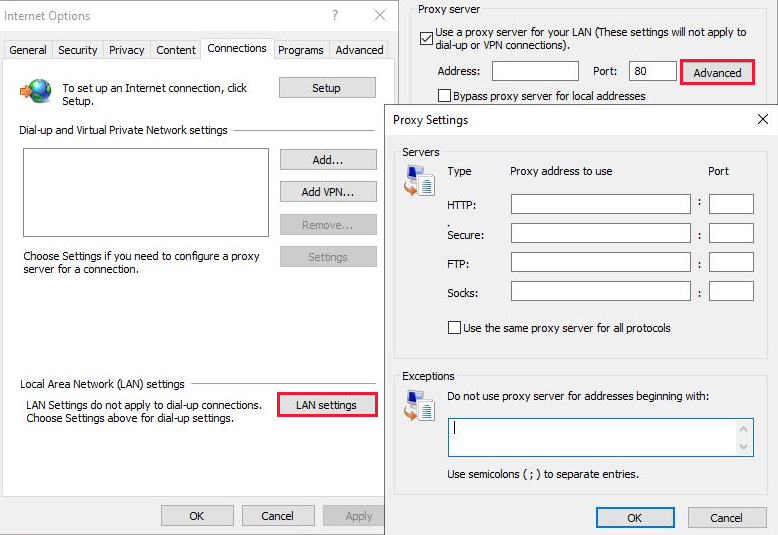
- Open the Tools menu, and then select Internet Options
- Click on the Connections tab
- Select LAN Settings
- In the Local Area Network Settings dialog box, select the
Use a proxy server for your LANsettings check box - Input your host IP address and the port
1990in the HTTP proxy field

- Open
Edit > Preferences - Navigate to
Advanced > Proxies - Select
Manual Proxy Configuration - Set:
- HTTP Proxy:
127.0.0.1Port:1990 - Security Proxy (SSL):
127.0.0.1Port:9999 - FTP Proxy:
127.0.0.1Port:1971
- HTTP Proxy:
- Click
OK

- Open
View > Options(orTools > Internet Optionsin IE5) - Click
Connectiontab - Click
Proxy SettingsorLAN Settings - Check
Use a proxy server - Click
Advanced - Set:
- HTTP:
127.0.0.1:1990 - Secure (HTTPS):
127.0.0.1:9999 - FTP:
127.0.0.1:1971
- HTTP:
- Click
OKon all dialogs

- Open
Options > Network Preferences - Enable
Use Proxy Server - Set:
- HTTP Proxy:
127.0.0.1Port:1990 - FTP Proxy:
127.0.0.1Port:1971
- HTTP Proxy:
- Click
OK

- Open
File > Preferences - Click
Networktab - Click
Proxy Servers - Set:
- HTTP:
127.0.0.1:1990 - HTTPS:
127.0.0.1:9999 - FTP:
127.0.0.1:1971
- HTTP:
- Click
OK

- Open
My AOL > Preferences - Click
WWWicon - Select
Connectiontab - Click
Setup - Enable
Connect through proxy server - Set:
- HTTP Proxy:
127.0.0.1Port:1990
- HTTP Proxy:
- Click
OK
-
Windows 3.1/95 Users:
- If you can't type the
.in127.0.0.1, use the numeric keypad - Some browsers may require
localhostinstead of127.0.0.1
- If you can't type the
-
SSL/HTTPS Support:
- IE3: Limited HTTPS support, may need additional patches
- Netscape 3+: Full SSL support with certificate import
- Mosaic: No SSL support, will only work with HTTP
- Opera 3+: SSL support varies by version
-
Certificate Installation:
- Visit
http://hive.com/api/download/dialnineca.crtin your browser - For Netscape: Select
Accept this Certificate Authority for Certifying network sites - For IE: Click
Install Certificateand follow the wizard - For Opera: Save the file and import via
File > Preferences > Security > Certificates
- Visit
-
Known Issues:
- Some browsers may show certificate warnings for HTTPS sites
- FTP passive mode may not work in older browsers
- JavaScript support varies significantly between browsers
- Some browsers may require system proxy settings instead of browser settings
You can quickly run VintageHive using Docker:
docker run -d \
  --name vintagehive \
  -p 1990:1990 \
  -p 9999:9999 \
  -p 1971:1971 \
  -p 1969:1969 \
  -p 5190:5190 \
  -p 5050:5050 \
  -p 1863:1863 \
  -p 79:79 \
  -p 70:70 \
  -p 1996:1996 \
  -p 1953:1953/udp \
  -p 1755:1755 \
  -p 7070:7070 \
  -p 1986:1986 \
  -p 1002:1002 \
  -p 1719:1719/udp \
  -p 1720:1720 \
  -p 1503:1503 \
  -p 1810-1819:1810-1819 \
  -p 1980:1980 \
  -p 1984:1984 \
  -p 1985:1985 \
  -p 1988:1988 \
  -p 631:631 \
  -p 515:515 \
  -p 9100:9100 \
  -v vintagehive_data:/app/vfs \
  foxcouncil/vintagehive:latest
The container exposes all service ports. Key ports:
- 1990: HTTP Proxy
- 9999: HTTPS Proxy
- 1971: FTP Server
- 1969: Telnet Server
- 5190: OSCAR (AIM/ICQ) Server
- 5050: Yahoo! Messenger
- 1863: MSN Messenger
- 1755: MMS (Windows Media) Streaming
- 7070: PNA (RealPlayer) Streaming
- 1002/1719/1720/1503: NetMeeting (ILS, RAS, H.323, T.120)
- 1986: NNTP / Usenet
- 1953/udp: DNS Proxy
See Service Ports for the complete list. Data is persisted in the vintagehive_data volume.
VintageHive is built on .NET 10 and follows a processor chain pattern for request handling.
Every incoming HTTP request passes through a chain of processors in order. The first processor that can handle a request returns a response; if none match, a 404 is returned.
HTTP Request -> HelperProcessor -> LocalServerProcessor -> ProtoWebProcessor -> InternetArchiveProcessor -> 404
The LocalServerProcessor uses domain-based routing to dispatch requests to controllers:
| Domain | Controller |
|---|---|
hive.com |
HiveController - portal, weather, news, search |
admin.hive.com |
AdminController - admin panel |
radio.hive.com |
RadioController - internet radio (MP3, WMA, RealAudio) |
api.hive.com |
ApiController - image proxy and API |
HTML pages are rendered using the Fluid template engine (Liquid-compatible) with custom filters for URL encoding, byte formatting, and content processing.
VintageHive uses SQLite for persistent storage, with separate database contexts for general data (HiveDbContext), printer jobs (PrinterDbContext), and caching (CacheDbContext).
FTP Proxy SupportHTTPS Proxy Support (with security downgrading SSL2)Custom Hosted PagesDownload CenterAIM / OSCAR ServerICQ SupportInternet Radio (RadioBrowser + Shoutcast)Telnet BBSPrinter Proxy (IPP / LPD / Raw)POP3 / SMTP / IMAP / IRC (debug)USENET / NNTP ServerDNS ProxyNetMeeting Support (ILS, H.225 RAS, H.323, H.245, T.120, Chat, Whiteboard, File Transfer)MMS / Windows Media StreamingRealAudio / PNA Streaming (Cook, RA 14.4)
- HTTPS re-enablement and certificate improvements
- FTP authentication
- NetMeeting App Sharing (T.128)
- Community servers
Most settings are managed through the Admin Panel at http://admin.hive.com:1990. Per-IP local settings allow different vintage machines on the same network to have independent preferences (location, temperature units, archive year, etc.).
Key configuration options:
- Internet Archive Year - Which year to fetch archived pages from (1997-2021)
- Internet Archive Edge Worker - Optionally route Wayback Machine lookups and fetches through a Cloudflare Worker cache instead of hitting
web.archive.orgdirectly. Toggle it on and set the worker's base URL (e.g.https://your-worker.workers.dev) in the admin panel's Internet Archive card. - Service Toggles - Enable or disable Intranet, ProtoWeb, Internet Archive, SMTP, POP3, IMAP, IRC, Usenet, DNS, Printer, Finger, Gopher, Yahoo! Messenger, MSN Messenger, ILS, H.323, RAS, T.120 from the admin dashboard. The intranet portal applies immediately; listener-based services apply the next time VintageHive restarts.
- SOCKS5 Auth - When enabled (admin dashboard, off by default), the SOCKS proxy requires RFC 1929 username/password authentication against the VintageHive user accounts; a client offering only no-auth is refused, and SOCKS4 (which has no password mechanism) is rejected. The policy applies to the next connection, no restart needed.
- Temperature Units - Celsius or Fahrenheit
- Distance Units - Metric or Imperial
A: Check your host's firewall settings. Make sure both the guest and host are on the same network and subnet. On Windows, allow VintageHive through Windows Defender Firewall.
A: HTTPS support is experimental. Visit http://hive.com/api/download/dialnineca.crt to download and install VintageHive's CA certificate in your browser. Note that some very old browsers have limited or no SSL support.
A: Log in to the admin panel at http://admin.hive.com:1990 and change the Internet Archive year setting. Valid years are 1997-2021.
A: Yes! Run VintageHive on a modern machine on the same network as your vintage computer. Configure the vintage browser to use your host machine's IP address as the proxy (e.g., 192.168.1.100:1990). Make sure your host's firewall allows incoming connections on the service ports.
A: VintageHive requires FFmpeg for transcoding some radio streams. Make sure the appropriate FFmpeg binary is available in the application directory. On Windows, this is ffmpeg.exe.
A: Configure your AIM or ICQ client to connect to your VintageHive host IP on port 5190. Create a user account through the admin panel first, then log in with those credentials.
- Internet Archive / Wayback Machine
- ProtoWeb
- RadioBrowser
- Shoutcast
- Geonames
- Open-Meteo
- DuckDuckGo
- Google News
git clone https://github.com/FoxCouncil/VintageHive.git
cd VintageHive
dotnet build
dotnet run
To build in debug mode with additional logging (verbose output and disabled template caching when a debugger is attached):
dotnet build -c Debug
dotnet run -c Debug
All services are controlled at runtime through the admin panel's service toggles rather than by build configuration. The HTTP and HTTPS proxies are deliberately not toggleable: they carry the admin panel itself, so switching one off would leave no way back in short of editing the database.
Found a bug or have a feature request? Open an issue on GitHub.
VintageHive is released under the MIT License.