The IconViewer, as the name suggests, gives you a good overview of your .svg files throughout the system in one place.
Note that .NET 6 Runtime is required in order for the program to run. You can download .NET 6 Runtime here.
On the first Launch the Icon Collection is going to look pretty empty, so the first step is to add a Path of a Folder you have containing .svg Files.
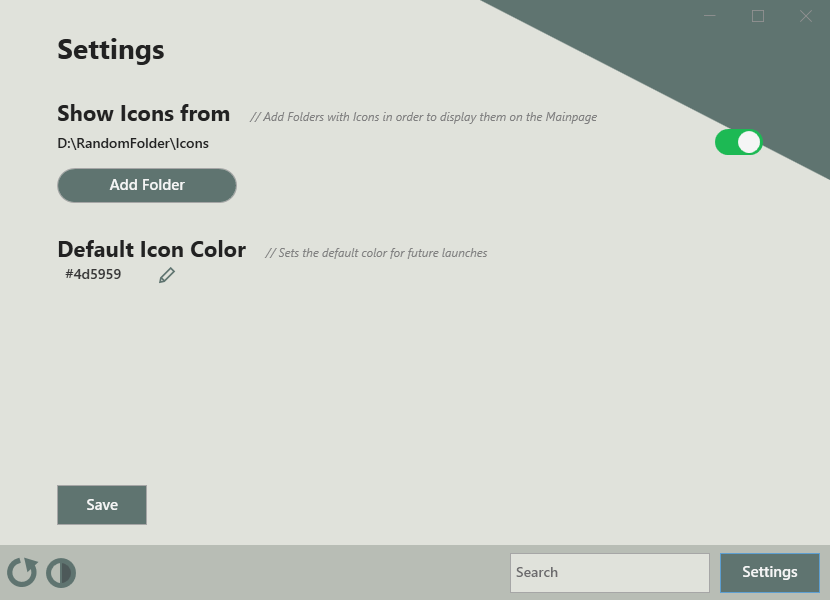
To add a Path go to Settings, in the Settings you'll find the "Add Folder" Button.
Clicking it opens up the Windows Explorer, navigate to your Folder containing the Icons you wish to display and select it.
After adding your Paths you will see them listed in the Settings, they are automatically enabled for display.
Clicking on the "Settings" Button again it will bring you to the Homepage. If the Icon is valid you will see it displayed in a similar way to this:

In case you only want or don't want to see a specific Folder you can navigate back to the Settings and use the Toggle-Button next to each Path to enable/disable them.
By default, every new Path added is enabled.
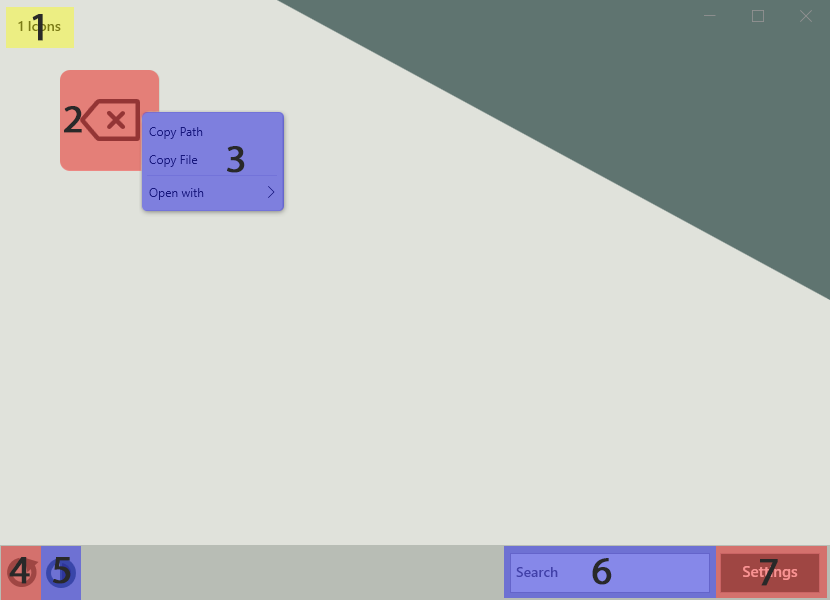
- Amount of Icons currently displayed.
- A single Icon-Cell, displays the Filename on Mouseover and has it's own Context menu.
- In the Icons Context menu you get the Option to Copy the File itself, the Icons PathData to the Clipboard or open the File in the Explorer.
- Refreshes the Icons Collection.
- Changes the Color or all Icons temporary.
- For a permanent Change modify the Value found in the Settings.
- Search Icons by their Filename.
- Opens/Closes the Settings.