Term project for Mobile Programming
- Trailer Video:https://youtu.be/gvk7CWmzRrA
| Name | Part | Task |
|---|---|---|
| 박예진 | Calendar | PPT |
| 노인욱 | Challenge | PPT |
| 이현필 | Alarm | Debugging |
| 이정훈 | Login, Community | Presentation |
self-management is essential in modern society. Therefore, varous advice related to this is pouring. One of tips is Miracle Morning
Miracle morning is a concept that appeared in 2016 self-development book. Miracle morning is simply to awke up ealy in the morning and practice self-develop ment such as reading and exercise or self-advice as a routine.
- For someone who wants to live regular life, self-improvement, miracle morning
- By perform morning rouitnes with certain alarms.
- Share your routine with others and avoid th failure of Miracle Morning.
- minSdkVersion: 23
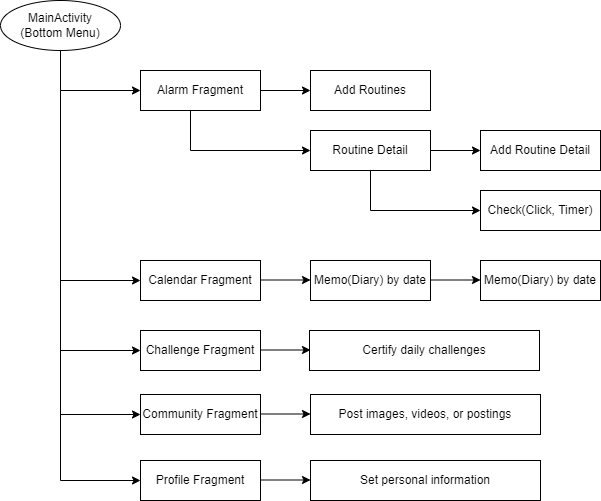
- You can become a member of Miracle morning by sign up.
- You can use application with log in.
- You can make a rouitne.
- When it's time to perform routine, the alarm will be triggered.
- When it is time to end the routine, it checks whether or not the activity set in the routine is performed, alarm will inform about it.
- You can write on calendar.
- You can write daily notes such as the mood or condition of the day.
- You can upload photos, videos and writings on the community.
- You can share your daily rouitine.
- You can participate in a challenge related in their own routines.
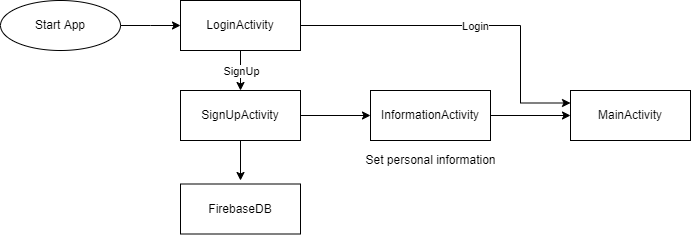
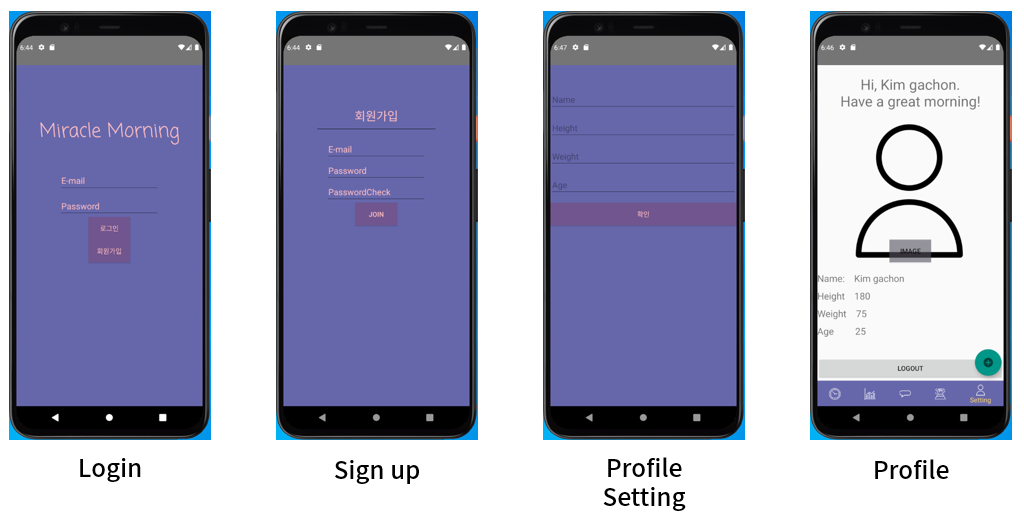
- When you run the application, the login page is displayed. you can login and enter the application, or you can go sign up page.
- In sign up page, you must enter an email and password to sign up.
- If you log in for the first time, the Profile Settings page is displayed. You cna set up a profile and view it on the profile page.
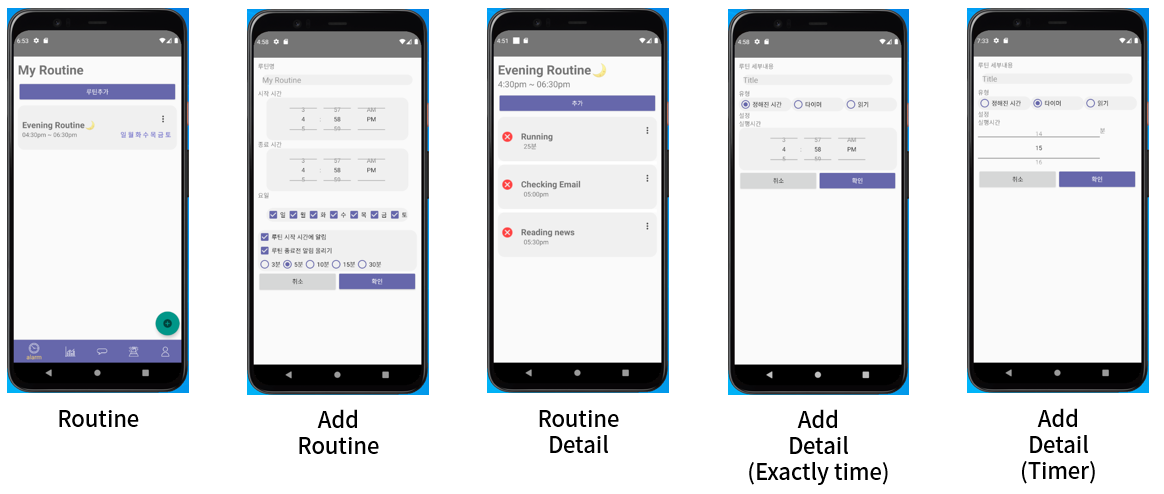
- After login, routine page is displayed. you can check the routines you added. You can enter the add routine page by click '루틴추가' button. You must enter the routine's title, start time, end time and select days of week that you want to do on. Finally, select whether to start and end alarms. The start alarm notifies you to start your routine exactly at the start time of the routine. The end alarm notifies you whether the routine's detail activity is performed or not at the end time of routine before minutes that you selected (3min, 5min, 10min ...).
- In routine Detail, you can check the routine's detail activity that you added. You can enter the add routine detail page by click '추가' button. You must enter detail's title, type. There are two types that are exactly time, timer.('읽기' is not updated...). If you want to add exactly time type detail, you must enter the time that you want to do it at. If you want to add timer type detail, you must enter the time that you want to do it for.
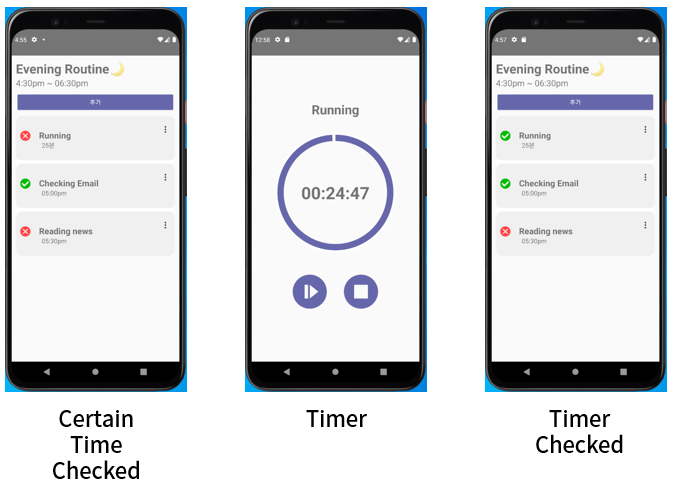
- When you want to do exatly time type detail, you click it. If the current time is less than 5 minutes from the stored time, the execution is completed and detail will be checked.
- When you want to do timer type detail, you can click it and timer page is displayed. You can click the play button and after the time you set, the detail activity is completed and the detail will be checked.
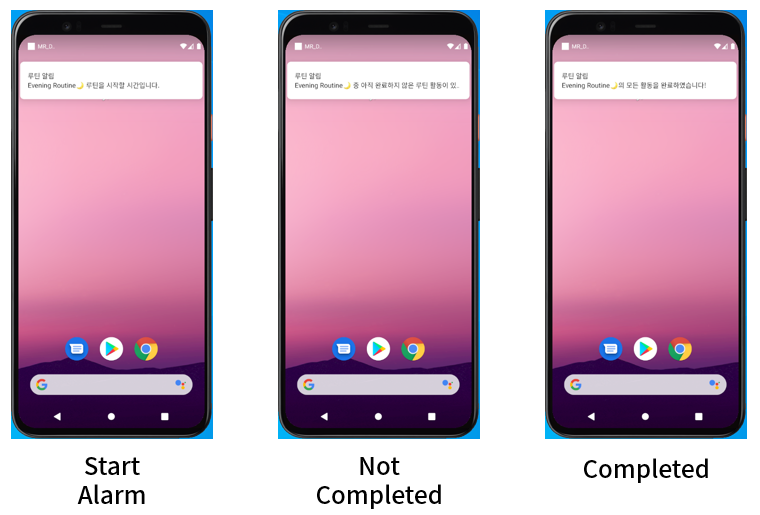
- Even if you are not running the application, the alarm notifies you that you should start the routine when it is time to start the routine that you set.
- When it is close to the end time, the alarm notifies you whether all detail activities of the routine have been completed.
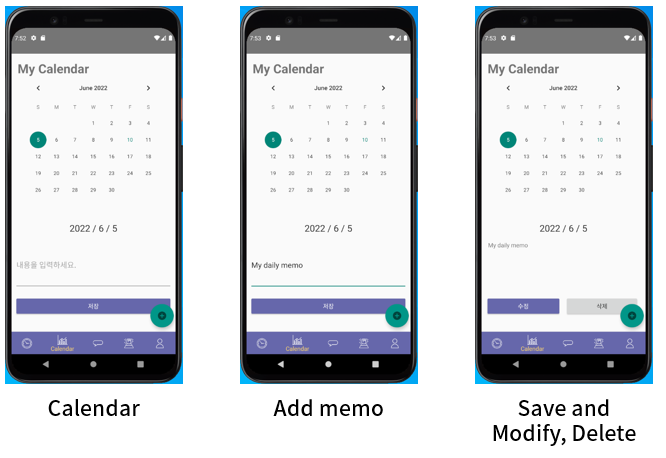
- In calendar page, you can write on calendar about daily mood, routine status...
- You can click a date in calendar and you can write notes(memo).
- If you click on the date you have alread written, you can check, modify, and delete previously written notes.
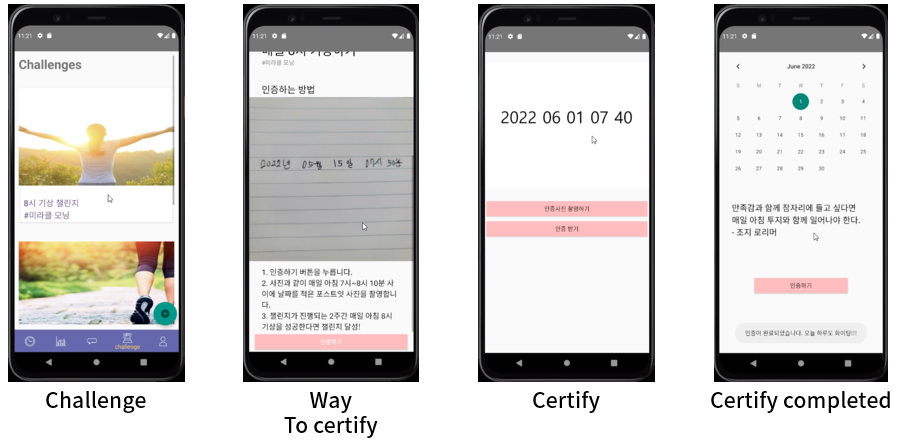
- Users can participate in a challenge related in their own routines
- You can write down the date and wake-up time on paper and take pictures to certify it.
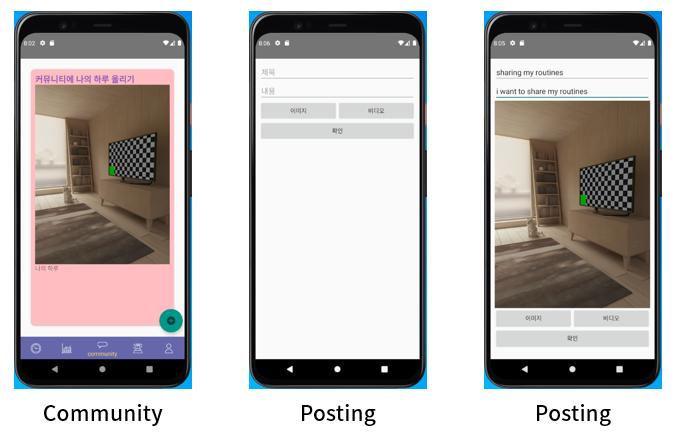
- In community page, you can view posts posted by others, or you can create posts and share them with others.
- You can attach videos and pictures.