This is a fork of seerge/g-helper with a set of optional fan and thermal features, developed and tested on a ROG Zephyrus M16 (GU604) with three fans. Everything is opt-in: with the extras left off, the app behaves exactly like upstream.
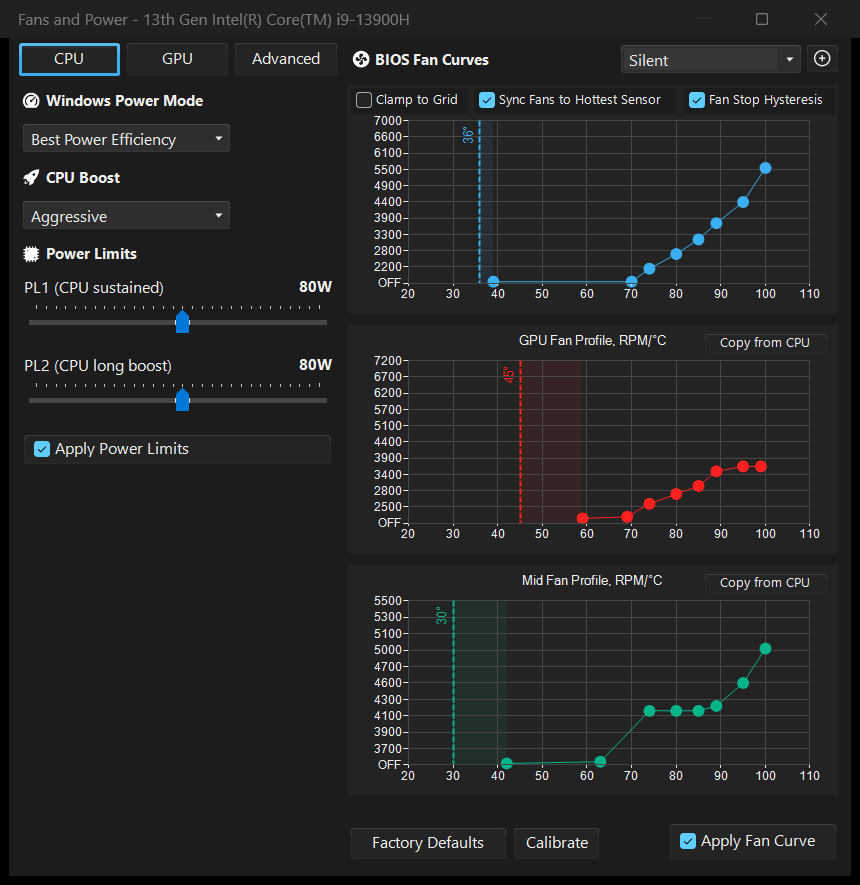
Sync Fans to Hottest Sensor (PR #5727). Once a custom fan curve is applied, firmware ties each fan strictly to its own sensor - CPU fan to CPU temp, GPU fan to GPU temp. On laptops with a shared heatsink that means the GPU fan idles while the CPU is cooking. This option gives every fan a floor: no fan may spin slower than what its own curve prescribes for the hottest sensor. Firmware stays in charge of real-time control.
Fan Stop Hysteresis. A custom curve's first point is both the stop and the restart threshold, so a fan hovering around it keeps pulsing on and off (with the firmware's loud start kick every time). With this option each chart gets a draggable stop line: the fan starts at the curve's first point but keeps spinning quietly until temperature falls below the stop line.
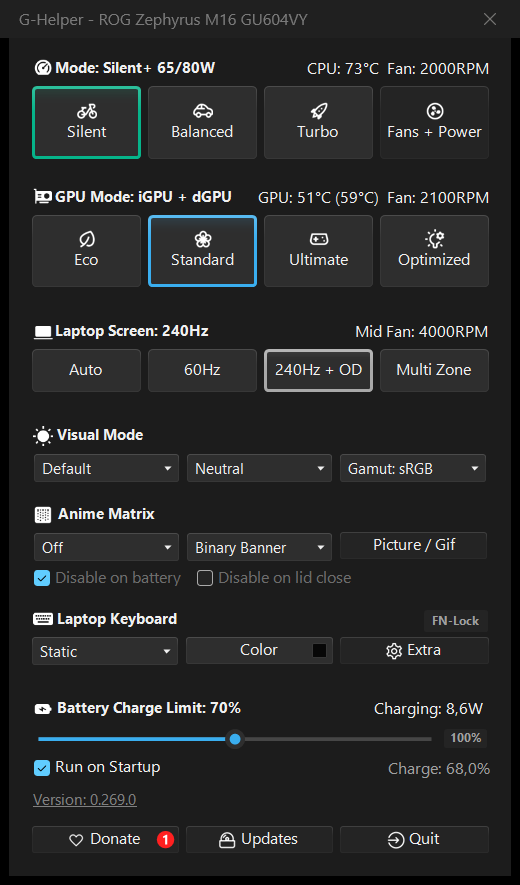
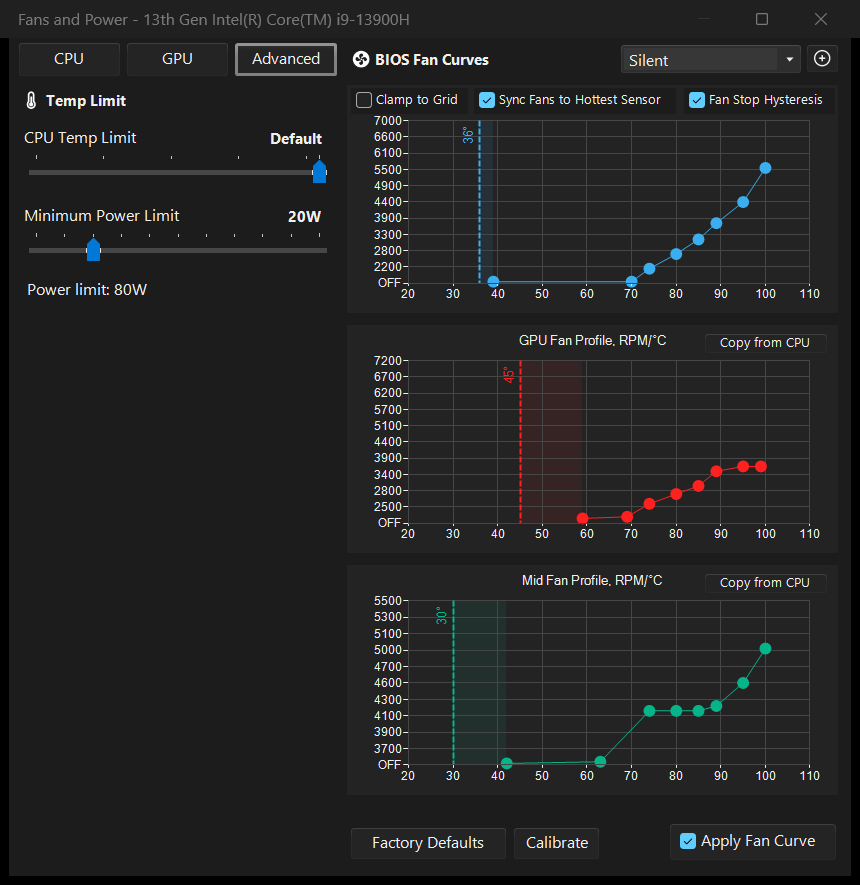
Dynamic power limit for a CPU temperature target (Intel). AMD models have a hardware CPU Temp Target; Intel ones don't. The CPU Temp Limit slider (Advanced tab) sets a target temperature, and G-Helper gently trims or restores PL1/PL2 between your configured limit and a Minimum Power Limit to hold it - handy for quiet profiles where you'd rather lose a few watts than hear the fans. While active, the current limit is shown in the window header (Mode: Silent 65/80W).
Fan curve axis calibration (PR #5815). Chart RPM labels are normally a linear guess between min and max fan speed, which can be far from reality (the M16 mid fan never spins below 3600 RPM, yet the stock axis happily shows 700). The Calibrate button now also measures a real duty-to-RPM table per fan, so axis labels and tooltips show speeds the fan actually runs at, and tooltips include the raw duty %.
Copy from CPU buttons (PR #5804) on the GPU and Mid fan charts copy the CPU curve to that fan - no more dragging every point twice.
More sensors: GPU hotspot temperature next to the GPU temp, and SSD temperature in the main window and tray tooltip (shown when running as administrator).
| Fan curves: sync + hysteresis stop lines + copy buttons + calibrated axes | Advanced tab: CPU temp target |
|---|---|
 |
 |
Everything else is unchanged from upstream, original readme follows.
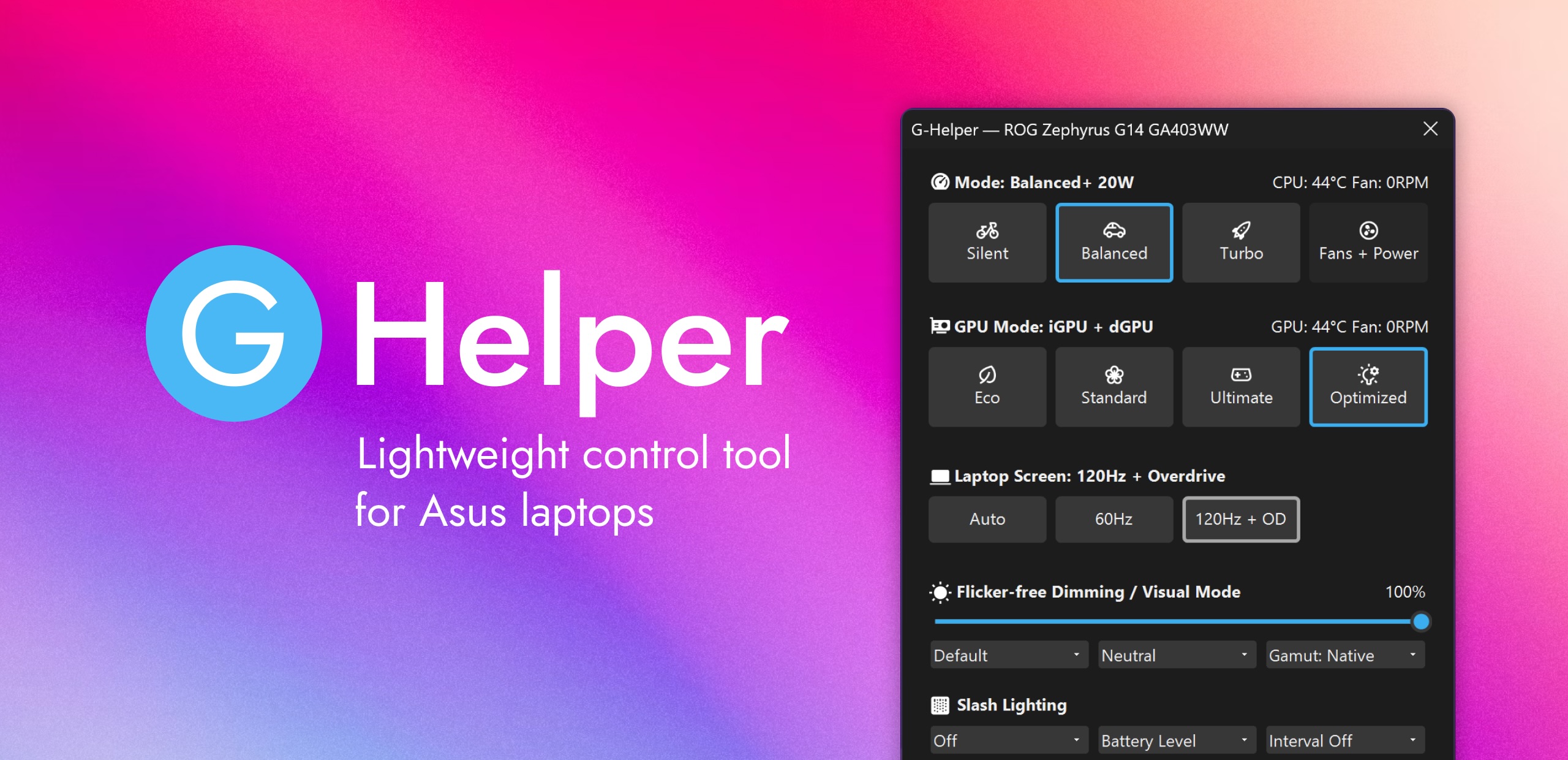
Small and lightweight Armoury Crate alternative for Asus laptops offering almost same functionality with a much smaller footprint. Works with all popular models, such as ROG Zephyrus G14, G15, G16, M16, X13, X16, Z13, DUO, TUF Series, Strix or Scar Series, ProArt, Vivobook, Zenbook, Expertbook, ROG Ally or Ally X and many more!






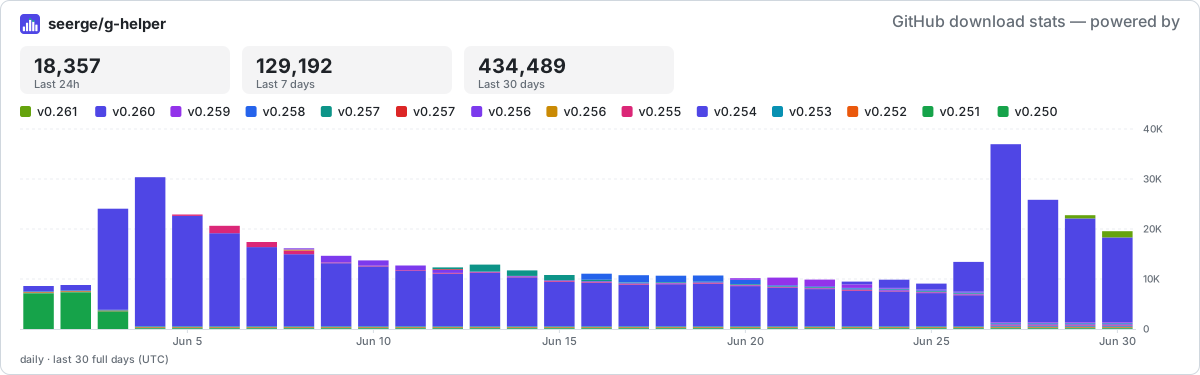
⭐ Like the app? Help spread the word.

 |
 |
 |
|---|---|---|
| Josh Cravey | Crimson Tech | cbutters Tech |
- Seamless and automatic GPU switching
- All performance modes can be fully customized with power limits and fan curves
- Lightweight. Just a single exe to run. Doesn't install anything in your system.
- Simple and clean native UI with easy access to all settings
- FN-Lock and custom hotkeys

- Performance modes: Silent - Balanced - Turbo (built-in, with default fan curves)
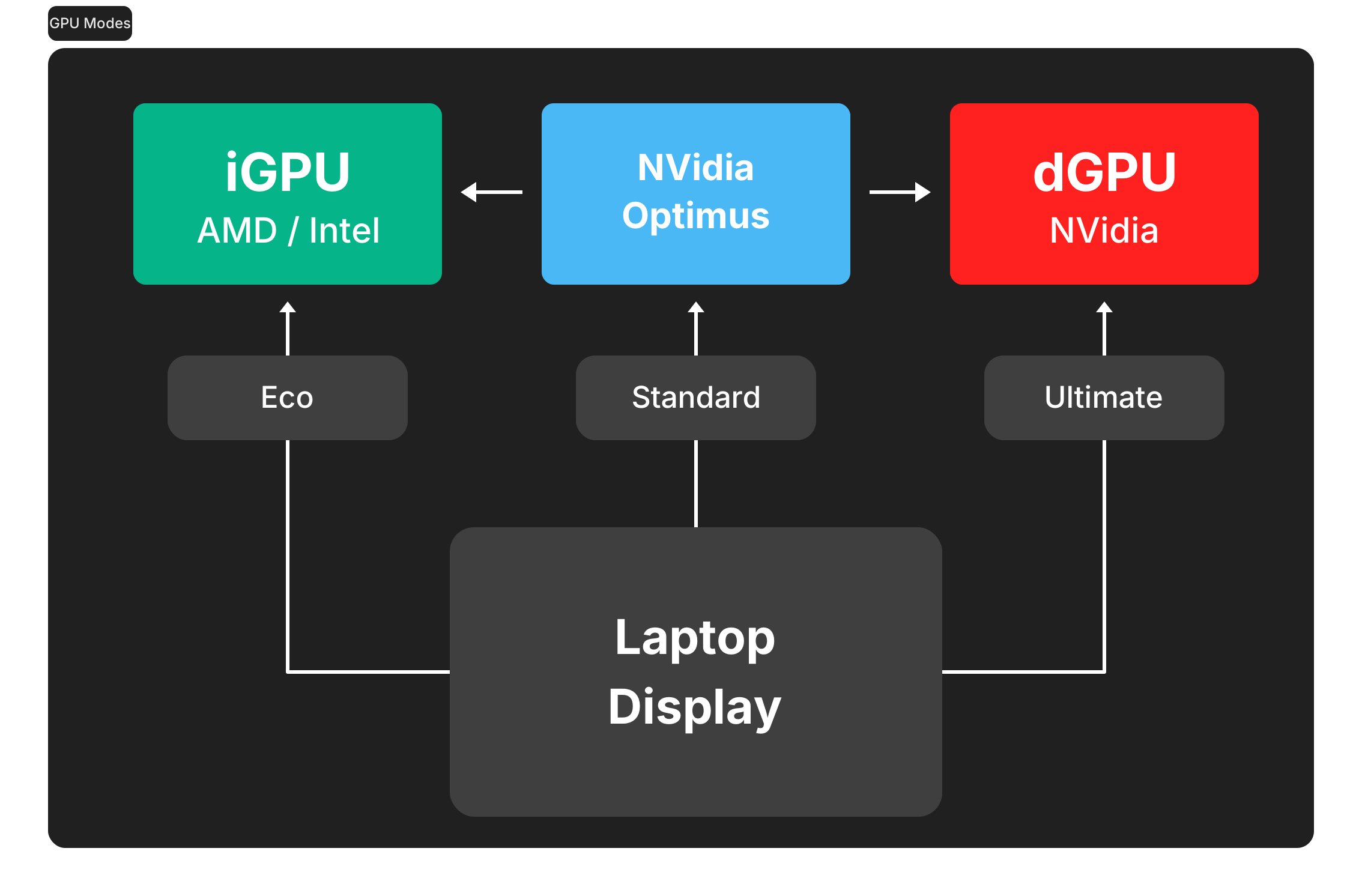
- GPU modes: Eco - Standard - Ultimate - Optimized
- Screen refresh rate control with display overdrive
- Custom fan curve editor, power limits and turbo boost selection for every performance mode
- Anime Matrix or Slash Lighting control including animated GIFs, clock and Audio visualizer
- RGB Backlight animation modes and colors
- Hotkey handling
- Monitor CPU and GPU temperature, fan speeds and battery status
- Battery charge limit to preserve battery health
- NVidia GPU overclocking and undervolting
- XG Mobile Control
- AMD CPU Undervolting and temp limits
- BIOS and Driver Updates
- Asus Mice controls
- Mini-led multi-zone switch
- Flicker-free dimming and Visual Modes
- Performance Mode switching when on battery or plugged in
- Optimized GPU mode - disables dGPU on battery and enables when plugged in
- Auto Screen refresh rate (60Hz on battery and max Hz when plugged)
- Keyboard backlight timeout on battery or when plugged in
Note
All Modes are baked into BIOS along with default fan curves and power limits. And and they are the same thing as in the Armoury Crate.
Each default BIOS mode is paired with matching Windows Power Mode. You can adjust this setting under Fans + Power
Silentin BIOS +Best power efficiencypower modeBalanced(Performance in AC) in BIOS +Balancedpower modeTurboin BIOS +Best performancepower mode

In each mode dedicated GPU can be tweaked to specific needs, including Core and Memory Clock offsets, GPU power, Dynamic Boost, Temperature Limit etc

- Eco : only low power integrated GPU enabled, iGPU drives built in display
- Standard (MS Hybrid) : iGPU and dGPU enabled, iGPU drives built in display
- Ultimate: iGPU and dGPU enabled, but dGPU drives built in display (supported on 2022+ models)
- Optimized: disables dGPU on battery (Eco) and enables when plugged in (Standard)
The app includes an automatic BIOS and driver update checker that pulls directly from the official Asus website for your specific model, highlighting new downloads as they become available. All links in the Updates section point to official Asus downloads.

A built-in in-game overlay (OSD) that shows live FPS, CPU / GPU temperatures, usage and power right on top of your game - no extra tools needed. Works in DX10+ games. May not be visible over old titles that use exclusive full-screen mode, so set the game to windowed / borderless full-screen mode.
Ctrl + Shift + Alt + O- Toggle in-game overlay ON / OFFCtrl + Shift + Alt + Mouse Drag- Move overlayCtrl + Shift + Alt + Mouse Click- Switch mode (Light / Default / Full / Complete)Ctrl + Shift + Alt + Wheel- Resize overlayCtrl + Shift + Alt + Wheel Click- Reset overlay size


Currently supported models (click to expand)
- ROG Chakram X
- ROG Chakram Core
- ROG Gladius II and Gladius II Origin
- ROG Gladius II Wireless
- ROG Gladius III
- ROG Gladius III Wireless
- ROG Harpe Ace Extreme
- ROG Harpe Ace Aim Lab Edition
- ROG Harpe Ace Mini
- ROG Harpe II Ace
- ROG Keris Wireless
- ROG Keris II Ace
- ROG Keris Wireless Aimpoint
- ROG Strix Carry
- ROG Strix III Gladius III Aimpoint Wireless
- ROG Strix Impact III
- ROG Strix Impact III Wireless
- ROG Spatha X
- ROG Strix Impact II Wireless
- ROG Pugio
- ROG Pugio II
- TUF Gaming M4 Wireless
- TUF Gaming M3
- TUF Gaming M3 Gen II
- TUF Gaming M4 AIR
- TUF Gaming M5
- TX Gaming Mini
Huge thanks to @IceStormNG 👑 for contribution and research (!).

Fn + F5 / Fn + Shift + F5- Toggle Performance Modes forwards / backwardsCtrl + Shift + F5 / Ctrl + Shift + Alt + F5- Toggle Performance Modes forwards / backwardsCtrl + Shift + F12- Open G-Helper windowCtrl + M1 / M2- Screen brightness Down / UpShift + M1 / M2- Backlight brightness Down / UpFn + V- Visual ModesFn + C/Fn + Esc- Fn-LockFn + Ctrl + F7 / F8/Ctrl + Shift + Alt + F7 / F8- Flicker-free dimming Down / UpFn + Shift + F7 / F8- Matrix / Slash Lighting brightness Down / UpFn + Shift + F7 / F8/Ctrl + Shift + Alt + F7 / F8- Screenpad brightness Down / UpCtrl + Shift + F20- Mute MicrophoneCtrl + Shift + Alt + F13- Toggle Display Refresh RateCtrl + Shift + Alt + F14- Eco GPU ModeCtrl + Shift + Alt + F15- Standard GPU ModeCtrl + Shift + Alt + F16- SilentCtrl + Shift + Alt + F17- BalancedCtrl + Shift + Alt + F18- TurboCtrl + Shift + Alt + F19- Custom 1 (if exists)Ctrl + Shift + Alt + F20- Custom 2 (if exists)- Custom keybindings / hotkeys
M + DPad Left / Right- Display BrightnessM + DPad Up- Touch keyboardM + DPad Down- Show desktopM + Y- Toggle AMD overayM + X- ScreenshotM + Right Stick Click- Controller Mode
Note
G-Helper is NOT an operating system, firmware, or driver. It DOES NOT "run" your hardware in real-time anyhow.
It's an app that lets you select one of the predefined operating modes created by manufacturer (and stored in BIOS) and optionally(!) set some settings that already exist on your device same as Armoury Crate can. It does it by using the Asus System Control Interface "driver" that Armoury uses for it.
If you use equivalent mode/settings as in Armoury Crate - the performance or the behavior of your device won't be different.
The role of G-Helper for your laptop is similar to the role of a remote control for your TV.
- Linux Kernel for some basic endpoints in ASUS ACPI/WMI interface
- NvAPIWrapper for accessing Nvidia API
- Starlight for anime matrix communication protocol
- UXTU for undervolting endpoints using Ryzen SMU
- PawnIO for access to RyzenSMU
- AsusCtl for inspiration and some reverse engineering
Free code signing provided by SignPath.io, certificate by SignPath Foundation
This program will not transfer any information to other networked systems
"Asus", "ROG", "TUF", and "Armoury Crate" are trademarked by and belong to AsusTek Computer, Inc. I make no claims to these or any assets belonging to AsusTek Computer and use them purely for informational purposes only.
THE SOFTWARE IS PROVIDED “AS IS” AND WITHOUT WARRANTY OF ANY KIND, EXPRESS OR IMPLIED, INCLUDING BUT NOT LIMITED TO THE WARRANTIES OF MERCHANTABILITY, FITNESS FOR A PARTICULAR PURPOSE AND NONINFRINGEMENT. MISUSE OF THIS SOFTWARE COULD CAUSE SYSTEM INSTABILITY OR MALFUNCTION.