


A customized fork of Taskbar Groups Ex with enhanced popup positioning and icon customization options.
Forked from AndyMatt/Taskbar-Groups-Ex

- Hidden Taskbar Icon - Popup no longer shows a separate icon in the taskbar when opened
- Popup Position Offsets - X and Y offset settings to fine-tune popup placement
- Icon Size - Customize icon dimensions (16-64px)
- Icon Spacing - Adjust gap between icons (0-100px, where 0 = icons touching)
- Streamlined Buttons - Replaced Save with Apply (saves without closing), plus Exit and Delete
- Smart Panel Sizing - Popup width now adapts to actual icon count (no trailing padding)
- Updated GitHub Links - All links point to this fork
Works great alongside other taskbar customization tools:
- TranslucentTB - Transparent/translucent taskbar
- TaskbarX - Center taskbar icons
- StartAllBack - Windows 11 taskbar customization
- ExplorerPatcher - Windows 11 Explorer tweaks
Use the Y Offset setting to adjust popup position if your taskbar has a different height or position than default.
This fork adds popup position customization and icon appearance settings that were missing from the original. If you've ever wanted to adjust where the popup appears or change icon sizes, this fork is for you!
| Feature | Description | Range |
|---|---|---|
| X Offset | Horizontal popup position adjustment | -500 to +500 px |
| Y Offset | Vertical popup position adjustment | -500 to +500 px |
| Icon Size | Customize shortcut icon dimensions | 16 to 64 px |
| Icon Spacing | Gap between icons (0 = touching) | 0 to 100 px |
The Group Settings panel now includes:
Group Settings
--------------
[Dark/Light/Custom Color]
Opacity: 100%
Allow open-all shortcuts (Ctrl + Enter)
--------------
Popup Position Offset
X: 0px  [+][-]    Y: 0px  [+][-]
--------------
Icon Appearance
Size: 24px [+][-]    Spacing: 0px [+][-]
--------------
[ Apply ]  [ Exit ]  [ Delete ]
Button Changes:
- Apply - Save changes without closing the window (great for testing settings)
- Exit - Close the editor without saving
- Delete - Remove the group entirely
- Y Offset: Set to negative values (e.g., -100) to move the popup higher above the taskbar
- X Offset: Fine-tune horizontal alignment if the popup doesn't center properly
- Icon Size: Make icons larger for touch screens or smaller for more compact groups
- Icon Spacing: Set to 0 for the tightest layout (icons touching), or increase for better visual separation
Settings are stored per-group in FolderGroupConfig.ini:
PopupXOffset=0
PopupYOffset=-100
IconSize=32
IconSpacing=20
Note: IconSpacing=0 means icons will touch each other (tightest packing).
- .NET 8 SDK (or compatible version)
- Visual Studio 2022 (optional, for IDE)
git clone https://github.com/Larsonix/TaskbarGroupsEx-Custom.git
cd TaskbarGroupsEx-Custom
dotnet build
Or open TaskbarGroupsEx.sln in Visual Studio and build from there.
The following documentation is from the original Taskbar Groups Ex project.
-
Download the .zip-file from the latest release (link above)
-
Unpack the .zip-file at a desired location
-
Run the TaskbarGroups.exe file in the extracted folder
-
Press on the "Add taskbar group"
-
Give the group a name and an icon
3a. Click on the "Add new shortcut" and select a supported file, Repeat until you got all your desired shortcuts
3a-1. You can select multiple .exe or .lnk files at once
3a-2. You can drag and drop .exe, .lnk, or folders into the add new shortcut field
3b. Drag and Drop supported files onto the "Add new Shortcut" button in the Group Window
-
(Optional) Set the number of Icons in a column by changing the number on the top right of the window
-
(New!) Adjust popup position offset and icon appearance settings as desired
-
Save the group
-
On the Main Client Window, click any icon in the new group to open a folder to the created Taskbar Folder
-
In the folder that opens up, right click on the highlighted shortcut
-
Select "Pin to taskbar"
Supported file types: Executable Application (.exe), Universal Windows Programs, Shortcut (.lnk|.url), Web Shortcut (Directly From Browsers), Generic Files & Window Folders
If a shortcut isn't being added, raise a bug in the repo. Some New Windows 10/11 Shell items have issues being added.
Below will be some documentation for each of the screens with explaining the functionality of each of the components.
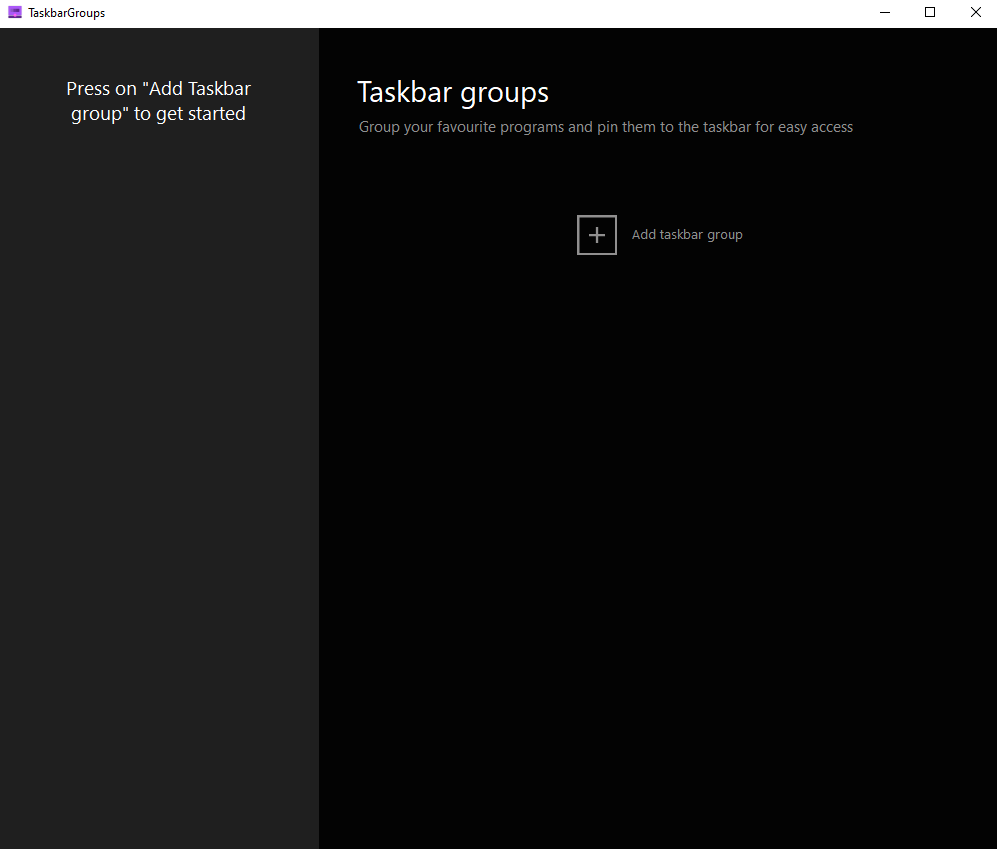
Here is the main group configuration screen. You get here by executing the TaskbarGroups.exe file. Here you can add groups and see what groups you have created.
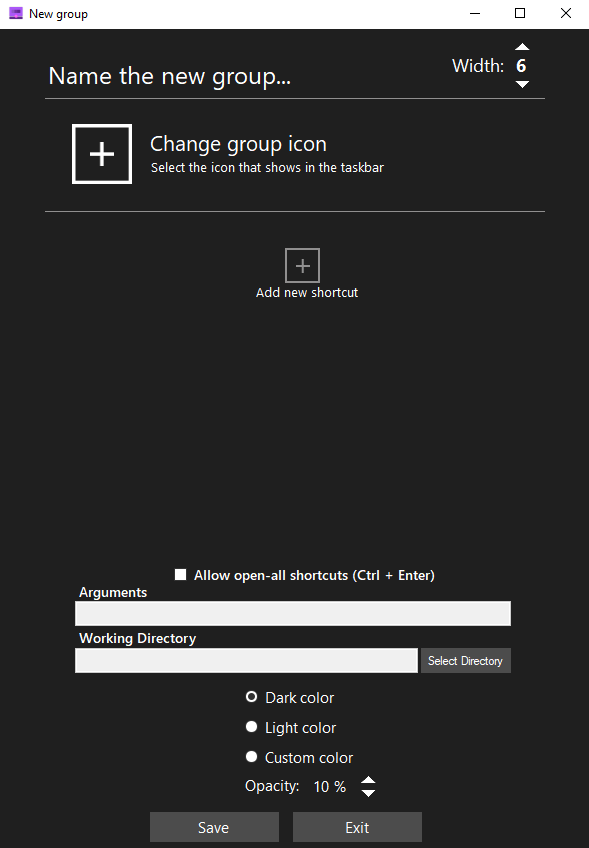
Here is the group creation screen. Here you can start customizing and configuring your group. Here is the quick rundown of the features of this window.
Name the new group - You can insert any group name (no special characters) that you would like with a maximum character limit of 49 characters in total.
Width - You can set the limit for how many shortcuts will appear on each line. For example I have 12 shortcuts and I have a width of 6. It will display 6 shortcuts per row/line.
Change Group Icon - You can click the (+) icon and it will bring up a file dialogue. You can select any type of image files (.png, .jpg, etc.), icon files (.ico), and any sort of executable or shortcut files (.exe, .lnk). On top of this you can drag and drop any of the mentioned file types above to use the icons from those files.
Add new shortcuts - You can click the (+) icon and it will bring up a file dialogue like the change group icon section. You can select any type of executable or extension files (.exe, .lnk) to add to your group. You can also add shortcuts leading to the windows store apps along with steam games/software. Do note however that if the shortcuts are moved, the application can no longer launch those applications and you will have to re-edit your group.
Allow open-all shortcuts - When you launch the group to try to launch an app, you have the option to launch all the executables inside the group. To enable this feature, this checkbox has to be checked and the group has to be saved. All shortcuts can be launched through the usage of the Ctrl + Enter keybinds.
Popup Position Offset (New!) - Adjust the X and Y offset values to fine-tune where the popup appears relative to the taskbar button. Use negative Y values to move the popup higher.
Icon Size (New!) - Change the size of shortcut icons in the popup. Smaller values create a more compact layout, larger values improve visibility.
Icon Spacing (New!) - Adjust the gap between icons. Set to 0 for the tightest layout where icons touch, or increase for better visual separation.
Shortcut Item Selection - Once you have added shortcuts/applications, you can click on the sides of the individual entries of those shortcuts/applications or anywhere that a text or image aren't blocking the background area. Clicking on them will "select" them and they would have a permanent background that is darker than the rest of the entries.
Working Directory - Once you have selected an item, this textbox and the choose folder beside it will be enabled. Here you can change what working directory the application starts with.
Arguments - Once you have selected an item, this textbox is enabled and you can type any launch arguments that you would like to include with the application on launch.
Dark color/Light color/Custom color - Here you can select what color you want the background of your group to be.
Opacity - Here you can select how transparent you want the background of your application to be. The scale work from 0% (Solid color, no opacity) to 100% (Fully transparent).
Entry Name - Whenever you add an application, the entry will have the text assumed from the name of the application without the extension at the end (.exe, .txt, etc.). This can be changed if you select the text directly and you can type into field.
With fetching the icons of executables, the application will directly take the icon of the executable. With extensions, it works a little bit different. The application will try to fix the icon location for the extension to see if that exists anywhere on the system and use that if possible. If not, then the application would try to use the icon of the target file of that extension.
On top of this, this works a bit differently for Microsoft App Store extensions. These extensions don't contain any sort of target path nor icon location. Here the application will try to fetch the image from the system folder where these icons are stored using the ID of the application grabbed from the extension.
Image/icon caching is done through recreating the icon and placing it locally in the icons folder of the group in the config folder. Here it is loaded up locally as to not waste resources to recreate the icon every time. When icons are deleted/not found, the application will display an x. The icon cache can be regenerated by simply saving the group again through the main application.
When you open a group once its created through the shortcut provided, there are a list of hotkeys to make the program more easily usable.
Top row numbers 1,2,3,4,5,6,7,8,9,0 - Opens the shortcuts at those positions respective from 1-10.
Ctrl + Enter - Opens all applications/shortcut within the group at once
(Feature must be enabled through the settings when editing/creating the group for this to work)
In the config folder, you will have the data regarding each group that you have created.
This is the icon cache that comes with the folder. All icons of the shortcuts that you added are added into that cache. This cache will be read from when using your group to not have to fetch each individual icon every time.
Created image from the group icon you selected. This will be your application icon and read from when you start up the group.
Crucial information about the shortcuts and the group itself stored inside of here. It saves your settings for the group including the new popup position and icon customization settings.
In here stores the individual profiles for each form. Essentially these profiles are per-compiled code that the application can read from to improve loading times and responsiveness in the system.
Here is where all of your shortcuts to activate your group will go. All groups created will have their shortcut created here and after creation, you can feel free to move the shortcut or pin it to any desired locations.
If you have existing Taskbar Groups from the original Application, you can move the existing configurations from the config & Shortcuts folders in the original Taskbar Groups into the config & Shortcuts folders in Taskbar Groups Ex, and the application should import them and convert them into the new application.
Note: Your existing groups will work with the new customization features - they'll use default values (0 offset, 24px icons, 55px spacing) until you edit and save them with your preferred settings.
Always remember to make a backup before making any changes or importing any settings.
This project is licensed under the MIT License.
- Original Taskbar Groups by tjackenpacken
- Taskbar Groups Ex by AndyMatt
- Customization features by Larsonix