OpenLap is a free, open-source desktop application that overlays telemetry data on racing video footage. It supports RaceBox, AIM MyChron, MoTeC, and GPX data sources and runs entirely on your PC — no subscription, no cloud, no fees.
Point it at your telemetry files and a folder of race videos, and it matches sessions, syncs timing, and renders professional gauge overlays — all from a single window.
Licensed under the GNU General Public License v3. Free forever. Forks must stay open source.
No Python, no FFmpeg, no installation required. Everything is bundled.
1. Download
Go to Releases and download the .zip file.
2. Unzip
Extract the zip anywhere — your Desktop, C:\Tools\OpenLap, wherever you like. You will get a folder containing OpenLap.exe and a folder called _internal.
Important: keep
OpenLap.exeand the_internalfolder together in the same location at all times. Moving just the.exewill break the app.
3. Run
Double-click OpenLap.exe.
Windows SmartScreen warning? Windows shows this for all software that isn't commercially signed. OpenLap is open source and safe. Click More info, then Run anyway.
4. Set up your folders (Settings tab)
When the app opens, go to the Settings tab first and tell it where your files live:
- RaceBox folder — the folder where your RaceBox
.csvfiles are stored - AIM folder — the folder containing your AIM
.xrk/.xrz/.drkfiles - MoTeC folder — the folder containing your MoTeC
.ldfiles - GPX folder — the folder containing your
.gpxfiles - Video folder — the folder where your race videos are stored
- Export folder — where finished videos will be saved
You only need to fill in the sources you actually use.
First-time setup for AIM users: click Download DLL in the AIM section. This fetches the conversion library that reads .xrk files. You only need to do this once.
First-time setup for RaceBox cloud users: click Download Login Component, wait for it to finish, then click Check Auth and log in with your RaceBox account.
5. Scan your sessions (Data tab)
Go to the Data tab. Sessions are scanned automatically on startup — they will appear grouped by date. If nothing shows up, click Scan.
Each session shows its laps and whether a matching video was found:
✓ user— sync confirmed, ready to export~ auto— sync detected automatically (blue); scrub to verify, click Confirm to lock it in≈ unset— no sync offset set yet; use the Align Video panel to set it manuallyno vid— no matching video found; click Browse for video… to link one manually
6. Set the sync offset
The sync offset tells OpenLap exactly where in the video the lap timer starts. Without it, gauges will be out of step with the footage.
- Auto-sync (recommended): enable Auto Sync in Settings. After scanning, OpenLap cross-correlates video motion against G-force to detect the offset automatically. Works best with RaceBox, AIM, and MoTeC data. GPX files do not contain G-force, so auto-sync will not run for GPX sessions.
- Manual sync: in the Data tab, select a session and use the Align Video panel. Scrub the video to the exact moment the lap timer starts, then click Mark.
7. Edit the overlay (Overlay tab)
Click Open in Overlay → on any session to jump to the editor.
- Use the lap selector (◀ ▶ or dropdown) to switch between laps
- Click Add Gauge to place a new element — pick a channel (Speed, RPM, G-force, etc.) and a style
- Drag gauges to reposition; drag the corner handle to resize
- Switch themes (Dark · Light · Colorful · Monochrome) using the theme picker
- Save your layout as a named preset so you can reuse it
8. Export (Export tab)
Click + Export on the lap or session you want, then go to the Export tab.
- Choose scope: This Lap, Fastest Lap, All Laps, or Full Session
- Choose encoder: OpenLap auto-detects your GPU (NVIDIA NVENC · AMD AMF · Intel QSV). If no GPU is found it falls back to CPU (libx264) — this is slower but always works
- Click Start Export. Progress and a log are shown live. Finished videos are saved to your Export Folder.
Sample output video — Karting Haute Picardie Arvillers:
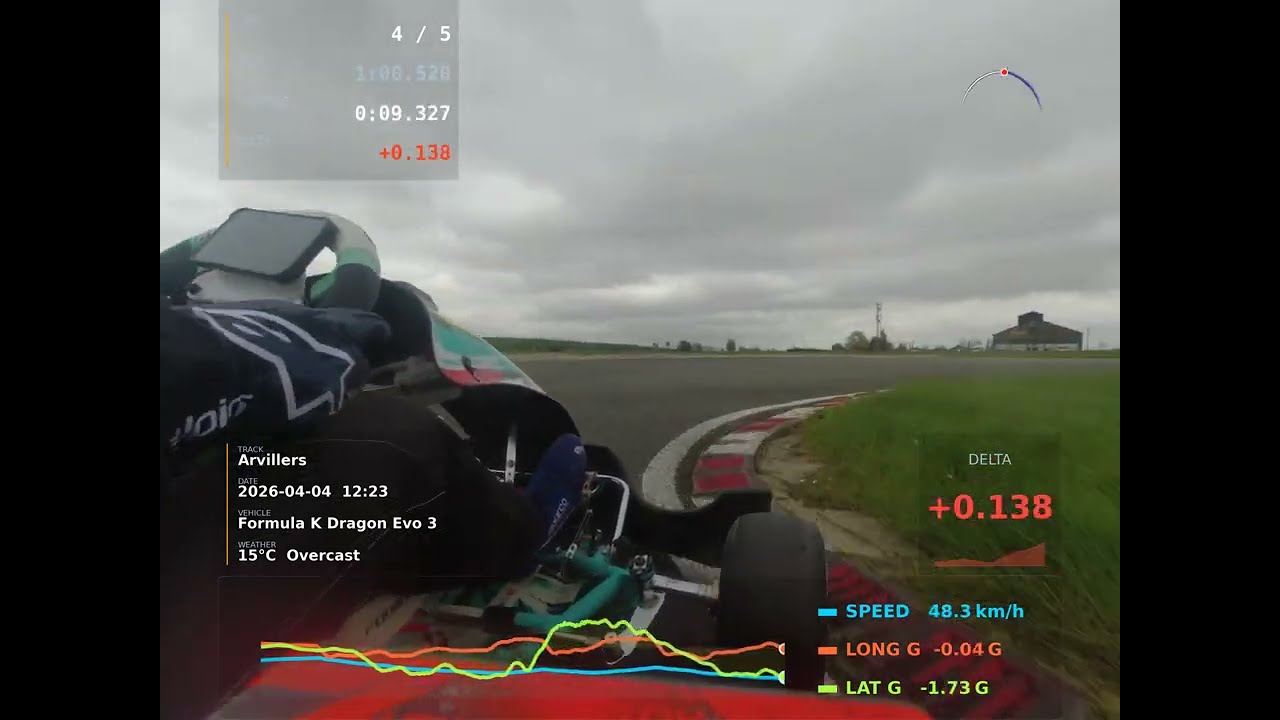
| Data tab | Overlay tab | Export tab | Settings tab |
|---|---|---|---|
 |
 |
 |
 |
Sessions are not appearing in the Data tab
- Check that the correct folder is set in Settings for your data source
- Make sure the files are the right type (
.csvfor RaceBox,.xrk/.xrz/.drkfor AIM,.ldfor MoTeC,.gpxfor GPX) - Click Scan to force a rescan
- AIM files also need the DLL downloaded (Settings → Download DLL)
No video matched to a session
- OpenLap matches by timestamp. Make sure your camera clock is roughly correct
- Use Browse for video… in the Data tab to link a video manually
- Supported video formats: anything FFmpeg can read (MP4, MOV, MTS, AVI, etc.)
Auto-sync did nothing / sync is wrong
- Auto-sync requires G-force data. GPX sessions do not have G-force — use manual sync instead
- If confidence was too low the result is discarded. Use manual sync via the Align Video panel
- A manually set offset (
✓ user) is never overwritten by auto-sync
Export failed or produced no output
- Check the log in the Export tab for the specific error
- Make sure the Export Folder is set in Settings and the folder actually exists
- Try switching to the CPU encoder (libx264) if a GPU encoder fails
App crashes on launch
- Make sure
OpenLap.exeand the_internalfolder are in the same directory — never move the.exeon its own
- Per-source telemetry folders — configure separate directories for RaceBox, AIM, MoTeC, and GPX data
- Auto-scan on startup with persistent session cache for fast restarts
- Sessions grouped by date with lap list, best time, and video match status
- Manual video reassignment for sessions where auto-matching doesn't find the right clip
- Multi-clip support — multiple video segments per session are joined automatically before rendering
- Auto-sync (opt-in): cross-correlates video motion against G-force to detect the sync offset automatically after each scan — results appear as
~ autoand can be confirmed or fine-tuned in the Data tab - Frame-accurate manual sync: scrub the video preview to where the lap timer starts, press Mark — saves as a
✓ useroffset that auto-sync will never overwrite - RaceBox cloud download directly from the app (requires a RaceBox account)
- AIM
.xrk/.xrz/.drkfiles are converted to CSV on first scan using the AIM MatLabXRK DLL
- Live video preview with scrub bar — see exactly how gauges look on your footage before exporting
- Freely positionable, resizable gauge elements — drag to move, drag corner handle to resize
- Element-to-element snapping with cyan alignment guides; size snaps to 5% grid
- Lap selector — switch between laps while the video preview stays in sync
- 4 overlay themes: Dark · Light · Colorful · Monochrome
- Gauge styles: Numeric · Bar · Dial · Line · Delta · Compare · Lean · G-Meter · Splits · Sector Bar · Multi-Line · Circuit Map · Zoomed Map · Scoreboard · Info · Image/Logo
- Bike mode — enables Lean gauge and reads lean angle from compatible devices
- Reference lap overlay — compare any lap against a reference with live delta time
- Named preset layouts — save, load, and switch overlay configurations
- Scope: This Lap, Fastest Lap, All Laps (one file per lap), or Full Session
- GPU-accelerated encoding with auto-detection: NVENC (NVIDIA) · AMF (AMD) · QSV (Intel) · libx264 (CPU fallback)
- Adjustable quality (CRF) and parallel worker count
- Configurable pre/post lap padding
- Progress bar and log output per render job
- Plugin-based style system — drop a
.pyfile intostyles/and it appears in the UI automatically - All styles receive theme colour tokens; custom styles support all four themes with no extra work
| Source | Devices / File types | Notes |
|---|---|---|
| RaceBox | RaceBox Mini, Mini S, Pro, Bike (.csv) |
Car and bike mode; cloud download built-in |
| AIM MyChron | MyChron 5, MyChron 5S, Solo 2 (.xrk · .xrz · .drk) |
Auto-converted to CSV on scan |
| MoTeC | Any MoTeC logger exporting .ld |
Binary i2 format; full session lap timing |
| GPX | Any GPS device or phone app (.gpx) |
Speed derived from position + timestamp; no G-force, auto-sync not available |
| Channel | Label | Unit |
|---|---|---|
speed |
Speed | km/h |
rpm |
RPM | rpm |
exhaust_temp |
Exhaust Temp | °C |
gforce_lon |
Long G | G |
gforce_lat |
Lat G | G |
lean |
Lean Angle | ° |
altitude |
Altitude | m |
lap_time |
Lap Time | s |
delta_time |
Delta | s |
Most telemetry overlay tools are expensive, subscription-based, or locked to a single data source. OpenLap is:
- Free — no licence fees, no watermarks, no export limits
- Open source — GPL v3; inspect, modify, and contribute
- Multi-source — RaceBox, AIM MyChron, MoTeC, and GPX in one app
- GPU-accelerated — NVIDIA NVENC, AMD AMF, Intel QSV; renders fast on any modern PC
- Offline — no internet required after initial setup; your data stays on your machine
Common use cases: karting, circuit racing, track days, hillclimb, motorcycle track riding, autocross etc
OpenLap is free and always will be. If you want to see more/faster progress, please consider sponsoring.

Works on Windows, macOS, and Linux.
Requirements
- Python 3.10+
- FFmpeg available on your system
PATH(brew install ffmpegon macOS)
Install Python dependencies
pip install -e .On macOS the Cocoa backend is already pulled in via PyObjC when pywebview is installed, so no extra step is needed. If you see errors about AppKit or WebKit, make sure pywebview itself was installed successfully.
For RaceBox cloud download (optional):
pip install -e ".[racebox-download]"
playwright install chromium
Run
python main.pyConfiguration is stored at ~/.openlap/config.json.
Known macOS / Linux limitations
- AIM
.xrk/.xrz/.drkconversion uses libxrk (installed automatically viapip install -e .). The AIM MatLabXRK DLL is a Windows binary and will not run on macOS or Linux — libxrk is the only supported reader on these platforms. - Hardware-accelerated encoding uses VideoToolbox (
h264_videotoolbox) on macOS. NVENC / AMF / QSV are Windows/Linux only.
pip install pyinstaller
pyinstaller OpenLap.spec --clean -y
The executable and all dependencies are output to dist/OpenLap/.
GNU General Public License v3 — see LICENSE for details.