- Firefox 108
- Windows
- MacOS
- Linux
-
Download the
chromefolder and put it in your user profile folder. For convenience, useabout:profiles -
Go to
about:configand activate the keys belowtoolkit.legacyUserProfileCustomizations.stylesheetslayout.css.color-mix.enabled
-
Specify the desired shape of the tabs.
Creation of keys
Restart your browser for the changes to take effect.


userChrome.ProtonTabs-Enabled

userChrome.PhotonTabs-Enabled

userChrome.WaveFoxTabs-Enabled

userChrome.ChromeTabs-Enabled

userChrome.EdgeTabs-Enabled

userChrome.AustralisTabs-Enabled

userChrome.LegacyChromeTabs-Enabled
Works with modern versions of Windows 11 / Windows 10. System effects must be supported on the operating system side. Otherwise, you need third-party software, such as Mica For Everyone. You also need to disable the accent color in the operating system settings, if it was enabled. Works only with the system theme.

Download and install Mica For Everyone from here.
userChrome.WindowsSystemEffects-Enabled
Works only with the system theme.

userChrome.SemiTransparentToolbar-EnableduserChrome.TransparentToolbar-Enabled(Proton Tabs Only)
Requires Linux with transparency support. Tested on Linux Manjaro KDE + ForceBlur. Transparency is active for all modes, but does not work everywhere. This may change with future browser updates. Works only with the system theme.

userChrome.LinuxTransparency-Enabledgfx.webrender.all(Required key)
Bringing back your preferred colorways

userChrome.AdditionalContainerIndicator-Enabled
It is also possible to turn on the border and the shadow at the same time.

userChrome.LowBorderSaturation-EnableduserChrome.MediumBorderSaturation-EnableduserChrome.HighBorderSaturation-EnableduserChrome.VeryHighBorderSaturation-Enabled
userChrome.LowShadowSaturation-EnableduserChrome.MediumShadowSaturation-EnableduserChrome.HighShadowSaturation-EnableduserChrome.VeryHighShadowSaturation-Enabled

userChrome.TabSeparators-Enabled
By default context menus follow the selected interface density, but it is possible to set a fixed size.
| Compact | Normal | Touch |
|---|---|---|
 |
 |
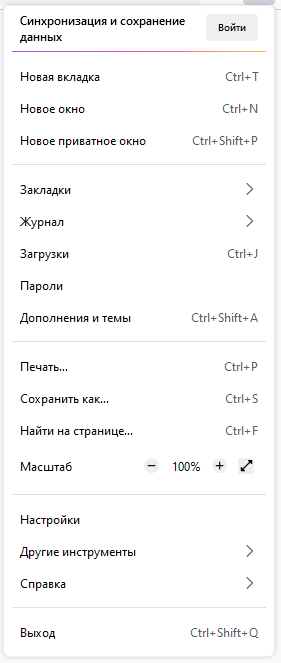 |
userChrome.CompactContextMenu-EnableduserChrome.NormalContextMenu-EnableduserChrome.TouchContextMenu-Enabled
| Regular | Filled |
|---|---|
 |
 |
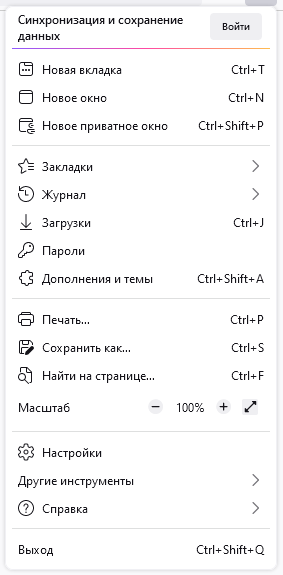
userChrome.RegularMenuIcons-EnableduserChrome.FilledMenuIcons-Enabled

userChrome.LeftSideDragSpace-DisableduserChrome.RightSideDragSpace-DisableduserChrome.DragSpaceAboveTabsWindowedMode-DisableduserChrome.IncreasedDragSpaceAboveTabsWindowedMode-EnableduserChrome.DragSpaceAboveTabsMaximizedMode-EnableduserChrome.DragSpaceAboveTabsFullscreenMode-Enabled

userChrome.SelectedTabHighlight-Enabled

userChrome.PinnedTabsWidthLowIncrease-EnableduserChrome.PinnedTabsWidthHighIncrease-Enabled
The toolbar uses as much space as is needed for its contents. Leave only the most necessary elements. Place the optional ones in the hidden menu.

userChrome.OneLine-Enabled(Proton Tabs Only)userChrome.ResponsiveBookmarksBar-Enabled(In this mode, the bookmarks bar will never take up more than 20% of the available screen space)

userChrome.TabsOnBottom-Enabledbrowser.tabs.inTitlebar(Required key. Set the value to 0)