
Open source podcast creation tool designed as a modern replacement for Anchor.fm. Build episodes from segments: record or upload clips, pull in intros and bumpers from a library, trim and reorder, then export a single audio file and RSS feed.
The app has PWA, so you can add it to your home screen and connect to your server.
License: MIT
Home Page: https://harborfm.com/
Source: https://github.com/LoganRickert/harborfm
Demo Site: https://app.harborfm.com/
Themes gallery: https://harborfm.com/themes/
Theme authoring guide: https://harborfm.com/theme-guide/
Swagger API Docs: https://harborfm.com/server/
Overview on Noted.lol https://noted.lol/harborfm/
Discord https://discord.gg/hSmstBzAJV
- Overview
- Deploy with Terraform
- WebRTC (group calls)
- Requirements
- Quick start (local)
- Docker
- Environment variables
- Running without Docker
- Features
- Stripe payments
- Episode Alerts
- Page themes
- Embed
- Tech stack
- Project structure
- Scripts
- Permissions
- Export
- Local Testing
- Troubleshooting
- Backup and upgrading
- Single Sign-On (SSO)
HarborFM lets you assemble podcast episodes from building blocks. Create a show, add episodes, and for each episode add segments: recorded clips (uploaded per episode) or reusable assets from your library (intros, outros, bumpers). Trim, split, remove silence, and reorder. The app concatenates segments with ffmpeg and produces the final episode audio. Generate RSS feeds and deploy to S3-compatible storage (e.g. Cloudflare R2) so listeners can subscribe. Optional: transcripts via Whisper ASR, LLM helpers (Ollama or OpenAI) for copy suggestions, and public feed pages for discovery.
The app expects two writable directories: /data (SQLite DB, uploads, processed audio, RSS, artwork, library, page themes) and /secrets (JWT and encryption keys). You do not need to mount /secrets if you pass the secrets in through environment variables.
HARBORFM_SECRETS_KEY=$(openssl rand -base64 32)
JWT_SECRET=$(openssl rand -base64 32)

docker run --name harborfm -p 3001:3001 \
  -v harborfm-data:/data \
  -e HARBORFM_SECRETS_KEY="$HARBORFM_SECRETS_KEY" \
  -e JWT_SECRET="$JWT_SECRET" \
  ghcr.io/loganrickert/harborfm:latest
Use nginx+letsencrypt to provide a secure connection.
If you are using http, you need to set COOKIE_SECURE=false as an environment variable.
Use Terraform to provision a VM (AWS EC2 or Vultr) that runs HarborFM via user-data (PM2 + nginx, with optional WebRTC and Let's Encrypt).
-
Install Terraform – see infrastructure/terraform/QUICKSTART.md (macOS, Debian, CentOS).
-
Configure AWS – set
AWS_ACCESS_KEY_IDandAWS_SECRET_ACCESS_KEY(or useaws configure). -
Apply from the AWS Terraform directory:
cd infrastructure/terraform/aws
cp terraform.tfvars.example terraform.tfvars
# Edit terraform.tfvars: deploy_type, ami_id (Debian 12 for your region), domain, admin_email, admin_password, etc.
./run.sh init
./run.sh apply
-
Use the url output to open the app; if you set
admin_emailandadmin_password, the admin is created on first boot.
-
Install Terraform – see infrastructure/terraform/QUICKSTART.md.
-
Set
VULTR_API_KEYin.env(copy frominfrastructure/terraform/.env.example). -
Apply from the Vultr directory:
cd infrastructure/terraform/vultr
cp terraform.tfvars.example terraform.tfvars
# Edit terraform.tfvars: deploy_type, region, os_id, plan, domain, etc.
./run.sh init
./run.sh apply
List available OS images:
curl -s -H "Authorization: Bearer $VULTR_API_KEY" https://api.vultr.com/v2/os | jq '.os[] | {id, name}'Common mappings: Debian 11 477, Debian 12 2136, Debian 13 2625; Ubuntu 22 1743, Ubuntu 24 2285, Ubuntu 25 2657; CentOS 9 542, CentOS 10 2467. Vultr derives the os variable from os_id via infrastructure/terraform/vultr/scripts/os-from-id.sh.
Look up a Debian 12 AMI for your region (owner 136693071363 is Debian):
aws ec2 describe-images --region us-east-2 --owners 136693071363 \
  --filters "Name=name,Values=debian-12-*" "Name=state,Values=available" \
  --query "sort_by(Images, &CreationDate)[-1].ImageId" --output text
Change us-east-2 to your region. The Terraform os variable (e.g. debian-12) must match the image.
Full variable reference, optional persistent data volume (survives destroy+apply), and multi-environment (dev/prod) details: infrastructure/terraform/README.md.
Group calls use a separate webrtc-service (mediasoup). The main app talks to it over HTTP; browsers connect via WebSocket.
Enabling:
- Set
WEBRTC_ENABLED=1(ortrue) on the main app. - Configure
WEBRTC_SERVICE_URL(internal HTTP to the webrtc process) andWEBRTC_PUBLIC_WS_URL(public, e.g.wss://example.com/webrtc-ws). Nginx/Caddy proxy/webrtc-ws/to the webrtc service; browsers and Telnyx should use that proxied path, not port 3002. Phone dial-in media uses the same public base (…/webrtc-ws/dial-in/media); Telnyx must be able to open that WSS URL. For live Telnyx dial-in, also set the Telnyx public key under Settings, WebRTC so webhooks can be signature-verified.- Docker Compose:
WEBRTC_SERVICE_URLis typicallyhttp://webrtc:3002(Compose service DNS). Compose also publishes webrtc HTTP as127.0.0.1:3002on the host only (not0.0.0.0), so it is reachable from the host/reverse proxy but not exposed on all interfaces. - PM2 / bare metal: The webrtc process listens on
0.0.0.0:3002by default; setWEBRTC_SERVICE_URLto something the main app can reach (usuallyhttp://127.0.0.1:3002when both run on the same machine). Keep port 3002 firewalled from the public internet and terminate public WebSocket traffic on the reverse proxy.
- Docker Compose:
Docker Compose: WebRTC runs under profile webrtc. Start with:
docker compose --profile nginx --profile webrtc up -d(or caddy instead of nginx). Required .env: WEBRTC_ENABLED, WEBRTC_SERVICE_URL, WEBRTC_PUBLIC_WS_URL, WEBRTC_SERVICE_SECRET, RECORDING_CALLBACK_SECRET, and MEDIASOUP_ANNOUNCED_IP (when behind NAT).
PM2 / bare metal: Use ecosystem.config.cjs; it starts both harborfm and webrtc. Ensure the firewall allows UDP RTC_MIN_PORT–RTC_MAX_PORT (webrtc-service default 40000–40200; Docker uses 41000–41100).
Debugging:
- No "Record" or group-call UI: check
WEBRTC_ENABLEDandWEBRTC_SERVICE_URL/WEBRTC_PUBLIC_WS_URL. - Can't connect / no audio: verify firewall UDP ports; behind NAT, set
MEDIASOUP_ANNOUNCED_IPto the server's public IP. - Logs:
docker compose logs webrtcorpm2 logs webrtc.
To run the full stack on a fresh machine (app, Caddy or nginx, Whisper, Fail2Ban) without cloning the repo:
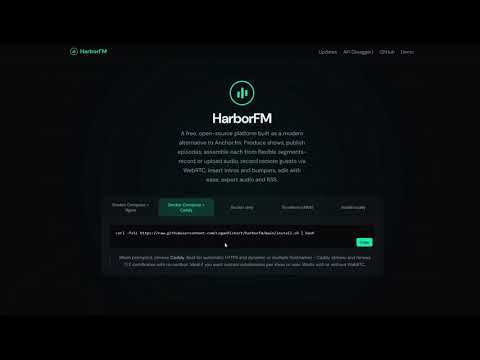
curl -fsSL https://raw.githubusercontent.com/loganrickert/harborfm/main/install.sh | bashThe script downloads the compose file and configs, prompts for domain and reverse proxy (Caddy by default; nginx optional with Let's Encrypt), then starts the stack. When using nginx without Let's Encrypt, you can optionally use a self-signed certificate for HTTPS (browsers will show a warning). This script assumes you have docker and docker compose installed.
To auto-renew Let's Encrypt certificates, add a cron job (run crontab -e and add a line like the following, adjusting the path to your install directory):
0 3 * * * cd /path/to/harborfm-docker && docker compose run --rm --entrypoint certbot certbot renewIf you use the install.sh script, an update.sh script will also be added to the install directory. Run this script to pull the latest images and configs (including the webrtc service when WEBRTC_ENABLED=1) and renew the nginx certificate. Always run docker compose (and docker compose restart) from the install directory so volume paths such as nginx sites-enabled use the correct path from .env.
If you use nginx and want to serve the same HarborFM app on extra domains or subdomains (e.g. demo.harborfm.com, podcast.example.com), use the included script from your install directory:
./nginx-add-domain.sh <domain>
# Example:
./nginx-add-domain.sh demo.harborfm.com
Before running:
- Your
.envmust haveREVERSE_PROXY=nginx,CERTBOT_EMAILset, andINSTALL_DIRset to the install directory’s absolute path. - DNS for the new domain must already point to this server (A/AAAA to the same host as your main domain).
The script will: add an nginx config for the domain under sites-enabled, reload nginx, run Let’s Encrypt (certbot) to obtain a certificate for that domain, then switch the config to HTTPS and reload again. Your primary domain (the one in DOMAIN in .env) is already served by the main nginx config-do not add it with this script or you’ll get duplicate server name warnings. Certificate renewal (e.g. cron with docker compose run --rm --entrypoint certbot certbot renew) renews all certs, including ones added this way.

When creating a new instance, you will need to navigate to the correct setup link. The link will be written to the console and is unique to every instance.
For example,
Open this URL to initialize the server (runs once):

  /setup?id=oFwK--nBt8YloIVABKA4nOmYy_Kbx7PS

The initial setup will create an admin account. You will need to provide the admin email, a password, and you can enable or disable account registration and public feeds from here.
After you've finished the setup, you can sign into your new account.

Once signed in, you will see the dashboard which has a list of podcast shows.

For each show, you can configure the information on the show page.

From there you can view and create episodes on the episodes page.

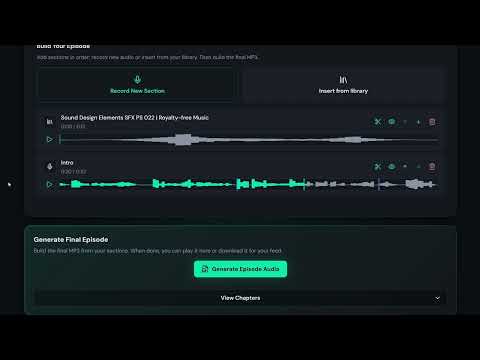
The app provides the ability to 'build' a podcast from a list of audio segments. You can either record a new section or insert audio from an existing audio file you already have.

When you go to record a segment, you can click on the record button and just talk away. When done, click stop. You will have the option to listen to it back, try again, or add it to the end of the list.

When inserting from a library, you will see a list of the audio files you've uploaded before. You can upload audio from this screen as well. Just click the clip you want to use.

Once a new segment is added, if you have Whisper enabled, you can generate a transcript and then view it. You can listen back to just that segment of the transcript and even delete that part of the audio if you'd like.

If you have a transcript, you can also prompt an LLM about the segment in order to get tips, feedback, or questions about the segment.

You also have the option to trim the start and end of a segment. You can also remove silence or apply noise suppression to the clip. The remove silence will remove any silence that lasts longer than 1.5 seconds.

Once you're finished building your episode, at the bottom you can click "Make Final Episode" and this will generate the final audio file. You can customize the settings, such as mono or stereo, on the site settings page. Whenever you change your podcast and are ready for a new version, just click it again. Once you've generated a final episode, an option to download it will appear so you can upload it to other platforms or share it before publishing.
Editors and above can also use Download Project next to the final episode controls. That downloads a zip of the episode (metadata, segment audio, optional multitrack recordings, and library assets used in the episode), plus a short README. Managers and the owner can use Import Project on the show's Episodes page to upload that zip and create a new draft episode with new ids (handy for offline edit or cloning). Hand-added segment folders that only contain audio.mp3 or audio.wav are supported; waveforms and hashes regenerate on import when needed.
With Archive Settings on the show (one remote destination, same modes as Podcast Delivery), Final Episode also offers Archive and Backup. Archive uploads the project zip, verifies it, then removes local segment files while keeping feed-serving final audio. Backup / Dated Backup upload without deleting local files; you can restore a listed backup from the Backup dialog. Restore an archived episode from the archived project card without overwriting episode metadata. Details: wiki Episode archive and backup.
For a single section, open Manage segment on the segment row. Download MP3 saves the trimmed final mix for that section. Download Segment downloads a segment project zip (source audio, tracks, and metadata). Import Segment uploads a segment zip and overwrites that segment in place (same id and position). Episode Import Project will reject a segment zip; use Import Segment from the episode editor instead. To drop a multitrack take from the mix, delete its audio file under recordings/ in the zip and leave tracks_manifest.json as-is; import remakes the mix from the remaining tracks.

Once you're happy with a change or a new episode, you can configure the podcast to uploaded to a remote server on the podcast show page. You have the ability to deploy to S3, FTP, SFTP, WebDAV, IPFS, and SMB. The configuration is encrypted at rest with the HARBORFM_SECRETS_KEY key. If you push your podcast to a remote server, the built in analytics page will not record any information for files or feeds served from those remote servers.

You can view, edit, and delete audio files in your library on the library page.

Admins can view a list of users on the users page. You can view the list of podcasts for a user, their library, and edit their information from this page. You can change their password or disable/enable their account. You can also configure a limit for max podcasts, max episodes, and max storage.

Admins have access to a global settings page where they can manage:
- Account registration (enable/disable)
- Public feeds (enable/disable)
- Welcome banner
- Default limits for new users
- Episode output options
- GeoLite2
- Whisper ASR
- LLMs
- Captcha

All users can view a profile page where they can see their basic account information. This page also has a list of the user's API keys.

Lastly, there is an analytics page for the public feed. Primary metrics are Downloads (unique filtered audio downloads) and Unique listeners, plus Apps, Locations, Feed health, and optional retention for website plays. HarborFM classifies traffic as listeners vs crawlers and skips tiny audio probes. Treat the numbers as a general feel rather than a specialized analytics product. Remote exports (S3, FTP, and so on) are not counted.

- Node.js 22 or newer
- pnpm (recommended; the repo uses pnpm workspaces)
- ffmpeg
- audiowaveform (bbc/audiowaveform) - e.g. on macOS:
brew install audiowaveform; on Linux, build from source or use a package if available - node-canvas (used for episode video waveform): on macOS
brew install pkg-config cairo pango libpng jpeg giflib librsvg; on Debian/Ubuntuapt-get install libcairo2-dev libpango1.0-dev libjpeg-dev libgif-dev(needed to build thecanvasnpm package,pnpm -C node_modules/.pnpm/canvas@3.2.1/node_modules/canvas run install)
-
Clone the repo and install dependencies:
git clone https://github.com/LoganRickert/harborfm.git cd harborfm pnpm install -
Run migrations:
pnpm run db:migrate
-
Start the app:
pnpm run dev
This runs the API and the web dev server. Open the URL shown (e.g. http://localhost:5173). On first run, get the one-time setup URL from the server logs (e.g.
/setup?id=...), open it in the browser, create the admin account, then sign in.
You can build and run HarborFM as a single container. The image includes Node 22, ffmpeg, and the built app; the server serves both the API and the static web app.
From the repo root:
docker build -t harborfm .Or use the root script:
pnpm run docker:buildThe app expects two writable directories: /data (SQLite DB, uploads, processed audio, RSS, artwork, library, page themes) and /secrets (JWT and encryption keys). Mount them independently:
docker run -d \
  --name harborfm \
  -p 3001:3001 \
  -v harborfm-data:/data \
  -v harborfm-secrets:/secrets \
  harborfm
Then open http://localhost:3001 (or your host and port). On first run, migrations run automatically. The one-time setup URL is printed in the container logs; open it to create the admin account, then sign in.
All environment variables supported by the server work the same in Docker. Set them with -e or an env file. The table below matches server/src/config.ts, server/src/services/paths.ts, and related server code.
| Variable | Default | Description |
|---|---|---|
| Server | ||
PORT |
3001 |
Port the server listens on |
HOST |
0.0.0.0 |
Listen host |
LOGGER |
(true) | Set to false or 0 to disable Fastify logger |
TRUST_PROXY |
(true) | Set to false or 0 when not behind a reverse proxy |
API_PREFIX |
api |
API path segment; routes live under /${API_PREFIX}/ |
CORS_ORIGIN |
(auto) | true/1 to allow request origin; in production default is false |
| Paths | ||
DATA_DIR |
./data |
Directory for DB, uploads, processed audio, RSS, artwork, library, page themes (Docker: often /data) |
SECRETS_DIR |
./secrets |
Directory for jwt-secret.txt and secrets-key.txt (Docker: often /secrets) |
PUBLIC_DIR |
./public |
Directory to serve static web app from |
DB_FILENAME |
(from APP_NAME) | SQLite filename under DATA_DIR (e.g. harborfm.db) |
| Secrets & cookies | ||
JWT_SECRET |
(none) | Secret for signing JWTs; required in production (use a long random string) |
HARBORFM_SECRETS_KEY |
(none) | Optional key for encrypting export credentials (base64/base64url) |
COOKIE_SECURE |
(auto) | Set to true when using HTTPS so cookies are Secure; in production default is true if unset |
NODE_ENV |
(development) | Set to production in Docker; affects CORS and cookie Secure default |
CSRF_COOKIE_NAME |
(from APP_NAME) | Name of the CSRF cookie |
CSRF_COOKIE_MAX_AGE_SECONDS |
604800 |
CSRF cookie max age (7 days) |
JWT_COOKIE_NAME |
(from APP_NAME) | Name of the JWT session cookie |
JWT_COOKIE_SIGNED |
(false) | Set to true or 1 to sign the JWT cookie (requires @fastify/cookie secret) |
| Recording & storage | ||
RECORD_MIN_FREE_MB |
5 |
Min free storage (MB) required to record a new section |
| WebRTC | ||
WEBRTC_ENABLED |
(false) | Set to 1 or true to enable group calls |
WEBRTC_SERVICE_URL |
(none) | Internal URL to webrtc service (e.g. http://webrtc:3002) |
WEBRTC_PUBLIC_WS_URL |
(none) | Public WebSocket base for clients (e.g. wss://example.com/webrtc-ws). Seeds Settings when empty; Settings values take precedence once set |
WEBRTC_SERVICE_SECRET |
(none) | Optional; auth header for server to webrtc HTTP requests |
WEBRTC_RECORDINGS_DIR |
{DATA_DIR}/webrtc-recordings |
Directory for webrtc recording output; server reads from here |
RECORDING_CALLBACK_SECRET |
(none) | Secret for webrtc to server recording callback auth |
HOST_AWAY_GRACE_NO_GUESTS_MS |
60000 |
Host-away grace period (ms) when no guests |
HOST_AWAY_GRACE_NO_GUESTS_RECORDING_MS |
120000 |
Host-away grace (ms) when recording, no guests |
HOST_AWAY_GRACE_WITH_GUESTS_MS |
300000 |
Host-away grace (ms) when guests present |
HOST_AWAY_CHECK_INTERVAL_MS |
30000 |
Host-away checker interval (ms) |
| RSS & sitemap | ||
RSS_CACHE_MAX_AGE_MS |
3600000 |
RSS/sitemap cache max age in ms (1 hour) |
RSS_FEED_FILENAME |
feed.xml |
RSS feed filename |
SITEMAP_FILENAME |
sitemap.xml |
Sitemap filename for per-podcast/static sitemaps |
SITEMAP_INDEX_FILENAME |
index.xml |
Sitemap index filename (root sitemap) |
| Upload limits (MB) | ||
EPISODE_AUDIO_UPLOAD_MAX_MB |
500 |
Max episode source audio upload size |
SEGMENT_UPLOAD_MAX_MB |
100 |
Max recorded segment upload size |
LIBRARY_UPLOAD_MAX_MB |
50 |
Max library asset upload size |
MULTIPART_MAX_MB |
500 |
Max multipart body size for Fastify (legacy single-shot uploads) |
PROJECT_IMPORT_CHUNK_MB |
50 |
Project/segment import upload chunk size (MB). Keep under nginx client_max_body_size |
PROJECT_IMPORT_CHUNK_BODY_LIMIT_MB |
chunk+1 |
Max accepted import chunk body (MB); never below chunk size + 1 |
ARTWORK_MAX_MB |
5 |
Max podcast/episode artwork upload size |
| Compute workers | ||
WORKER_FILE_BODY_LIMIT_MB |
8192 |
Max single-shot worker file body (MB); prefer chunked uploads |
WORKER_UPLOAD_CHUNK_MB |
50 |
Worker upload chunk size (MB) |
WORKER_UPLOAD_CHUNK_BODY_LIMIT_MB |
chunk+1 |
Max accepted chunk body (MB); never below chunk size + 1 |
WORKER_ACCEPT_TIMEOUT_MS |
30000 |
Wait for a worker to accept a job (ms) |
WORKER_JOB_TIMEOUT_MS |
2700000 |
Max wait for an accepted worker job (ms, default 45 min) |
WORKER_RECONNECT_GRACE_MS |
10000 |
Keep accepted jobs alive after a WS drop so the same worker name can reconnect |
WORKER_WS_HEARTBEAT_MS |
25000 |
Worker WebSocket ping interval (ms) to avoid idle proxy disconnects |
WORKER_WS_FAILURE_THRESHOLD |
10 |
Ban IP after this many failed worker WS path/secret attempts in the login window |
| Binaries | ||
FFMPEG_PATH |
ffmpeg |
Path to ffmpeg binary |
FFPROBE_PATH |
ffprobe |
Path to ffprobe binary |
AUDIOWAVEFORM_PATH |
audiowaveform |
Path to audiowaveform binary |
ALLOW_VIDEO_GENERATION |
(false) | Set to 1 or true to enable episode video generation (requires node-canvas). When false, dev server runs without canvas. |
GEOIPUPDATE_PATH |
geoipupdate |
Path to geoipupdate binary (MaxMind GeoIP) |
SMBCLIENT_PATH |
smbclient |
Path to smbclient binary (SMB export) |
| GeoIP | ||
GEOIP_CONF_FILENAME |
GeoIP.conf |
GeoIP config filename for geoipupdate |
GEOIP_EDITION_IDS |
GeoLite2-Country GeoLite2-City |
GeoIP edition IDs (space-separated) |
| Audio | ||
WAVEFORM_EXTENSION |
.waveform.json |
Extension for waveform JSON files |
| Auth & users | ||
PLATFORM_INVITES_PER_DAY |
10 |
Max "invite to platform" emails per inviter per 24 hours |
API_KEY_PREFIX |
hfm_ |
Prefix for API keys |
MAX_API_KEYS_PER_USER |
5 |
Max API keys per user |
FORGOT_PASSWORD_RATE_MINUTES |
5 |
Cooldown (minutes) between password-reset requests per email |
PROFILE_UPDATE_RATE_LIMIT_MINUTES |
5 |
Min interval (minutes) between email/username changes per user |
AUTH_2FA_CHALLENGE_EXPIRY_MINUTES |
10 |
2FA challenge token validity (minutes) |
AUTH_CHALLENGE_TOKEN_BYTES |
24 |
2FA challenge token size (bytes) |
JWT_SESSION_EXPIRY_DAYS |
7 |
JWT session expiry (days) |
VERIFICATION_TOKEN_BYTES |
24 |
Email verification token size (bytes) |
VERIFICATION_EXPIRY_HOURS |
24 |
Email verification link validity (hours) |
RESET_TOKEN_BYTES |
32 |
Password reset token size (bytes) |
RESET_TOKEN_EXPIRY_HOURS |
1 |
Password-reset and set-password link validity (hours) |
| Login protection | ||
LOGIN_FAILURE_THRESHOLD |
3 |
Ban after this many failed login attempts in the window |
CALL_JOIN_FAILURE_THRESHOLD |
6 |
Ban after this many call-join failures in the window |
LOGIN_BAN_MINUTES |
10 |
Login ban duration (minutes) |
LOGIN_WINDOW_MINUTES |
10 |
Window (minutes) for counting login failures |
| Setup & bootstrap | ||
SETUP_ID |
(none) | Pre-set setup token for /setup?id=... (deterministic URL) |
ADMIN_EMAIL |
(none) | Bootstrap admin email (with hash/password, creates admin on first boot) |
ADMIN_PASSWORD_HASH |
(none) | Bootstrap admin argon2 hash |
ADMIN_PASSWORD_HASH_FILE |
(none) | Path to file containing hash (avoids storing in .env) |
ADMIN_REGISTRATION_ENABLED |
(none) | When bootstrapping: 1 = allow registration |
ADMIN_PUBLIC_FEEDS_ENABLED |
(none) | When bootstrapping: 1 = public RSS enabled |
ADMIN_HOSTNAME |
(none) | Bootstrap: public base URL (e.g. https://podcasts.example.com) |
| Rate limits | ||
RATE_LIMIT_MAX |
200 |
Global rate limit: max requests per time window |
RATE_LIMIT_TIME_WINDOW |
1 minute |
Global rate limit time window |
REGISTRATION_RATE_LIMIT_MAX |
5 |
Max registration requests per IP per minute. Set higher (e.g. 100) for e2e tests. |
RENDER_RATE_LIMIT_WINDOW_MS |
30000 |
Min ms between "Make Final Episode" requests per user. Set to 0 to disable (e.g. for e2e tests). |
CAST_REQUEST_INFO_RATE_LIMIT_WINDOW_MS |
30000 |
Min ms between Show Cast profile update request emails per user. Set to 0 to disable (e.g. for e2e tests). |
CAST_PROFILE_UPDATE_MAX |
3 |
Max public cast profile self-update submits per cast per window. |
CAST_PROFILE_UPDATE_WINDOW_MS |
3600000 |
Window (ms) for cast profile self-update submit throttle (default 1 hour). |
CAST_PROFILE_UPDATE_IP_MAX |
30 |
Soft per-IP max for cast profile self-update submits per window. |
CAST_PROFILE_TOKEN_TTL_DAYS |
14 |
How long a cast profile self-update invite link stays valid. Host Expire (or sending a new Update) invalidates it earlier. |
MEETING_INVITE_RATE_LIMIT_WINDOW_MS |
300000 |
Window for meeting invite creates (share links / emails) per user. Set to 0 to disable (e.g. for e2e tests). |
MEETING_INVITE_RATE_LIMIT_MAX |
5 |
Max meeting invite creates per user per window. |
| Podcast stats | ||
STATS_FLUSH_INTERVAL_MS |
60000 |
Podcast stats flush interval (ms) |
STATS_DEDUP_RETAIN_DAYS |
90 |
Days to keep listen-dedup and retention-reach keys (Unique listeners / retention) |
LISTEN_THRESHOLD_BYTES |
256000 |
Min bytes requested in one range to count as a listen (250 KB) |
| Swagger | ||
SWAGGER_UI_ROUTE_PREFIX |
(from API_PREFIX) | Swagger UI route (e.g. /api/docs) |
SWAGGER_UI_THEME_CSS_FILENAME |
(from APP_NAME) | Swagger UI theme CSS filename |
SWAGGER_ENABLED |
(true outside production) | Set to true to serve Swagger UI in production |
| OpenAI | ||
OPENAI_CHAT_COMPLETIONS_URL |
https://api.openai.com/v1/chat/completions |
OpenAI chat completions API URL |
OPENAI_MODELS_URL |
https://api.openai.com/v1/models |
OpenAI models API URL (e.g. for testing API key) |
TRANSCRIPTION_FETCH_TIMEOUT_MS |
900000 |
Whisper/OpenAI transcription HTTP timeout (ms); default 15 minutes |
WAVEFORM_PIXELS_PER_SECOND |
6 |
audiowaveform resolution for editor/timeline waveforms |
| SendGrid | ||
SENDGRID_SCOPES_URL |
https://api.sendgrid.com/v3/scopes |
SendGrid scopes API URL (e.g. for testing API key) |
SENDGRID_MAIL_SEND_URL |
https://api.sendgrid.com/v3/mail/send |
SendGrid mail send API URL |
| CAPTCHA | ||
RECAPTCHA_VERIFY_URL |
https://www.google.com/recaptcha/api/siteverify |
reCAPTCHA siteverify API URL |
HCAPTCHA_VERIFY_URL |
https://hcaptcha.com/siteverify |
hCaptcha siteverify API URL |
| FTP | ||
FTP_CLIENT_TIMEOUT_MS |
60000 |
FTP client timeout (ms) |
| Import | ||
IMPORT_USER_AGENT |
${APP_NAME}-Import/1.0 |
User-Agent for podcast import HTTP requests |
IMPORT_FETCH_TIMEOUT_MS |
60000 |
Import HTTP timeout for feed/artwork (ms) |
IMPORT_AUDIO_FETCH_TIMEOUT_MS |
1800000 |
Import timeout for episode enclosure audio (ms); default 30 minutes |
IMPORT_ALLOW_PRIVATE_URLS |
(false) | Set to true or 1 to allow podcast import from private/internal URLs (localhost, 10.x, 192.168.x, etc). Dev/testing only; disables SSRF protection. |
| Subscriber tokens | ||
SUBSCRIBER_TOKEN_PREFIX |
hfm_sub_ |
Prefix for subscriber RSS tokens in URL path |
| Stripe | ||
STRIPE_SECRETS_AAD |
${APP_NAME}-stripe |
AAD for encrypting Stripe credential packs (secret keys, webhook secrets) |
| Episode Alerts | ||
EPISODE_ALERT_SECRETS_AAD |
${APP_NAME}-episode-alerts |
AAD for encrypting episode alert destination secrets |
| DNS secrets | ||
DNS_SECRETS_AAD |
${APP_NAME}-dns |
AAD for encrypted DNS-related secrets (e.g. Cloudflare) |
| Export / archive secrets | ||
EXPORTS_SECRETS_AAD |
${APP_NAME_SLUG}:exports |
AAD for encrypting Podcast Delivery credentials |
ARCHIVE_SECRETS_AAD |
${APP_NAME_SLUG}:archive |
AAD for encrypting Archive Settings credentials |
| Roles | ||
ROLE_MIN_EDIT_SEGMENTS |
editor |
Minimum share role to edit segments (view, editor, manager, owner) |
ROLE_MIN_EDIT_METADATA |
manager |
Minimum share role to edit episode/podcast metadata |
ROLE_MIN_MANAGE_COLLABORATORS |
manager |
Minimum share role to manage collaborators |
The server serves both the API and the static web app; no separate web server is required for production.
From the repo root, run the deploy script. It installs dependencies (pnpm install --frozen-lockfile), builds the project, then starts or reloads the app under PM2 using ecosystem.config.cjs:
pnpm run deploy:pm2Requires pnpm, pm2, and Node ≥ 22. Configure the app via server/.env (see Docker environment variables for the full list). PM2 5.2+ will load it from the ecosystem config. Logs go to logs/harborfm-out.log and logs/harborfm-err.log. When self-hosting, API docs (Swagger) are at https://<your-host>/api/docs; API keys are in Profile to API keys.
-
Build: From the repo root, run
pnpm run build(builds shared, server, and web). -
Run: From the repo root, run
node server/dist/app.js. SetDATA_DIR,SECRETS_DIR, andJWT_SECRETvia env orserver/.env. -
Process manager: Use the included PM2 config (
ecosystem.config.cjs) or run under systemd/another manager. Example without the deploy script:
cd /path/to/harborfm
pnpm run build
pm2 start ecosystem.config.cjs --only harborfm-
Podcasts and episodes. Create podcasts with metadata (artwork, categories, explicit, etc.). Add episodes with title, description, season/episode numbers, and status (draft, scheduled, published). Mark an episode Unlisted so anyone with the link can open it when released, while it stays off the public feed list, RSS, and sitemap.
-
Segments. Each episode is a sequence of segments. A segment is either recorded (audio uploaded for that episode) or reusable (from your library). Reorder, trim, split, and remove silence. The app uses ffmpeg to concatenate segments into the final episode audio. From Manage segment, editors can download a trimmed MP3, download or import a segment project zip (overwrite in place), or delete the section.
-
Episode and segment projects. Download Project zips a full episode for offline edit or cloning. Import Project on the Episodes page recreates a draft episode with new ids. Download Segment / Import Segment work the same way for one section (import overwrites that segment). Segment zips cannot be imported as full episodes.
-
Episode archive and backup. Configure Archive Settings per show (one remote destination). Archive uploads a project zip, verifies it, and frees local project files while keeping feed audio. Backup / Dated Backup upload without deleting local files; restore from a listed backup or restore an archived episode without overwriting metadata.
-
Group calls. Record remote guests via WebRTC; host starts an ad-hoc call or a scheduled meeting with a reserved join link/code, email or share invites, and calendar attachments; guests join by link or 4-digit code (or phone dial-in when enabled); in-call chat, soundboard, show notes (shared with guests by default), and settings; recordings become segments. Requires webrtc-service (see WebRTC (group calls)).
-
Guest episode review. When you move an episode from draft to scheduled (or to published and unlisted), HarborFM emails preview links to the meeting host, emailed invitees, and episode cast members who have an email so they can listen, approve, or leave feedback before the public release. Preview links unlock audio for scheduled episodes; listed published episodes open the normal public page.
-
Show cast. Maintain hosts and guests with optional private email, nickname (for transcript speaker labels), social links, and a private time zone for meeting invite times. Update emails a profile link so they can propose changes (name, nickname, bio, photo, socials, time zone); you review, approve, or disregard. Links last 14 days. Meeting Calendar can quick-invite cast members who have an email.
-
Real-time collaboration. Episode editor WebSocket; collaborators see live segment, call, and render updates.
-
Library. Upload reusable audio (intros, outros, bumpers, ads). Tag them and insert them into any episode as segments.
-
Transcripts. Generate transcripts via a configurable Whisper ASR URL. Multi-track recordings can transcribe each take and merge into one timeline. Build an episode transcript from segment transcripts (download SRT or TXT), edit cues, and optionally show caption lanes in Advanced Editor. Optional LLM integration (Ollama or OpenAI) lets you ask questions about a segment transcript (e.g. summarise or suggest copy).
-
Compute workers. Optionally offload transcripts, multi-track remakes, episode videos, and final episode builds to remote workers (Settings > Compute Workers), with local fallback when workers are off or busy.
-
RSS. Each podcast has an RSS feed. The app can serve it from the same host or you can deploy it elsewhere via S3 export.
-
Export to S3. Configure an S3-compatible export per podcast (e.g. AWS S3, Cloudflare R2). Deploy feed and episode audio to a bucket; only changed files are uploaded (ETag comparison). Optional public base URL so the feed and enclosures use your CDN URL.
-
Auth and users. First-user setup, registration, login, password reset. Optional admin role and user management. Public podcast and episode pages for listeners when public feeds are enabled.
-
Stripe payments (BYOK). Show owners connect their own Stripe account, publish monthly/yearly/one-time plans, and sell access. Listeners pay via Checkout and receive a private RSS token. Coupons, Customer Portal, refund requests, and webhooks are supported. See Stripe payments.
-
Episode Alerts. When a show publishes (or a scheduled episode becomes live), HarborFM can email listeners and post to communities. Destinations include built-in or BYO email, Discord, Slack, Telegram, Mastodon, Matrix, Lemmy, Bluesky, and JSON webhooks. See Episode Alerts.
-
Page themes. Replace the default public SPA feed with a packaged Liquid theme (built-in Fluid / Folio, an imported zip, or a gallery theme). Multi-page themes expose routes such as about and crew; those pages appear in the podcast sitemap. Browse previews on the docs Themes page. See Page themes.
-
Meta Pixel. Under Edit Page Customizations, set an optional Meta Pixel ID. Public podcast and episode pages inject the pixel; when the site consent banner is enabled, the pixel loads only after analytics consent.
HarborFM does not process payments with a platform Stripe account. Each eligible user brings their own Stripe keys (bring your own key). Secrets are encrypted with the same secrets key used for exports (HARBORFM_SECRETS_KEY / SECRETS_DIR), using AAD from STRIPE_SECRETS_AAD.
defaultCanStripe(Settings > Default Limits): whether newly registered users get Stripe access. Default is on.canStripe(Users admin): per-user flag. When off, that user cannot open Stripe Payments or call Stripe API routes (403).- On a show, managers can attach an existing owner credential pack and toggle payments. Only the owner can create, edit, or delete credential packs.
Under the show’s Payments UI, create a Stripe account pack:
- Display name
- Mode: test or live (fixed for that pack; create a second pack to use the other mode)
- Restricted secret key (
rk_test_…/rk_live_…preferred), publishable key, and webhook signing secret (whsec_…) - Optional verify step that probes Write permissions
Attach one pack to the show and enable Accept Stripe payments. Use Pause new subscriptions to block Checkout while you edit plans or coupons (existing subscribers keep access). The same pack can be reused on multiple shows owned by that user. Test and live plans/coupons are separate.
Webhook URL (copy from Payments):
https://<your-host>/api/public/stripe/webhook/<credentialsId>
Locally, use Stripe CLI (pnpm stripe:listen) and paste the printed whsec_… into the pack.
In Stripe, create a restricted key with Write on these resources (leave others as None):
- Customers
- Charges and Refunds
- Payment Intents
- Products
- Coupons
- Customer Portal
- Invoices
- Prices
- Promotion Codes
- Subscriptions
- Checkout Sessions
Plan kinds: Monthly, Yearly, and One-time. At most one active plan per kind per show mode. To change a price, deactivate the current plan and add a new one for that kind (existing subscribers stay on their Stripe price). You can reactivate a deactivated plan only when no other active plan of that kind exists.
Recurring plans support auto-renew by default. Deleting a recurring plan cancels its active subscriptions in that mode and revokes access. Deleting a one-time plan archives the Stripe product but does not revoke past one-time purchases.
Billing cycle (per show):
- Anniversary (default): renews on the signup anniversary (Stripe default).
- Month Start: Checkout anchors recurring billing to the 1st of the month (Stripe may prorate the first stub period).
Listeners subscribe from the public feed. Checkout creates a Stripe session; after payment, HarborFM fulfills via webhook (checkout.session.completed) and/or the success page claim.
- Success URL reveals the access token and private RSS URL once (
/feed/{slug}/subscribe/success?session_id=…). - Private feed:
/api/public/podcasts/{slug}/private/{token}/rss(token prefix fromSUBSCRIBER_TOKEN_PREFIX, defaulthfm_sub_). - Refreshing or reclaiming the same session does not show the full token again; listeners can use Manage Subscription > Recover token (email) if needed.
- Active coupons enable promotion codes on Checkout.
From the feed Manage Subscription dialog (cookie or pasted token / private RSS URL):
| Action | Notes |
|---|---|
| Manage billing | Stripe Customer Portal (recurring) |
| Turn off auto-renew | Cancel at period end; access continues until period end |
| Renew / keep auto-renewing | Undo cancel-at-period-end, or pay a past-due invoice |
| Regenerate access token | Issues a new token (cooldown applies); old token stops working |
| Request refund | Owner reviews under Payments > Refund requests |
| Recover token | Emails access details when email delivery is configured (cooldown applies) |
Owners approve or deny refund requests in the show Payments UI. Approving refunds in Stripe and revokes the subscriber token.
Per show and mode: create percent or fixed-amount coupons with duration once, repeating, or forever. Optional start/end times and max redemptions. Activate or deactivate without deleting. Discount shape is fixed after create. Synced to Stripe Coupons and Promotion Codes.
When creating the Stripe endpoint, select only these events (do not use Select all). The credential wizard lists the same set.
HarborFM handles these event types:
| Event | Effect |
|---|---|
checkout.session.completed |
Create/fulfill subscription and subscriber token |
customer.subscription.updated |
Sync status (including cancel-at-period-end) |
customer.subscription.deleted |
Revoke access |
customer.subscription.paused / resumed |
Disable or restore access |
invoice.paid |
Extend access; renewal receipts when email is configured |
invoice.payment_failed |
Mark past due and disable token |
charge.refunded |
Revoke access after full refund |
price.created / price.updated |
Sync plan amount/currency/active from Stripe |
Configure the endpoint on the credential pack webhook secret. Without valid webhooks, Checkout success may still claim once, but renewals and cancellations will not stay in sync.
Stripe scenarios live under e2e/tests/scenarios/:
stripe-permissions.jsstripe-credentials.jsstripe-plans.jsstripe-checkout.jsstripe-manage.jsstripe-coupons.js
Notify listeners and communities when an episode is released. Configure per show under Episode Alerts (managers and owners, when the account flag allows it). Destination secrets (SMTP passwords, bot tokens, access tokens, etc.) are encrypted with the same secrets key used for exports (HARBORFM_SECRETS_KEY / SECRETS_DIR), using AAD from EPISODE_ALERT_SECRETS_AAD.
defaultCanEpisodeAlert(Settings > Default Limits): whether newly registered users get Episode Alerts. Default is on.canEpisodeAlert(Users admin): per-user flag. When off, that user cannot open Episode Alerts or call its API routes (403).
Add one or more destinations. Each has an enable toggle and Which episodes: All episodes, or Premium only (subscriber-only episodes).
| Type | Notes |
|---|---|
| Built-In Notifications | Uses the server Settings email provider |
| Bring Your Own Email (SMTP) / SendGrid | Per-show email credentials |
| Discord / Slack webhooks | Rich default embeds/blocks when the message field is blank |
| Telegram, Mastodon, Matrix, Lemmy, Bluesky | Community posts; blank templates use richer defaults |
| JSON Webhook | POST/PUT/PATCH a JSON body (default payload includes artwork and season/episode) |
Leave message/status/post templates blank for the built-in rich defaults (title, description, season/episode, listen link, artwork when available). Custom templates still override.
Only one email transport is used for mailing lists (priority: built-in, then BYO SendGrid, then BYO SMTP). Multiple community destinations of the same or different types can all fire.
- General: Public Get Alerts on the feed (double opt-in verify email). Receives alerts for non-premium episodes.
- Subscribers: Premium-episode alerts. Listeners can opt in at Stripe Checkout when the show enables that option; the show chooses whether checkout joins General or Subscribers.
Verified list counts appear on the Episode Alerts card. Alert emails include artwork (episode thumb or podcast cover), description, season/episode when set, and an unsubscribe link. Optional mailing / PO Box is shown in email footers (CAN-SPAM).
Alerts run when an episode becomes released (publish from the editor, or the ~15 minute poller for scheduled publishAt). Each episode is marked once via episode_alerts_sent_at so sends are not duplicated. Verify and unsubscribe links prefer the show’s custom domain when configured.
Public shows use the default React SPA feed unless you pick a page theme under Edit Page Customizations. Packaged themes are Liquid templates with CSS, optional images/fonts, and HarborFM mount points ({% render 'harborfm/…' %}) for interactive blocks (episodes, player, cast, reviews, and so on). Themes can also wire native controls with data-harborfm-action (message, alerts, share, subscribe, feed, write-review). Dialogs open under themed chrome so theme CSS can style them.
Page Customizations uses a visual theme picker with package preview images. When a theme sets homepage in theme.json, Preview opens that live URL. You can also set a Meta Pixel ID for feed tracking (respects the consent banner when GDPR consent is enabled).
-
Fluid and Folio ship with the app and are seeded into
{DATA_DIR}/themes/serveron first boot. On upgrade, HarborFM replaces a data copy only when itstheme.jsonstill allows override (default) and the shippedversiondiffers. Any admin edit (or promote) setsallowOverride: falseso customized server themes are never overwritten. Folio is a multi-page theme (home plus about, crew, support, connect, episodes). Both include preview images, homepage demo links, and optionalnot_foundtemplates for unknown theme.htmlroutes. -
Extra community/gallery themes (with previews) are published from the separate
harborfm-themesrepo and listed on the docs Themes page. To author them next to this tree, clone intoharborfm-themes/(gitignored; not part of the HarborFM image), then sync into your local data dir:git clone https://github.com/LoganRickert/harborfm-themes.git harborfm-themes pnpm themes:sync
-
Eligible users open Themes to download a built-in as a zip, import their own zip, or edit an imported copy. Server theme cards show preview thumbnails, description, and a live Preview link when
homepageis set. -
Admins can promote a personal theme to a server-wide theme (stored under the data directory, available to every show) or demote it back, and can delete server themes.
defaultCanImportTheme(Settings > Default Limits): whether newly registered users can import and edit themes. Default is on.canImportTheme(Users admin): per-user flag. When off, that user cannot import, download, or edit theme files (403). Selecting a built-in or server theme on a show they manage still works when the theme is available.
The Themes page opens a near-fullscreen editor for name, version, home template, page routes, and files (Liquid, CSS, images, fonts). Required files (theme.json, podcast and episode templates) cannot be deleted.
theme.json may include optional description, preview (path under images/), homepage (https live-preview URL), and not_found (themed 404 template that is not published as a public page). Themes may ship fonts/ (.woff2 / .ttf).
Authoring guides:
- Docs: Theme Authoring Guide
- Repo / AI skill: theme-SKILL.md (also downloadable as SKILL.md from the Themes page at
/theme-SKILL.md)
Theme zip import is rate limited to 2 per minute per user.
When public feeds are enabled, you can embed a single episode player on another site using an iframe.
Embed URLs:
- Main host:
https://your-harborfm.example/embed/{podcast-slug}/{episode-slug} - Custom domain (linking hostname): If your podcast uses a custom domain (e.g.
podcast.example.com), use one segment:https://podcast.example.com/embed/{episode-slug}
If a user opens the embed URL directly in the browser (not in an iframe), they are redirected to the full episode page.
Optional: resize iframe to content (e.g. for mobile)
The embed page sends its content height to the parent window so you can avoid a fixed iframe height and double scrollbars. Listen for message events and set the iframe height:
window.addEventListener('message', function (e) {
  if (e.data?.type === 'harborfm-embed-height' && typeof e.data.height === 'number') {
    document.getElementById('your-embed-iframe').style.height = e.data.height + 'px';
  }
});
Check e.origin against your HarborFM origin in production if you want to restrict which origins can resize the iframe.
-
Monorepo: pnpm workspaces with four packages:
- shared – Zod schemas and shared types
- server – Fastify API, SQLite (better-sqlite3), ffmpeg for audio
- web – React, Vite, TanStack Query
- webrtc-service – mediasoup for group calls (optional)
-
Server: Single Node process serves the API and the built web app (static files from
PUBLIC_DIR). SQLite for persistence; no separate database server. -
Audio: ffmpeg and ffprobe for segment processing (trim, concat, silence removal, etc.). The Docker image includes ffmpeg.
-
Group calls: Optional webrtc-service (mediasoup) for WebRTC; host and guests join a room, record to segments.
harborfm/
├── server/           # API and app entry
├── web/              # React frontend
├── docs/             # Marketing / docs site (Astro)
├── webrtc-service/   # WebRTC/mediasoup for group calls
├── shared/           # Shared schemas and types
├── Dockerfile        # Multi-stage build, Node + ffmpeg
├── package.json      # Root scripts and workspace config
└── pnpm-workspace.yaml
From the repo root:
| Script | Description |
|---|---|
pnpm run dev |
Run API and web dev servers (concurrent) |
pnpm run dev:server |
Run only the API (tsx watch) |
pnpm run dev:web |
Run only the web dev server (Vite) |
pnpm run build |
Build shared, then server, then web |
pnpm run db:migrate |
Run database migrations |
pnpm --filter server run db:seedSetup |
Automated initial setup from env (ADMIN_EMAIL, ADMIN_PASSWORD, etc.) |
pnpm themes:sync |
Copy local harborfm-themes/ gallery packages into {DATA_DIR}/themes/server (dev) |
pnpm run deploy:pm2 |
Deploy to PM2 (install, build, start/reload); see Deploy with PM2 |
pnpm run reset-password |
Reset the first user’s password (server) |
pnpm run db:clear-ip-bans |
Clear the IP ban and login-attempt tables (server) |
pnpm run lint |
Lint all packages |
pnpm run typecheck |
Type-check all packages |
pnpm run test |
Run tests in all packages |
pnpm run docker:build |
Build the Docker image (docker build -t harborfm .) |
pnpm run build:docs |
Build the GitHub pages |
pnpm stripe:listen |
Forward Stripe CLI webhooks to a HarborFM pack URL (see Stripe CLI) |
Each podcast has an owner (the user who created it) and optional collaborators with a role. Access is role-based; admins have full access to all podcasts.
| Role | Allowed actions |
|---|---|
| view | List/read podcast and episodes, stream audio, view analytics. Read-only. |
| editor | Everything in view, plus: edit segments, record new sections, render/build the final episode, download episode/segment projects, import a segment project (overwrite in place). |
| manager | Everything in editor, plus: create/update episodes and episode artwork, Import Project (new draft from episode zip), edit show details, configure Podcast Delivery (exports) and Archive Settings, manage collaborators (invite, change role, remove). |
| owner | Full control. Only the owner can delete the podcast or transfer ownership. |
- Collaborators are managed per show in Settings > Collaborators. You invite by email and choose a role (view, editor, or manager). If the person isn’t on HarborFM yet, the UI can send them an “invite to the platform” email (rate-limited).
- Storage for a show (recorded segments, episode source audio) counts against the podcast owner’s storage limit, not the collaborator’s. If the owner is at or near their limit, “Record new section” is disabled for everyone on that show.
- New episode is only available to managers and the owner; view and editor roles see it disabled.
- Stripe (
canStripe/defaultCanStripe) is an account flag, not a show role. It gates whether the user can use Stripe Payments at all. See Stripe payments. - Episode Alerts (
canEpisodeAlert/defaultCanEpisodeAlert) is an account flag, not a show role. It gates whether the user can configure Episode Alerts. See Episode Alerts. - Page themes (
canImportTheme/defaultCanImportTheme) is an account flag, not a show role. It gates whether the user can import, download, and edit theme packages. See Page themes.
Podcast delivery exports push your RSS feed and episode audio to a destination. Configure one or more exports per show in Settings > Podcast Delivery; credentials are stored encrypted. Deploy skips files that are unchanged (using MD5 sidecar files where the service doesn't provide hashes).
Episode archive and backup use a separate Archive Settings destination on the show (same modes: S3, FTP, SFTP, WebDAV, IPFS, SMB). From Final Episode, Archive uploads a project zip and frees local project files; Backup / Dated Backup upload without deleting local files. See the wiki Episode archive and backup guide.
Supported export types and example request bodies (for create/update):
{
  "mode": "S3",
  "name": "My Podcast on AWS",
  "bucket": "my-podcast-bucket",
  "prefix": "podcast",
  "region": "us-east-1",
  "access_key_id": "AKIA...",
  "secret_access_key": "your-secret-key",
  "public_base_url": "https://my-podcast-bucket.s3.amazonaws.com"
}{
"mode": "S3",
"name": "My Podcast on R2",
"bucket": "my-podcast",
"prefix": "",
"region": "auto",
"endpoint_url": "https://YOUR_ACCOUNT_ID.r2.cloudflarestorage.com",
"access_key_id": "your-r2-access-key",
"secret_access_key": "your-r2-secret-key",
"public_base_url": "https://pub-xxx.r2.dev"
}{
"mode": "S3",
"name": "My Podcast on B2",
"bucket": "my-podcast-bucket",
"prefix": "podcast",
"region": "us-west-002",
"endpoint_url": "https://s3.us-west-002.backblazeb2.com",
"access_key_id": "your-key-id",
"secret_access_key": "your-application-key",
"public_base_url": "https://f003.backblazeb2.com/file/my-podcast-bucket"
}{
"mode": "FTP",
"name": "My FTP Server",
"host": "ftp.example.com",
"port": 21,
"username": "ftpuser",
"password": "secret",
"path": "/public/podcast",
"secure": false,
"public_base_url": "https://cdn.example.com/podcast"
}{
"mode": "SFTP",
"name": "My SFTP Server",
"host": "sftp.example.com",
"port": 22,
"username": "deploy",
"password": "secret",
"path": "/var/www/podcast/",
"public_base_url": "https://cdn.example.com/podcast"
}Use private_key instead of password for key-based auth (PEM string).
{
  "mode": "WebDAV",
  "name": "My WebDAV",
  "url": "https://webdav.example.com/remote.php/dav/files/user/",
  "username": "user",
  "password": "secret",
  "path": "podcast/",
  "public_base_url": "https://cdn.example.com/podcast"
}{
"mode": "IPFS",
"name": "My IPFS Node",
"api_url": "http://127.0.0.1:5001",
"path": "podcast/",
"gateway_url": "https://ipfs.io",
"public_base_url": "https://my-gateway.example.com/ipfs"
}Optional: api_key, username, and password for authenticated nodes (e.g. behind Caddy with API key or Basic auth).
{
  "mode": "SMB",
  "name": "My SMB Share",
  "host": "nas.example.com",
  "port": 445,
  "share": "podcast",
  "username": "deploy",
  "password": "secret",
  "domain": "",
  "path": "feed/",
  "public_base_url": "https://cdn.example.com/podcast"
}
port is optional (defaults to 445 when omitted). Set domain for Windows domain auth if needed.
Use the setup below to try HarborFM’s email, deployment, and Stripe features locally without production services.
Run a local SMTP server and web UI with smtp4dev:
docker run --rm -it -p 5000:80 -p 2525:25 -p 110:110 rnwood/smtp4dev- Web UI: http://localhost:5000
- SMTP:
localhost:2525(no TLS) - POP3:
localhost:110
Configure HarborFM Settings > Email with host localhost, port 2525, and any from address. Accepts any username/password.
Install the Stripe CLI, then create a test credential pack in Show > Payments and copy its webhook URL.
Forward events to the API (default port 3001; override with STRIPE_FORWARD_PORT):
pnpm stripe:listen -- 'http://localhost:5173/api/public/stripe/webhook/<credentialsId>'Or set STRIPE_WEBHOOK_URL to that same URL and run pnpm stripe:listen with no args.
Paste the printed whsec_… into the pack’s test webhook secret. Keep the listen process running while you exercise Checkout and subscription changes.
Save the docker-compose.yml block below in a directory (e.g. a test folder), create the data directories, then start the stack:
mkdir -p ftp ipfs sftp sftp-keys smb webdav
docker compose up -d| Service | Host port(s) | Credentials | Data dir |
|---|---|---|---|
| FTP (vsftpd) | 9400 (control), 9401–9410 (passive) | ftpuser / ftppass |
./ftp |
| SFTP (OpenSSH) | 9411 | sftpuser / sftppass |
./sftp |
| WebDAV | 9412 | davuser / davpass |
./webdav |
| IPFS (via Caddy proxy) | 9413 (API), 9414 (Gateway), 9415 (Swarm) | ipfsuser / ipfspass |
./ipfs |
| SMB (Samba) | 9416 | smbuser / smbpass, share share |
./smb |
docker-compose.yml:
services:
  # FTP (vsftpd)
  ftp:
    image: fauria/vsftpd
    container_name: test-ftp
    restart: unless-stopped
    environment:
      FTP_USER: ftpuser
      FTP_PASS: ftppass
      PASV_ADDRESS: host.docker.internal
      PASV_MIN_PORT: 9401
      PASV_MAX_PORT: 9410
      FILE_OPEN_MODE: "0666"
      LOCAL_UMASK: "022"
    volumes:
      - ./ftp:/home/vsftpd
    ports:
      - "9400:21"
      - "9401-9410:9401-9410"

  # SFTP (OpenSSH)
  sftp:
    image: atmoz/sftp
    container_name: test-sftp
    restart: unless-stopped
    command: "sftpuser::1001:1001:upload"
    volumes:
      - ./sftp:/home/sftpuser/upload
      - ./sftp-keys:/home/sftpuser/.ssh/keys
    ports:
      - "9411:22"

  # WebDAV
  webdav:
    image: bytemark/webdav
    container_name: test-webdav
    restart: unless-stopped
    environment:
      AUTH_TYPE: Basic
      USERNAME: davuser
      PASSWORD: davpass
      LOCATION: /webdav
    volumes:
      - ./webdav:/var/lib/dav
    ports:
      - "9412:80"

  # IPFS (Kubo) - internal only; use ipfs-proxy for auth
  ipfs:
    image: ipfs/kubo:latest
    environment:
      IPFS_TELEMETRY: false
    container_name: test-ipfs
    restart: unless-stopped
    volumes:
      - ./ipfs:/data/ipfs
    expose:
      - "5001"
      - "8080"
      - "4001"
    networks:
      - ipfsnet

  # IPFS auth proxy (Caddy Basic Auth)
  ipfs-proxy:
    image: caddy:2
    container_name: test-ipfs-proxy
    restart: unless-stopped
    depends_on:
      - ipfs
    networks:
      - ipfsnet
    ports:
      - "9413:9413"
      - "9414:9414"
      - "9415:4001"
    volumes:
      - ./ipfs/Caddyfile:/etc/caddy/Caddyfile:ro

  # SMB (Samba) - share name: share. Some clients expect port 445; use host 445 or test from another container.
  smb:
    image: dperson/samba
    container_name: test-smb
    restart: unless-stopped
    command: >
      -p
      -u "smbuser;smbpass"
      -s "share;/share;yes;no;no;smbuser"
    volumes:
      - ./smb:/share
    ports:
      - "9416:445"

networks:
  ipfsnet:
    driver: bridge
IPFS Caddyfile - save as ipfs/Caddyfile. The hash below is bcrypt for ipfspass; replace with your own via caddy hash-password if needed.
:9413 {
  basicauth {
    ipfsuser $2a$14$P0O6.FVoZP3wJtO/MDDI3OEoiep8iTyrjyEF/vkmNCmGtOHFPVVGW
  }
  reverse_proxy ipfs:5001
}

:9414 {
  basicauth {
    ipfsuser $2a$14$P0O6.FVoZP3wJtO/MDDI3OEoiep8iTyrjyEF/vkmNCmGtOHFPVVGW
  }
  reverse_proxy ipfs:8080
}
- Setup URL / "Server not set up yet" - On first run, the one-time setup URL is printed in the server (or container) logs. Open that URL in your browser (e.g.
https://your-host/setup?id=...) to create the admin account. If you lost the URL, restart the server to see it again (the token is regenerated only if the secrets file is missing). - ffmpeg or audiowaveform not found - Ensure they are installed and on your
PATH. The Docker image includes ffmpeg; for local dev, install via your package manager or audiowaveform from source. - Group calls not working - See WebRTC (group calls).
Before upgrading, back up DATA_DIR (SQLite database, uploads, processed audio, RSS files, artwork, library, page themes under themes/). Optionally back up SECRETS_DIR if you rely on the persisted JWT or secrets key files. Migrations run automatically on server start; no separate migration step is required for upgrades. Server theme packages live under {DATA_DIR}/themes/server so image upgrades do not wipe promoted or edited themes (see Page themes).
HarborFM supports Single Sign-On via OIDC (OpenID Connect) and SAML. Configured providers appear as sign-in options on the login page. Add and edit providers under Settings > SSO (OIDC / SAML). Use the list to add a provider, then open it to set endpoints, client credentials, and optional attributes. Use (set) in password or certificate fields when editing to keep existing secrets without re-entering them.
The examples below assume your HarborFM instance is at https://app.harborfm.com and you are using Keycloak as the identity provider.
-
Keycloak realm and client
- In Keycloak Admin: create or select a realm (e.g.
harborfm). - Create a client: Clients to Create client.
- Client ID: e.g.
harborfm. - Client authentication: On.
- Valid redirect URIs:
https://app.harborfm.com/api/auth/sso/oidc/callback/harborfm(use your provider ID in the path). - Save, then open the client Credentials tab and copy the Client secret.
- In Keycloak Admin: create or select a realm (e.g.
-
HarborFM Settings
- Go to Settings > SSO (OIDC / SAML) and ensure Hostname is set to
app.harborfm.com(orhttps://app.harborfm.com). - Under OIDC providers, click Add Provider.
- Provider ID:
harborfm(must match the path segment in the callback URL). - Display Name: e.g.
Keycloakor your org name. - Discovery URL: your Keycloak OpenID configuration URL, e.g.
https://keycloak.example.com/realms/harborfm(no path suffix; HarborFM fetches/.well-known/openid-configuration). - Client ID: same as in Keycloak (e.g.
harborfm). - Client Secret: paste the Keycloak client secret.
- Scopes: default
openid profile emailis usually sufficient. - Leave Trust email from provider enabled if you want account linking by email.
- Save the provider, then click Save at the bottom of the Settings page.
- Go to Settings > SSO (OIDC / SAML) and ensure Hostname is set to
-
Verify
- Open the login page; you should see a sign-in option for your OIDC provider. Use it to sign in; the first time, an account may be created or linked by email.
If you see “issuer does not match”, set Issuer Override in the provider to the exact issuer value from Keycloak’s /.well-known/openid-configuration (e.g. https://keycloak.example.com/realms/harborfm).
SAML is a way for your app to send users to Keycloak to log in; Keycloak then sends them back to your app with proof they authenticated. You register HarborFM as a "client" in Keycloak and tell HarborFM how to talk to Keycloak. The two sides must agree on a few exact strings (an identifier and a callback URL).
Pick a Provider ID (e.g. keycloak) and use it in the callback URL. HarborFM’s SAML entity ID is always your app base URL + /api/auth/sso/saml; set that as Client ID in Keycloak.
Replace keycloak.example.com and harborfm below with your Keycloak host and realm name.
-
Log into the Keycloak Admin Console and select your realm (e.g. harborfm).
-
In the left sidebar, click Clients.
-
Click Create client.
-
General settings (first page):
- Client type: choose SAML.
- Client ID: enter HarborFM’s SAML entity ID, which is your app base URL +
/api/auth/sso/saml, e.g.https://app.harborfm.com/api/auth/sso/saml. Keycloak matches this to the issuer HarborFM sends in the SAML request. - Name: optional; e.g.
HarborFM.
-
Click Next (or Save). You'll land on the client Settings tab.
-
On the Settings tab, under Access settings:
- Root URL:
https://app.harborfm.com(your HarborFM base URL). - Valid redirect URIs: click Add and enter your callback URL exactly:
(If you used a different Provider ID, replace
https://app.harborfm.com/api/auth/sso/saml/callback/keycloakkeycloakin that URL with your Provider ID.) This is where Keycloak is allowed to send the user after login (the "callback" or ACS URL). HarborFM sends this URL in the SAML request; Keycloak checks it against Valid redirect URIs. - If your Keycloak version shows Master SAML Processing URL in the same section, set it to the same callback URL. If you don't see that field, Valid redirect URIs is enough.
- Root URL:
-
On the Keys tab (only needed if "Want AuthnRequests signed" is ON for this client):
- Keycloak needs your SP public certificate so it can verify signed requests from HarborFM.
- If you don't have a key pair yet, generate one on your machine:
openssl genrsa -out sp-key.pem 2048openssl req -x509 -new -key sp-key.pem -out sp-cert.pem -days 3650 -subj "/CN=harborfm-sp"
- Inside HarborFM (Step 3) you will paste the contents of sp-key.pem (private key) into SP private key (PEM).
- Here in Keycloak, import only the certificate (sp-cert.pem): choose Certificate (PEM) if available and upload the sp-cert.pem or paste the contents of sp-cert.pem (including
-----BEGIN CERTIFICATE-----and-----END CERTIFICATE-----).
-
Click Save.
HarborFM needs Keycloak's public certificate to verify SAML responses, and the URL where users are sent to log in.
-
IdP certificate (PEM)
- In the left sidebar, open Realm settings (for your realm), then open the Keys tab.
- Find the RS256 key with SIG (signing) in the Use column.
- Open Certificate and copy the certificate (PEM form, including
-----BEGIN CERTIFICATE-----and-----END CERTIFICATE-----). You'll paste it into HarborFM in Step 3.
-
IdP Entry Point URL (where users log in)
This is your realm's SAML endpoint. It has the form:https://keycloak.example.com/realms/harborfm/protocol/samlReplace the host with your Keycloak URL and
harborfmwith your realm name. You'll paste this into HarborFM as IdP Entry Point URL.
- In HarborFM, go to Settings and find SSO (OIDC / SAML).
- Under SAML providers, click Add Provider and fill in the popup:
- Provider ID: the slug you use in the callback URL (e.g.
keycloak). The form shows the Callback URL (ACS URL) read-only - copy that into Keycloak’s Valid redirect URIs. - Display Name: e.g.
Keycloak(shown on the login page). - IdP Entry Point URL: the Keycloak SAML URL from Step 2 (e.g.
https://keycloak.example.com/realms/harborfm/protocol/saml). - IdP certificate (PEM): paste the PEM from Step 2 above (the IdP’s certificate). HarborFM uses it to verify SAML responses from Keycloak.
- SP certificate (PEM) (optional): leave blank unless your IdP requires the client to sign SAML requests. In Keycloak, that’s Clients to your SAML client to Settings to Client Signature Required = ON. If you enable it: generate a key pair for HarborFM (the SP), paste the SP private key (PEM, e.g.
-----BEGIN PRIVATE KEY-----…-----END PRIVATE KEY-----) into this field, and add the matching public certificate to Keycloak’s client Keys tab so Keycloak can verify the signature. Most setups leave Client Signature Required OFF and leave this blank. HarborFM derives the entity ID and callback URL from Hostname and Provider ID. Use the Callback URL shown in the form when configuring Keycloak; set Client ID in Keycloak to your base URL +/api/auth/sso/saml(e.g.https://app.harborfm.com/api/auth/sso/saml).
- Provider ID: the slug you use in the callback URL (e.g.
- Save the provider, then click Save at the bottom of the Settings page.
Open HarborFM's login page. You should see an option to sign in with your SAML provider (e.g. "Keycloak"). Click it; you should be sent to Keycloak to log in and then back to HarborFM, logged in.
If it doesn't work: Double-check that Client ID in Keycloak is exactly your HarborFM base URL + /api/auth/sso/saml (e.g. https://app.harborfm.com/api/auth/sso/saml), and that the callback URL in both places is exactly the same.
The instance manager is a web UI to list and deploy HarborFM instances using Terraform (AWS or Vultr). Deploys stream live terraform output. Kubernetes/Helm support is in progress.
Run with Docker (recommended)
Example .env
# Required for Vultr deploys
VULTR_API_KEY=your-vultr-api-key

# Required for AWS deploys: set both below, or mount your AWS config in docker run with -v ~/.aws:/home/node/.aws:ro instead
# AWS_ACCESS_KEY_ID=your-access-key
# AWS_SECRET_ACCESS_KEY=your-secret-key

## Encrypts the config and data json.
# MANAGER_SECRET=$(openssl rand -base64 32)

# Optional: port (default 3999), FlareVault (sends encrypted username/password to instance)
# PORT=3999
# FLAREVAULT_URL=https://...
# FLAREVAULT_ADMIN_TOKEN=...
cd infrastructure/instance-manager
# Ensure config.json and data.json exist: echo '{}' > config.json && echo '{}' > data.json
# For AWS deploys you can use -v ~/.aws:/home/node/.aws:ro instead of AWS_ACCESS_KEY_ID/AWS_SECRET_ACCESS_KEY in .env
docker run -d \
--env-file .env \
-p 3997:3999 \
-v "$(pwd)/tfstate:/data" \
-v "$(pwd)/config.json:/app/manager/config.json" \
-v "$(pwd)/data.json:/app/manager/data.json" \
ghcr.io/loganrickert/harborfm-instance-manager:latestOpen http://localhost:3997. Config, instance data, and Terraform state persist in the current directory via the bind mounts.
Run locally (dev) - From the repo root: pnpm run dev:manager, then open http://localhost:3998. Terraform still needs credentials in infrastructure/terraform/vultr/.env or infrastructure/terraform/aws/.env (or in the manager .env).
Full setup, all env options, and building the image yourself: infrastructure/instance-manager/README.md.
FlareVault is a separate project: single-use secret delivery on Cloudflare Workers (Durable Objects + sealed ECDH delivery). HarborFM’s Terraform and instance manager can use it to send admin credentials to new instances at boot instead of putting them in user-data. Deploy your own worker, then set FLAREVAULT_URL and FLAREVAULT_ADMIN_TOKEN in your Terraform or instance-manager .env. See infrastructure/instance-manager/FlareVault.md for HarborFM-specific setup and the FlareVault repo for the API and deployment.
MIT. See LICENSE.