An application that will record dataflow constraints and maintain the value of an object based on its dependancies. This Constraint Solver API is specifically designed for a spreadsheet-type application. See it in action here
A dataflow constraint system is made of of a number of variables. Each variable can either have an innate value or it can be based off of other values through equations.
When you want to get the value of a variable based on 2 other variables through an equation, the API first checks if the stack is empty. The stack is how the get() method keeps track of which dependencies need to be added. Assuming the underlying values haven't changed, the stack should be empty. Next it checks if the variable is valid. Again, if the underlying values haven't been changed, the variable should also be valid. This function then returns its current value. However, if this variable isn't valid, then we call its evaluate method which will recurse through the parent variables via their get methods. It will also re-add the dependencies to the proper variables, because these are removed within the invalidate method.
A variable can either be set to a static value or a dynamic value (dependant on other variables). Either way, set calls the evaluate method and passes either the static value or the equation. This will set the value of the variable properly and is discussed below. However, set will invalidate any child variables that are residing in its dependency list.
This takes a variable as input and invalidates it. It then iterates through the dependency list and recursively invalidates any dependant variables.
This method takes an input, either a value or an unparsed formula and sets the variables attributes accordingly. First, it checks if the equation is a number or a string. If it's a number, then evaluate simply sets the value of the equation to be the number. If it's a string, then it passes the equation through another method which parses it and returns a function that will execute the equation in JavaScript and sets the value. It then returns the value.
This implementation utilizes lazy evaluation. This means that the values of dependant variables are only updated when their get methods are called. Until this happens, they are simply marked as invalid to indicate they must be reevaluted before returning their value. This is in contrast to eager evaluation which immedietely updates dependant variables when an dependancy changes.
- Propagating information around in composite objects
- Specifying graphical relationships (like how information is formatted on the screen)
- Maintain consistency between graphics and application data
- Maintain consistency among multiple views of data (textual view, bar graph, pie chart, etc.)
- Specify how attributes of objects should change in animations (speed, trajectory, synchronization with clocks, etc.)
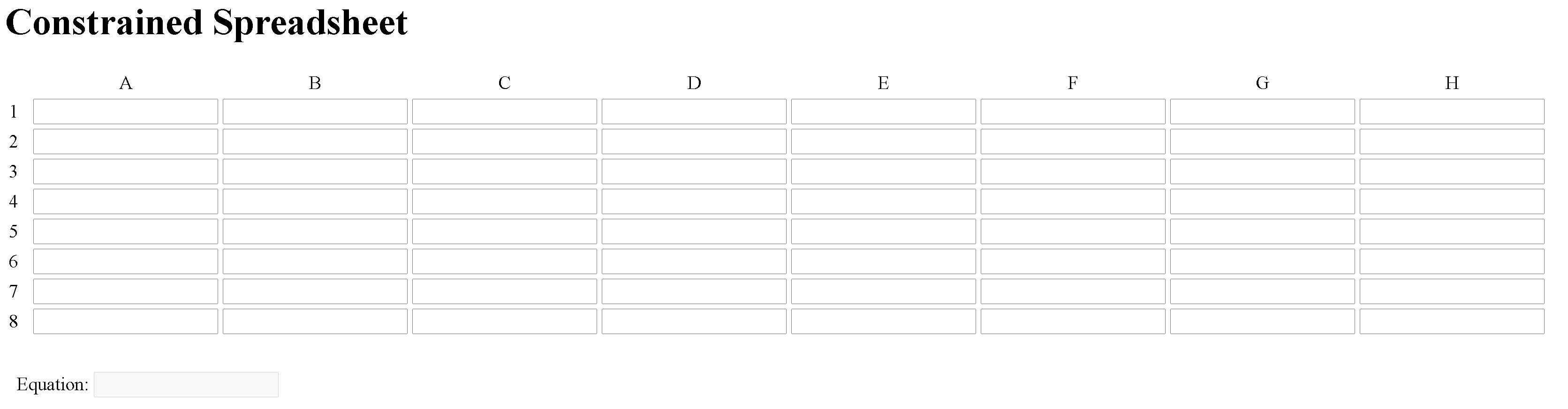
The spreadsheet closely models an excel spreadsheet. Each cell has an ID corresponding to its column and row. Currently, the spreadsheet size is hardcoded to have A->H columns and 1->8 rows. Giving is an 8X8 grid consisting of 64 cells. Upon an initial load, the spreedsheet looks like the following image.
How does a user interact with this application?
Navigation between cells is similar to how navigation works within Excel.
- Arrow keys move between cells in the expected manner.
- Enter will submit a formula as well as move down a cell.
- Tab will submit a formula and move to the cell on the right.
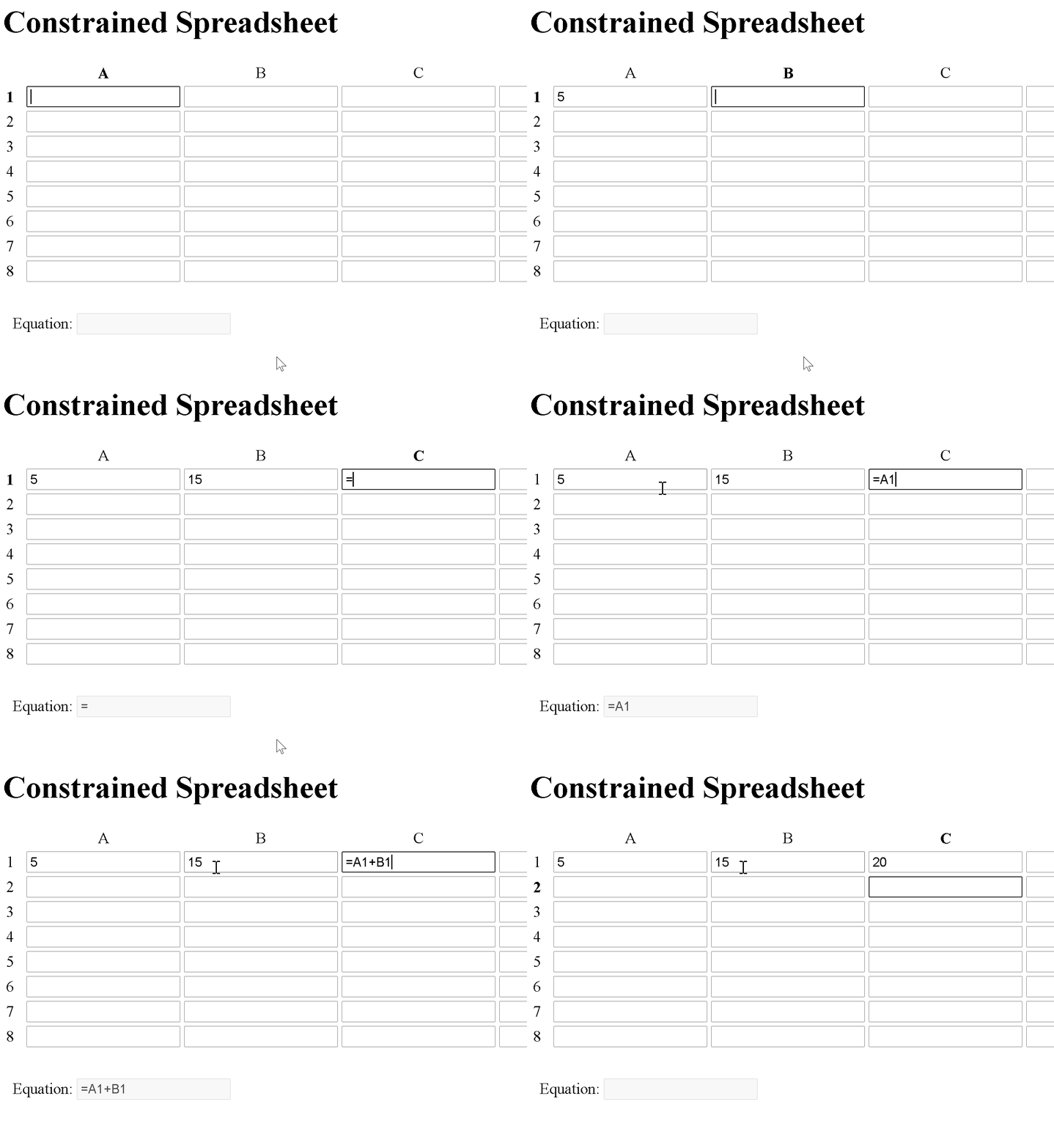
- To signify you are entering a formula, start by typing the equal sign character: "=". This then enables you to click on other cells, which will automatically put the ID of the clicked cell into your formula and bring focus back to the cell receiving the formula.
- If you want to simply mirror the value in that cell, or if you're coming here from Step 5 with a finished formula, you can end here and simply press enter or tab.
- Type in the mathematical operator of your choice. Currently tested operators are +,-,*,/.
- Click another cell.
- Go to step 2.
See this process in the GIF below:
You can also manually enter a formula by typing the IDs of the cell you wish to include in the formula.
In order to edit a formula later, focus a cell with a formula and press F2 in order to copy the formula from the equation display. Then edit the formula within the cell according the the steps above.
- How are self referential formulas handled? Self references are allowed. They update every time another cell is changed, which triggers the application to get all of the values for each of the cells.
- Are there checks for improper input? Not currently. Please be sure to enter the formulas without spaces. This is automatically done when
- Order of operations? Single operation formulas are all that are currently accepted. No order of operations required. This may be implemented later.
Formulas can handle any number of variables. Currently only accept an operator of the same type between each variable.
- Column and Row headers are bolded based on the currently selected cell
- Focusing a cell with a formula highlights the cells on which it depends. This currently only goes back 1 level.

- Each cell has an innate value of 0. Zero is only displayed if a user has manually entered it.
- Deleting the value in a cell that is depended on will innately use 0 as its value. This is how excel handles this situation.
- Handle equations with multiple operators of different types