Getting started
The testbed environment that the experiments are run within consist of several different technologies that work together to deliver a (hopefully) simple to use system to train with.
The whole environment is encapsulated within a single Docker container where all the required dependencies are pre-installed and with local folders from your host system being dynamically shared into this container at runtime to provide you, the user, the ability to edit these scripts easily and to be able to capture the output of the training process back to your host system.
All of this setup is managed by a local Makefile which contains several targets for spinning this environment up and down very quickly.
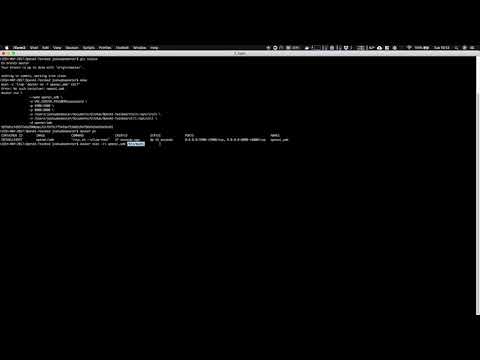
Assuming your docker agent is running and available for your user to execute commands against you can create the environment like so:
makeBy default this command will run the first build target in the Makefile which is up-nix - this will trigger the building of the container after which the container will launch with the name openai_smb.
It is important to note that the first time you build this container it could take several minutes to download and install the required dependencies within the container - however once this is done it is very fast to launch and re-launch.
To reset the container you simply need to run this command again:
makeUnder the hood this runs a secondary target as a dependency down so that it always terminates the currently running container prior to re-launching.
Logically then to stop the container without re-launching you need to run this command:
make downIf your container is not working and you want to hard reset and rebuild the entire system you will need to do the following:
make down
make clean
docker rmi openai/smb:latest
make
This will stop the currently running container, remove the Makefile build reference, remove the image from your local Docker images repository and then rebuild the entire image from scratch.
Once the Docker container is up and running it is important to understand what is actually available within the container. For a full list of references you can view the Dockerfile directly at ./container/Dockerfile but to quickly sum things up the following is available:
- VNC server: You can use a VNC client to have a visual representation of your environment as it trains
- Available at
localhost:5900with the passwordpasswordand no username; you will need to download a suitable VNC client for your host environment
- Wooey server: You can access some of the training scripts directly via a Web UI named Wooey which can kick off and manage your training for you
- Disclaimer: For performant training we use the scripts directly via CLI but this is a good system for testing things out quickly
- Available at
localhost:8000within your local browser
To allow the running of the training scripts we have also installed:
- OpenAI Gym: v0.10.5
- SuperMarioBros Gym: v0.0.7 (Forked from the source)
- Testbed v0.1.0 (Local helper library)
These Python3 libraries form the basis of the required dependencies and code needed to run the training scripts. The first two being the most crucial in actually providing the interface between Python and SuperMarioBros so that training can occur!
Something to keep in mind is that the SuperMarioBros Gym uses the FCEUX NES emulator under the hood - this setup is not the most reliable and occasionally emulator processes can become detached from the core process.
When this happens the container will end up using excessive amounts of CPU as these orphaned processes continue to run along with the new required processes. In this case you will need to reset your environment using the above make command.
When the container is launched two local folders are shared with the container:
-
./trainis shared at/opt/train -
./utilis shared at/opt/util
All files that are within these folders are available within the container and vice versa. You should make sure to direct all output from training to a path within these shared directories to ensure that you do not lose this information when the container is reset as all other state within the container is 100% ephemeral and will be lost.
For the grand finale of this guide we will run the evolve.py training script which is our base NEAT training implementation. The steps to get this working are as follows:
makeThis command lets us execute CLI commands directly within the container without using Wooey or VNC and is the recommended way of running commands.
docker exec -it openai_smb /bin/bashcd /opt/train/NEAT/
# Ensures the training process binds to the virtual display server
export DISPLAY=:1python3 evolve.pyNote: This script will run but can be cancelled at anytime without losing progress.
This training sequence will output several files including:
- The best genome of each generation as a
.pklfile - NEAT checkpoints which allow for resumption from the latest checkpoint
- Visualizations of fitness overtime which are recomputed after each generation