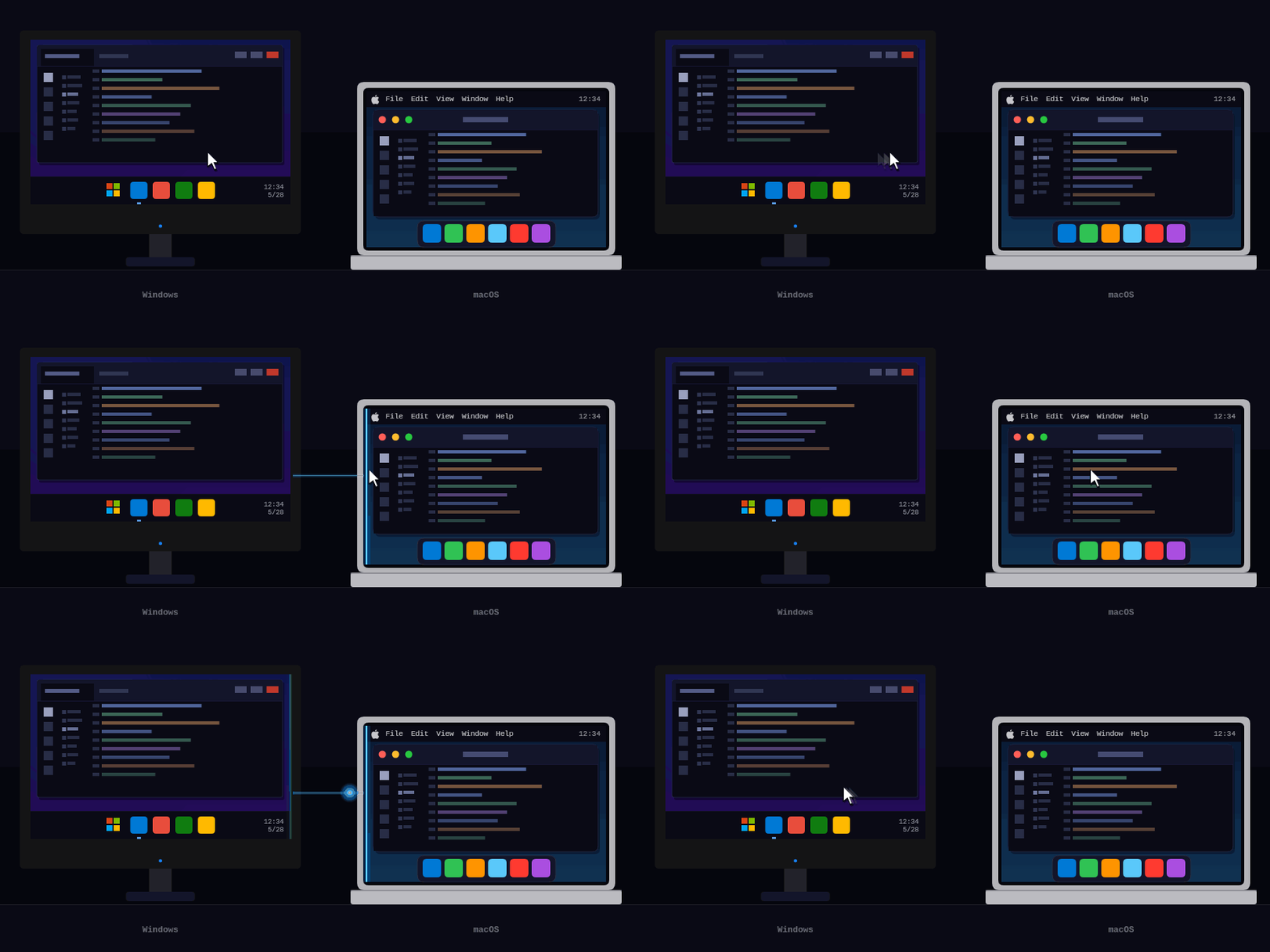
A modern, cross-platform software KVM — share one keyboard and mouse across Mac, Windows, and Linux by moving the cursor to the edge of the screen. A spiritual successor to Synergy and Barrier: end-to-end encrypted, works across networks and VPNs through an optional relay, and types correctly across keyboard layouts.




| Feature | Hydra | Synergy 3 | Deskflow | Input Leap | Barrier |
|---|---|---|---|---|---|
| Open source | ✅ GPLv2 | ❌ commercial ($29–39) | ✅ GPLv2 | ✅ GPLv2 | ✅ GPLv2 |
| macOS / Windows / Linux | ✅ | ✅ | ✅ | ✅ | ✅ |
| Works across networks / NAT (encrypted relay) | ✅ | ❌ LAN only | ❌ | ❌ | ❌ |
| Network-aware profile switching | ✅ | ❌ | ❌ | ❌ | ❌ |
| Cross-layout keyboard (types 'å' correctly on a US slave) | ✅ | ❌ | ❌ | ❌ | ❌ |
| Headless Linux / Raspberry Pi forwarder (no display server) | ✅ | ❌ | ❌ | ❌ | ❌ |
| Cross-machine file transfer | ✅ macOS + Windows | ✅ Windows + macOS | ❌ | ❌ | ❌ |
| Clipboard sync (text + images) | ✅ | ✅ | ✅ | partial | partial |
| Active development (2026) | ✅ | ✅ | ✅ | partial | ❌ |
Commuting laptop. Dock at the office and Hydra switches to your Office profile — cursor flows between screens, files copy across with one hotkey. Unplug, get home, join the home WiFi: Hydra switches to Home, where the same laptop now drives a mini-PC on the TV. No network at a coffee shop — Hydra just idles.
Headless Pi as a wireless keyboard. Run Hydra in remote-only mode on a Pi behind the TV. Plug in any USB keyboard and mouse and they control your Mac across the room — no display server, no Xorg, just evdev and a network cable.
Cross-layout typing. Norwegian master, US slave — type å and å arrives on the slave, even though its keyboard has no such key. Hydra resolves characters to Unicode on the master before sending; dead keys (' + a → á) work the same way.
Shared office screen. A wall display runs as a slave. Whoever slides their cursor onto it first takes control — no cables, no HDMI switches, no "can you share your screen?"
Cross-network via relay. Your work laptop is on the VPN and can't see your personal machine on the same LAN. Drop a Styx container on a cheap VPS, paste the relay config into both hydra.conf files, and they connect through it — end-to-end encrypted, no port forwarding.
Open Hydra's local cross-platform TUI in another terminal:
./hydra tui
./hydra tui --config /path/to/hydra.conf
./hydra tui --color   # tint the connection line green/red by actual state
Process, profile, relay, peers, network interfaces, and live traffic at a glance — reconnect or restart with one keypress.

Edit hydra.conf from a sectioned form or the raw JSON. Pair and manage a remote peer over the encrypted relay from the same screen.
Closing the TUI does not stop Hydra — Esc just quits the TUI.
The local socket/named pipe the TUI connects through is on by default. Set "managementListener": false in hydra.conf to disable it on a machine that should never be managed this way.
Run the binary directly to try Hydra out, or use --install to set it up as a service / LaunchAgent that auto-starts on login and survives reboots.
macOS (Apple Silicon):
curl -L https://github.com/PacAnimal/hydra/releases/latest/download/hydra-osx-arm64.tar.gz | tar xz
./hydra             # run directly — good for testing, no install needed
./hydra --install   # installs as a login item, auto-starts on login
--install registers a LaunchAgent, clears the quarantine flag, and starts Hydra immediately. Grant Accessibility permission when prompted: System Settings → Privacy & Security → Accessibility → enable Hydra. To remove: ./hydra --uninstall.
Run --install before granting Accessibility — macOS ties the permission to the binary's identity at the moment you grant it, so granting first means removing and re-adding Hydra from the Accessibility list afterward.
Windows (x64):
Download hydra-win-x64.zip, extract, then run:
hydra.exe             # run directly — good for testing, no install needed
hydra.exe --install   # install as a Windows service (auto-start, survives logout)
A UAC prompt will appear for --install. Because Hydra installs as a LocalSystem service, it stays active on the Windows login and lock screens — mouse and keyboard control works even before you sign in. To remove: hydra.exe --uninstall.
Linux (x64):
curl -L https://github.com/PacAnimal/hydra/releases/latest/download/hydra-linux-x64.tar.gz | tar xz
chmod +x hydra
./hydra
Linux (arm64 / Raspberry Pi):
curl -L https://github.com/PacAnimal/hydra/releases/latest/download/hydra-linux-arm64.tar.gz | tar xz
chmod +x hydra
./hydra
All releases are self-contained — no .NET runtime installation required.
Priority: Hydra runs above normal process priority so a busy machine doesn't stutter the cursor.
--installhandles this automatically on macOS and Windows; on Linux, addNice=-10to your systemd unit.
Linux with display: Requires X11 with XInput2. Wayland is not yet supported.
Linux headless (no display): See Remote-only / Raspberry Pi setup.
Create hydra.conf next to the binary on each machine.
Master (the machine with the physical keyboard and mouse):
{
  "name": "desktop",
  "profiles": [{
    "mode": "Master",
    "embeddedStyxServer": { "port": 5000, "password": "secret" },
    "hosts": [
      { "name": "desktop", "neighbours": [{ "direction": "right", "name": "laptop" }] },
      { "name": "laptop" }
    ]
  }]
}
Slave (the machine that receives input):
{
  "name": "laptop",
  "profiles": [{
    "mode": "Slave",
    "embeddedStyx": { "server": "http://192.168.1.10:5000", "password": "secret" }
  }]
}
Replace 192.168.1.10 with the master's IP address. Run ./hydra on both machines. Move the cursor past the right edge of the master's screen — it appears on the slave.
All hotkeys use Ctrl+Alt+Super (Super = ⌘ on macOS, Win key on Windows):
| Hotkey | Action |
|---|---|
Ctrl+Alt+Super+L |
Toggle cursor lock — pin to current screen, or release to roam freely |
Ctrl+Alt+Super+M |
Toggle relative mouse mode on the current remote screen (useful for games) |
Ctrl+Alt+Super+C |
Copy selected files/folders to Hydra's cross-machine clipboard (macOS, Windows) |
Ctrl+Alt+Super+V |
Paste previously copied files to the current machine |
For cross-network setups (different LANs or over a VPN), see Networking with Styx.
The easiest way to set up multi-machine layouts, Styx relay configs, and network-aware profiles is the Hydra Config Editor — a web UI that lets you visually arrange screens and download a ready-to-use hydra.conf.
- Seamless cursor transitions in any direction (left, right, up, down)
- Multi-monitor support — multiple local and remote monitors, auto-detected at startup and on connect/disconnect
- Flexible layout: L-shaped, grids, or any topology
- Range-based neighbours — split edges to route to different hosts by cursor position
- Per-screen scale — control cursor speed on each remote screen
- Full keyboard forwarding including dead keys and special characters — resolved on the master using its keyboard layout
- Mouse button and scroll forwarding
- Clipboard sync — text and images synced automatically when switching machines (all platforms)
- File transfer — cross-machine copy/paste of files and folders via hotkey (macOS and Windows)
- Media key forwarding — volume, playback, brightness keys forwarded to the active machine
- Screensaver sync — activating the screensaver on the master locks all connected slaves
- Windows login screen support — installed as a system service, Hydra stays active on the lock and login screens
- End-to-end encrypted relay via Styx for machines on different networks
- Multiple masters per slave — several machines can share a single slave display; whoever moves their cursor onto it takes control
- Remote-only mode — use a headless Linux machine (e.g. Raspberry Pi) as a dedicated input forwarder with no local screen
- Terminal control center — monitor, control, and configure the local Hydra instance from macOS, Windows, Linux, or SSH
- Configuration reference — all config fields, screen layout options, network-aware profiles, hotkeys, Styx setup, and building from source
- TUI architecture — management boundaries, security invariants, platform lifecycle behavior, and validation expectations
- TUI hotkeys — every keyboard shortcut in the terminal control center, tab by tab
- Styx protocol — the relay's wire protocol, for implementing your own client or server against it