Read Me:
This repository is for sharing the Improved Red Gate SQL Prompt Snippets across SQLprompt Users and to make the process of templating SQL Code more Collaborative. Red Gate SQL Prompt is the industry standard for providing in-IDE code snippets, to speed you up when programming T-SQL. See http://www.red-gate.com/products/sql-development/sql-prompt/ for more information. SQL Prompt's Default Snippets are not Updated Frequently and So, This Repository Servers the Purpose.
How to Clone (or Download) Repo and Configure SQL Prompt Snippets.?
Download Process:
Click the link: https://github.com/ChandraSaiKarthik/SQLpromptSnippets/archive/refs/heads/master.zip. Rename the Downloaded Zip File "SQLpromptSnippets-master.zip" to "SQLpromptSnippets.zip". Copy the Zip File "SQLpromptSnippets.zip" to Local Folder and Extract to SQLpromptSnippets". For Example: Navigate to Folder "C:\GitHub\SQLpromptSnippets".Clone Process:
Clone the "SQLpromptSnippets" from GitHub to Local Folder. For Example: Navigate to Folder "C:\GitHub\SQLpromptSnippets".Now RightClick inside Folder "SQLpromptSnippets" and Select and Click "Git Bash Here". Now Type "git clone https://github.com/ChandraSaiKarthik/SQLpromptSnippets.git" (without quotes). Configuration Process:
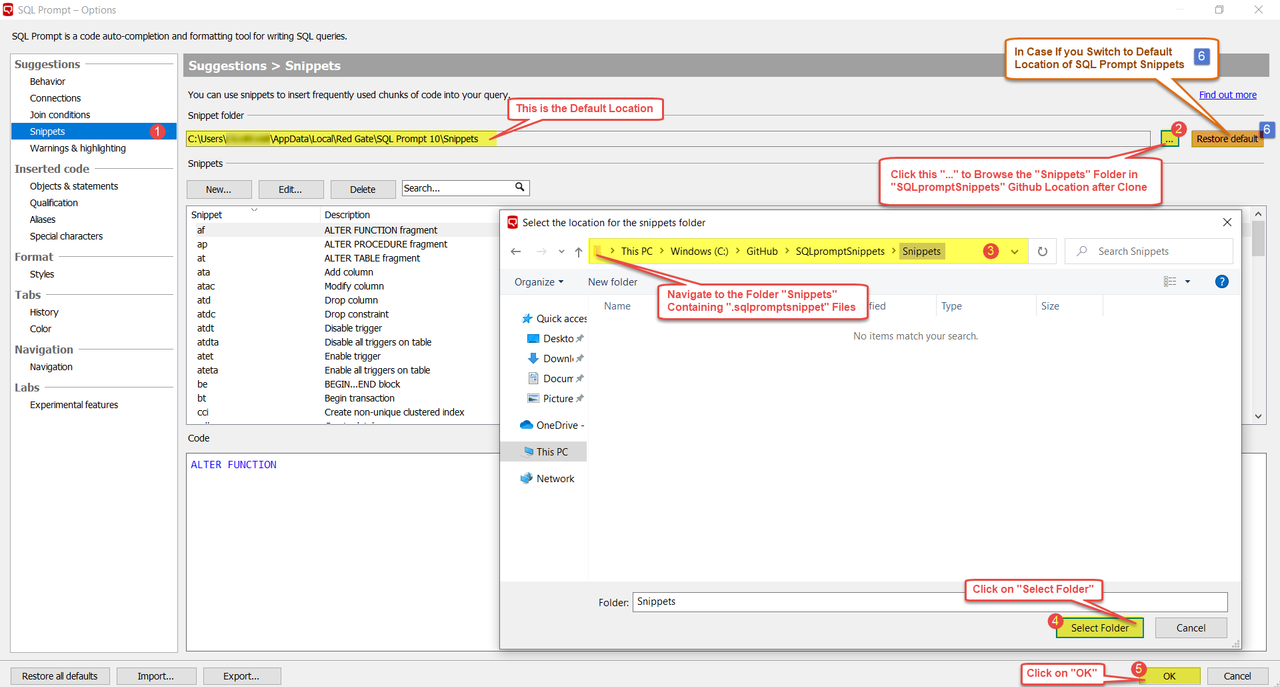
Open SSMS; In the SSMS Menu Bar, Click SQL Prompt → Options.
- Click "Snippets" [1] (Sidebar)
- Click "..." [2]
- Navigate to the Folder [3] Containing ".sqlpromptsnippet" file extension.
For Example: "C:\GitHub\SQLpromptSnippets\Snippets".- Click "Select Folder" [4].
- Click "OK" [5].
Note: Snippets are stored as XML files with the .sqlpromptsnippet file extension.
Note: From SQLprompt v10.5, Snippet Files are Stored as .json instead of .sqlpromptsnippet.
How to Restore the Default Snippets Path.?
To restore the snippets folder to the SQL Prompt default location, click the "Restore default [6]" and then Click "OK [5]". This also adds any missing default snippets back into the folder. When you restore the default snippets, your custom snippets aren't removed and any changes you've made to default snippets aren't overwritten. Default Snippets Path: "C:\Users\%UserName%\AppData\Local\Red Gate\SQL Prompt 10\Snippets"
SQLprompt Release Notes Highlights:
10.5.0.16982 - Released on 3rd December 2020
• Upgraded styles format to be compatible with the format used in the SQL Prompt ADS extension.
10.3.0 - Released on 2nd July 2020
• SQL Prompt v10.3.0 and later will no longer work in SQL Server Management Studio 2012 and 2014.
How to Contribute.?
Fork this repo Add / edit snippets Keep SnippetsList.txt (root directory) updated Submit contributions as Pull Requests
Refer: Sharing SQL Prompt Snippets