Productivity Engineering
[TOC]

- First, I’ll talk about our product engineering process (WriteOn-Flavored GyShiDo).
- Second, I’ll talk about the implementations of this process: one using Zenhub and the other using Github Issues.
###WriteOn-Flavored GyShiDo ####WHAT GOES IN A SPRINT STORY We call a unit of task to be completed a story. Every time a story gets added to the backlog (an inbox of stories), it should contain an initial story spec.
An initial story spec should answer the following questions with varying degrees of completion:
- Why does it matter?
- Who is it for? What are the use cases?
- Future Considerations
- How will we know/measure if we’ve succeeded?
- Requirements list
- Implementation todo list
We then run a weekly sprint to work on a set of chosen stories and their various tasks.
In Studioconnect-Flavored GyShiDo, a story goes through the following steps from top to bottom:
- Gathering Requirements: This is the backlog (inbox). Not ready to discuss because the initial story spec is incomplete.
- Planning: Initial story spec is written, and therefore ready to discuss during the next sprint planning.
- Sprint Candidates: Story spec has been discussed. During a sprint planning meeting, we look at this list and decide which stories go on our next weekly sprint.
- Ready: Story is part of the current sprint, but no code is written.
- In Progress: Story is part of the current sprint and actively being worked on.
- Testing: Story is implemented in a staging environment and needs to be tested & approved by the product owner.
- Code Review: Story is accepted and needs to be code-reviewed by some other engineer.
- Done: Story is deployed to production.
There are some other states:
- Not Doing: Stories to be revisited later.
- Help Wanted: Random one-off tasks that don’t make sense in the context of the dev process (but should be documented with a spec).
- etc...
Let’s get into the detail and talk about the tools we use to put this into action.
##Studioconnect-Flavored GyShiDo in Action with Zenhub

We’ve been using Trello to implement Studioconnect-Flavored GyShiDo for a while now, but not for engineering. Engineering uses Jira for Kanban boards and issue tracking, but the code is in Github. Here’s how it works without just Github.
Since GitHub isnt’t really designed for Scrum/Kanban-style development, so we must do some preparation work.
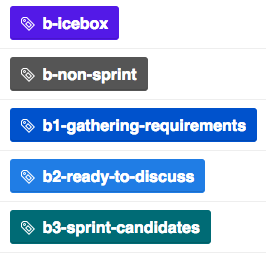
####PREP 1: LABELS First, we create labels to reflect our Product Roadmap board. Numbers are added for sorting.
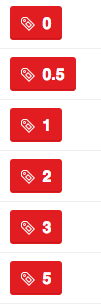
We also time estimation point labels:
###PREP 3: INSTALL ZENHUB Third, each team member installs ZenHub, a Chrome extension that adds a Trello-like board to GitHub.
We create six lists (called pipelines): Backlogs & Pull Requests, Ready, In Progress, Testing, Code Review, and Done.

All the new issues and pull requests are populated on Backlogs and Pull Requests list. I wish we could hide pull requests from the ZenHub board, but that’s not possible as of now.
####GITHUB ISSUES WORKFLOW That’s all for the prep work. Here’s the new workflow:
- To add a new story, simply create a new issue and add a backlog label (e.g.
planningorgathering requirements). In contrast to using Trello, the initial spec can be simple (e.g. just a screenshot, conversation log, etc). Just add details via comments as the story progresses. Once enough details are added, they’ll becomeplanning. - Always assign someone when creating a card. The assignee could be a project owner or whoever has reported the issue, request, or bug.
- During a sprint planning meeting, we go through the issues labeled as
ready. As a group, estimate the time it’d take to complete this issue, and add comments to the story as needed. We then change the label tosprint candidatesornot doing. We also add estimation points (this time, using a label as shown above). - If you change the label to
not doing, close the issue to de-clutter the list. - Also during a sprint planning meeting, we choose a subset of the issues labeled as
sprint candidatesto be part of the sprint. We also change the assignees on this step. Be careful because GitHub only lets you assign one person per issue, unlike Trello. - To make an issue part of the sprint, (1) remove
sprint candidateslabel, (2) add the corresponding milestone, and (3) set the pipeline toIn Progress.
Keyboard shortcut here is: l → (type “sprint candidates”) → m → (type current milestone) → p (type “In Progress”).
We use milestones to indicate the status of “in current sprint.” If we used labels instead, (1) they’d clutter the ZenHub board, and (2) the labels (e.g. current sprint) would need to be removed when we finish the sprint, which adds an extra step.
Milestones can be kept even when we’re done with a story. Milestones also indicates which sprint the corresponding story was part of.
7. When you’re ready to work on a issue in Ready, create a branch on GitHub and move the issue to In Progress using ZenHub.
8. The branch name should include the issue number.
9. When the issue can be reviewed for acceptance/a code review, open a pull request on GitHub and move the issue to either Testing or Code Review.
We can also open a pull request even when it’s not ready for acceptance or code review. In that case, add WIP: ... or Not ready: ... to the title of a pull request.
10. On the description of the pull request, make sure to include the following:
closes: #<issue number>
needs acceptance from: @<name>
needs code review from: @<name>
The first line links the specified issue to the pull request, and also lets you close the issue automatically when the pull request gets merged. @-mentions notify the reviewer about the changes.
If the pull request includes a database migration, indicate that somewhere.
- When both acceptance and code review are complete, merge the branch to master and deploy.
- Issues will be closed automatically when the pull request gets merged. No need to add or remove labels—milestones keep track of which sprint the issue was in.
####Upcoming Updates
We are moving away from using labels to denote ready and sprint candidates. We will soon use a Board for those too.
We will also be removing the Done board because closing a pull request automatically closes the issue, which removes the card from the ZenHub Board.
###ADD SCREENSHOTS AND LINKS For front-end changes, we should always add screenshots to the pull request. It’s much easier to code reivew that way. Use Skitch.app to add a screenshot to both issues and pull requests. For pull requests, include both before and after:

-
GitHub links to relevant files. Atom and Sublime Text both have ways to open the current file on GitHub. It’s built-in on Atom and a package on Sublime. Use
yto freeze the current file on GitHub (learn more). - GitHub links to relevant commits. They’ll be shortened automatically.
- Links to relevant Slack conversations. All messages on Slack are permalinked, unlike Hipchat (as of today).
####KEYBOARD SHORTCUTS
Hit ?, then click “Show All” to view the list of keyboard shortcuts on GitHub. Useful shortcuts for our workflow are:
On a pull request or issues page, select text and r to reply quoting selected text.
g i to go to issues, then use j or k followed by x to select an issue. g p goes to pull requests.
/ to search issues.
l to filter by/edit labels.
a to filter by/edit assignees.
m to filter by/edit milestones.
p (ZenHub only) to edit pipelines.
For other GitHub tips and tricks, read the GitHub Cheat Sheet.
####PROS AND CONS
This workflow is a bit cumbersome, especially at step 4 from above. We also have to manually sum estimation points to calculate velocity. We might have to write a Chrome extension on top of ZenHub to automate these.
Ignoring these caveats, we get these benefits:
- No need to use Trello or Jira. All of the knowledge is represented on GitHub.
- Encourages more discussion on a sprint story.
- Automation of closing an issue.
- Personally, I like this simple, expressive GitHub workflow more.
####ZENHUB SUPPORT ZenHub practices dog-fooding for their customer support. Check out their support board here.
##Studioconnect-Flavored GyShiDo in Action with Trello

Sprint Candidates, Planning, Gathering Requirements, and Not Doing.
[INSERT SCREENSHOT]
Then we have the Current Sprint [Sprint #123] board, which contains the list of cards in the following status: Ready, In Progress, Testing, Code Review, and Done.
[INSERT SCREENSHOT]
We also have the Platform Roadmap board for a backlog of stories related to technical debt that need more considerable effort.
[INSERT SCREENSHOT]
####CARDS Each Trello card contains the following information:

We use Scrum for Trello Chrome extension to display the time estimates on a card. We like how this extension automatically calculates the sum of estimation points for each list:

####TRELLO WORKFLOW Here’s the high-level workflow:
- New cards get added to either
Gathering Requirementslist orPlanninglist on the Product Roadmap board. Before a card goes onPlanning, its initial spec must be written. - During a sprint planning meeting, we go through the cards on
Planning. Together as a group, we estimate the time a dev would take to complete this card, and tweak the spec as needed. We then move the card toSprint Candidates, orNot Doingif we decide to punt. - Also during a sprint planning meeting, we choose a subset of the cards in
Sprint Candidatesand move them toReadyin the Current Sprint [Sprint #123] board. We must choose these cards carefully b/c we must aim to complete all of the Current Sprint [Sprint #123] cards within the coming week. We also assign a developer to a card on this step. - When you’re ready to work on a card in
Ready, create a branch on GitHub and move the card toIn Progress. The branch name should include the Trello card number, which can be found on the card’s URL. - When the card can be reviewed for acceptance/code review, open a pull request on GitHub and move the card to either
AcceptanceorCode Review. Put the Trello card number on the title of the pull request for cross-referencing. - When both acceptance and code review are complete, merge the branch to master and deploy. Move the card to
Done.
####PROS AND CONS Using Trello is simple and makes it easy to visualize what’s going on. However, this still has two major problems:
First, knowledge is split between Trello and GitHub. Trello knows about (1) high-level status of each story and (2) the original spec. GitHub knows about implementation-level status of each story. We also have to keep Trello and GitHub in sync. Third party tools like Zapier don’t help much without large amounts of work and maintenance.
Second and more importantly, it is hard to have a discussion about a particular story on Trello. Requirements change over time, so a story’s comments often turn into the story’s spec. But comments on a Trello card are buried inside the card’s “Activity” feed. Trello’s notification system isn’t optimized for discussions either.
[INSERT SCREENSHOT]
This is why we primarily use Github ala Zenhub or Blossom.
###Side Note: Slack for Daily Standups For daily standups, we use a channel on Slack. We use Zapier to set a daily reminder. IFTTT would work too.
####Side Note: Hubot for GitHub Issues We also use Hubot’s GitHub Issues script to easily reference a card on our Slack channels. Useful for daily standups.
##That’s it!
GyShiDo is about the mindset and not about the tools, but picking wrong tools leads to meta-work overload, which then leads to less communication—the key to make agile work.
Let me know on Twitter if you have suggestions.