Mockups
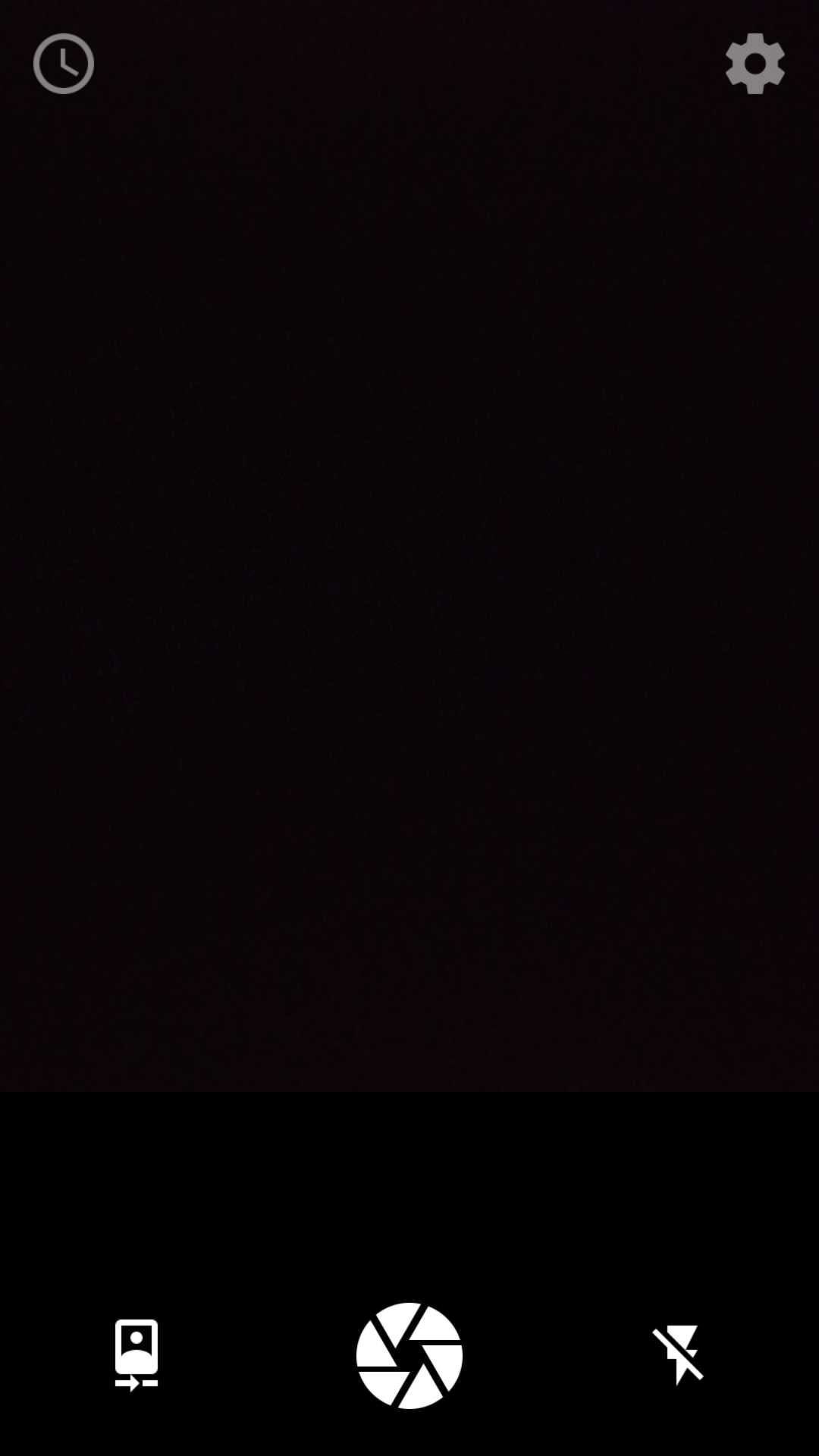
- Left Image: Buttons are faded to improve sight for taking picture.
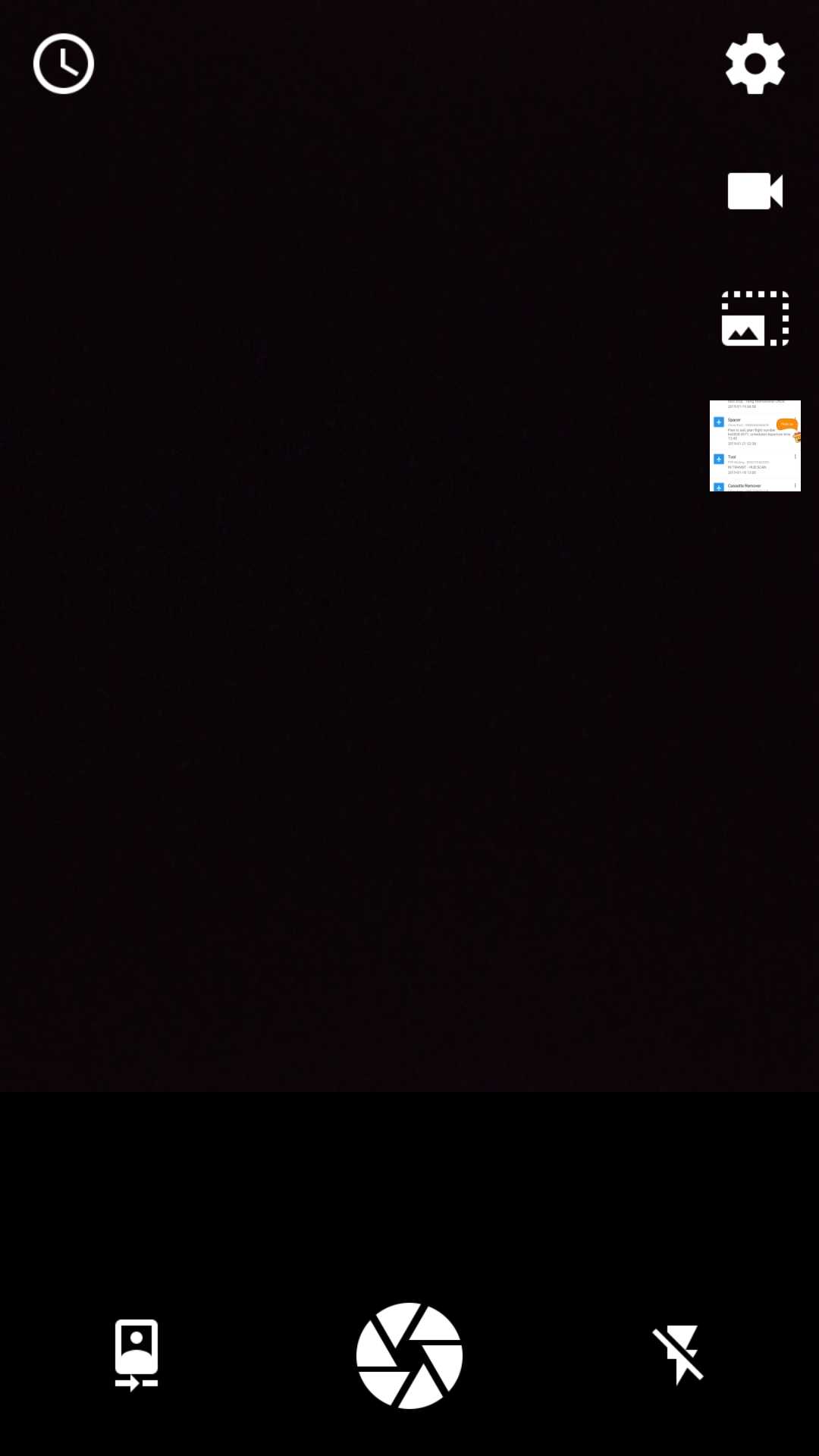
- Right Image: Buttons are clickable.
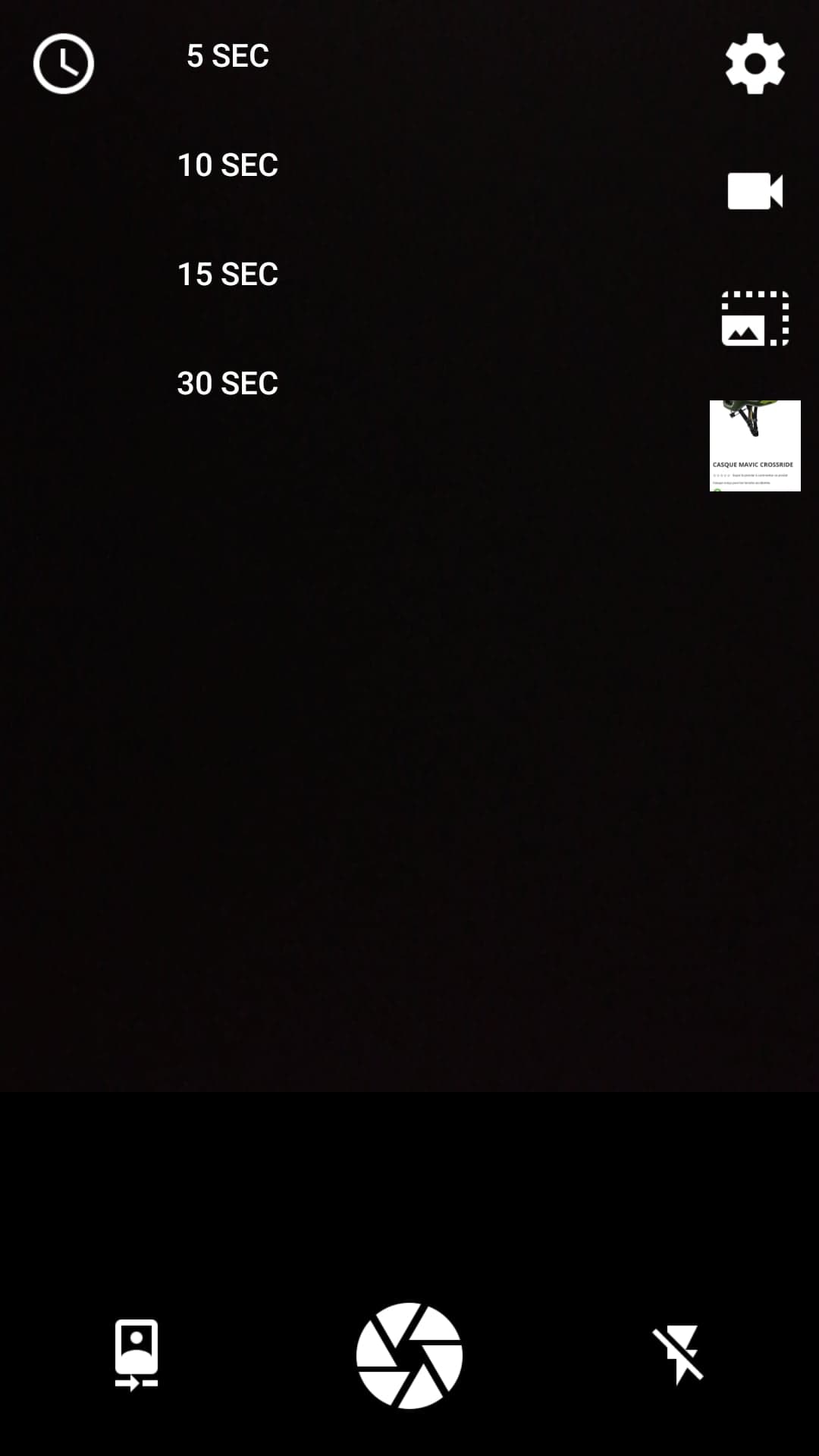
- Left Image: Selection of time delay
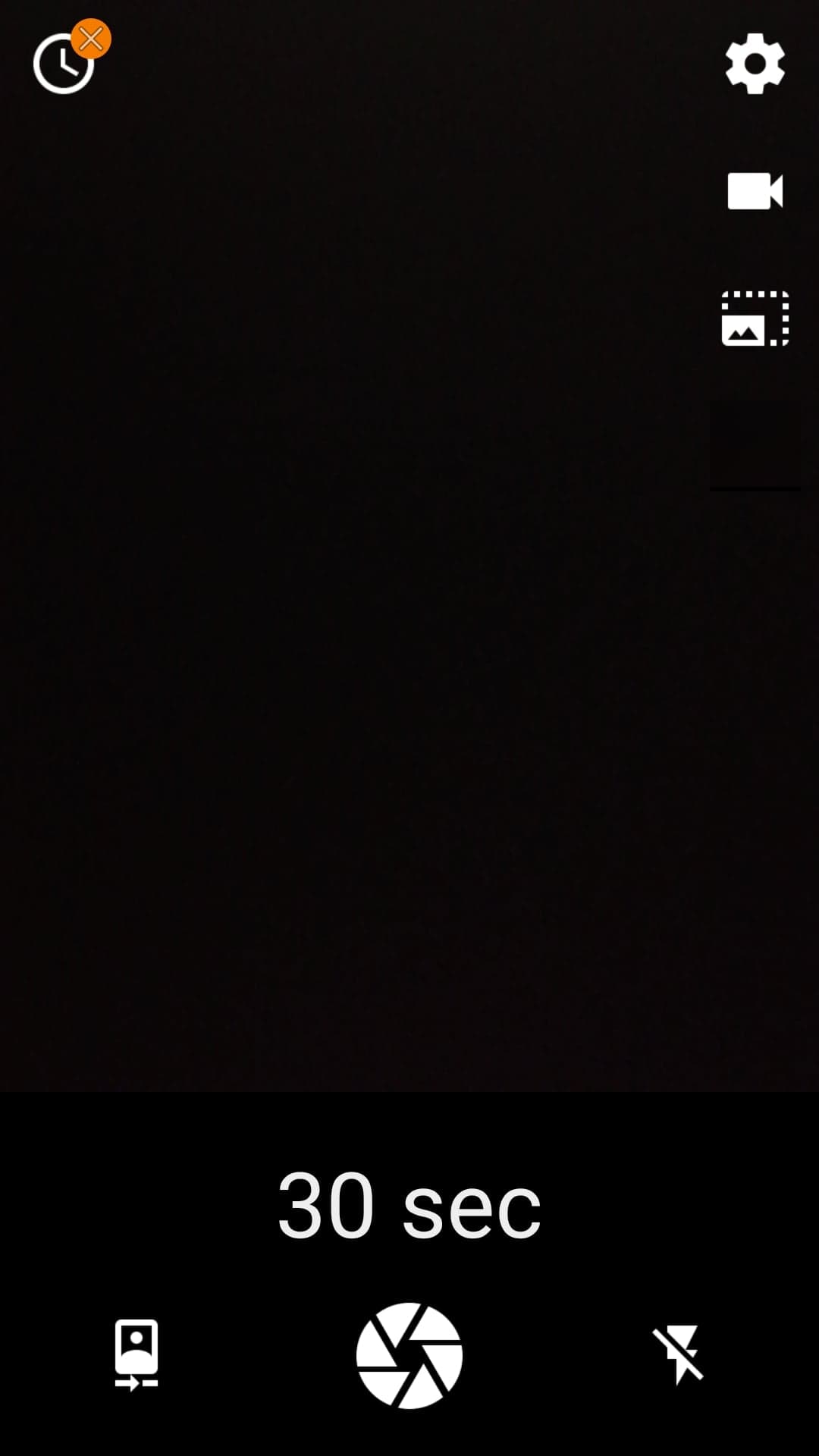
- Right Image: The time selected is shown before picture is taken.
- Image: 30 sec countdown started. Top image clickable to cancel.
The small arrow on the right of the app is used to slide left to view the last image taken, previously done with a button.
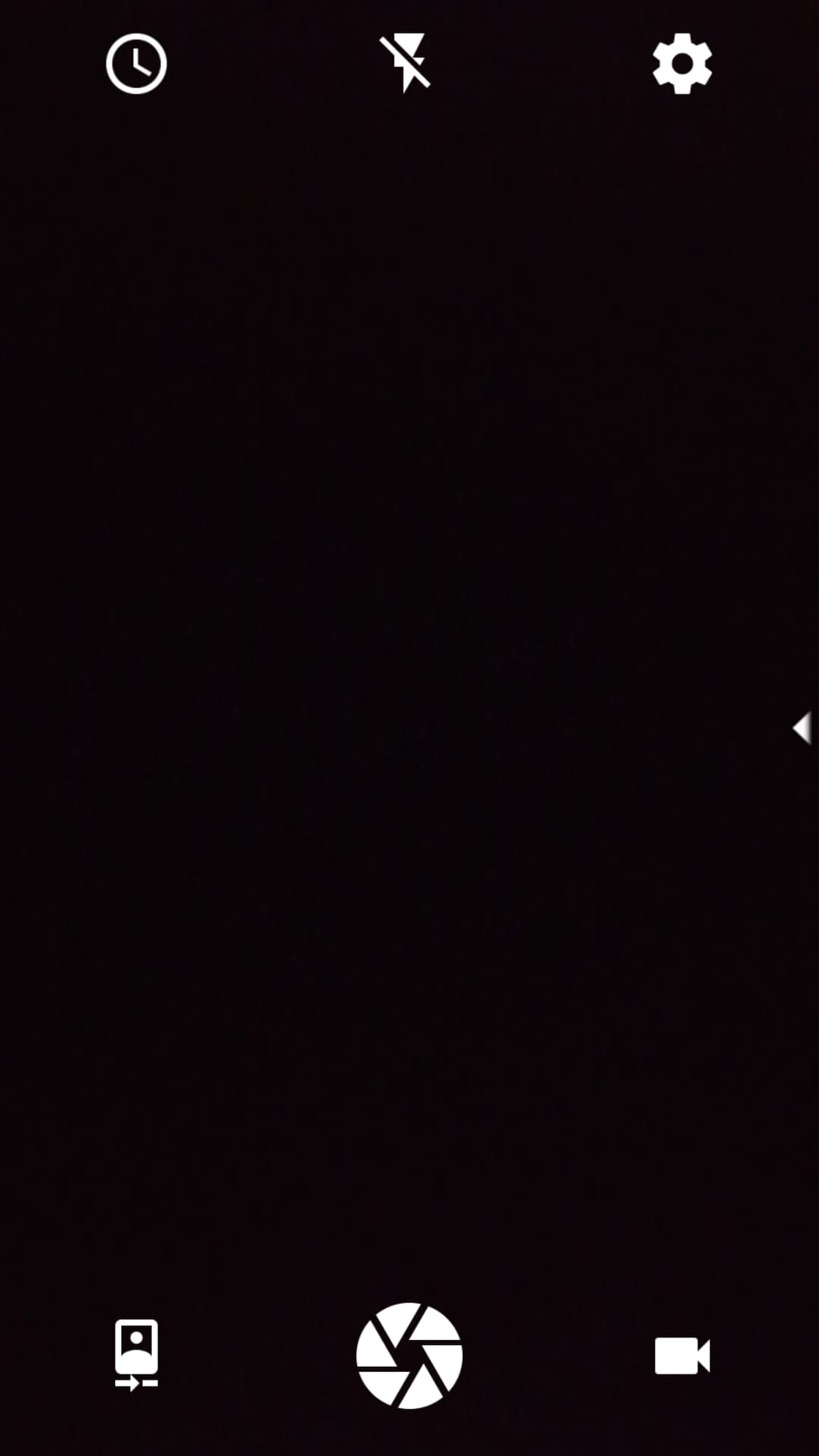
- Left Image: New design includes a top bar of the app's most important features. The UI is cleaner, and features are available at one less click now (right disappearing sidebar removed).
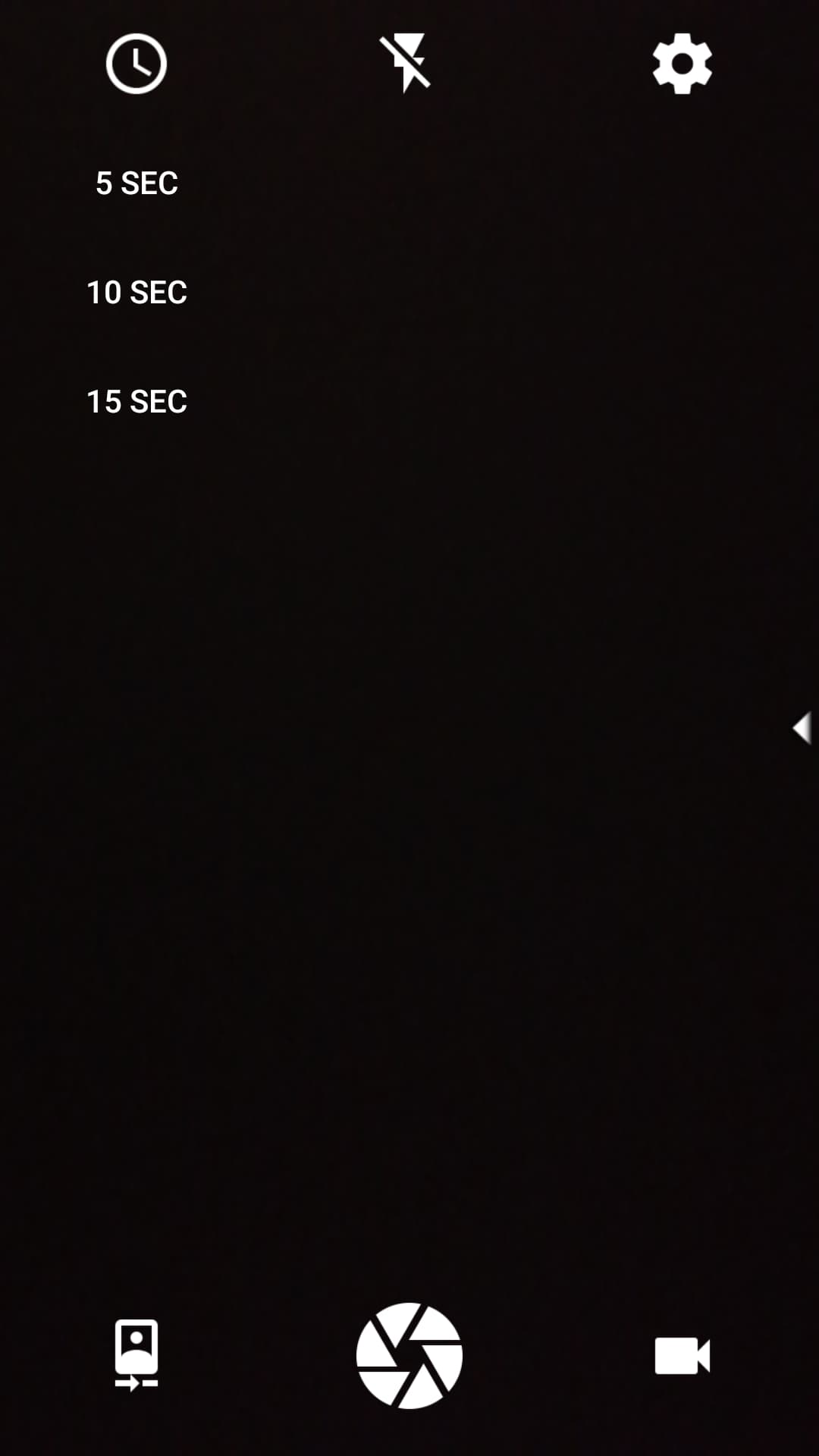
- Right Image: New design does not affect the performance of features that existed prior, such as the countdown timer. Although, the dropdown menu now appears below the countdown icon as opposed to the right.
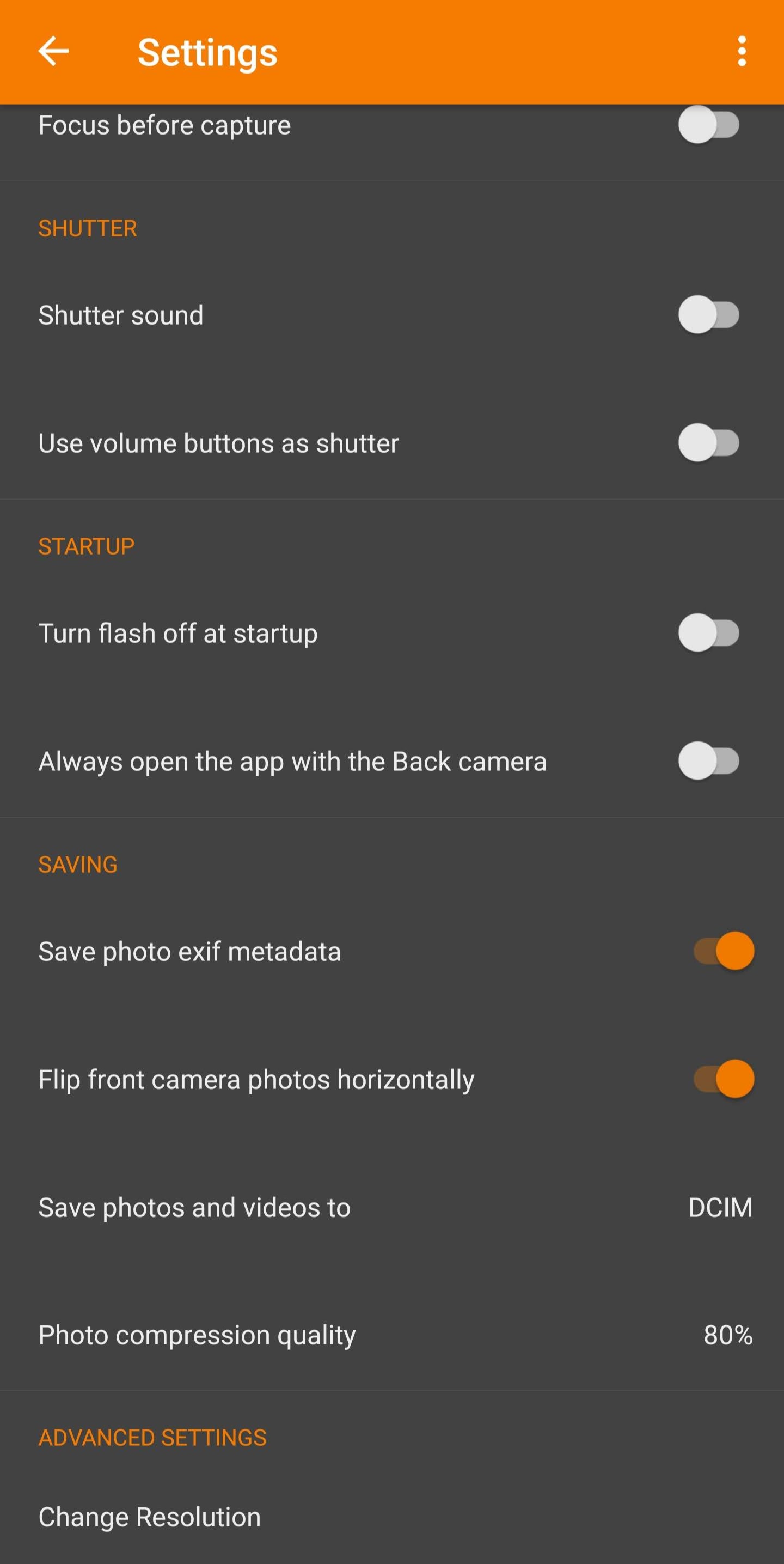
- Left Image: After a few seconds of no interaction, all buttons in the top bar fade slightly to provide more immersion.
- Right Image: All functionality of the change resolution button (previously in the right side bar) will be placed in the settings activity under advanced settings.
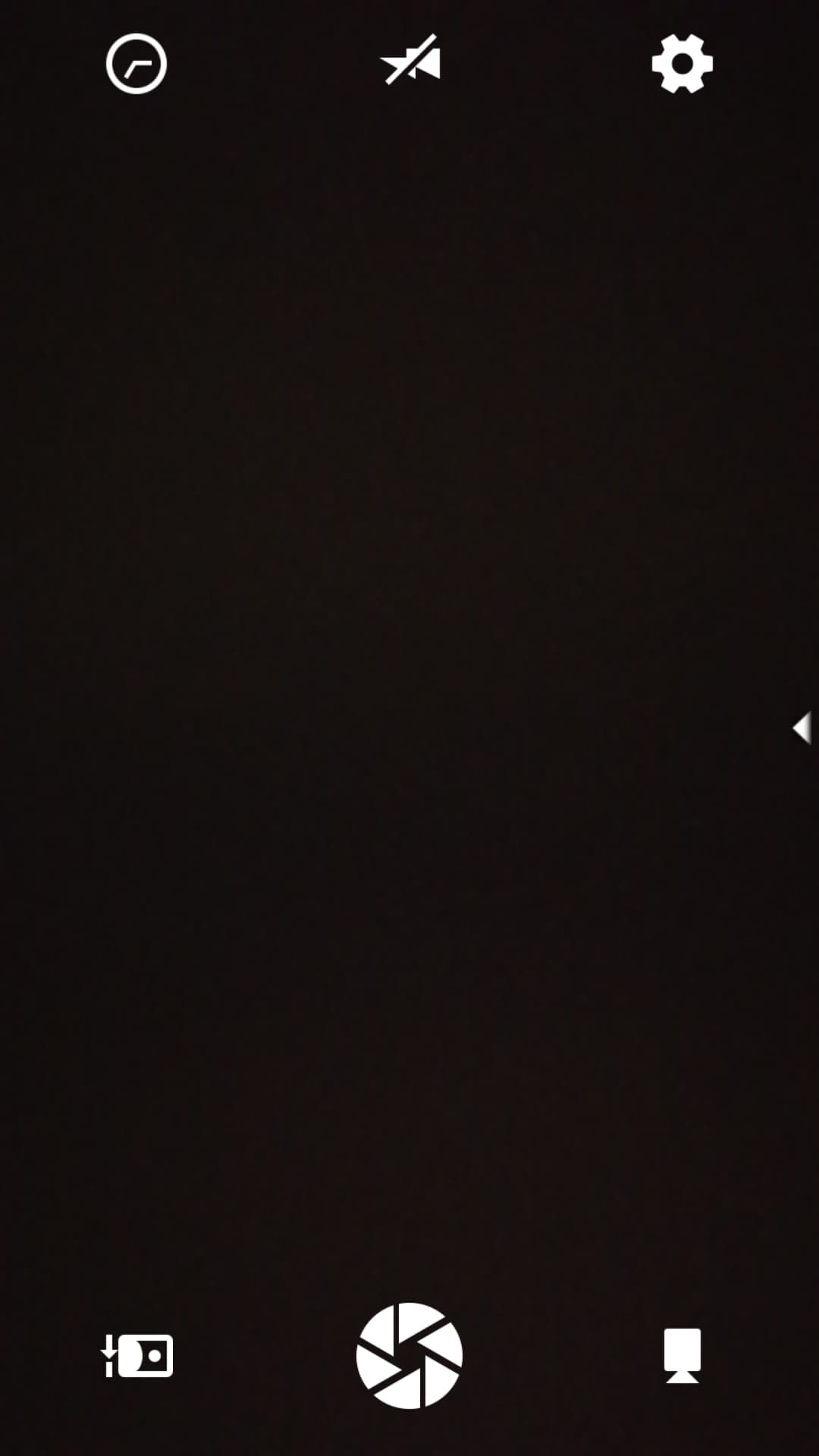
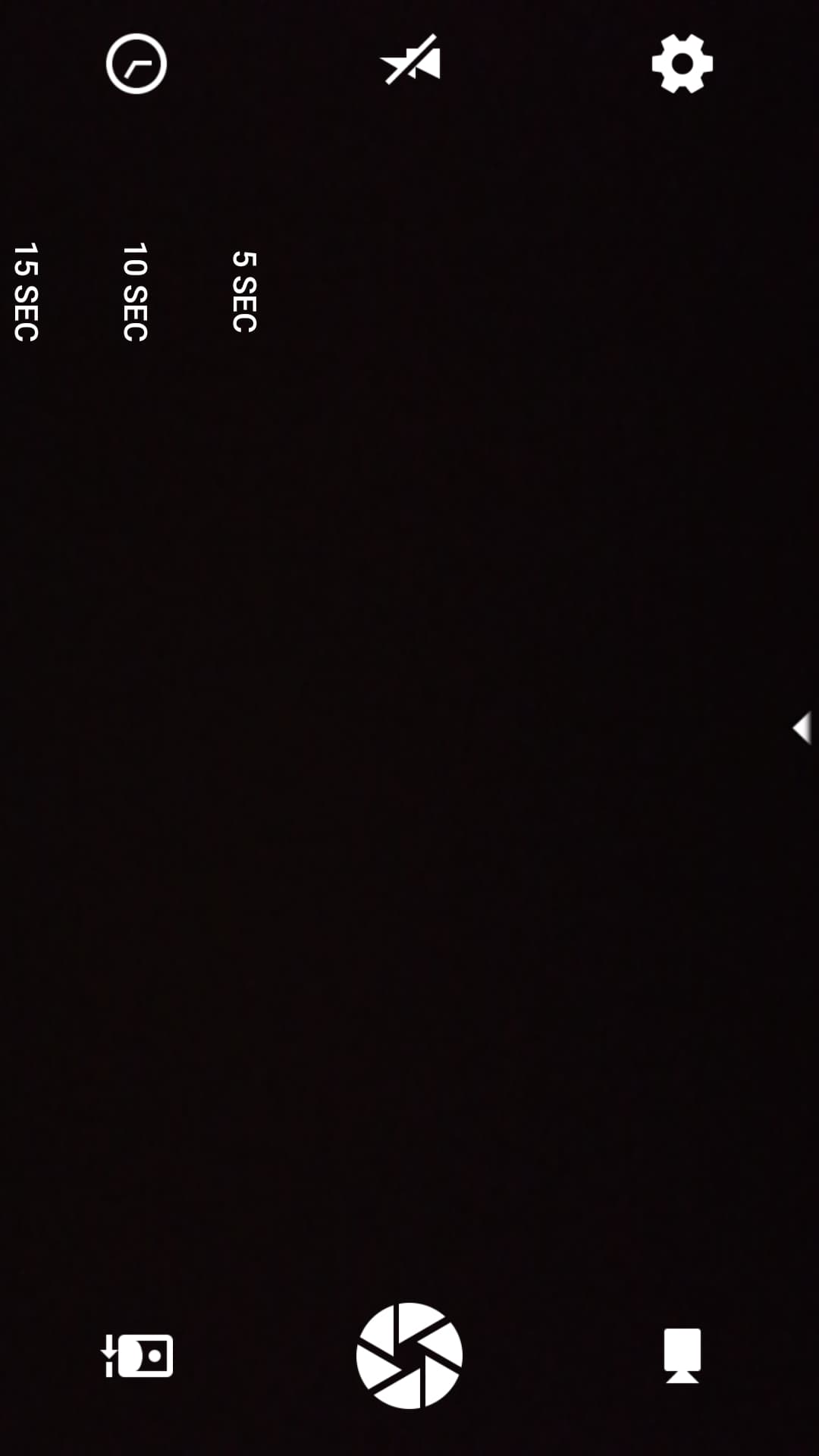
- Left Image: In landscape mode, all icons rotate accordingly.
- Right Image: In landscape mode, the dropdown menu of the countdown timer appears on the right.
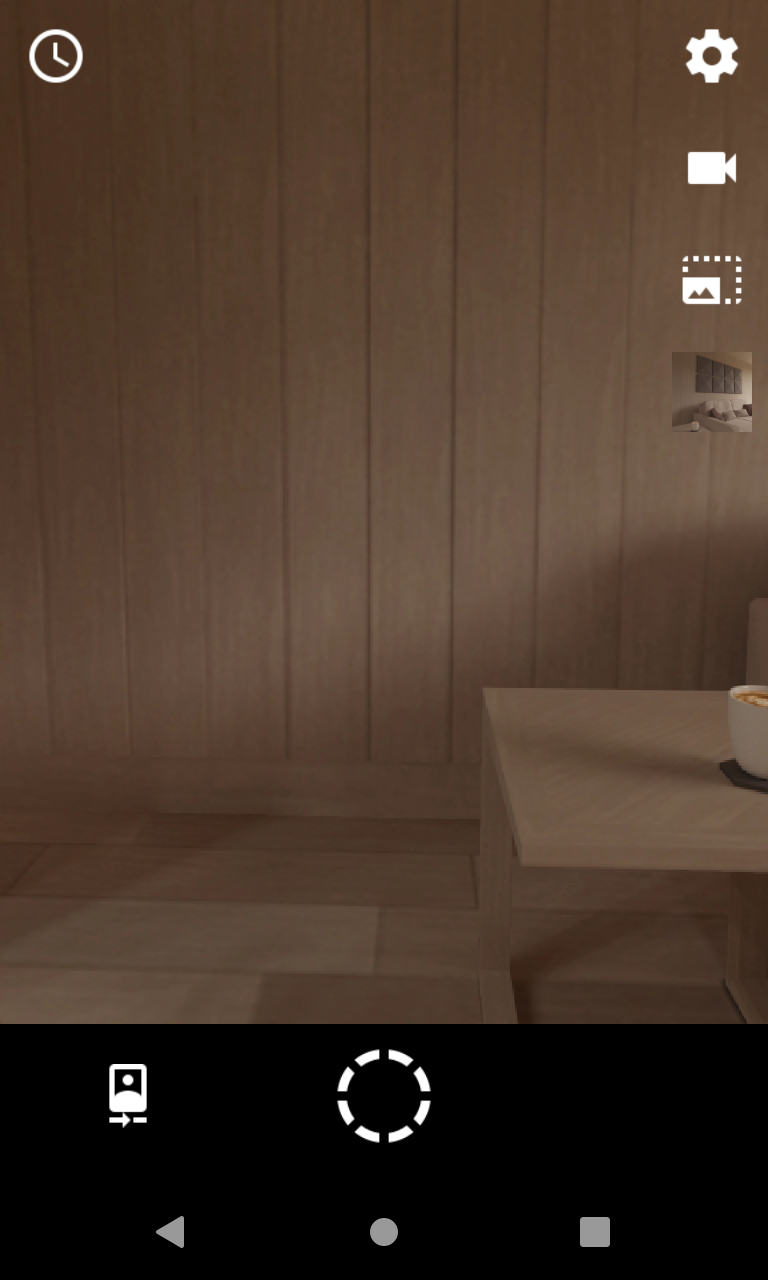
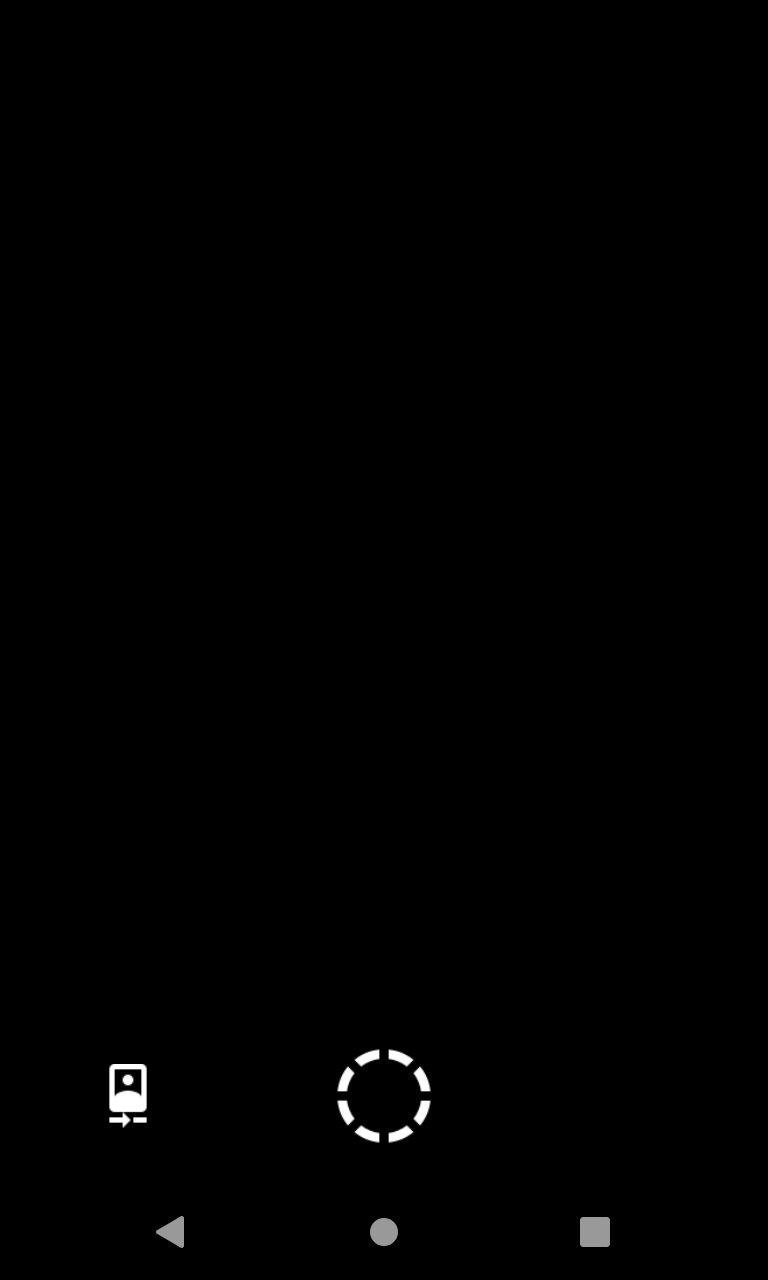
- Left Image: Altered shutter button in Burst Shot Mode.
- Right Image: Camera blackout indicating a shot has been taken (this will flash very briefly).
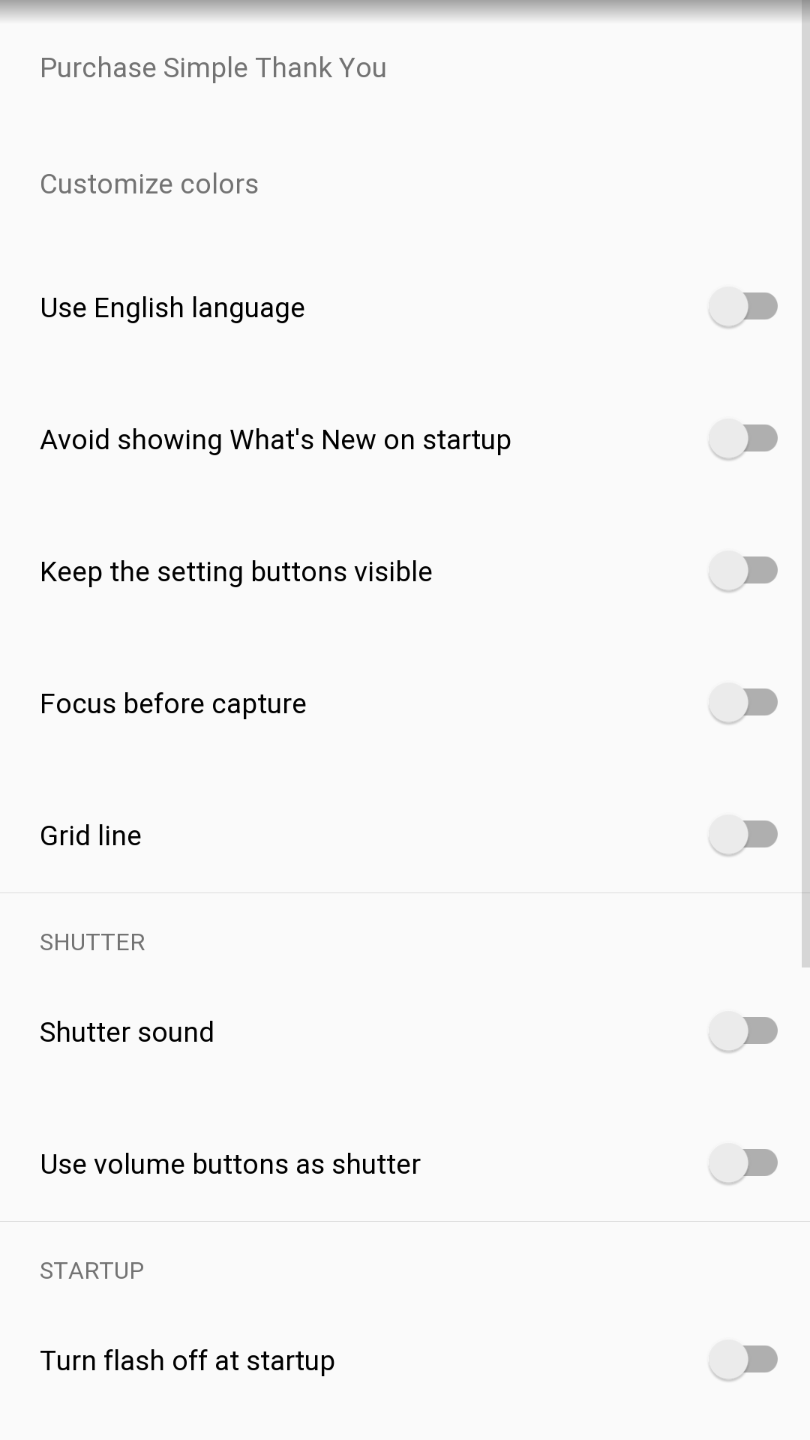
- Left Image: Grid line button in Settings page.
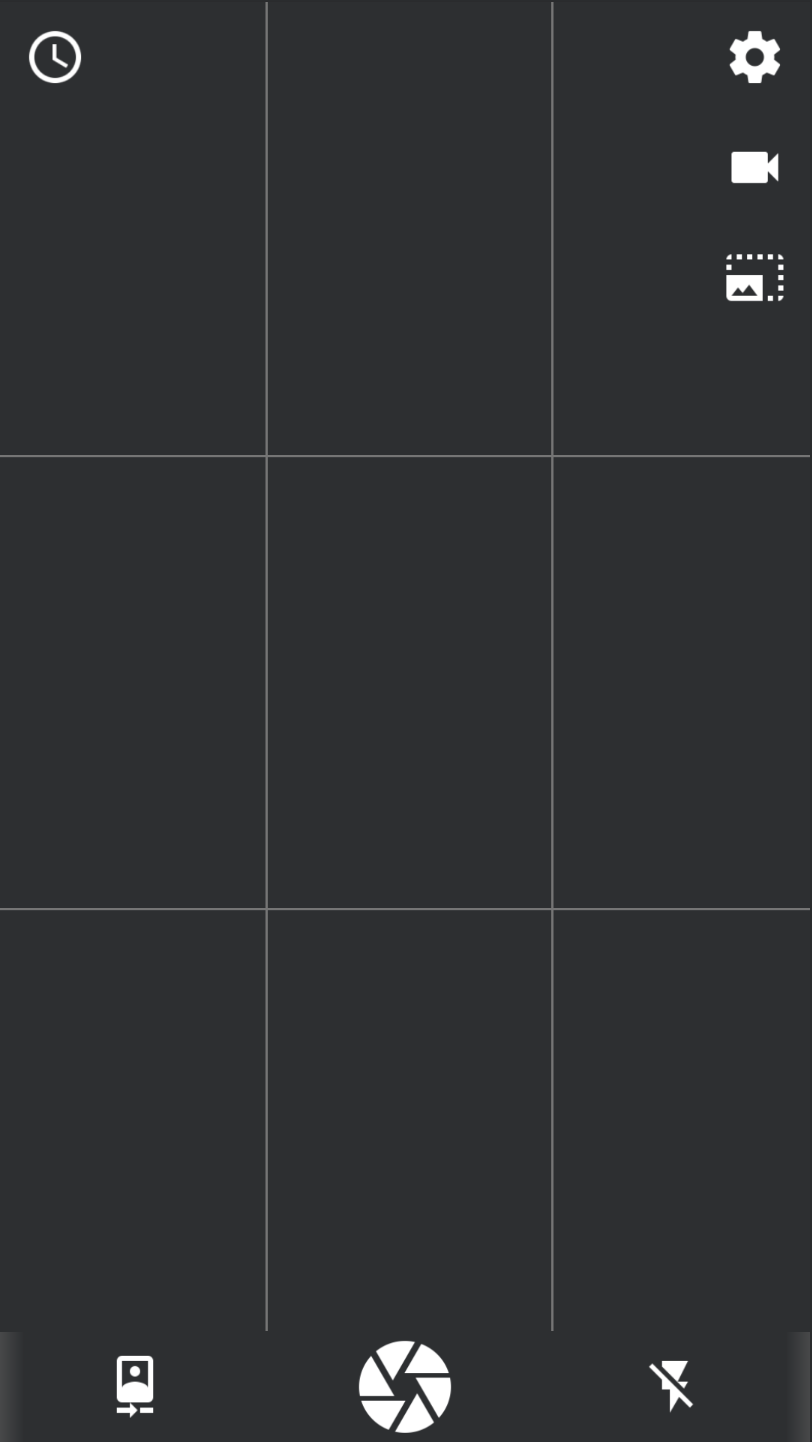
- Right Image: Grid line applied on MainActivity page.
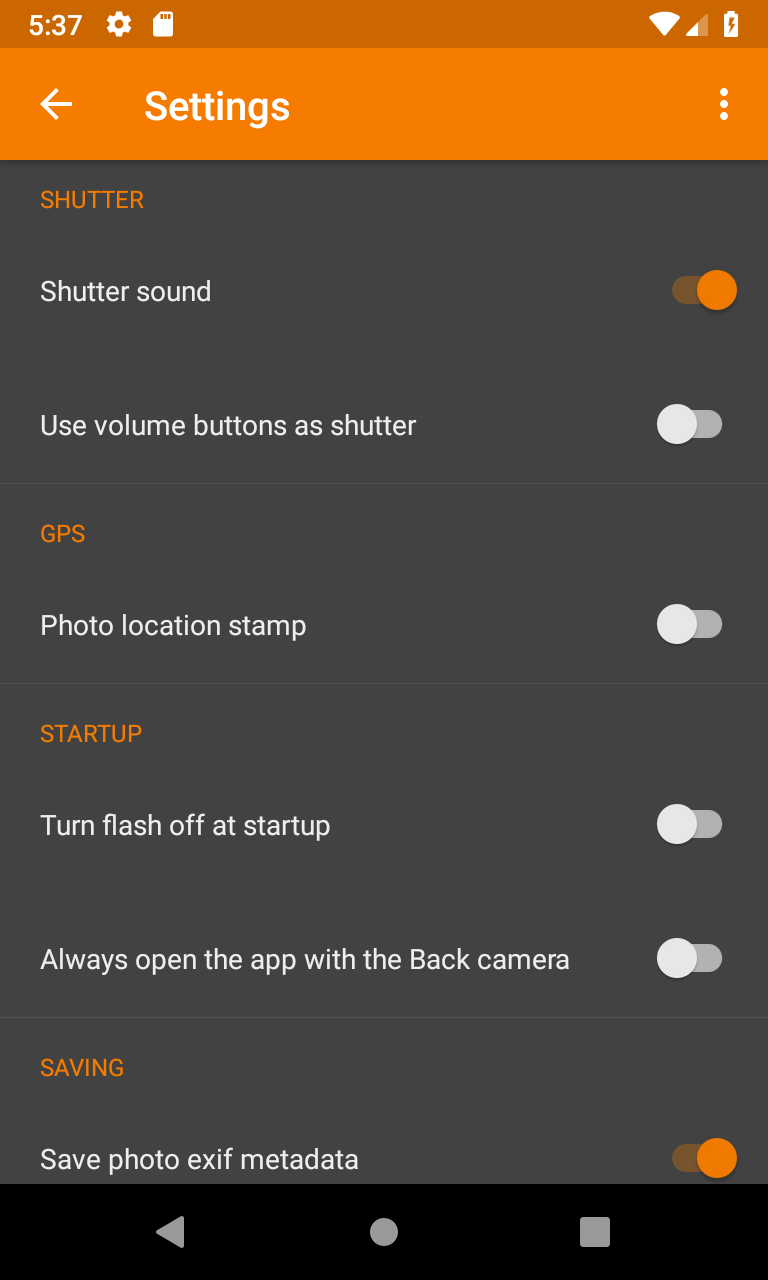

- Left Image: The GPS location stamp feature in the settings page.
- Right Image: The GPS location stamp overlay on a vertically-taken photo.

- The image above demonstrates the GPS location stamp overlay on a horizontally-taken photo.
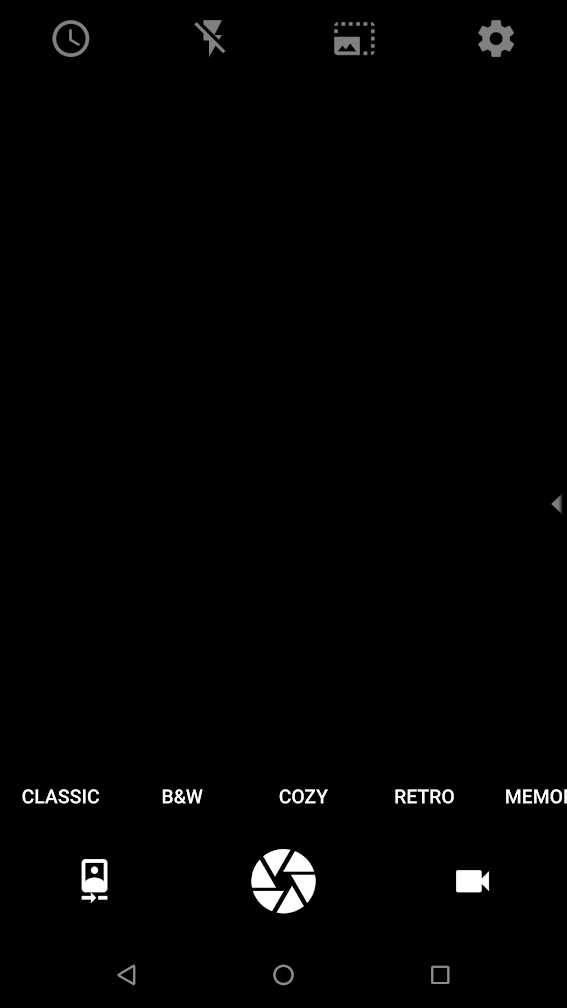
- Users may swipe up to display this horizontal scrolling bar to select different filters, and swipe down to hide it.
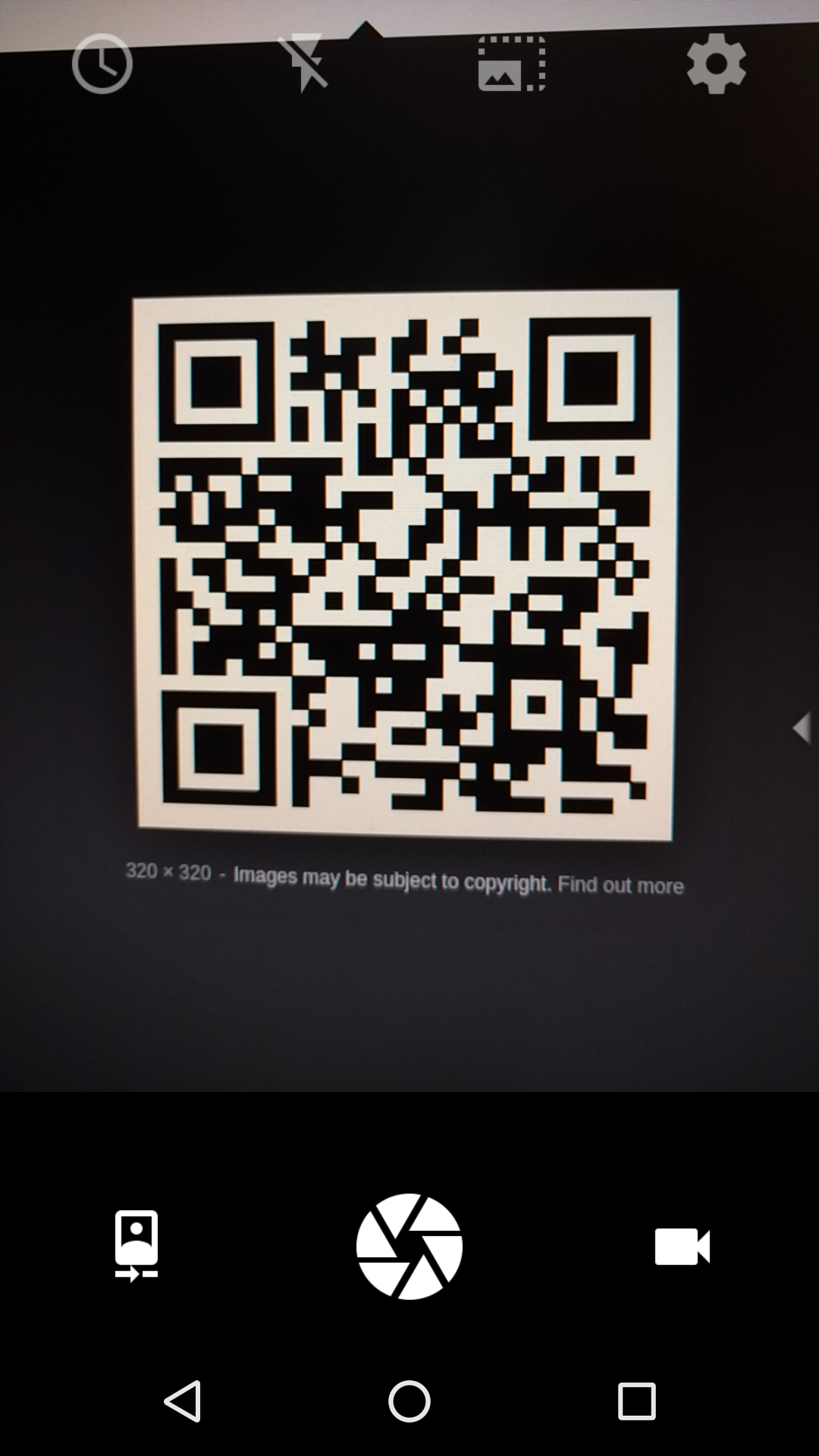
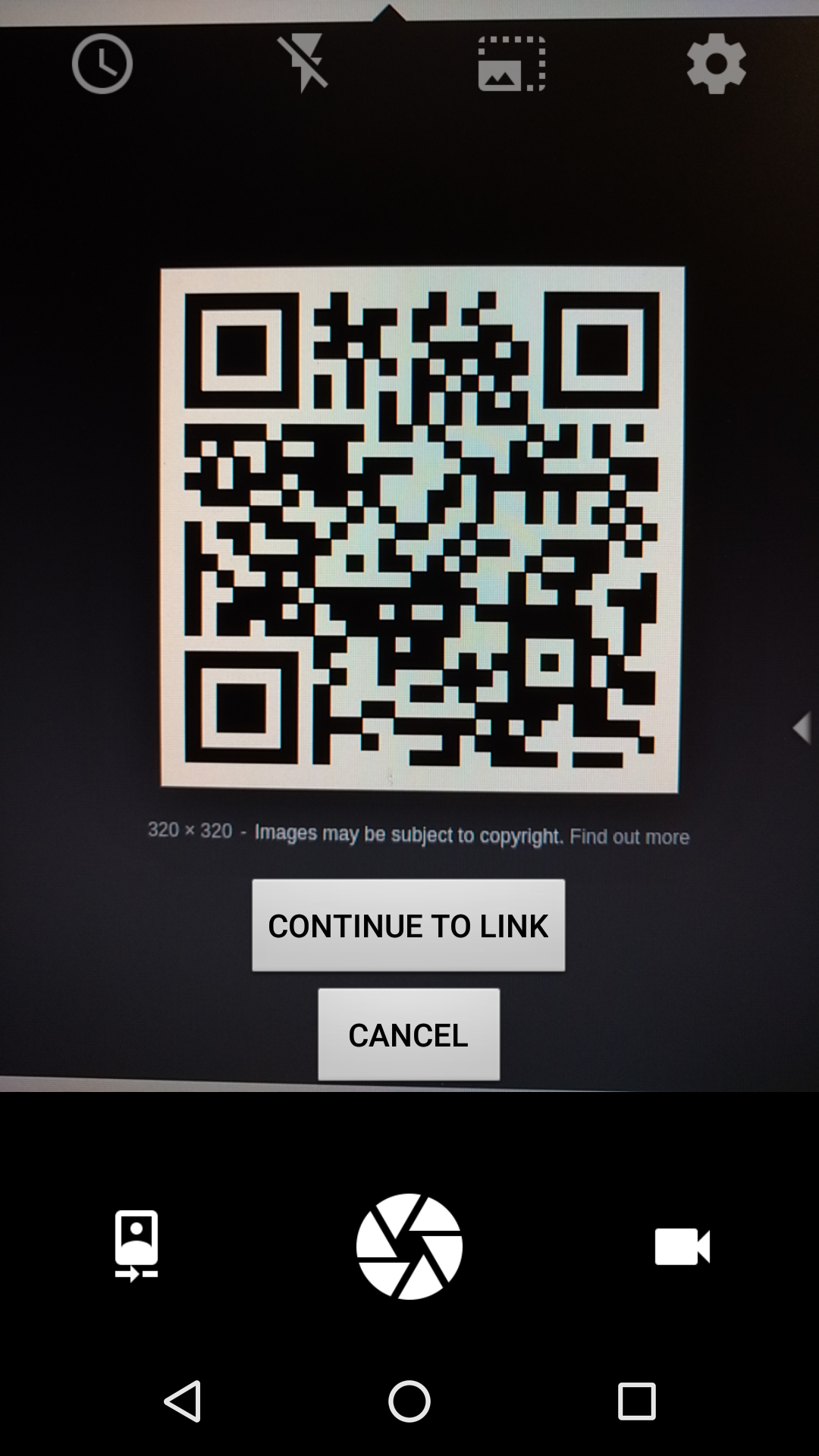
- Clicking on the visual QR code on the screen of the camera will automatically make the camera check and scan for a QR Code.
- It will ask the user to continue to the link or to cancel. Preventing from directly switch from the camera to the link.
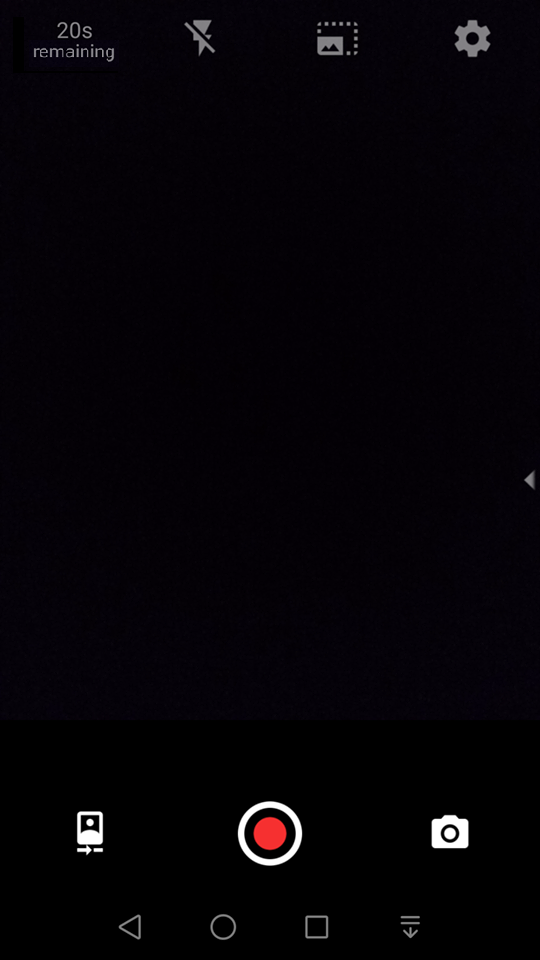
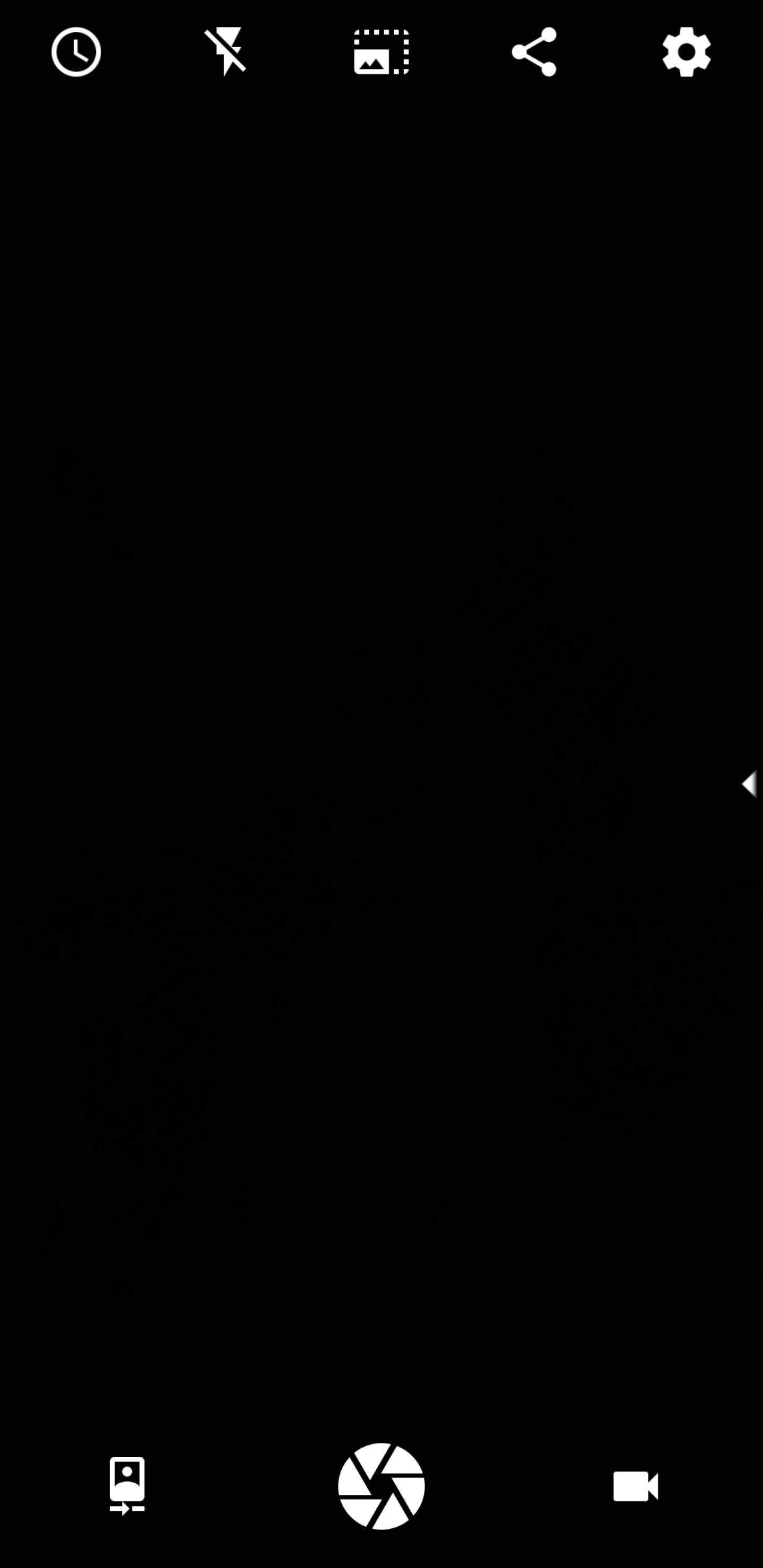
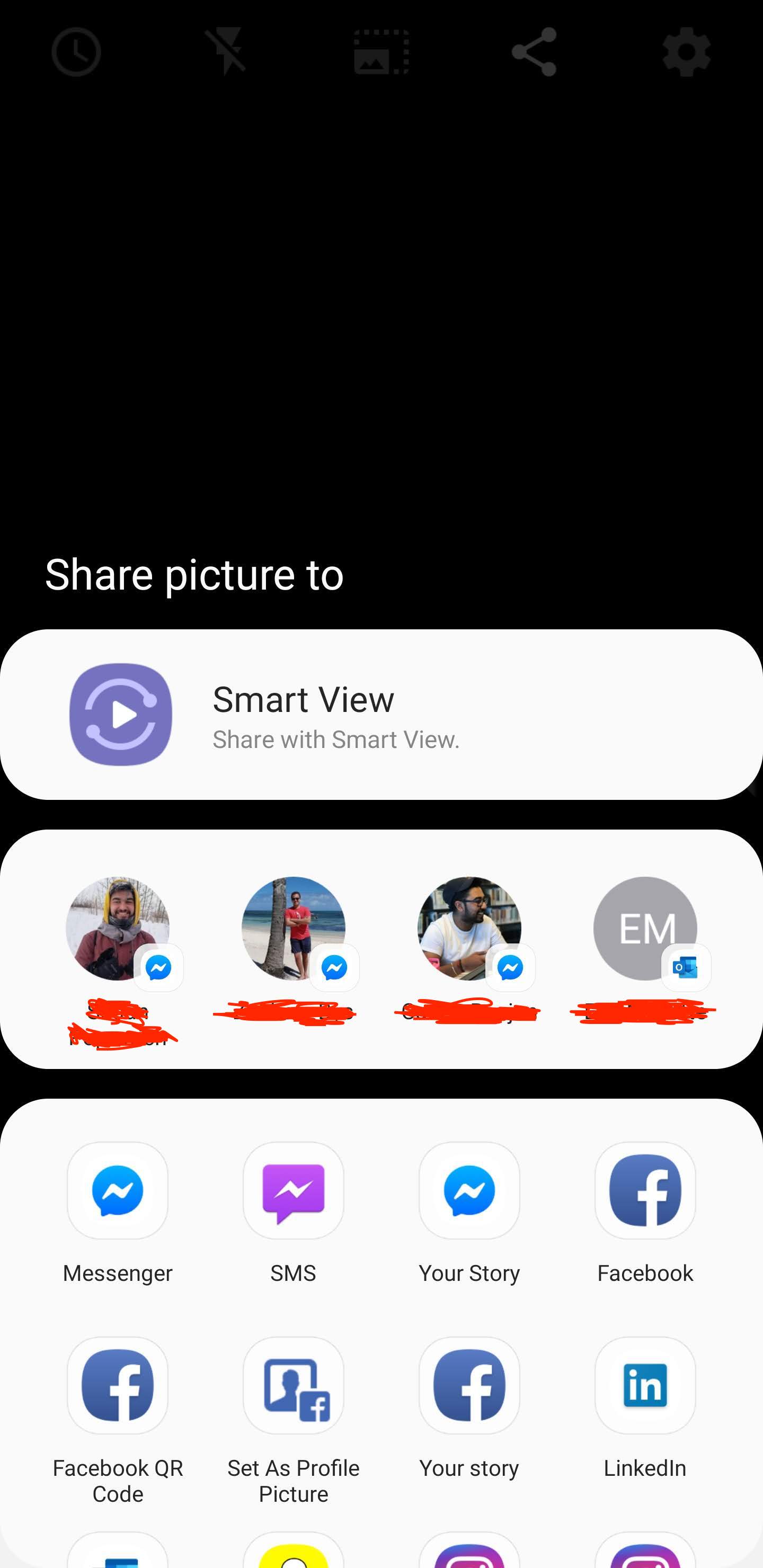
- On the left, the Share buttons appears on the top button bar second from the right-most button. Clicking on this button will allow the user to send the last picture or video taken to a contact of his/her choice.
- On the right, the Android Share activity which appears following the Share button click.
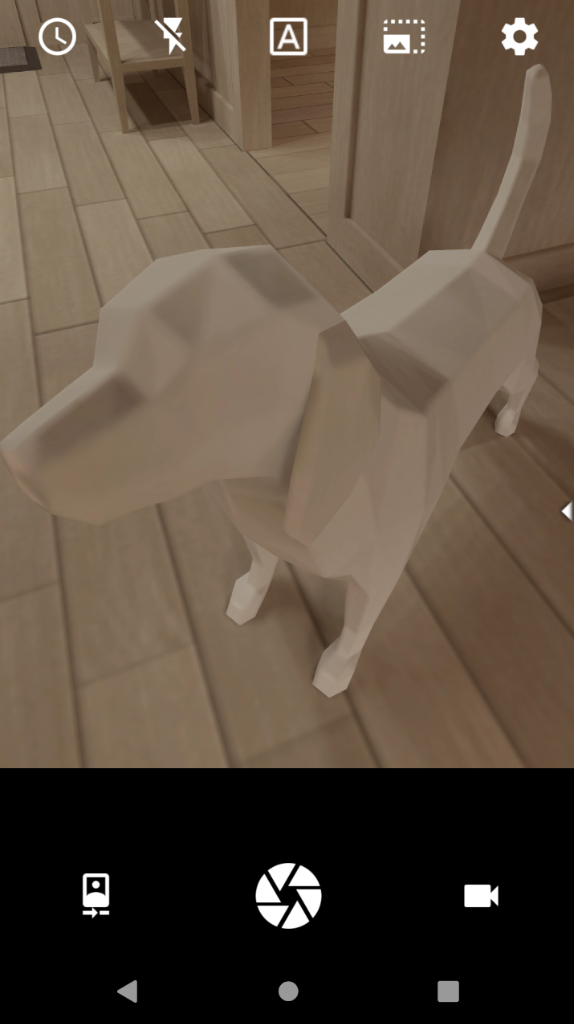
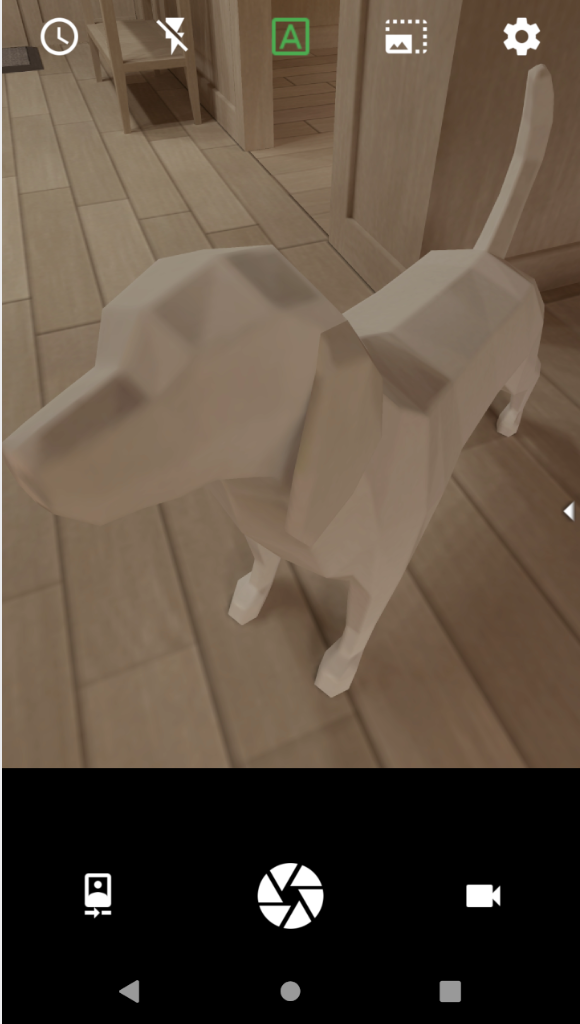
- (Left) The Caption Stamp icon "A" is a white color when deactivated.
- (Right) The Caption Stamp icon "A" is a green color when activated.
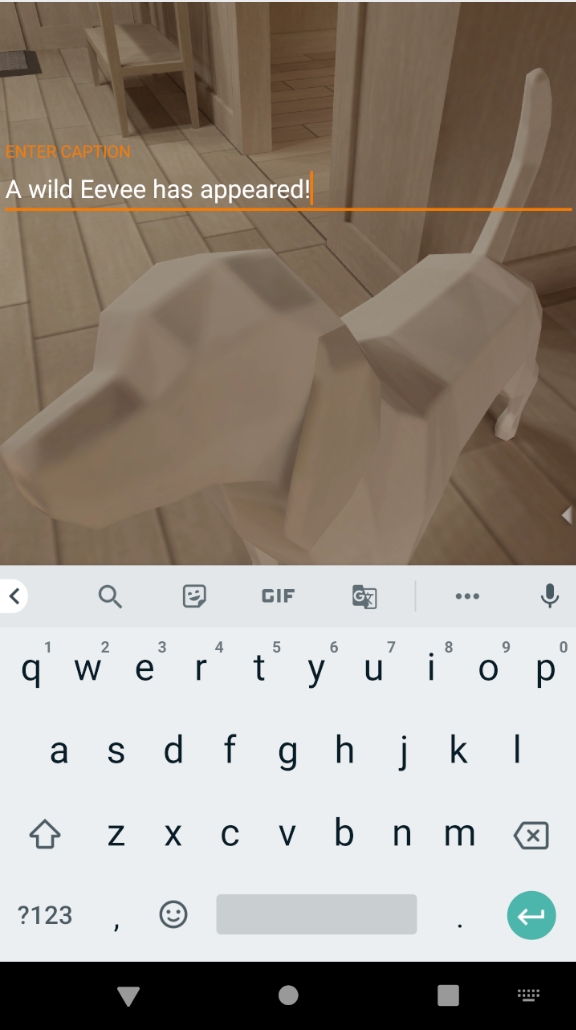
- (Left) After capturing a photo white the Caption Stamp feature is activated, the user may enter the desired caption to stamp onto the photo.
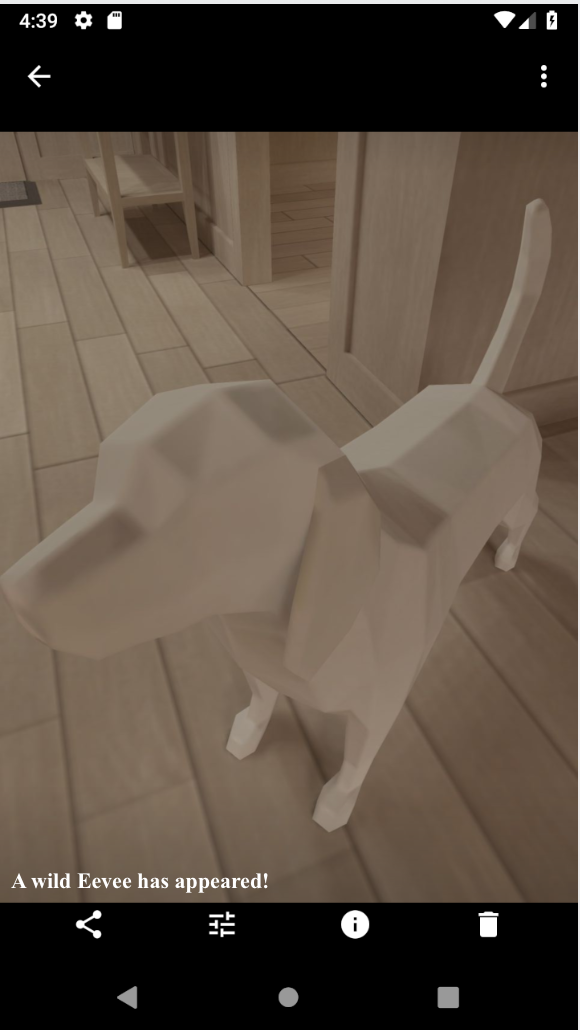
- (Right) The caption is stamped at the bottom left of the captured photo.