Telemetry Decoding
This page shows you how to configure your PC to decode the telemetry received from a CubeSat Simulator.
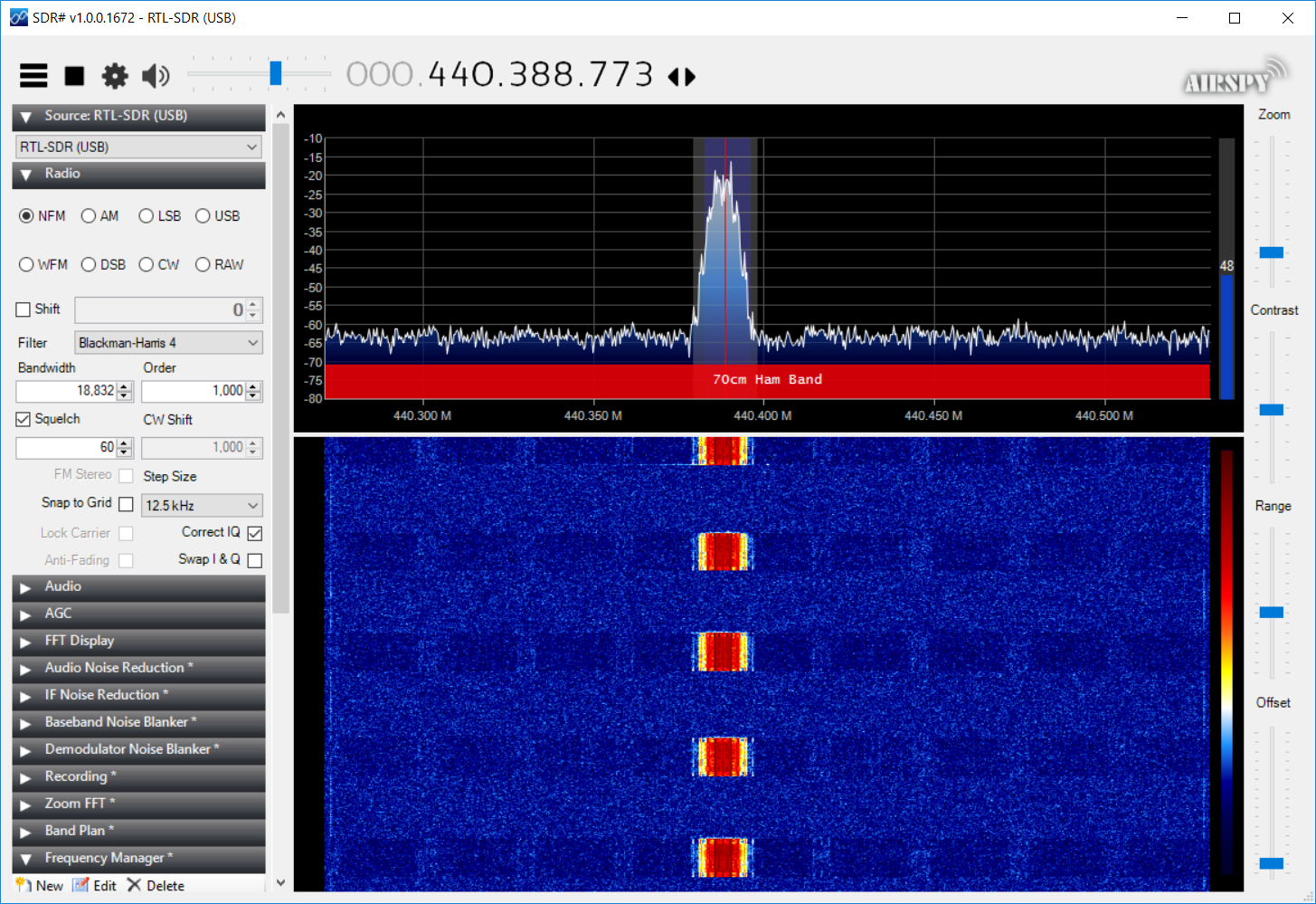
This assumes that you have installed and configured a PC SDR ground station. You should be hearing the telemetry packets as they arrive when you have SDR# tuned in like this:
In order to connect (or "pipe") the audio from SDR# to the AFSK decoding software, we need to install VBCable software. Download it at:
https://download.vb-audio.com/Download_CABLE/VBCABLE_Driver_Pack43.zip
Extract all files and run installer VBCABLE_Setup_x64.exe as Administrator (Right click then choose "Run as administrator" - you may need to enter a password).
Next, you need to configure VBCable by running the Windows Sound Control Panel. Note that your Speaker device may have a different name, and you may have additional devices if you have headphones plugged in or additional sound cards.
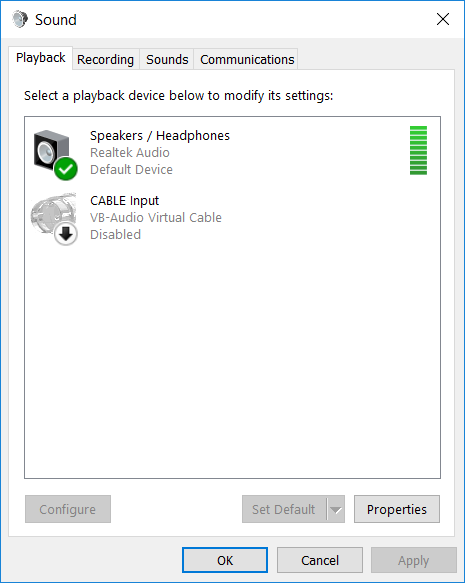
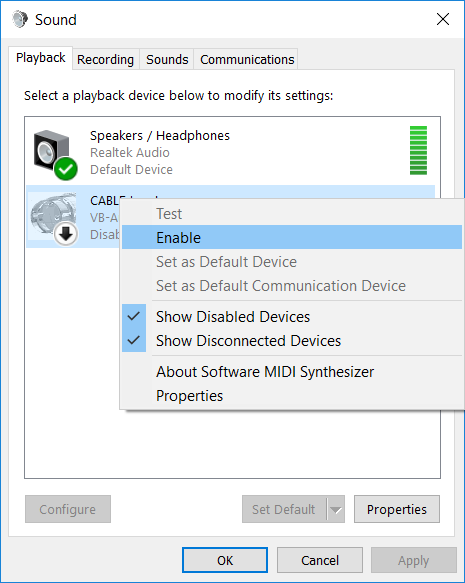
Under Playback, right click Cable Input VBCable and select "Enable" or "Set as Default Device".
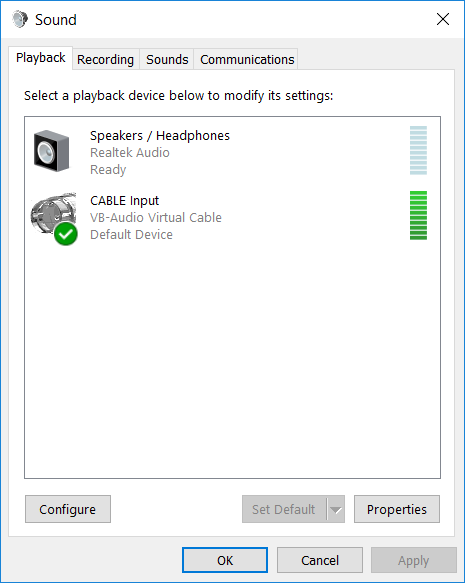
With your Playback configured correctly, the Cable Input should show green when a packet arrives, but you will not hear it anymore. Adjust the volume on SDR# to maximum, and also set the volume on your PC to maximum as well.
Under Recording, right click Cable Output VBCable and select "Enable".
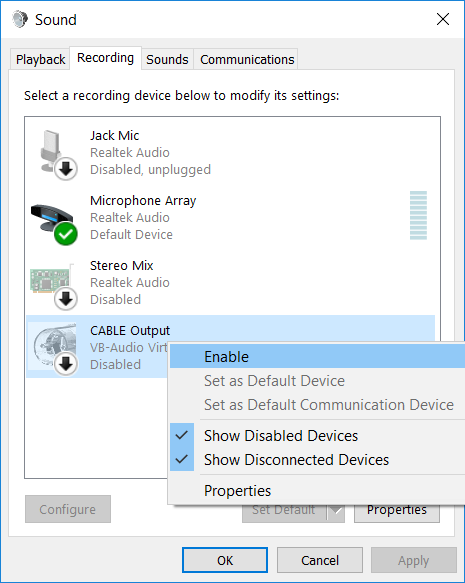
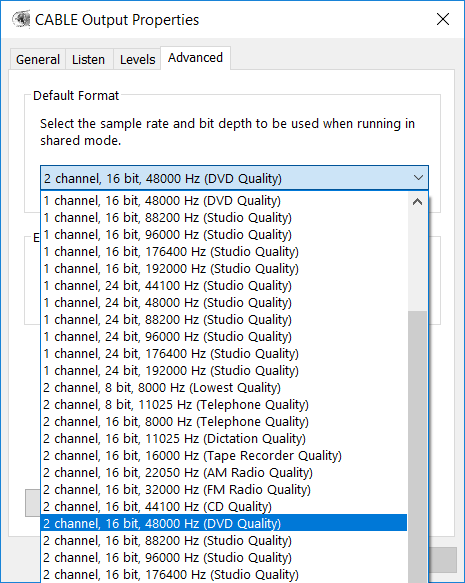
Right click Cable Output again and select Properties (or double click). Click on the Advanced tab, and make sure the Default Format is set to "2 channel, 16 bit, 48000 Hz (DVD Quality)"
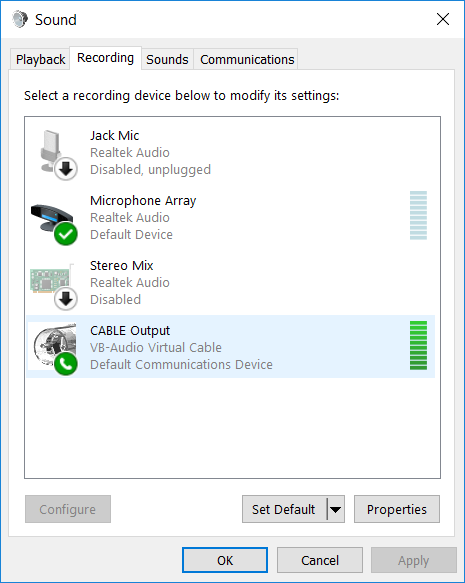
Each telemetry packet will will cause the green bar to show in the Cable Output device in the Recording tab.
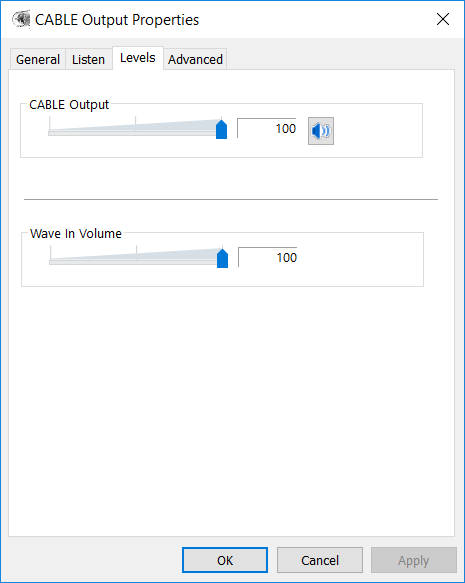
If you see the green bar in the Cable Input in Playback but not in the Cable Output in Recording, you might have your microphone muted. To fix this, double click on the Cable Output device in Recording, then click on the Levels tab. If you see a red circle with a slash on the speaker icon like this:
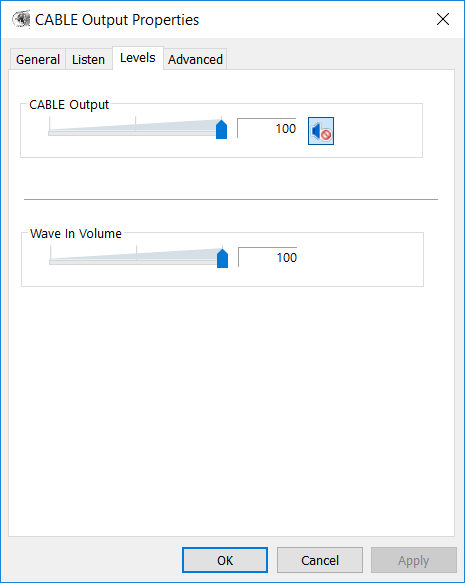
then your microphone is muted. Click on it to Unmute it:
Now, download AFSK 1200 Decoder software:
https://sourceforge.net/projects/qtmm/
Run the software afsk1200dec.exe For input, select "Cable Output (VB-Audio Virtual)".
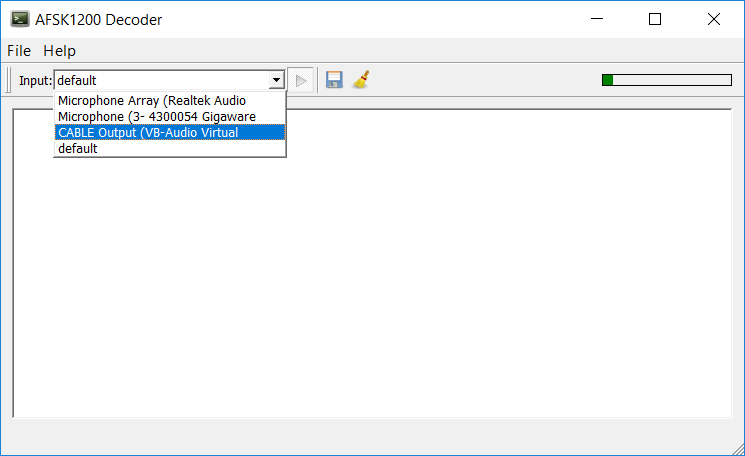
Click the triangle to start. In SDR#, make sure you are tuned into the AFSK radio signal, and that the audio is unmuted and at full volume. The decoded packet should appear in the window.
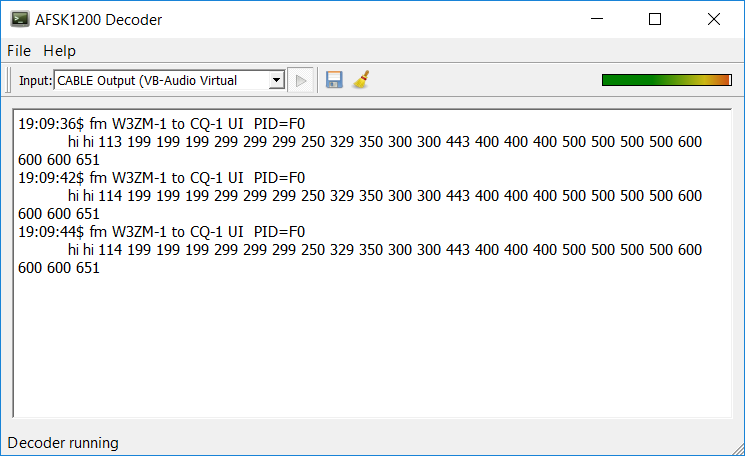
In AFSK 1200 Decoder, you should see green and red bars on the level each time a packet is received.
After you have enough packets, click on the packet window, Select All, Copy, then switch to your spreadsheet.
Download the telemetry analysis spreadsheet at https://github.com/alanbjohnston/CubeSatSim/tree/master/spreadsheet Note that there is an online spreadsheet if you have a Google account but don't have a spreadsheet application. On the online spreadsheet, you will need to make a copy so you can edit it. On the downloaded spreadsheet, you will need to open the spreadsheet and Enable Editing by clicking the button:
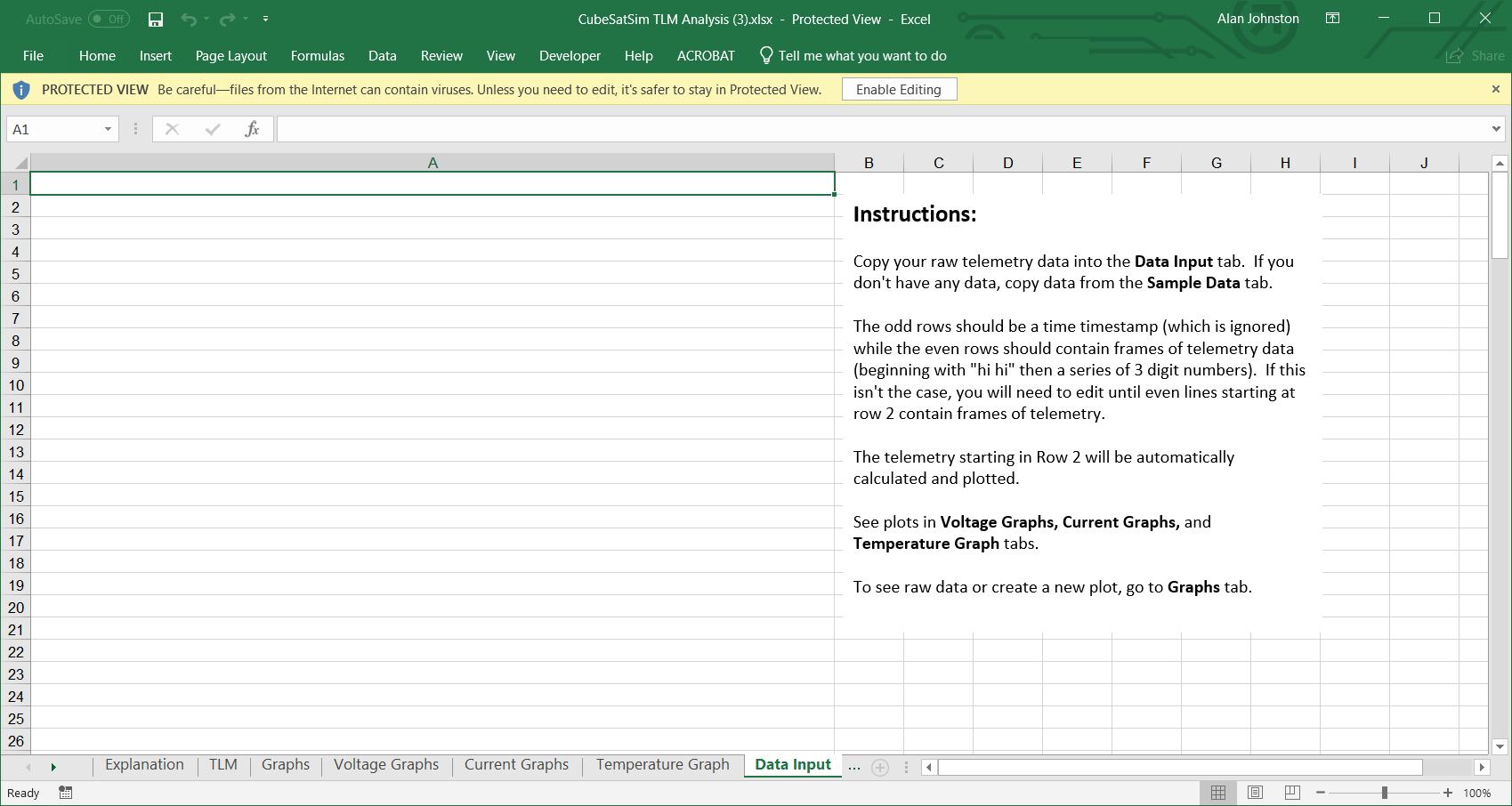
In the Data Input tab, position the cursor at the top (A1) and paste the data.
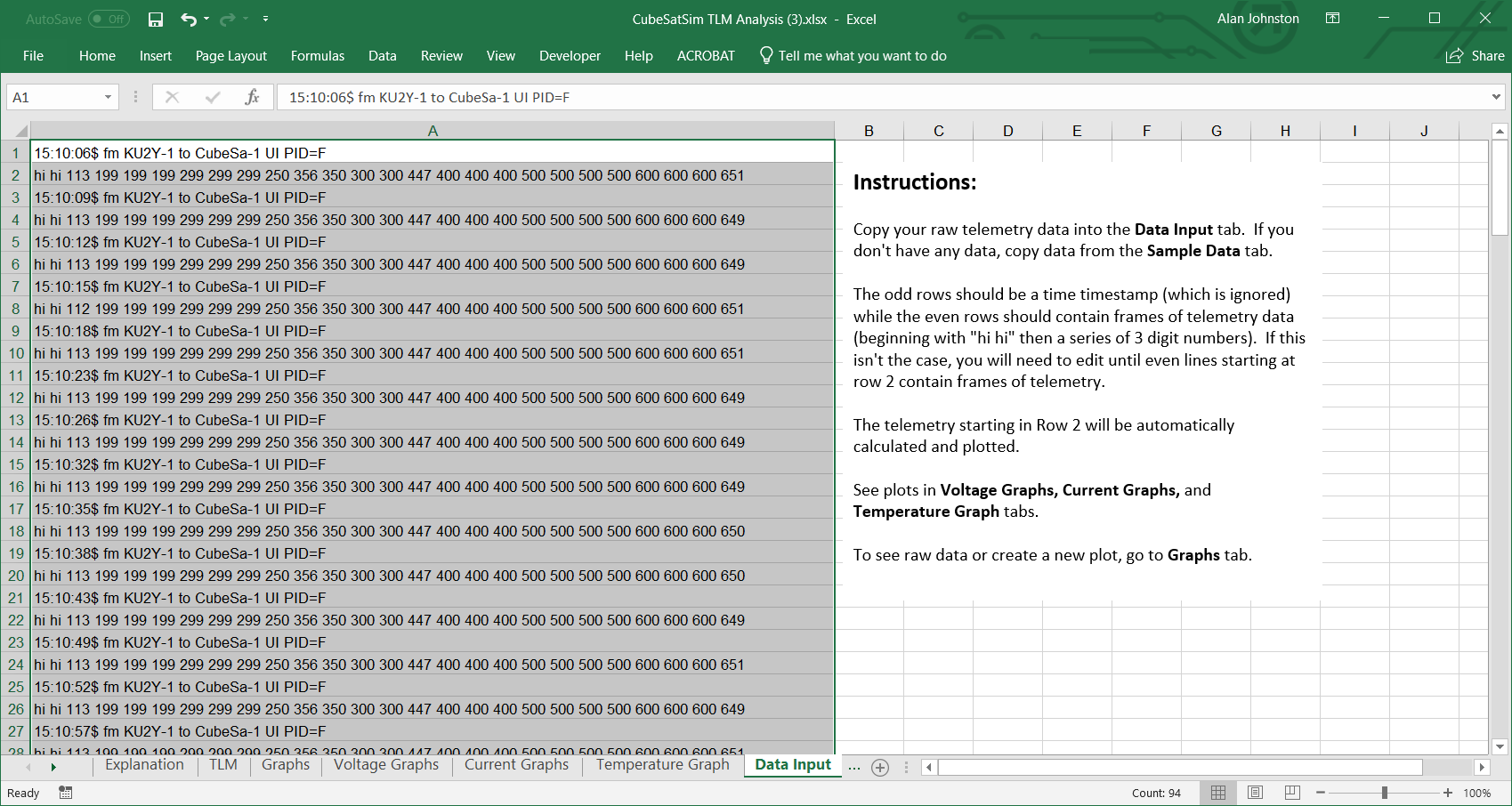
Now look at the Current Graphs tab and you should see updated graphs.
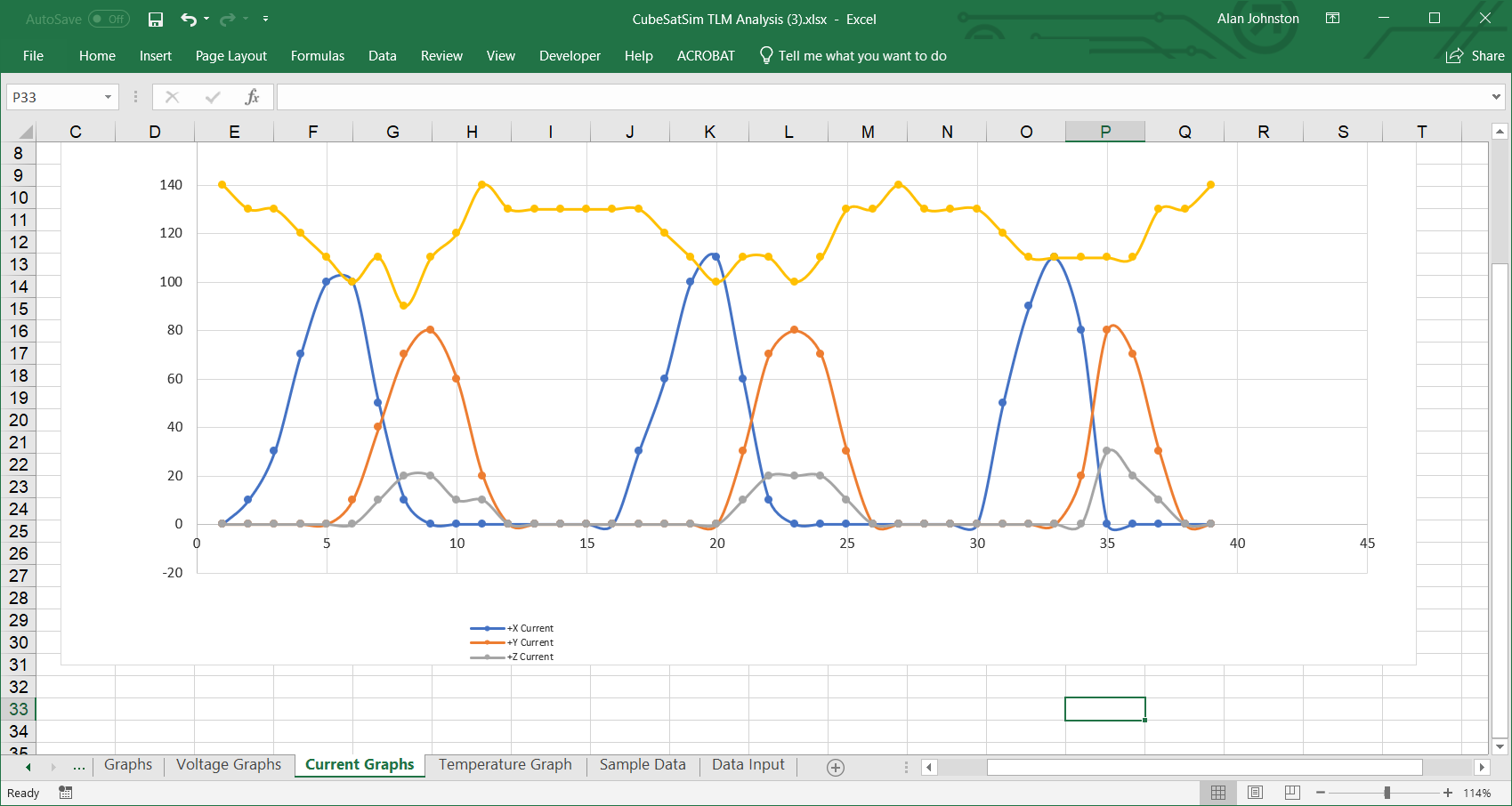
You can also look at the Voltage and Temperature Graphs.
In order to update the graphs, you will need to clear the existing data then copy and paste new data from the AFSK 1200 Window. Note that only 80 data points are graphed (data in A1 - A161). To clear the existing data, go to the Data Input tab in the spreadsheet, then highlight the cells with the data (e.g. A1 through whatever row has data in it). If you are using Excel, right click then choose Clear Contents. If you are using the Google Docs online spreadsheet or Libra Office, hit Backspace. Don't delete the cells or the formulas may become broken. If this happens, even with valid data, the graphs will be blank. If this happens, you will need to download the spreadsheet again from Github and then paste in the data again.