oh some tests are failing? lets remove the bad tests!!
hi sir

because it casts audio. over a lan. so its a lancaster... please laugh
- what is this? - description of this project and why I made it
- requirements - required libraries/software for lancaster to run
- screenshots - ooh pretty
- components of the UI - list of all components of the main UI
- more details on the settings
fairly simple(ish) portable cross-platform python script for transmitting/recieving audio over a local network, kinda like airplay/dante/airfoil just without the paywalls, and/or hardware/brand requirements, and with more deep customisation.
made for my a-level computer science coursework, however I do intend to use this myself, hence why I chose to make this instead of a game like the majority of students do
once I've finished my course I'll convert the writeup over to markdown, redact bits of it like candidate & centre name & number and stick it here (if I remember) :D
install with pip3 install -r requirements.txt or just pip if your system is configured that way. if not using a venv you may need to pass --break-system-packages but do so at your own risk. I have personally never had a problem but that doesn't mean you won't.
- numpy
- sounddevice
- tkinter (install with
brew install python3-tkor similar) - portaudio (install with
sudo apt install libportaudio2or similar)
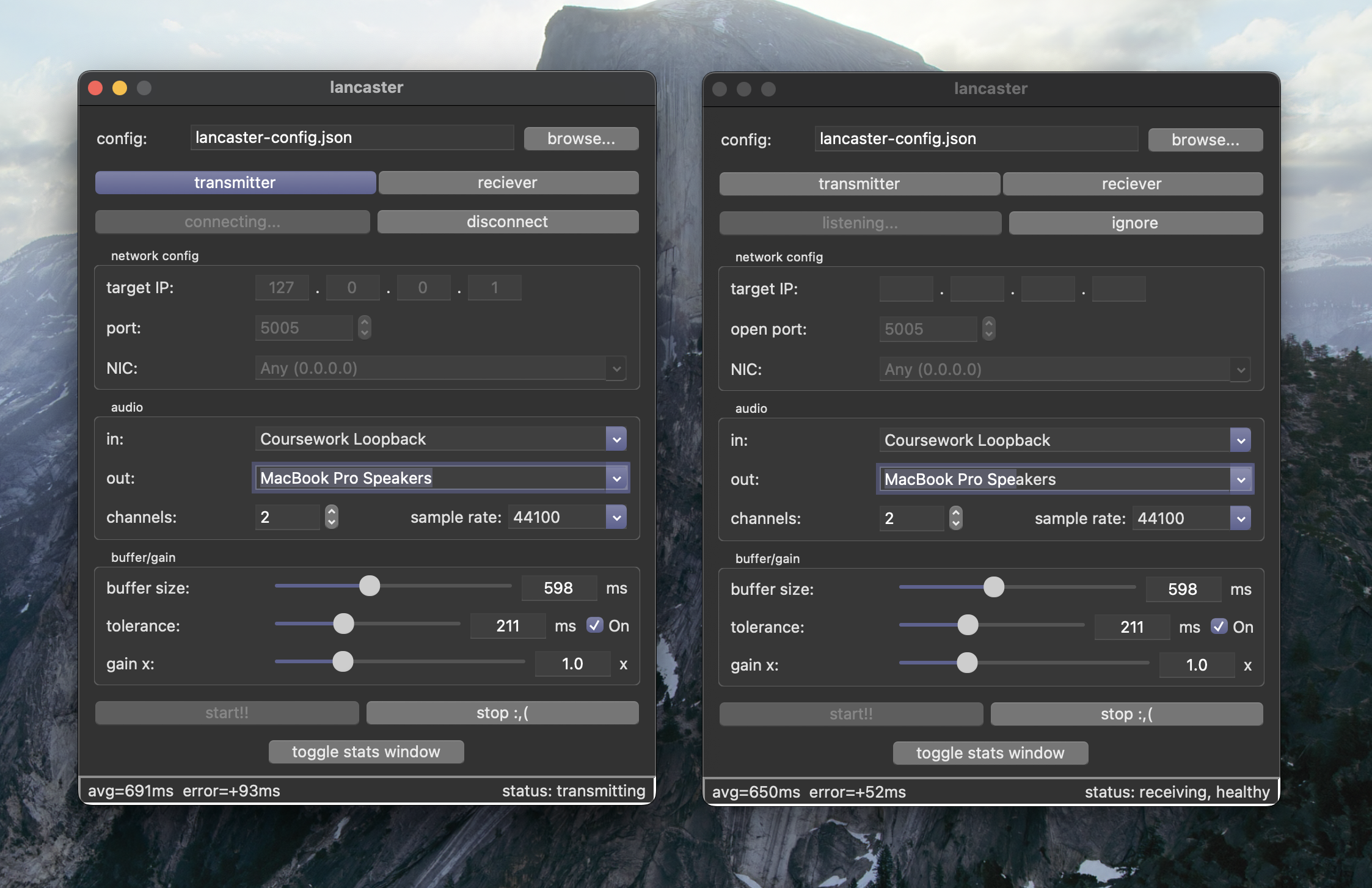
macOS 15.7.4 (Sequoia)
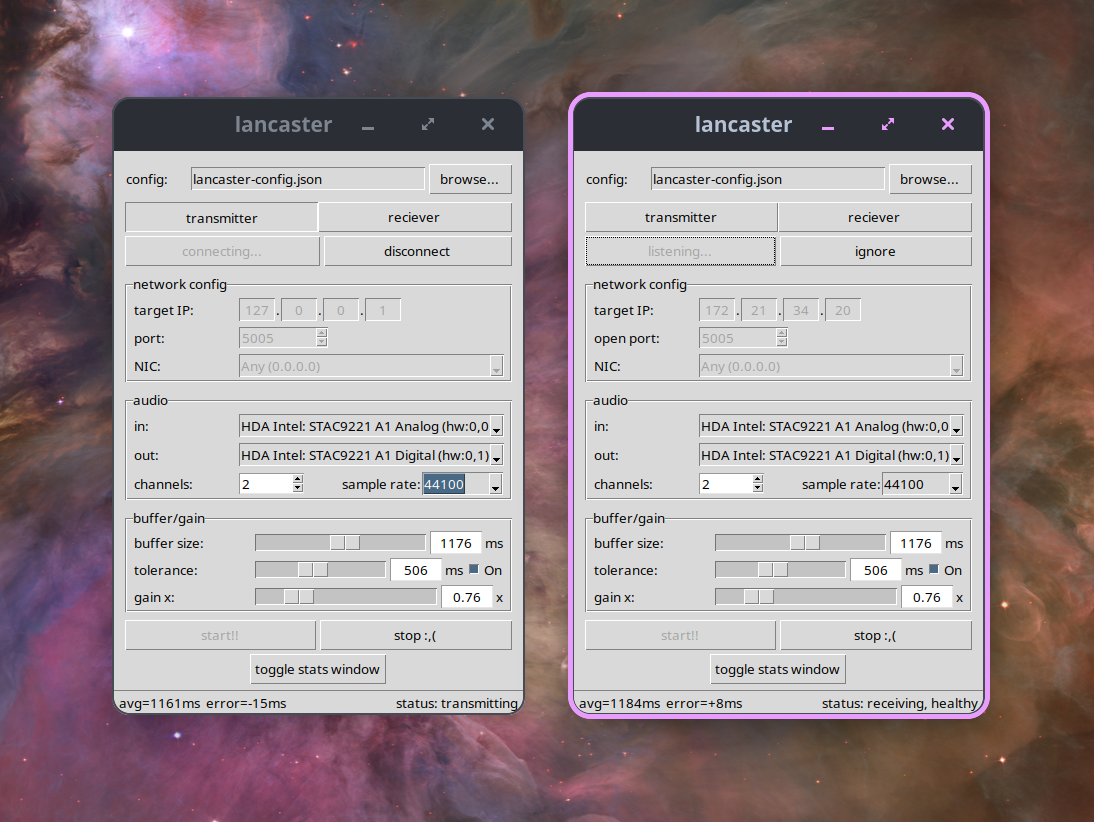
Linux (pop!_OS 24.04)
Windows 11 24H2 (IoT Enterprise LTSC)
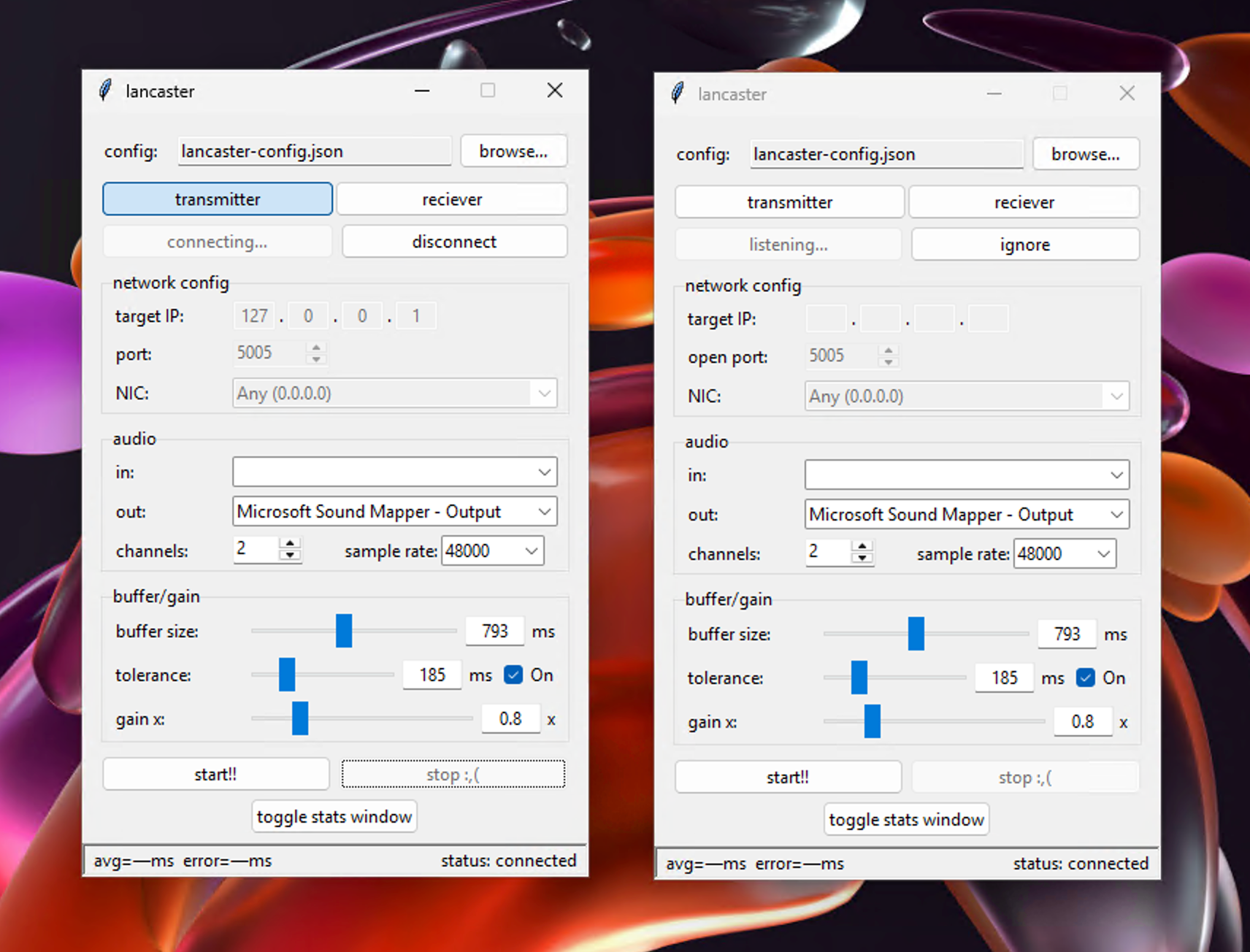
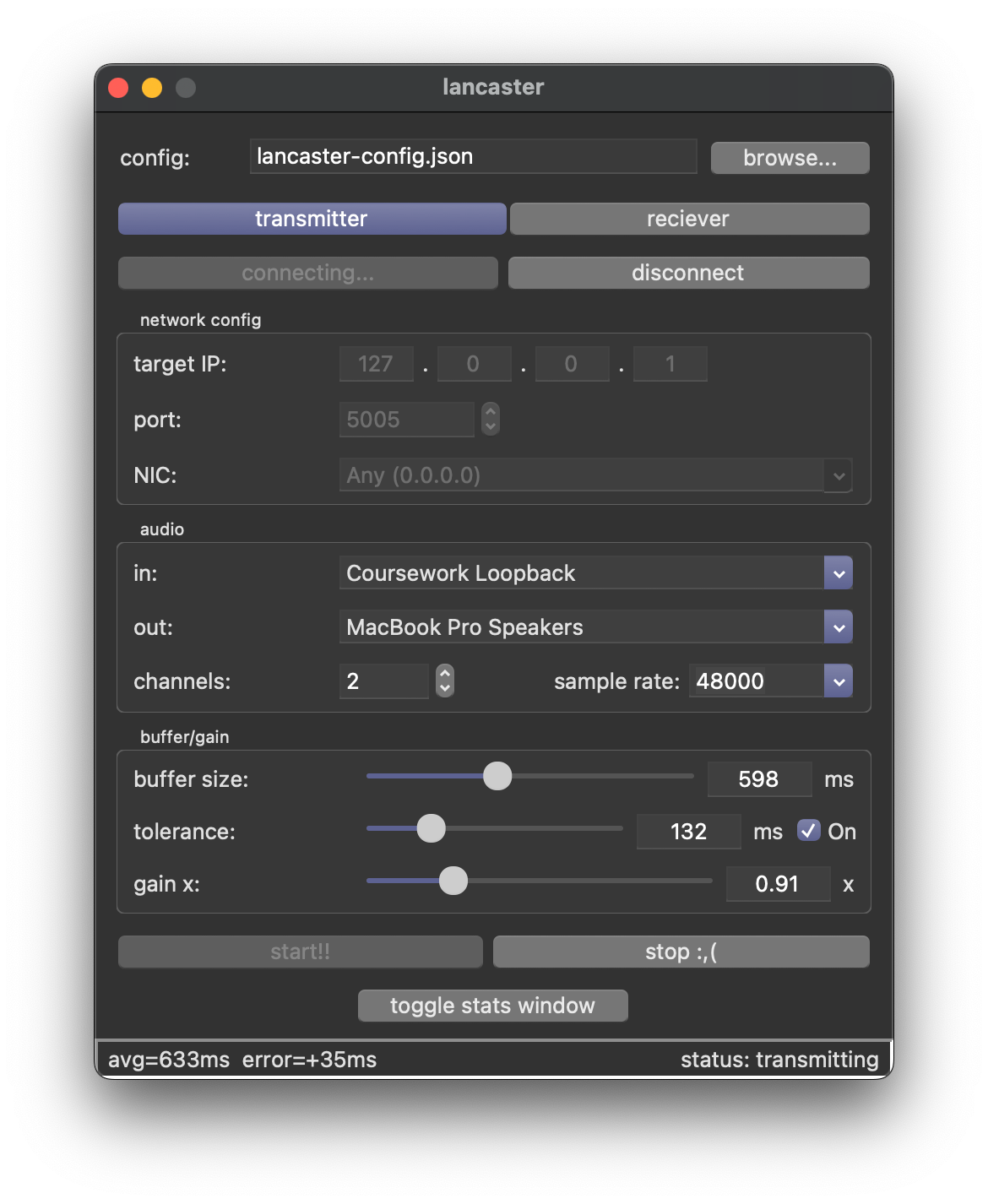
from top to bottom - scroll down to the "more detail" section if you want to know more
- config file path
- mode toggle
- connect/disconnect buttons to connect to a listening receiver (these change to listen/ignore in receiver mode)
- target IP (only applicable in transmitter mode)
- port (this changes to open port on receiver)
- nic selection
- input device (configurable on transmitter at all times, and on reciever when paired to a transmitter)
- output device (configureable on reciever at all times, and on transmitter when paired to a reciever)
- channel count
- sample rate
- start/stop (start/stop transmission once devices are paired, can be pressed from either device)
- toggle stats window (brings up the stats window)
- avg/error values (avg actual buffer size, and difference between actual and specified buffer sizes)
- status & health
- currently requires you to select an existing file
- if you need a second save file, copy your existing config and edit in a text editor or download sample-config.json from this repo
- data for both transmitter and reciever modes are stored in the same file
- settings that overlap between the two (such as NIC selection and port) are stored twice, once for transmitter mode and once for reciever
- the receiver must be listening before attempting to connect from the receiver
- only needed for transmitter
- specify IP of receiver to attempt to connect to
- "open port" on receiver indicates the port to open on the receiver, "port" on the transmitter specifies the port specified on the reciever to attempt to connect to
- limited to ports ≥ 1024 and ≤ 65535
- if default port (5005) is unavailiable, pick a random port in that range you don't mind using - as long as it's consitent on both sides and it's between the values above and it's not taken by another program on your computer there is no reason it matters
- if you don't know what this does, leave it at default unless it says port is in use/taken etc then specify a random number in like the 50,000 range for lower likelihood of collisions
- useful in a show environment where your computer may be connected to both a show control network and an internet-conencted network, such as a guest wifi for the venue – as of right now this doesn't force traffic through that nic - it kind of just nudges the OS in the right direction
- safe to leave on default unless it errors or devices can't find each other
- both transmitter and reciever's selected NICs if not both set to 0.0.0.0 must be on the same LAN and able to see each other on the network
- sometimes displayed device doesn't reflect actual selected device
- if this happens, just reselect the device on either end (this also fixes incosistencies in displayed devices on both ends)
- the local device (input for transmitter, output for receiver) is configurable when disconnected, remote device only when connected
- both input and output devices must have the number of channels you specify here, or more. ie if you transmit all 8 channels from an audio interface, your output device must also have 8ch or more availiable to output to
- if you don't know how many you need, 1 means mono and 2 means stereo. if you needed to use anything beyond that you'd know
- list shows all sample rates supported by lancaster regardless of whether your in/out devices support it or not
- you must select a sample rate that is supported by both input and output devices
- if you don't know what this does and one of your devices don't support 48k, try 44.1k instead as this is the second most common
- some bluetooth devices if they have a microphone that is in use limits the sample rate of the output to 16k instead, so make sure the mic isn't in use (or use 16k but this is too low quality for most situations)
- specify the ideal amount of audio to be buffered by the reciever
- increase this if you have frequent jitters/dropouts etc
- decrease this if you have too large a latency between transmitting and hearing the audio
- distance from the specified buffer size that the actual amount of audio buffered is allowed to stray before drift correction kicks in
- drift correction is characterised by very very minimal "clicks" in the audio, from it repeating tiny bits of audio or skipping tiny bits of audio in an effort to lengthen/shorten the amount of audio in the buffer
- unchecking the box "disables" drift correction (behind the scenes it just sets it to a large number so under realistic circumstances it would never reach the threshold)
- multiplier of the volume of the outputted audio
- this is applied at the transmitter end, as a simple multiplier to whatever comes out of the buffer