head to https://timetable.aroasanight.com
i lied when i said i wouldn't do this it's now 2.12am but hey
** force push val 6
- everything runs client-side (your timetable never leaves your device)
- import from Arbor via PDF (obtainable from staff or parent/carer(s))
- save/load timetables as JSON for keeping manual edits
- fully customiseable colours
- show/hide days, show/hide periods and/or adjust height between half or full height
- show name/initials/tutor in top left to indentify quickly
- bulk editing events of the same lesson type (matched by lesson name & staff code)
- lesson presets so you don't have to specify name, colour & staff code every single time
NOTE: This is a sample timetable - it is not of a current student.
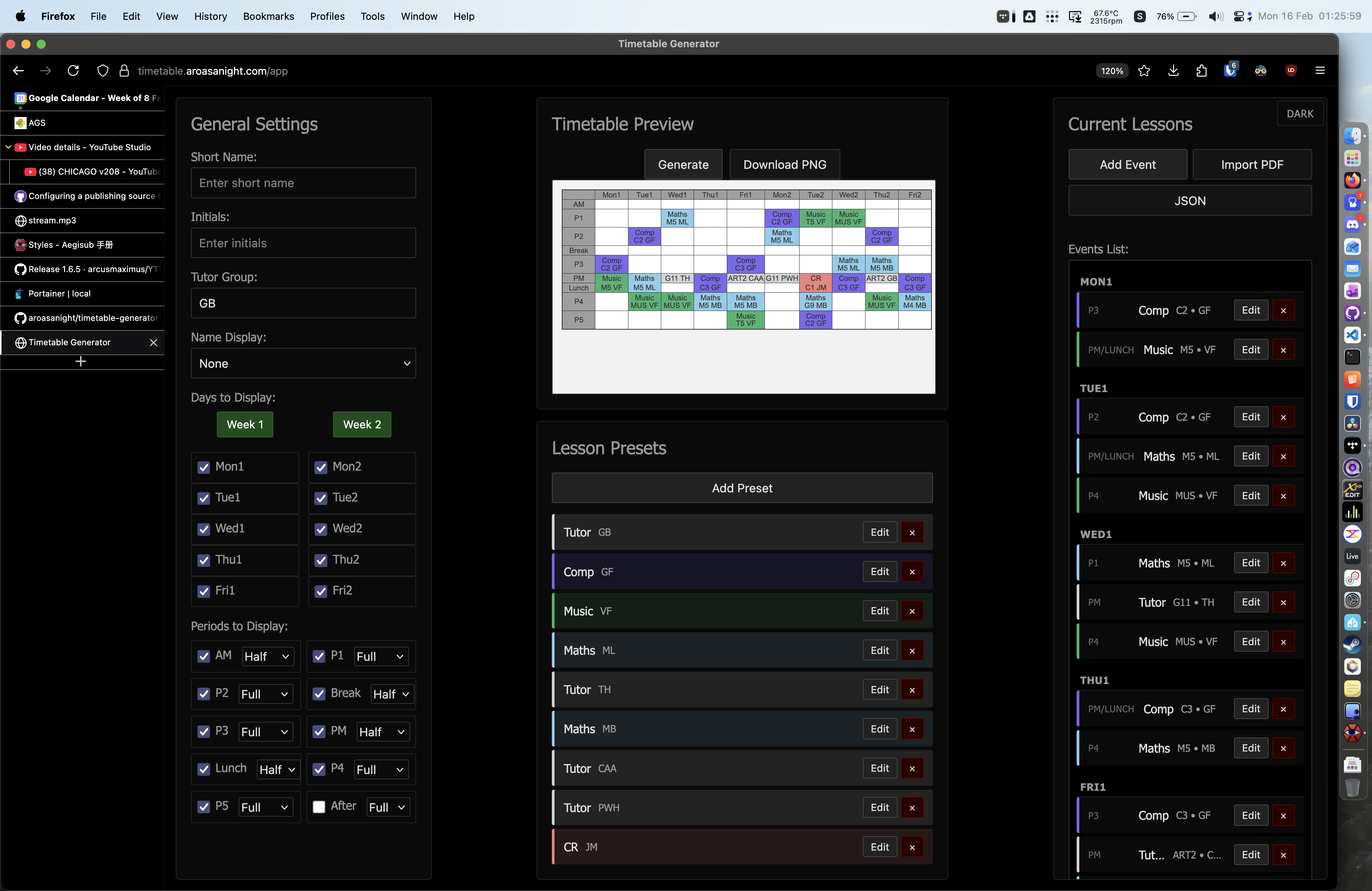
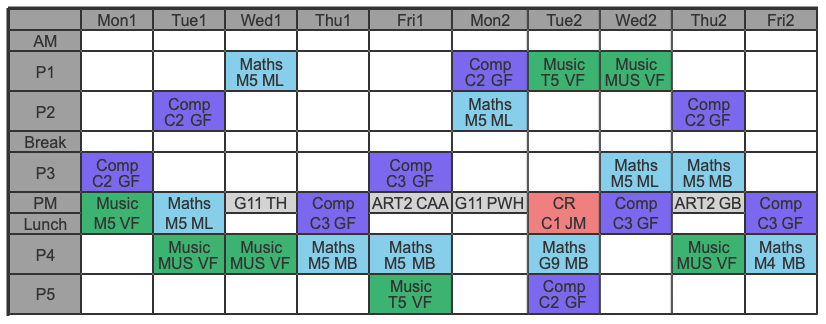
from top to bottom;-
- short name/initials/tutor group to show in top left of timetable
- toggles for each day to show/hide on timetable, including week 1/week 2 buttons to show/hide all in one week in one go
- very useful to print one for week 1, one for week 2, then stick them back to back to make it even smaller
- show/hide periods & adjust their heights
- includes period for after school (hidden by default) to note down after school clubs
again from top to bottom;-
- manually add events, or import from PDF (click here or scroll down for more info)
- save/load from JSON to back up/restore manual edits (click here or scroll down for more info)
- if you wish to use the data from this json for your own purposes, like programatically adding events to google calendar or something, either figure the structure out yourself or send me a message if you have a way of contacting me, i'm happy to help :)
- overview of all events, and manually edit/delete individual events
- features to bulk edit similar lessons.
- don't use the add preset button, just create an event. it'll automatically create the preset and will save you clicks. the button is there if you have a strong desire to willingly click more times though.
- preview of timetable (press generate button to update, doesn't update live)
- download timetable
- getting weird results? try a different browser. there are subtle differences in how they render the final timetable.
this is not going to be fixed. just deal with it, or use a different browser. Safari is built in and is best for mac, so use that. I haven't tried but I reckon microsoft edge will be fine on windows. it's pretty much the exact same thing as chrome just with microsoft making it their own.
no plans to change this. if it's important they're all consistent widths then shorten the lesson names/staff codes/room names to be something shorter but you still know what they mean. on the example timetable one of the tutor events shows "ART2 CAA" which is noticeably too wide - you could shorten this to "ART2 CA" or even "A2 CA" - although shortening ART2 to A2 might get you confused between ART1 and A1 (different rooms).
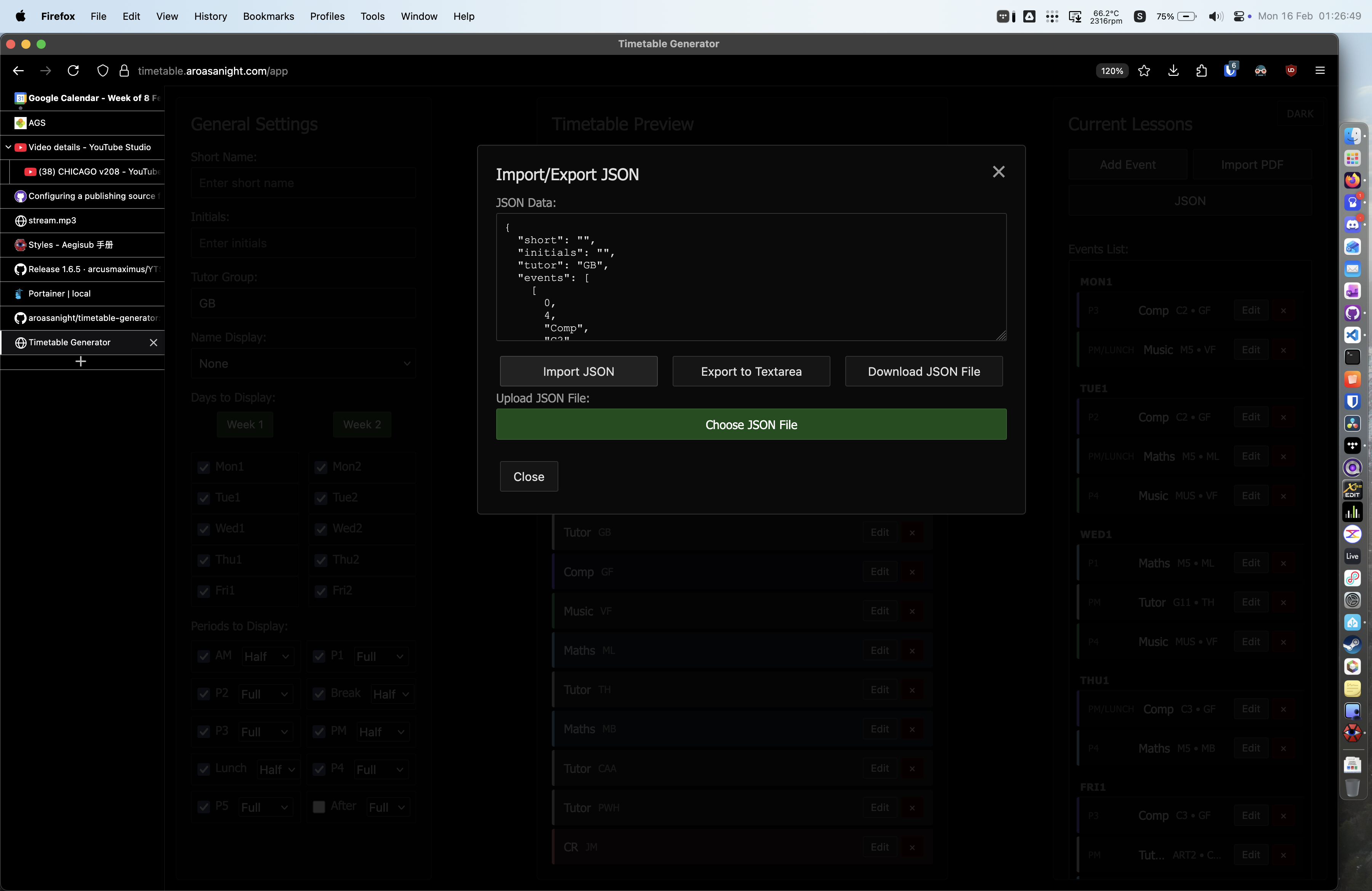
- click "Export to Textarea"
- copy the contents of the JSON Data text box, paste into notepad/textedit, and save
- click Download JSON file and choose a location to save
- paste the contents of the JSON into the JSON data field
- click "Import JSON"
- click "Choose JSON File" and locate your JSON file to import (not upload!! the file still never leaves your device)
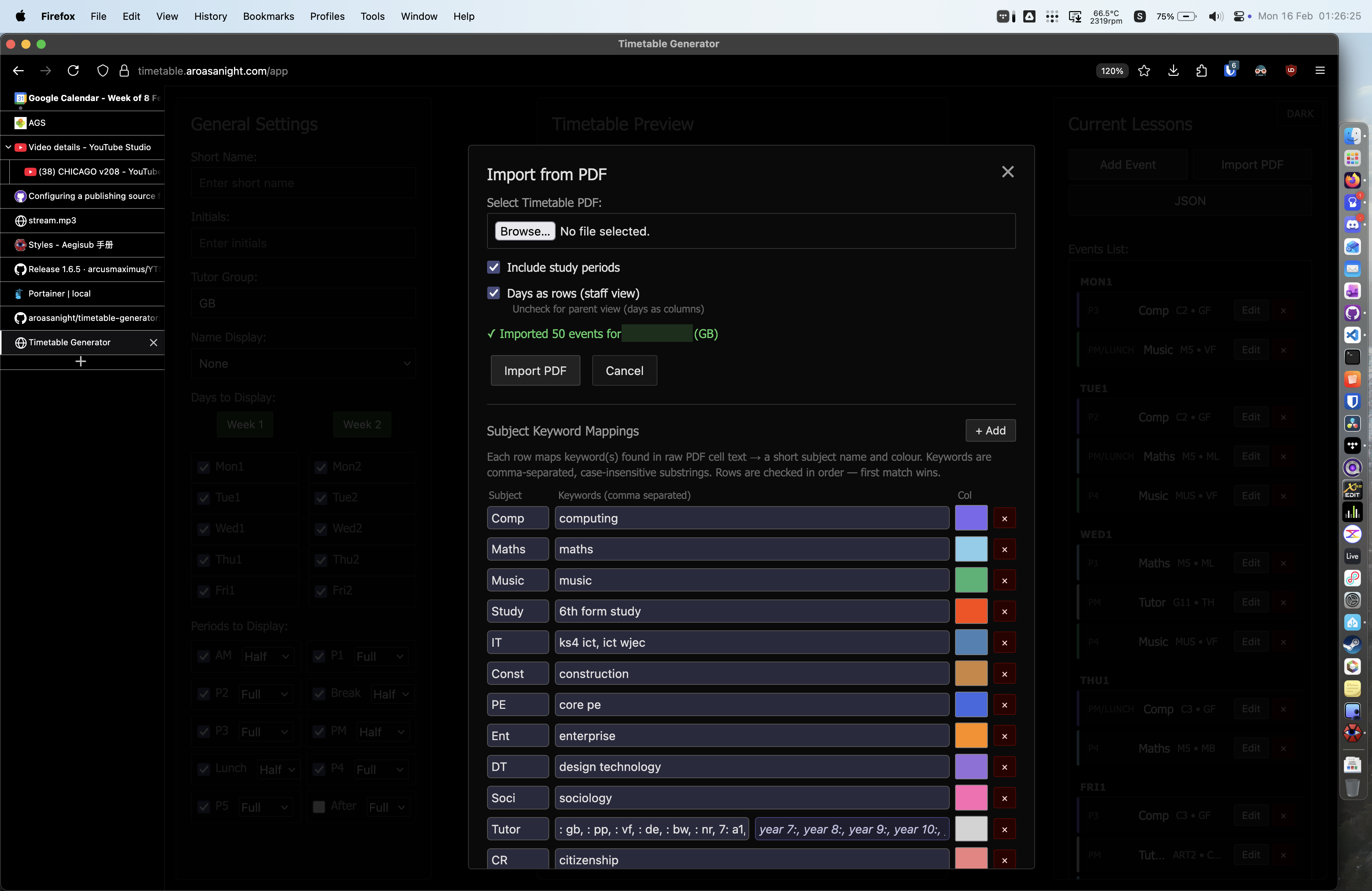
WARNING: importing a PDF will overwrite all existing events. make sure to save to JSON (next section) if you don't want to lose your current timetable
don't have a pdf of your timetable? scroll down to the obtaining a pdf section.
- select your PDF file. the word "upload" is slightly misleading - the file never leaves your device (all processing happens client-side on your device)
- choose whether to include study periods or not
- specify the layout of the pdf you're importing. if you got your timetable from a member of staff, it likely has each day showing HORIZONTALLY, with periods showing VERTICALLY (to read what lessons you have on one day, you read left to right). If this is the case, leave this box ticked. otherwise if you got the PDF from a parent/carer, the events are likely the other way around - to read all the lessons on one day you read from top to bottom instead. If this is the case, UNCHECK this box.
if you can't be bothered to read all of step 3 - leave the box checked if you got yout PDF from staff, uncheck it if you got it from a parent/carer. If it comes out broken, try the other option :)
- click "Import PDF"
- close out of this menu and click the "generate" button. compare against the PDF. if lessons are missing, or incorrect, play around with the entries in the "Subject Keyword Mappings" section, then try importing the PDF again (will overwrite everything, you don't need to delete stuff). These are the keywords the program uses to detect each type of lesson - look on your PDF and experiment with different keywords to get better detection.
there are two ways to obtain a PDF with the setup at our school;
- politely ask a teacher to email you your timetable
- get a parent/carer to log into arbor and send you your timetable
if you want study periods/intervention sessions to show on your timetable, you need to use method 1 (a member of staff). these do not show on the timetables generated by Arbor for parents.
also to note, whatever method you go via, the person downloading the timetable on your behalf will get a choice of what time period to download from. This downloads your timetable from those two weeks - this includes lesson cancellations, room changes, and staff cover that may have occurred during that period of time. check over your pdf and be aware of anything different that you may need to manually adjust after uploading to the timetable generator.
method 1 is fairly self-explanetory, and also I can't get access to a staff version of arbor to be able to see and therefore tell you how it works. if the member of staff you ask doesn't know how to do it, ask someone else.
method 2 however, I can explain;
- get your parent/carer to log into arbor. you unfortunately can't do this from your student account.
- if you have any siblings at school (or any other pupils that show on your parent/carer's account), make sure it's you that is selected
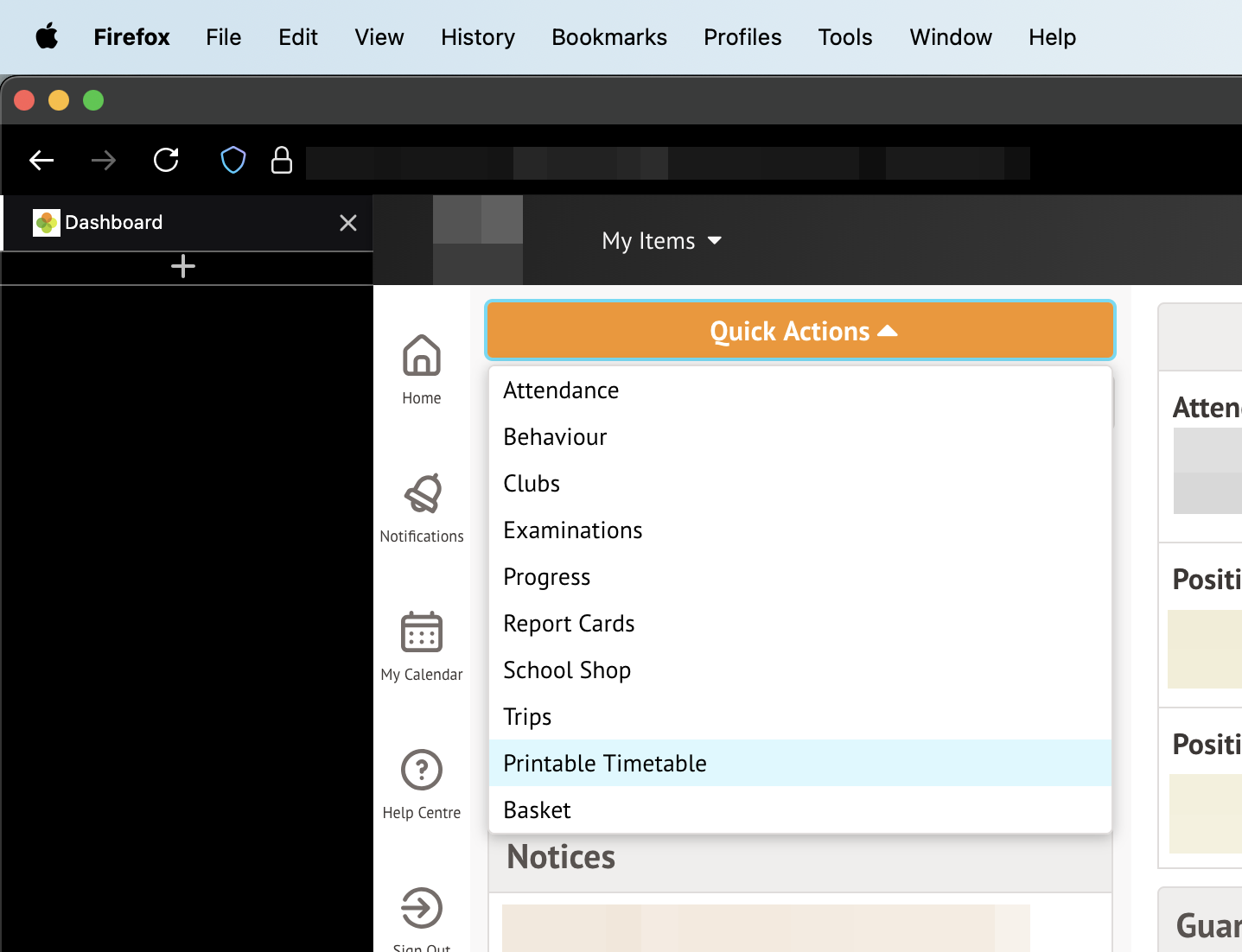
- click on the "quick actions" menu, then select "printable timetable"
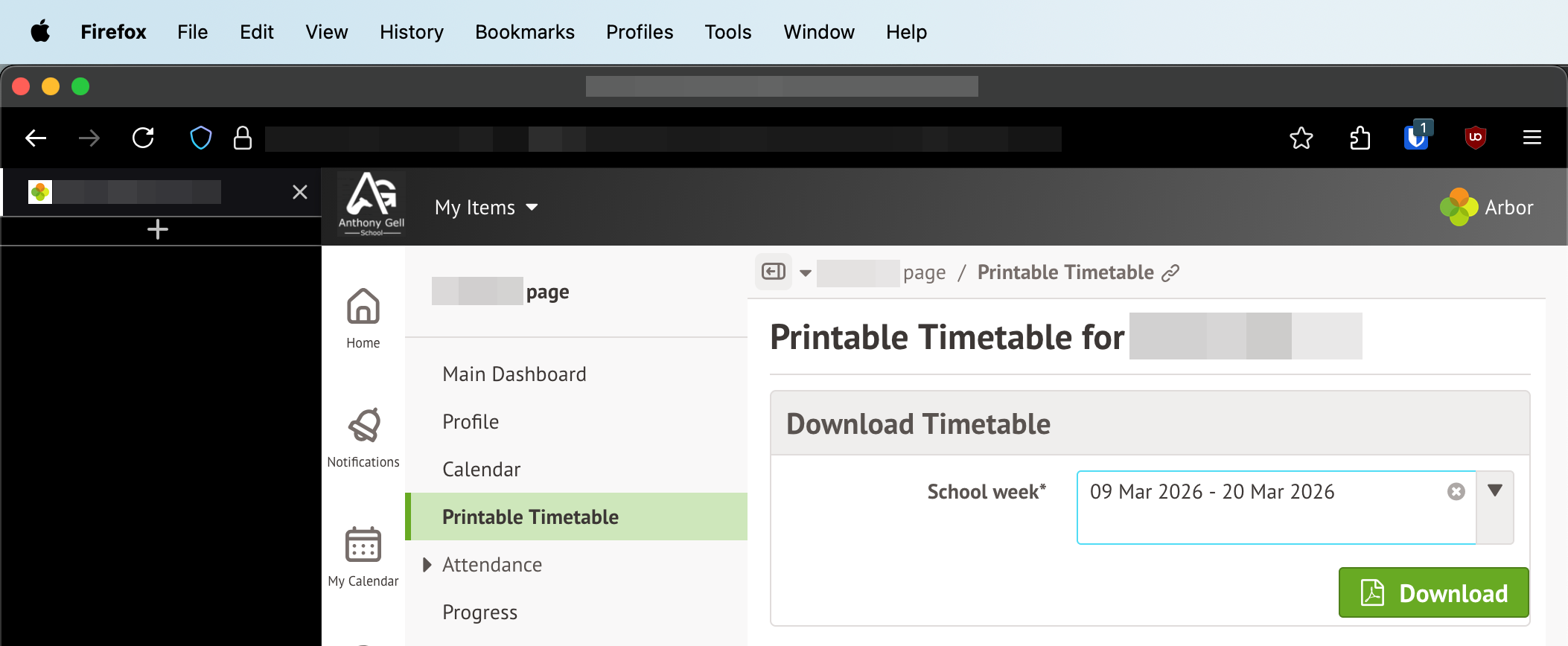
- select a fortnight, and then click download. make sure that, if possible, there are no bank holidays/inset days during the weeks you choose. You normally only get a choice between two fortnights, so if possible avoid room changes/cover staff but this usually isn't possible and requires manual correction later
- get them to send you the timetable they just downloaded
- upload to the timetable generator app using the method described above - making sure to UNCHECK the second box (about days as rows)