python program to control neopixel christmas tree lights with a Pi Zero, web interface and Home Assistant support.
this guide assumes you're using a pi zero for simplicity's sake - feel free to adapt this guide and the code to your specific pi/device. if you don't know what you're doing enough to do that then why are you even making a christmas tree with addressable lights
-
using raspberry pi imager, flash the latest version of raspbian lite onto your SD card. set it up with a hostname, your wifi SSID and password, a username and password, and enable SSH so you can SSH in without having to hook up to a monitor. I'll assume username
garlicbreadand hostnamezerotreesince that's what i'm using (if you choose something different, keep in mind to subgarlicbreadfor your username andzerotreefor your hostname in all commands/text input boxes etc.) -
wait. it's a pi zero it has like a 500mhz cpu so just go do... something else for a bit. i'll be using termius to connect so maybe get that downloaded and get yourself an account whilst you're waiting.
-
in termius, create a new host. set IP/Hostname to
zerotree, and under credentials enter usernamegarlicbreadbut not the password. -
DON'T CONNECT YET - head to the keychain tab, and generate a new key. call it whatever you want - i'll use
zerotree keyfor simplicity. -
once generated, hit the "export to host" button and export it to the
zerotreehost which you created earlier. hit export, and when prompted for a password, enter it but hit continue instead of continue and save. this can take some time if you're using a hostname instead of a direct IP. -
head back to the hosts page and connect. if asked for a password - hit the keys button instead, select the key and hit connect & save (yes, hit save this time). again this may take some time.
-
run
sudo nano /etc/ssh/sshd_config. edit the following:
- uncomment
PermitRootLoginand change tono - uncomment
PasswordAuthenticationand change tono - set
UsePAMtono
-
exit with ctrl+x, hit y to save changes and enter to save with the same filename.
-
run
sudo service sshd restartto apply changes -
run
sudo apt-get update && sudo apt-get upgrade -
run
sudo apt-get install samba git python3-pip python3-dev build-essential -y -
install python libraries with
sudo pip3 install rpi_ws281x adafruit-circuitpython-neopixel psutil flask --break-system-packages -
clone the repo with
git clone https://github.com/aroasanight/zerotree.git -
if your username is NOT
garlicbread, runsudo nano zerotree/setup/zerotree.serviceand change all references of the home folder to point to your home folder. -
run
sudo cp webserver_new/setup/zerotree.service /etc/systemd/system/zerotree.service -
reload services with
sudo systemctl daemon-reload -
enable the service with
sudo systemctl enable zerotree.service -
...and start the service with
sudo systemctl start zerotree.service -
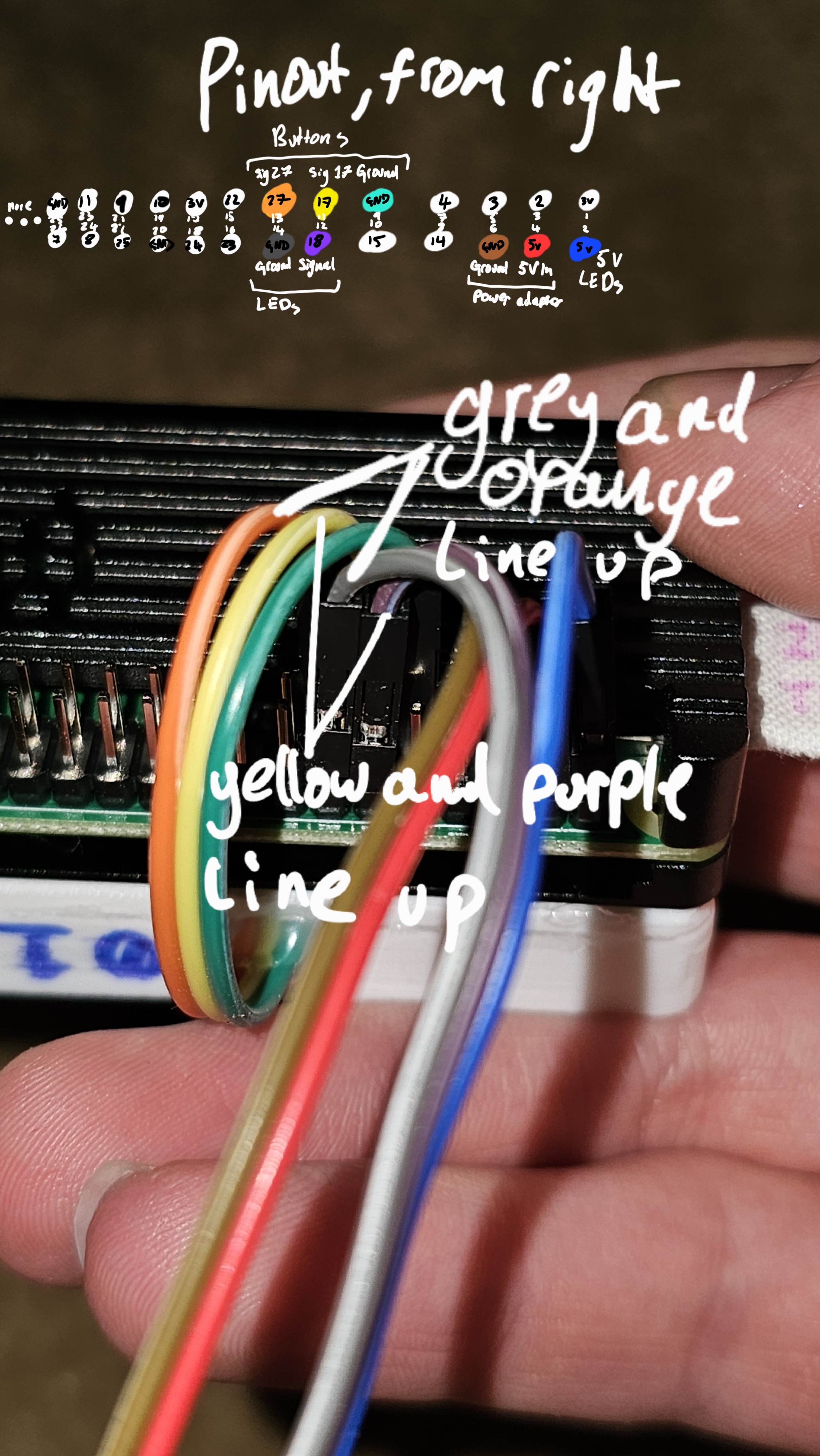
connect the lights using the following diagram. for coordinates - i can't be bothered right now to fix those scripts up so for now just have a play with
coordinate_finder_CAM.pyandcoordinate_finder_LED.pyin thezerotree/setupfolder and throw the output intozerotree/app.py. will get to this at some point... in the next 5 years