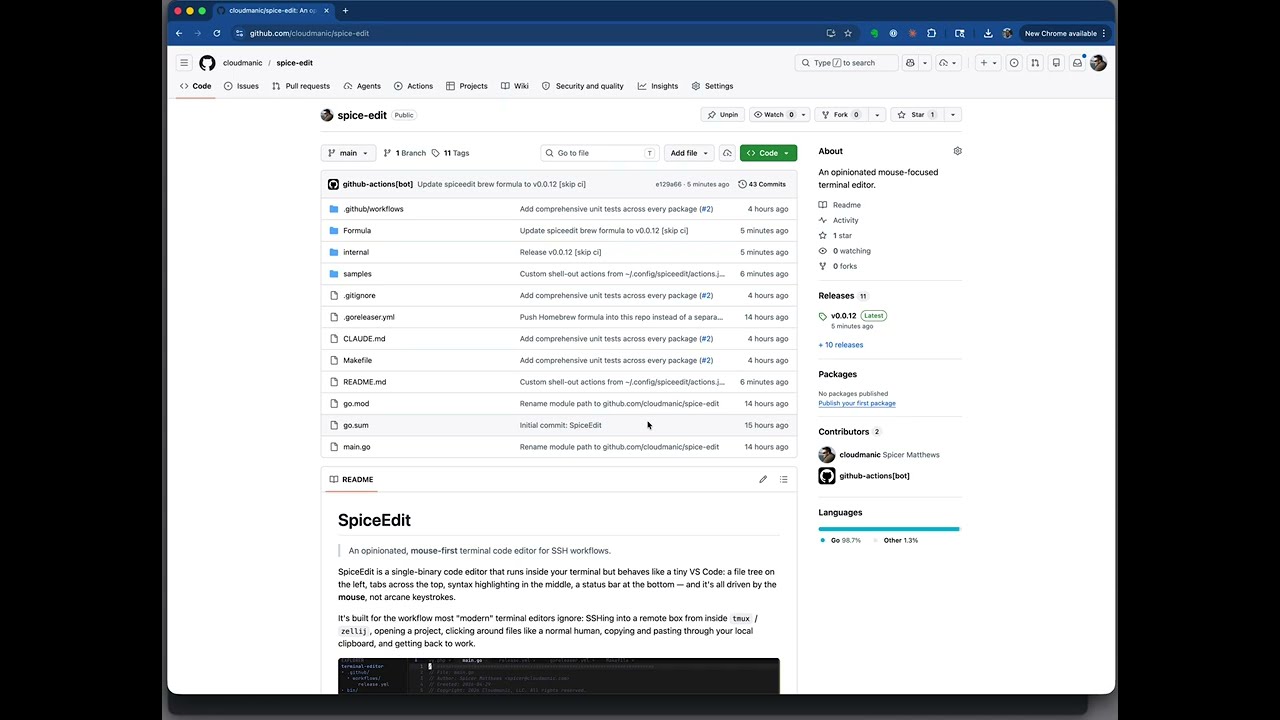
An opinionated, mouse-first terminal code editor for SSH workflows.
SpiceEdit is a single-binary code editor that runs inside your terminal but behaves like a tiny VS Code: a file tree on the left, tabs across the top, syntax highlighting in the middle, a status bar at the bottom — and it's all driven by the mouse, not arcane keystrokes.
It's built for the workflow most "modern" terminal editors ignore: SSHing
into a remote box from inside tmux / zellij, opening a project, clicking
around files like a normal human, copying and pasting through your local
clipboard, and getting back to work.

Vim and friends are wonderful if you've spent years memorizing them. Most terminal editors assume you have. SpiceEdit doesn't.
The goals, in order:
- Mouse-first. Click a file to open it. Click a tab to switch.
Click-and-drag to select text. Scroll wheel actually scrolls.
Drag the splitter to resize the sidebar. Right-click (or click the
≡icon, or double-tapEsc) for the action menu. - No hot-key archaeology. Save, save & close, quit — they all live
in a centered modal you open with one gesture. No
Ctrl+shortcuts that fighttmux, your shell, or your terminal emulator. - SSH-friendly. Copy uses OSC 52 escape sequences with a tmux passthrough wrapper, so highlighting text on a remote box still ends up in your local Mac clipboard.
- One static binary. No runtime, no plugin manager, no config directory full of YAML. Drop it on a server and run it.
- Looks reasonable. Tokyo Night-inspired palette out of the box, syntax highlighting via chroma (no CGO, no tree-sitter setup).
- VS Code-shaped layout — file tree on the left, tab bar across the top, editor in the middle, status bar at the bottom.
- Mouse-driven everything — click to place cursor, drag to select, scroll wheel scrolls, double-click selects a word, drag past the edge to auto-scroll a selection.
- Syntax highlighting for dozens of languages via Chroma.
- Action menu opened with the
≡icon, right-click, or double-tapEsc. Keyboard navigation works too — arrow keys +Enter. - Live file tree — auto-refreshes every 10 seconds so files added or removed from disk show up without you doing anything.
- External change detection — if a file on disk changes underneath an open clean buffer, the editor reloads it; if your buffer is dirty, you get a heads-up; if the file is deleted, the tab is flagged once.
- Toggleable, draggable sidebar — show/hide the file tree from the menu, or drag the splitter to resize it.
- Clipboard over SSH — OSC 52, including a
tmuxpassthrough so copy works from inside a tmux session on a remote host. - Format on save — opt-in per-project via
.spiceedit/format.jsonwith a first-run trust prompt so cloning a repo never silently executes its commands. See Format on save. - Single binary, no CGO — cross-compiled for macOS, Linux, and Windows on amd64 and arm64.

The Homebrew formula is published into this repo's Formula/ directory.
Tap it by URL (no homebrew-* repo naming convention required), then
install:
brew tap cloudmanic/spice-edit https://github.com/cloudmanic/spice-edit
brew install cloudmanic/spice-edit/spice-editWhen a new release ships, refresh the tap and upgrade:
brew update
brew upgrade cloudmanic/spice-edit/spice-editbrew uninstall cloudmanic/spice-edit/spice-edit
brew untap cloudmanic/spice-editThe simplest way to drop SpiceEdit onto a Linux box (or any macOS that isn't using Homebrew) is the install script:
curl -fsSL https://raw.githubusercontent.com/cloudmanic/spice-edit/main/install.sh | shIt detects your OS / arch, downloads the matching archive from the
latest GitHub Release,
and drops the spiceedit binary into ~/.local/bin (or /usr/local/bin
when ~/.local/bin isn't writable). Re-run the same command to
upgrade — it always fetches the latest tagged release.
Override behaviour with environment variables:
# Pin to a specific release.
curl -fsSL https://raw.githubusercontent.com/cloudmanic/spice-edit/main/install.sh \
  | VERSION=v0.0.18 sh

# Install to a custom directory.
curl -fsSL https://raw.githubusercontent.com/cloudmanic/spice-edit/main/install.sh \
  | INSTALL_DIR=/opt/bin sh
The script is plain POSIX sh — it works on Alpine / BusyBox / any
SSH target where you don't want to depend on bash. It only needs tar
plus one of curl or wget.
Pre-built binaries for Linux, macOS, and Windows (amd64 + arm64) are
attached to every GitHub Release.
Download the archive for your OS/arch, extract it, and drop the
spiceedit binary somewhere on your $PATH.
git clone https://github.com/cloudmanic/spice-edit.git
cd spice-edit
make install # builds and installs to $GOPATH/binspiceedit # opens the current directory
spiceedit ~/code/app # opens a specific project root
spiceedit main.go # opens a file (project root = its parent dir)
spiceedit new-file.go # creates the file on first save (vim-style)
spiceedit --version # print version and exit
spiceedit --help # print short usageThen:
- Click a file in the tree to open it.
- Click a tab to switch, click the
×to close it. - Click
≡(top-left), right-click anywhere, or double-tapEscfor the action menu — including New file, Rename, Delete. - If your terminal forwards Button3, right-click on a file or folder
in the tree opens a per-item context menu (New File on folders,
Rename, Delete). macOS Terminal + tmux often swallows right-click,
so all of those actions also live in the main
≡menu. - Drag the splitter between the sidebar and editor to resize.
- Click and drag in the editor to select; drag past the top or bottom edge to auto-scroll the selection.
SpiceEdit deliberately avoids Ctrl+-style shortcuts (they fight tmux,
zellij, and the terminal itself — Ctrl+S is XOFF flow control on a
real terminal). Instead, Esc is the leader key: tap Esc, then
within half a second tap one of the letters below.
| Combo | Action |
|---|---|
Esc Esc |
Open ≡ menu |
Esc s |
Save |
Esc u |
Undo |
Esc r |
Redo |
Esc w |
Close tab |
Esc q |
Quit |
Esc n |
New file |
Esc t |
Toggle sidebar |
Esc / |
Toggle line comment |
Esc f |
Find in file |
Esc p |
Find file in project |
A lone Esc is harmless — if you don't follow it with a bound key
within the window, your next keystroke goes to the editor as normal,
so accidental Esc taps never swallow a real character.
Everything reachable by hotkey is also reachable from the ≡ menu —
the hotkeys are just a faster path for the actions you reach for most.
Esc f (or Find in file from the ≡ menu) opens a search bar
above the status bar:
Find: foo█ 3 of 12 Enter: next · Shift+Enter: prev · Esc: close
- Type to search — matching is case-insensitive substring, results highlight live as you type.
Enterjumps to the next match (wraps at the end),Shift+Enterjumps to the previous one.Esccloses the bar and clears the highlights — eachEsc fopens a fresh search.- The active match is painted a brighter color than the rest, so you can pick out where you are in the result set.
There's no regex, whole-word, or case-sensitive toggle in v1 — the common case is "I know roughly what I'm looking for, take me there."
Esc p (or Find file in project from the ≡ menu) opens a
fuzzy file finder over every non-ignored file in the project:
┌ Find file                                                    esc ┐
│  app.go                                              50/12345    │
│  internal/app/app.go                                             │
│  internal/app/app_test.go                                        │
│  internal/finder/score.go                                        │
│  ...                                                             │
└──────────────────────────────────────────────────────────────────┘
- Type to fuzzy-match. The matcher prefers basename hits, consecutive
matches, and word boundaries — typing
tabfindstab.gobeforetabs/foo.gobeforenotable.go. ↑/↓to move,Enterto open,Escto dismiss. Mouse hover highlights, click opens.- Honours
.gitignoreautomatically. The fast path usesgit ls-files --cached --others --exclude-standard(so a 50k-file repo indexes in ~150ms); non-git projects fall back to a Go walker that still respects the project root's.gitignore. - Indexed in the background at startup so the modal opens with results already in hand. Refreshes on the same 10-second cadence as the file tree, plus immediately after any create/rename/delete inside the editor.
- Only files are listed — no directories, no symlinked duplicates.
SpiceEdit can read user-defined shell-out actions from
~/.config/spiceedit/actions.json and prepend them to the action menu.
Each action runs against the currently open file when you click it.
The use case this was built for: you SSH from your laptop into a remote box, edit a file there, and want to open it on your laptop — but neither Sixel nor the Kitty graphics protocol survive the trip through zellij/tmux. The trick is to bypass the terminal entirely and pipe the file back over a second SSH connection.
~/.config/spiceedit/actions.json (or $XDG_CONFIG_HOME/spiceedit/actions.json
when set). The file is optional — without it, the menu just shows the
built-in actions.
{
  "actions": [
    {
      "label": "Open on Rager",
      "command": "scp \"$FILE\" rager:~/Downloads/ && ssh rager open \"~/Downloads/$FILENAME\""
    },
    {
      "label": "Open on Cascade",
      "command": "scp \"$FILE\" cascade:~/Downloads/ && ssh cascade open \"~/Downloads/$FILENAME\""
    }
  ]
}
Each entry needs:
label— the menu text (kept under ~30 chars; long labels clip inside the modal).command— handed tosh -cwith two env variables exported:FILE— absolute path of the active tab's fileFILENAME— basename of the same file
$HOMEand~gotcha for two-hop SSH: the command runs in a shell on the SpiceEdit host (the remote box you SSH'd into). So$HOMEand~outside ofssh "..."quotes expand to that box's home directory, not your laptop's. To run something on your laptop, wrap the remote command in quotes:ssh rager "open ~/Downloads/$FILENAME"—$FILENAMEis expanded locally (you want that — it's a filename), but~is sent literally and rager's shell expands it on arrival.
The action only enables when there's a file open. Commands run in a
background goroutine, so a slow scp or hanging ssh won't freeze
the editor; success or failure flashes in the status bar when it
finishes.
Every custom-action invocation appends a record to
~/.local/state/spiceedit/actions.log (or
$XDG_STATE_HOME/spiceedit/actions.log when set). One entry per run,
human-readable, with the exact command, the env vars that were
exported, the duration, and the combined stdout / stderr:
[2026-04-30T13:26:32-07:00] Open on Rager (1.234s) → ok
  command: scp "$FILE" rager:~/Downloads/ && ssh rager open "$HOME/Downloads/$FILENAME"
  FILE:     /Users/spicer/dev/foo/bar.txt
  FILENAME: bar.txt
  --- output ---
  --- end ---

[2026-04-30T13:27:01-07:00] Open on Cascade (0.521s) → exit status 1
  command: scp "$FILE" cascade:~/Downloads/ && ssh cascade open "$HOME/Downloads/$FILENAME"
  FILE:     /Users/spicer/dev/foo/bar.txt
  FILENAME: bar.txt
  --- output ---
  ssh: connect to host cascade port 22: Connection refused
  lost connection
  --- end ---
tail -f ~/.local/state/spiceedit/actions.log while you click around
to watch entries roll in. There's no rotation — the file is one-line
per run plus a few lines of output, so it grows slowly. Delete it
whenever you want to start fresh.
Both example actions assume rager and cascade are SSH host aliases
in the remote machine's ~/.ssh/config that resolve back to your
laptop. The simplest way to set that up:
-
On your laptop, generate (or pick) an SSH key pair you'll dedicate to inbound connections from your remote work box.
-
On your laptop, make sure Remote Login is enabled (System Settings → General → Sharing → Remote Login on macOS) and add the public key to
~/.ssh/authorized_keys. -
On the remote box, drop the matching private key into
~/.ssh/id_<name>and add a host alias:Host rager HostName your-laptop.example.com # or a Tailscale / mesh hostname User your-mac-username IdentityFile ~/.ssh/id_rager
-
Test it by hand from the remote:
ssh rager echo hi. Once that works, SpiceEdit can drive it the same way.
If your laptop sits behind NAT, point HostName at a Tailscale /
WireGuard / Cloudflare-tunnel address — anywhere the remote can reach
the laptop directly. The action itself is just scp + ssh; it
doesn't care how the network gets there.
The schema is deliberately small. If you can write it on one shell
line, you can put it in actions.json:
{ "label": "Send to ChatGPT", "command": "cat \"$FILE\" | pbcopy && open https://chat.openai.com/" }
{ "label": "Lint with eslint", "command": "cd $(dirname \"$FILE\") && eslint \"$FILENAME\"" }
{ "label": "Run formatter", "command": "gofmt -w \"$FILE\"" }SpiceEdit can run a formatter on every save — gofmt, php-cs-fixer,
prettier, anything you like — but the feature is off by default
and only kicks in for projects that opt in by checking in a config
file. Quick edits to a stranger's repo will never silently rewrite
their files.
Create .spiceedit/format.json in your project root:
{
  "commands": {
    "go":  ["gofmt", "-w", "$FILE"],
    "php": ["php-cs-fixer", "fix", "$FILE", "--quiet"],
    "py":  ["ruff", "format", "$FILE"],
    "js":  ["prettier", "--write", "$FILE"],
    "ts":  ["prettier", "--write", "$FILE"]
  }
}- Keys are file extensions, without the leading dot.
- Values are argv arrays — passed straight to
execve, no shell, so there's no injection surface. (Use["sh", "-c", "..."]if you genuinely need a shell.) $FILEin any argument is replaced with the absolute path of the file being saved.
The first time SpiceEdit would run a formatter from a new (or edited)
.spiceedit/format.json, you get a Yes / No prompt:
Trust this project's formatter? Allow .spiceedit/format.json to run formatters on save?
Pick Yes once and SpiceEdit will run the configured formatters
silently from then on. Pick No and it will never run them in this
project — until the config file changes, at which point you'll be
prompted again. The remembered answer (and the SHA-256 hash of the
config it applies to) lives in
~/.config/spiceedit/format-trust.json.
The hash is the security trick: a teammate can't push a "v2" of the
config that runs rm -rf — your editor will re-prompt the next time
you save, because the file has changed since you trusted it.
- Save writes the file to disk first. A broken formatter never blocks the save.
- SpiceEdit looks up the file's extension in
format.json. No match → done. - The configured command runs in a goroutine. Slow formatters don't freeze the UI; you can keep typing.
- When the formatter finishes, SpiceEdit reloads the buffer — but only if you haven't typed anything since saving. If you did, your in-flight edits win and a status flash tells you the on-disk file was reformatted.
- If the configured binary isn't installed, it's a silent no-op. You don't have to install everyone's formatter to clone the repo.
Two reasonable patterns:
- Commit
.spiceedit/format.jsonso everyone on the team gets the same format-on-save behavior automatically. - Add
.spiceedit/to.gitignoreif developers prefer their own setups — each person's local copy can configure whatever formatters they like.
Both work. SpiceEdit doesn't care which you pick.
You can list your favorite formatters once globally in
~/.config/spiceedit/format-defaults.json (same shape as the
project file):
{
  "commands": {
    "go":  ["gofmt", "-w", "$FILE"],
    "php": ["php-cs-fixer", "fix", "$FILE", "--quiet"],
    "py":  ["ruff", "format", "$FILE"]
  }
}
These never run on their own. Instead, when you save a file in a project where:
- The project's
.spiceedit/format.jsonis missing or has no entry for that file's extension, and - Your global defaults do have an entry for that extension,
…SpiceEdit asks once: "Add gofmt for .go to .spiceedit/format.json?"
- Yes — merges the entry into the project's config (creating
.spiceedit/format.jsonif it didn't exist), auto-trusts the resulting file, and runs the formatter on the save you just made. - No / Esc — remembered per-extension in the trust file. You won't be re-asked about that file type in this project until you manually edit the project config.
This keeps your personal preferences out of repos that don't want them while still making it one click to opt a project in.
.
├── main.go                   # Entry point — parses optional rootDir arg
├── internal/
│   ├── app/                  # Event loop, layout, menu modal, splitter
│   ├── editor/               # Buffer, tab, cursor, syntax highlighting
│   ├── filetree/             # Lazy directory tree with identity-preserving refresh
│   ├── clipboard/            # OSC 52 clipboard with tmux passthrough
│   ├── customactions/        # Loader for ~/.config/spiceedit/actions.json
│   ├── format/               # Format-on-save config + trust store
│   ├── finder/               # Project file index + fuzzy matcher
│   ├── theme/                # Tokyo Night-inspired palette
│   └── version/              # Single-line version constant
├── .github/workflows/        # Auto-release pipeline
├── .goreleaser.yml           # Cross-compile + brew formula config
├── Formula/                  # Homebrew formula (written by CI)
└── Makefile
make run          # build and run against the current directory
make build        # build to ./bin/spiceedit
make build-linux  # cross-compile a linux/amd64 binary
make test         # full suite with -race (same as CI)
make test-short   # quick iteration loop (-short, no race)
make coverage     # writes coverage.out + a browsable coverage.html
make tidy         # go mod tidy
make clean        # rm -rf bin + coverage artifacts
Every push and PR runs go test ./... on Linux + macOS via
.github/workflows/test.yml. New code
needs a corresponding _test.go — see CLAUDE.md for the bar.
Releases are fully automated. Every push to main:
- Reads
internal/version/version.go. - If that file was hand-edited in the pushed commit, the version is
used as-is (this is how you bump major or minor: edit the constant
manually). Otherwise the patch number is auto-bumped and committed
back to
mainwith[skip ci]. - Tags
v<x.y.z>and pushes the tag. - GoReleaser cross-compiles for
linux/darwin/windows × amd64/arm64, attaches archives to a GitHub
Release, and pushes an updated formula into
Formula/spice-edit.rbon this same repo.
No PAT, no separate tap repo — the default workflow GITHUB_TOKEN is
enough since the formula lives in the source repo.
MIT — see LICENSE.
Copyright © 2026 Cloudmanic, LLC.