
Caution
This theme is in early stage. Major refactor is in pipeline. Use at your own risk, ideally only if you plan to contribute.
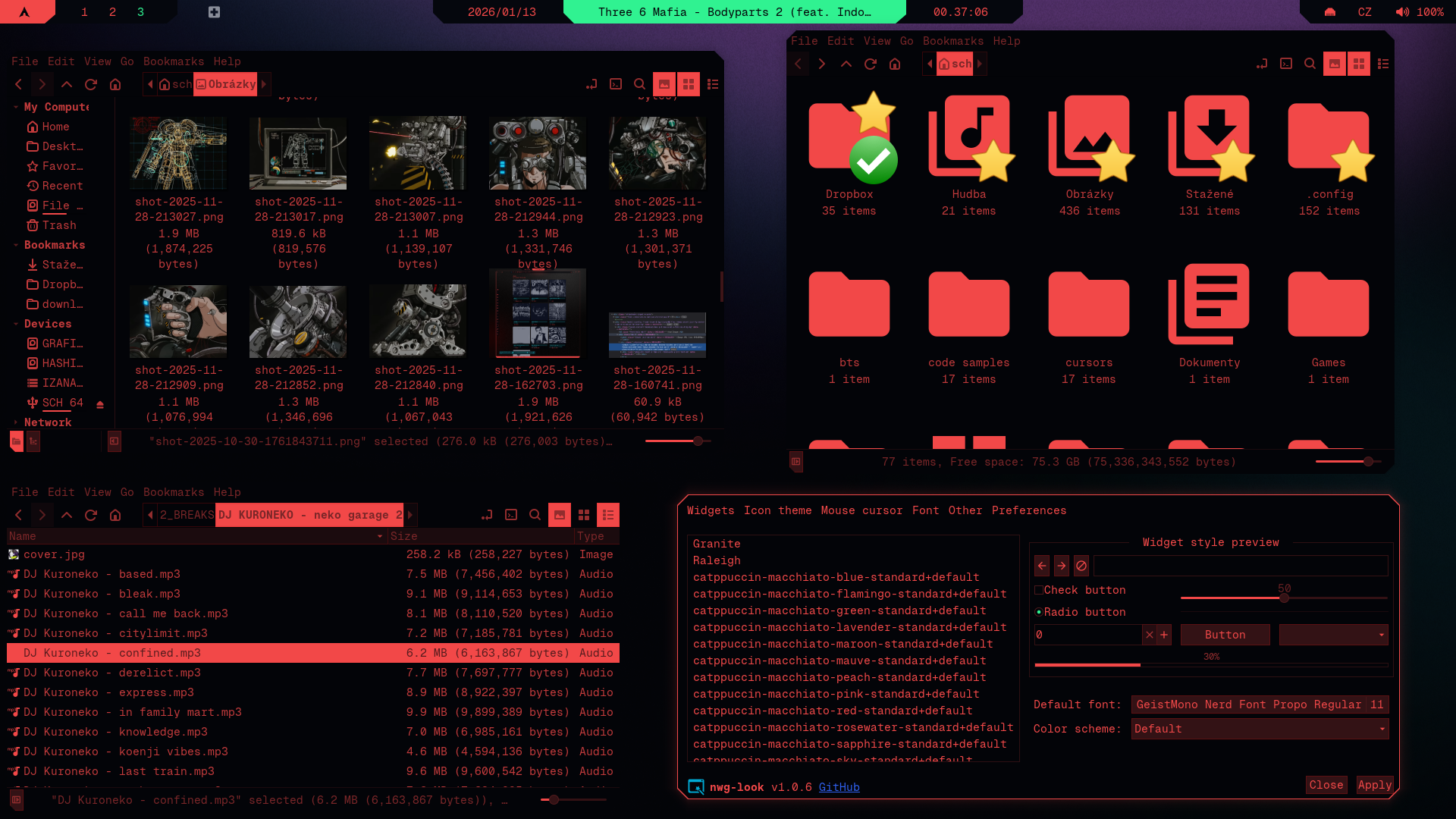
- Make sure GTK is installed:
sudo pacman -S gtk-2.0 gtk-3.0 - See Installation Guide if you're coming from cybr-hyprland and haven't set up prerequisites yet
# Download only the gtk directory and install the CYBRgtk theme by creating ~/.themes directory and moving theme inside the ~/.themes dir
git clone --depth=1 --filter=blob:none --no-checkout https://github.com/cybrcore/cybr-waybar.git && cd cybr-waybar && git sparse-checkout init --cone && git sparse-checkout set waybar && git checkout main && mv waybar ~/.config/ && cd ~ && rm -rf cybr-waybar
↑ Unsure what this does? Explanation
ls -R ~/.themes/oomox-CYBRgtkYou should see: assets/, cinnamon/, gtk-2.0/, gtk-3.0/, gtk-3.20/, metacity-1/, openbox-3/, unity/, xfwm4/ and index.theme
Open hyprland.conf:
$EDITOR ~/.config/hypr/hyprland.confAdd env = GTK_THEME, oomox-CYBRgtk into Themes inside ENV section:
# === THEME ==# #
    ..
# === ENV === #
    # XDG
    ..
    # QT
    ...
    # Tearing
	...
    # Themes
    env = GTK_THEME, oomox-CYBRgtk
Apply the theme using your desktop environment’s GTK settings tool.
Examples:
- GNOME: Use GNOME Tweaks → Appearance → Legacy Applications → Select
oomox-CYBRgtk - XFCE: Settings → Appearance → Style → Select
oomox-CYBRgtk - Cinnamon: System Settings → Themes → Controls → Select
oomox-CYBRgtk
No environment variables are required.