Simple Text
Bitsy 8.0
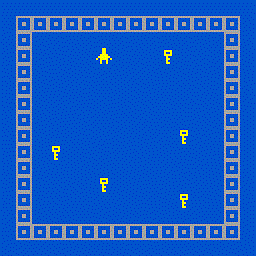
Play a working demonstration here
All interactions in bitsy except for hitting walls trigger dialog. The dialog system is at the heart of almost all bitsy experiences. Dialogs are attached to the start and end of the game, items that you pick up, sprites that you bump up against, and exits that move you between rooms.
Each dialog can contain text to by displayed and / or code fragments that affect the game. But you can have a completely empty dialog if you want.
When bitsy displays dialog, all the sections are text are run together, without additional spaces or line breaks. So you should be sure to put in spaces if you need to.
You can add a line break by starting a new line, or by adding the {br} function
This is a line
This is a second line{br}This is a third line.
Bitsy will start a new page when the text box is full. Normally the text box only holds two lines of text, so if you are careful, you can control pages by ensuring that you add extra line breaks where you need them. But this may make future changes to your dialog tedious, or it may be impossible to control dialog this way if it includes text that might change each time the dialog runs.
You can explicitly put in a page break with the {pg} function
This is a page

This is a new page because of the extra blank line on the line above{pg}
This is a third page because of the page break
Normally the background colour of text is black, and the text itself is white. You can colour certain parts of the text by using the {clr} functions.
{clr 1}This is in the room's background colour.{/clr}
{clr 2}This is in the room's foreground colour, used for tiles.{/clr}
{clr 3}This is in the room's sprite colour, used for sprites and items.{/clr}
If your palette has more than 3 colours in it, you can use those as well, just with the appropriate number
There are three effects that you can apply to text in bitsy.
- Wavy
{wvy}makes the text undulate up and down like row of ducks bobbing on the waves. - Shake
{shk}makes the text shake frenetically. - Rainbow
{rbw}colours the text with a shifting spectrum of colour.
This is {wvy}Wavy{wvy}.
This is {shk}Shaky{shk}.
This is {rbw}Rainbow{rbw}.
This is a {shk}{rbw}Shaky Rainbow{rbw}{shk}.
You can print images from the paint box within text. These functions use the names of the images, so you should make sure you give the images names.
-
{printSprite}can print the avatar or a sprite. -
{printTile}can print a tile. -
{printItem}can print an item.
{printSprite "avatar"} Hello little kitten
{printSprite "cat"} Mioaw. I'm thirsty, fetch me a cup of tea {printItem "tea"} and I'll give you this golden key {printItem "key"}
You can print the value of variables using the {say} function or it's equivalent {print}. You can also use the {item} function to get the number of times you've collected a particular item in your inventory.
This is the value of a: {say a}
This is the number of keys you've collected {say {item "key"}} keys
You can also use print {print {item "key"}} keys