Tutorial Callback Configs
Each widget active in your UI has an associated callback config. This config contains all callbacks that are active for that widget. Initially, the callback config for each widget is empty. To manage the callbacks for a widget, we create a new CallbackConfig object and load our callbacks into it. We then either overwrite the current callback config of a widget, or update it. Overwriting it will delete the current config. If we update it, any callbacks configured in the new config will be set on the current config (while leaving the the others intact).
Let's say we want to set an "on_press" callback on a button with the ID: "my_button". We want the callback to change the text on a label. This is how we would do it:
The .ez file:
- Layout:
    mode: box
    orientation: vertical
    - Button:
        id: my_button
        text: Change label
        auto_scale: true, true
        halign: center
        padding_bottom: 2
    - Label:
        id: my_label
        text: Initial text
        auto_scale: true, true
        halign: center
// We initialize the UI
use ez_term::*;
let (root_widget, mut state_tree, mut scheduler) = load_ui();
// We create the callback closure
let my_callback = |context: Context| {
let label_state = context.state_tree.get_mut("my_label").as_label_mut();
label_state.set_text("Button was clicked!".to_string());
label_state.update(context.scheduler);
true
};
// We load the closure into a callback config
let new_callback_config = CallbackConfig::from_on_press(Box::new(my_callback));
// We update the widget callback config with the new one
scheduler.update_callback_config("my_button", new_callback_config);
// We run the UI
run(root_widget, state_tree, scheduler);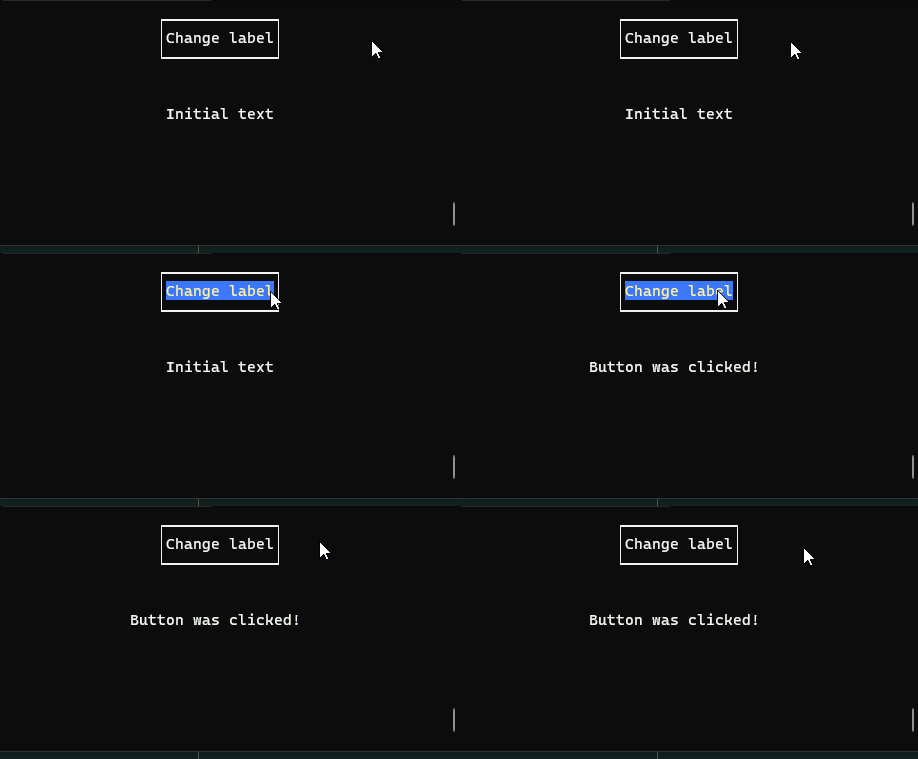
We created a new callback config using the "from_on_press" method. There is a "from_" method for each type of callback to make it easier to initialize a new CallbackConfig. Note that if you want to update a callback config by widget ID like we do in the above example (or find a widget state using ID), the ID must be globally unique. If the ID is not globally unique, you can use the full widget path. Since ID is more convenient, it is recommended to make all your widget IDs unique.
Let's rewrite the code above to use a function instead of a closure, and overwrite the callback config instead of updating it:
use ez_term::*;
let (root_widget, mut state_tree, mut scheduler) = load_ui();

fn my_callback(context: Context) -> bool {

    let label_state = context.state_tree.get_mut("my_label").as_label_mut();
    label_state.set_text("Button was clicked!".to_string());
    label_state.update(context.scheduler);
    true
};

let new_callback_config = CallbackConfig::from_on_press(Box::new(my_callback));
scheduler.overwrite_callback_config("my_button", new_callback_config);

run(root_widget, state_tree, scheduler);As you can see, both closures and functions can be used to write callbacks. The advantage of closures however is that we can capture variables with the "move" keyword. Let's repeat the first example, but this time we want to update the label with a counter each time the button is pressed:
use ez_term::*;
let (root_widget, mut state_tree, mut scheduler) = load_ui();

let mut counter: usize = 0;
let my_callback = move |context: Context| {

    counter += 1;
    let label_state = context.state_tree.get_mut("my_label").as_label_mut();
    label_state.set_text(format!("Button was clicked {} times!", counter));
    label_state.update(context.scheduler);
    true
};
let new_callback_config = CallbackConfig::from_on_press(Box::new(my_callback));
scheduler.update_callback_config("my_button", new_callback_config);

run(root_widget, state_tree, scheduler);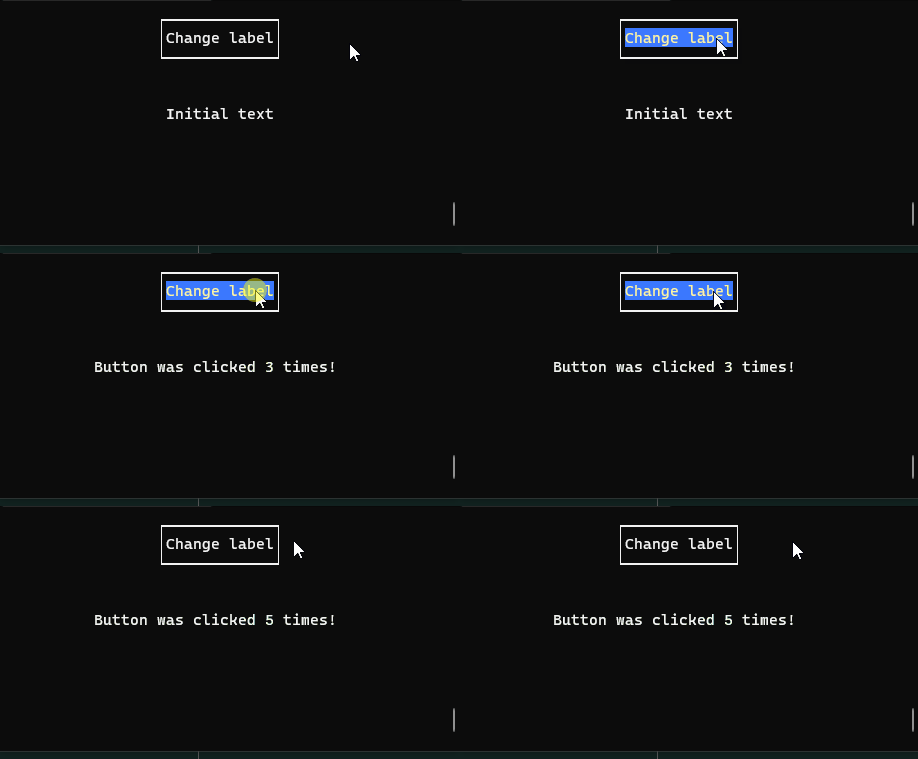
Here we created a variable and moved it into the callback closure. This can be very useful, and it's a good pattern to keep in mind.
Now that we know how to create a callback and bind it to an object, we will go over all callback types next. Not all callbacks are available for all widgets. To see which callbacks are available for a widget, check the widget entry under Reference. Here is a quick overview of all callbacks:
- on_keyboard_enter
- on_left_mouse_click
- on_press
- on_select
- on_deselect
- on_right_mouse_click
- on_hover
- on_drag
- on_scroll_up
- on_scroll_down
- on_value_change
- Custom key binds
- Property binds
The general tutorial continues with: Callback: On keyboard enter.

Tutorial
Tutorial-Project-StructureMinimal example
EzLang
EzLang basics
EzLang Templates
Ezlang Layout modes
EzLang Box mode layouts
EzLang Stack mode layouts
EzLang Table mode layouts
EzLang Float mode layouts
EzLang Tab mode layouts
EzLang Screen mode layouts
EzLang Layout Scrolling
EzLang Layout Views
EzLang Widget overview
EzLang Label
EzLang Text Input
EzLang Button
EzLang Checkbox
EzLang Radio button
EzLang Dropdown
EzLang Slider
EzLang Canvas
EzLang Property Binding
EzLang Sizing
EzLang Size hints
EzLang Auto scaling
EzLang Maths Sizing
EzLang Manual Sizing
EzLang Positioning
EzLang Layout Mode Positioning
EzLang Position Hints
EzLang Position Maths
EzLang Manual Position
EzLang Adjusting Position
EzLang Keyboard Selection
Scheduler
Widget States and the State Tree
The Scheduler Object
Managing callbacks
Callback Structure
Callback Configs
Callback: On keyboard enter
Callback: On Left Mouse Click
Callback: On Press
Callback: On Select
Callback: On Deselect
Callback: On Right Mouse Click
Callback: On Hover
Callback: On Drag
Callback: On Scroll Up
Callback: On Scroll Down
Callback: On Value Change
Callback: Custom Key Binds
Callback: Global Key Binds
Callback: Property Binds
Tasks
Scheduled Single Exectution Tasks
Scheduled Recurring Tasks
Threaded Tasks
Custom Properties
Modals
Programmatic Widgets
Updating widgets
Managing selection
Default global (key)binds
Performance
Examples
Layout: Box Mode NestedLayout: Box Mode Size Hints
Layout: Stack Mode
Layout: Table Mode Dynamic
Layout: Table Mode Static
Layout: Float Mode Manual
Layout: Float Mode Position hints
Layout: Screen Mode
Layout: Tab Mode
Layout: Scrolling
Layout: Views
Widget: Label
Widget: Text input
Widget: Button
Widget: Checkbox
Widget: Radio Button
Widget: Dropdown
Widget: Slider
Widget: Progress Bar
Widget: Canvas
Scheduler: Schedule Once
Scheduler: Schedule Once Callback
Scheduler: Schedule Recurring
Scheduler: Schedule Recurring Callback
Scheduler: Threaded Task State Tree
Scheduler: Threaded Task Custom Property
Scheduler: Create Widgets
Scheduler: Modal Popup
Reference
WidgetsCommon Properties
Label
Text Input
Button
Checkbox
Radio button
Dropdown
Slider
Canvas
Scheduler
Schedule once
Schedule Recurring
Schedule Threaded
Cancel Task
Cancel Recurring Task
Create Widget
Remove Widget
Select Widget
Deselect Widget
Update Widget
Force Redraw
Open Modal
Dismiss Modal
Bind Global Key
Remove Global Key
Clear Global Keys
Bind Property
Create Custom Properties
Get Property
Get Property Mut
Overwrite Callback Config
Update Callback Config
Exit