

EzSceneSwitcher is a handy Unity Editor utility that simplifies scene navigation. It provides an editor overlay with a drop-down menu listing all scenes and some quick-action buttons for seamless scene switching.
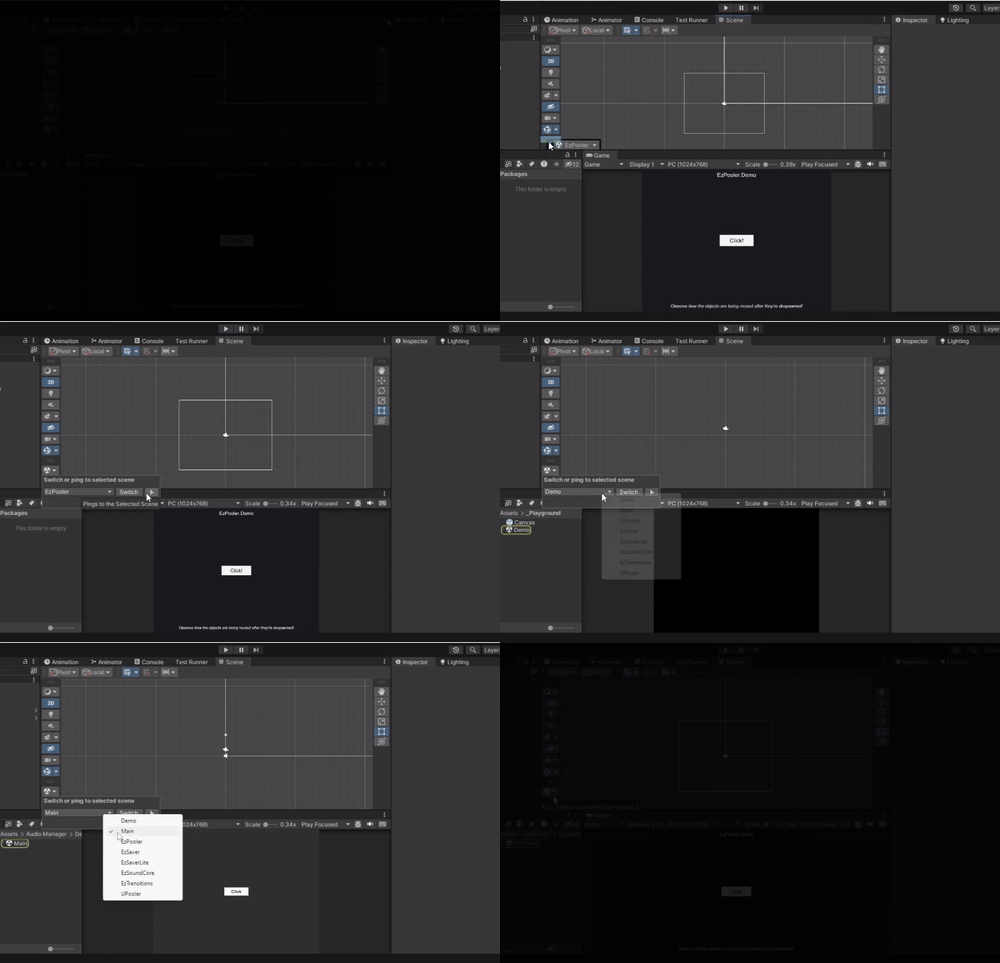
- 📜 Drop-down menu – Lists all available scenes in the project.
- 🔄 Toggle Scene Button – Opens/closes the selected scene.
- 🎯 Ping Scene Button – Highlights the scene asset in the Project window.
- ⚡ Overlay Menu – Stays accessible within the scene window for quick scene management.
Inside the Unity Editor using the Package Manager:
- Click the (+) button in the Package Manager and select "Add package from Git URL" (requires Unity 2019.4 or later).
- Paste the Git URL of this package into the input box: https://github.com/ebukaracer/EzSceneSwitcher.git#upm
- Click Add to install the package.
Inside the Unity editor's scene-view window, click on the three-dotted icon at the top right corner, click on the Overlay Menu option, and toggle on/off the Scene Switcher overlay.
Alternatively, use the menu option:
Racer > EzSceneSwitcher > Toggle
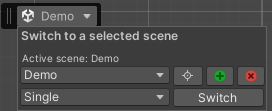
With the Ez Scene Switcher overlay menu open, you're able to:
-
Use the scene list drop-down to select a scene.
-
Use the scene open-mode drop-down to select an open scene mode(single, additive, etc)
-
Click:
- Ping – Locates the selected scene in the Project window.
- Activate – Sets the selected scene active, assuming multiple Loaded scenes exist.
- Close – Closes the selected scene that is either additively loaded or unloaded.
- Switch – Opens the selected scene based on the selected mode.
-
Hover over the options to display helpful tooltips.
- Navigate to:
Racer > EzSceneSwitcher > Remove Package
- Developed with
v2022.3.11f1. - Most likely compatible with Unity version
2021.1+and above. - The scene-view window must be available and be in focus for the
Scene Switcheroverlay to work.
- Inspired by this GitHub gist
Contributions are welcome! Please open an issue or submit a pull request.