
Office update delivery helper, with user interaction. Desgined for use with Casper Suite.
Release Version Here: https://github.com/gavinpardoe/OfficeUpdateHelper/releases
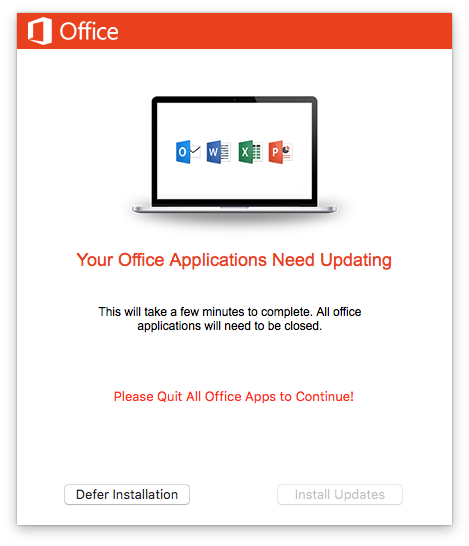
Pushing/ remotely installing Office updates can be difficult. This is due to not being able install update packages while Office applications are running. Force quitting applications gives a poor user experience and may result in the loss of work.
Alternatively allowing users to apply updates themselves is often unreliable, especially with regards to security updates.
This App was created to get around the “can’t push update pkg’s to users while office apps are running”, “can’t force quite office app’s due to loss of work” and the “users don’t run the office auto updater” issues.
It does the following:
-
Display’s a small window on the right hand side of the screen, letting you know that updates are needed. (see screen shot) -
Will check if Outlook, Word, Excel, PowerPoint or OneNote are running. If they are the install button is disabled and a message displayed informing you that all office apps need to be closed. -
Once closed or if they were already closed the message will display “click install to update” and the Install button becomes enabled. -
Clicking install will disable all clickable buttons, show a spinning progress wheel and then call a custom JAMF policy trigger to install the updates and then close the window. -
There is also a “Defer” button which just closes the app, but if the policy & smart groups have been configured correctly it will reoccur which makes it appear to the user like a deferral.
Casper Policy’s & Smart Groups need to be configured as per below:
-
The App first needs to be deployed to machines, somewhere like “/Library/Application\ Support/JAMF/” so that it can be called when needed (much like the JAMF Helper) -
A Smart Group to scope this too. I would use something like “is not office version xxx” (xxx = the version office will be once updated) or “packages install by Casper are not office update xxx” that way re-occurring policies can used and machines will drop out of scope once deployed. -
A policy to call the application. Very simple policy that run’s either a command or script to launch the App. The App needs to be run as root so that it can run the sudo JAMF policy –event command. Use “sudo -b /Library/Application\ Support/JAMF/officeUpdateHelper.app/Contents/MacOS/officeUpdateHelper” the” –b” is important, it runs the App as a background process, the path can be changed based on the location of the App. Set this policy to recurring check in with either ongoing or once per day occurrence. So that if the user clicks the defer button the App will re-run at a later date. -
Then the policy to install the update(s). add the relevant office updates to the policy, make sure update inventory is also checked. The trigger should be “Customer Trigger” and use the trigger name “officeUpdates”. Finally add a Files and Processes payload to the policy and enter “officeUpdateHelper” to the search for process box and tick the kill this process if found check box below. This will close the App once the updates have been installed. For future updates just clone and rename this policy and change the update packages within.
Getting Office updates:
On JAMF Nation there is always a link to the latest updates : https://jamfnation.jamfsoftware.com/viewProduct.html?id=383&view=info
This site also lists all history for updates and links to the MS KB page with download links: http://macadmins.software/