Your personal soundboard, right inside Discord.
Play sound effects, ambient music, and voice lines directly into your voice channel — all from a single, clean web interface. Perfect for D&D sessions, watch parties, or anything in between.





- ✨ What is BardBoard?
- 📋 What You'll Need
- 🚀 Getting Started
- 🎵 Adding Your Sounds
- 🎮 How to Use It
⚠️ Troubleshooting- ⚙️ Advanced Configuration
- 🗺️ What's Coming Next
- 🤝 Contributing
- 👥 Contributors
- 📄 License
BardBoard is a Discord bot with a built-in web soundboard. You open it in your browser, see all your sounds laid out as buttons, and tap one — it plays instantly in your Discord voice channel. Everyone in the channel hears it.
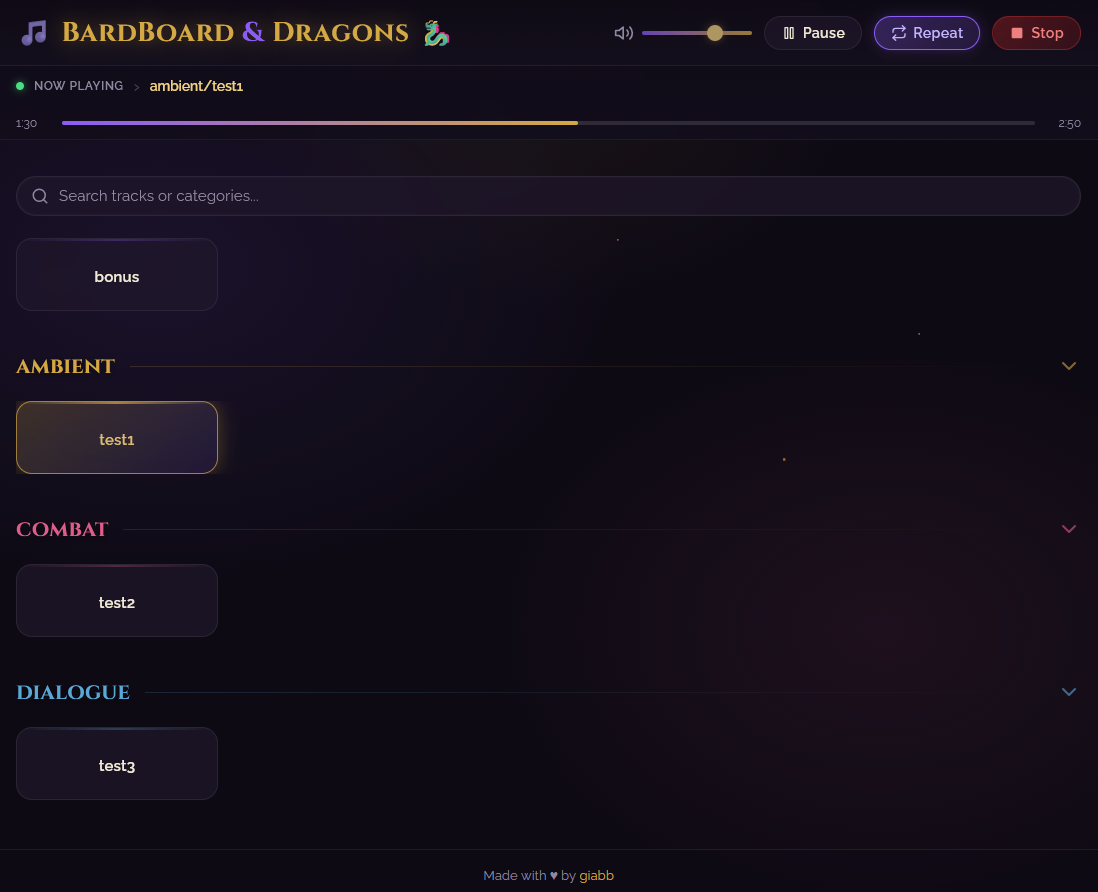
It's designed with tabletop RPG sessions in mind (think ambient tavern music, dramatic battle effects, NPC voices), but it works great for anything where you want to drop sounds into a group call.
What makes it nice to use:
- One-tap playback — no typing commands, just click
- Organise sounds into categories with folders — they show up as sections automatically
- Volume control, repeat, and a seekable progress bar
- A "Now Playing" bar that highlights which sound is active
- Works on desktop and mobile browsers
Before you start, make sure you have these:
- A Discord account and a server where you want to use it
- Docker Desktop installed on your computer — download it here (it's free)
- A Discord Bot Token — don't worry, I'll walk you through creating one below
That's it. No coding required.
- You can follow this guide to create a Discord Bot and get a Discord Bot Token
- From your bot page in the Discord Developer page, go to the OAuth2 tab → OAuth2 URL Generator
- Under Scopes, tick bot
- Under Bot Permissions tick Connect and Speak
- Copy the URL at the bottom and open it in your browser
- Pick your server and click Authorize
- Enable Developer Mode
- Retrieve your Channel ID
- Download or clone this repository to a folder on your computer
- Inside that folder, copy the file
.env.sampleand rename it to.env - Open it and replace the values with your own Discord Bot Token and Voice Channel ID retrieved in Step 1 and 3.
- (Optional) Enable the login screen by setting:
AUTH_USER/AUTH_PASSfor the credentialsSESSION_SECRETto a long random string (32+ chars)SESSION_DIR(optional) if you want to store sessions outside the container (Docker mounts./sessions)
- Open a terminal (or PowerShell on Windows) in the BardBoard folder
- Run this single command:
docker compose up --build -d - Wait a few seconds for it to start up
- Open your browser and go to http://localhost:3000
You should see the BardBoard interface. If your voice channel ID is set correctly and the bot is in your server, you're all set! 🎉
If you prefer running directly on your machine:
- Install Node.js (v18+ recommended) and make sure
ffmpegis in your PATH. - Install dependencies:
npm install - Copy
.env.sampleto.envand fill in the required values. - Start the app:
node BardBoard.js - Open http://localhost:3000
You can add sounds in two ways:
- In-browser upload: Click Add Song, drag & drop files (or browse), pick a category or create a new one, then upload.
- Manual: Drop audio files into the
audio-filesfolder inside the project directory. Refresh the page to see them.
Supported formats: MP3, WAV, OGG, M4A
Want to keep things tidy? Put sounds into subfolders — each subfolder becomes its own labelled section on the soundboard.
audio-files/
├── Tavern.mp3
├── Intro.ogg
├── Combat/
│   ├── Clash.mp3
│   ├── Bash.wav
│   └── Roar.ogg
└── NPCs/
    ├── Merchant.mp3
    └── Guard.mp3
This would give you a soundboard with a few loose sounds at the top, then a Combat section, then an NPCs section — each with their own buttons.
The categories can be collapsed and expanded, and each category has its own colour! You can also delete songs or entire categories directly from the web UI (with a confirmation prompt).
Open http://localhost:3000 in any browser on your network. Here's what you'll find:
The main area of the page is your soundboard — a grid of buttons, one per sound, optionally divided by categories. Just tap or click a button and it plays in your Discord voice channel immediately. The button for the currently playing sound lights up so you always know what's on.
- 🔊 Volume slider — Drag it left or right to adjust how loud the sound plays in Discord. Changes apply instantly.
- ⏸️ Pause /
▶️ Resume — Tap this to pause the current sound and to enable resume button. Tap again to resume the song. - 🔁 Repeat — Tap this to loop the current sound. It'll keep playing on repeat until you stop it or play something else. Tap again to turn it off.
- ⏹️ Stop — Stops whatever is currently playing.
Right below the controls you'll see a strip that shows you what's playing right now, along with a progress bar. You can click or drag anywhere on that bar to jump to a different part of the sound — handy if you want to skip to a specific moment in a longer track.
Below the playing bar, you can find a search bar. This bar filters songs and categories.
Click Add Song next to the search bar to open the upload modal. You can drag multiple files, remove them before uploading, and choose a category (or create a new one).
The soundboard works on phones and tablets too. The progress bar supports touch dragging, so seeking works just as well on mobile as on desktop.
Nothing is playing when I tap a button
- Make sure the bot is in your Discord server and has the Connect and Speak permissions in the voice channel
- Check that
CHANNEL_IDin your.envfile matches the voice channel you want the bot to join
The soundboard is empty
- Make sure there are audio files in the
audio-files/folder - Supported formats are MP3, WAV, OGG, and M4A — other formats won't show up
The bot isn't online in Discord
- Double-check your
DISCORD_TOKENin the.envfile — make sure there are no extra spaces or line breaks - Try restarting with
docker compose restart
I don't see the login screen
- Make sure both
AUTH_USERandAUTH_PASSare set (auth is off if either is empty) - Restart the container after changing
.env
I changed my sounds but they didn't update
- The soundboard reads files live, so new files should appear on the next page refresh. If they don't, make sure the files are inside the
audio-files/folder or a first level subfolder (not a subfolder of a subfolder and so on)
Something else is wrong
- You can check what's happening behind the scenes by running
docker compose logs -fin your terminal — it'll show you any error messages from the bot - If you're still stuck, open an issue and I'll help! If you can attach the result of the previous command it will be much easier to understand the issue for me!
If you want to tweak limits, auth, or run the UI from another host, these env vars are available:
Core
BOT_PORT(default3000) — Port for the web UI/API.DISCORD_TOKEN— Your bot token (required).CHANNEL_ID— Voice channel ID (required).NOISES_FOLDER(default!noises) — Category folder name for overlay sounds.
Auth & Sessions (optional)
AUTH_USER/AUTH_PASS— Enable login when both are set.SESSION_SECRET— Change this from the defaultchange-mefor security.SESSION_DIR(default./sessions) — Where session files are stored (mounted in Docker).LOGIN_REMEMBER_DAYS(default30) — "Remember me" cookie duration in days.
Uploads & Rate Limits
UPLOAD_MAX_MB(default50) — Max size (MB) per uploaded file.RATE_LIMIT_AUDIO(default120) — Requests per minute for audio actions.RATE_LIMIT_FILES(default60) — Requests per minute for file actions.
CORS (when UI and API are on different hosts)
CORS_ORIGINS— Comma-separated list of allowed origins (leave blank if UI + API are on the same host).
Local (non-Docker) run
ffmpegmust be installed and available in your PATH for seek to work.- Audio dependencies like
libsodiumare required for Discord voice support.
Here's what's on the horizon for BardBoard:
- 💬 Discord slash commands — Play sounds with
/playdirectly in chat, in addition to the web UI - 🌐 Multi-channel support — Run separate soundboards for different voice channels at the same time
- ✨ Make things simpler — I know the whole setup can be a lot for most of the users, so I hope to make things easier in the future!
BardBoard is open source and contributions are welcome! Whether it's a bug fix, a new feature, or just a typo in the docs — it all helps.
Open an issue and describe what happened. Include any error messages you see (you can get them with docker compose logs -f).
Open an issue and describe the feature! Explain what problem it solves and how you imagine it working.
- Fork the repository
- Create a branch for your change (
git checkout -b feature/your-feature) - Make your changes and commit them with a clear message
- Push to your fork and open a Pull Request
Even small improvements to the README or documentation are appreciated — just fork, edit, and open a PR.

Want to contribute? See the Contributing section above!
This project is licensed under the GNU General Public License v3.0.
This means you can:
- ✅ Use the software for any purpose
- ✅ Study and modify the source code
- ✅ Distribute copies of the software
- ✅ Distribute modified versions
Requirements:
- 📋 Include the original license
- 📋 State changes made to the code
- 📋 Make source code available when distributing
See the LICENSE.md file for complete details.
Built for tabletop adventurers and Discord groups everywhere