
It is often a case that a website requires you to register, make an account using email and a strong password. Coming up with a strong password can be a tiresome thing since different websites have different requirements(for example: use at least one uppercase, use numbers and symbols). Even after you create one there's another problem: How to make sure you remember the password and for which website it used. Wouldn't it be nice if you could just generate a password, bind it to the name of the website and an email you used and have a list of all your passwords with corresponding websites which only you know about right on your computer?
You can do this by using the "Password Manager" GUI App.
Before you can use the Password Saver GUI App, you will need to have Python 3.6 or higher installed on your computer. If you don't have Python installed, you can download it from the official website: https://www.python.org/downloads/_ation.
To install the app, simply clone the repository to your local machine:
git clone https://github.com/harisbikovic/password-manager.git
Navigate to your project directory. To run the app, simply run the main.py file:
python main.py
If the previous is not your preferred way then do this:
- Click on the green "Code" button, then select "Download ZIP"
- Extract the ZIP file to a location of your choice on your computer
- Navigate to the extracted ZIP file on your computer
- Double-click the main.py file
After running the App you will see the following GUI:
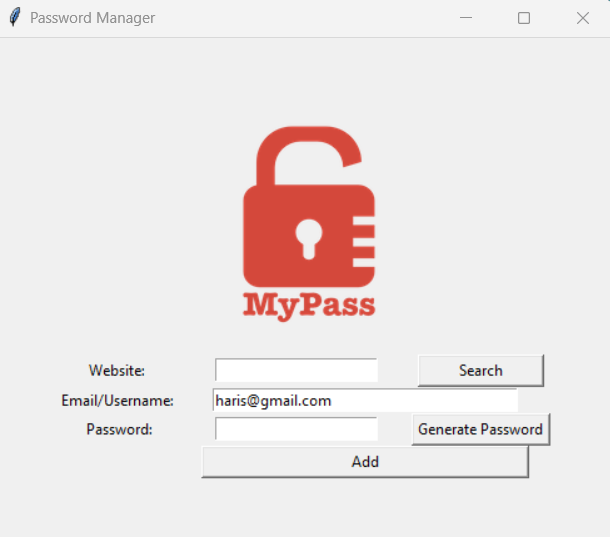
Let's say you want to make an account on amazon.com. Type the name of the webpage( "amazon.com" ) in the Website entry field. If you want to add a password manually you can do so by typing it into Password entry field. If you however want to generate a random strong password simply click the "Generate Password" button.
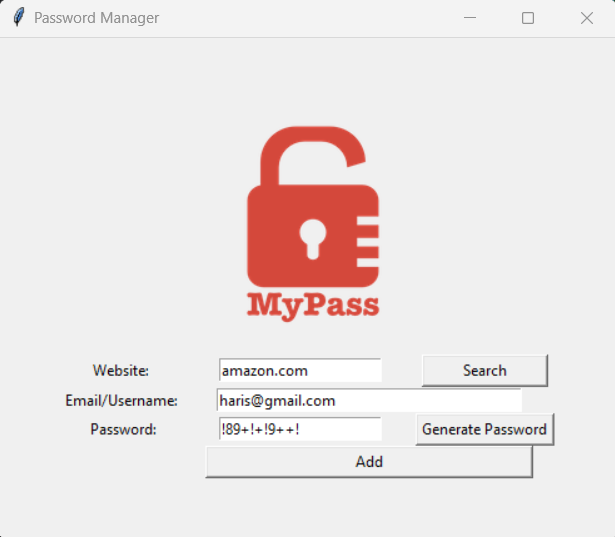
Click the "Add" button. Now your data ( email and password ) are bound to the "amazon.com".
Next time you go to the amazon.com page and can't remember the password simply run Password Manager app and type name of the website("amazon.com") to the Website entry, click the "Search" button and the app will show you the password:
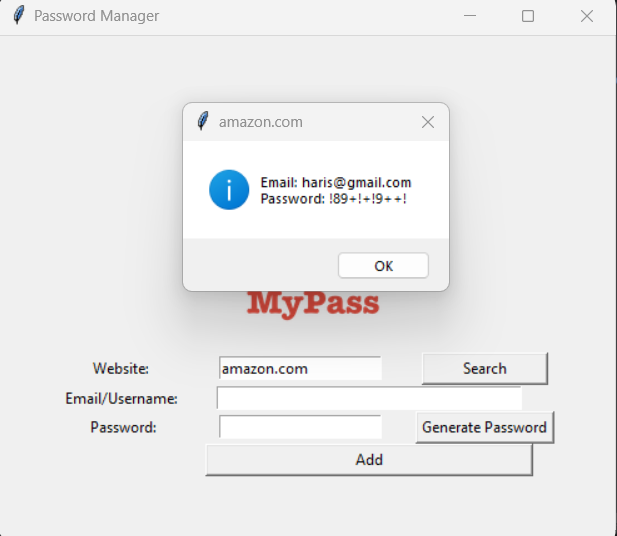
You can keep adding new websites with emails and generated passwords as much as you want. Now you see how easy it is to use it and it's a very useful tool that can save you trouble when registering to a new website.