Nexus is a terminal dashboard that lets you launch your favorite CLI and TUI tools (like Neovim, Git UIs, or custom scripts) from a single interactive menu. No memorizing commands or directories required.
Think of Nexus as a launcher for terminal tools, similar to how Raycast or Alfred launch GUI apps.
Source Code: https://github.com/jdluu/Nexus | Changelog: https://github.com/jdluu/Nexus/blob/main/CHANGELOG.md
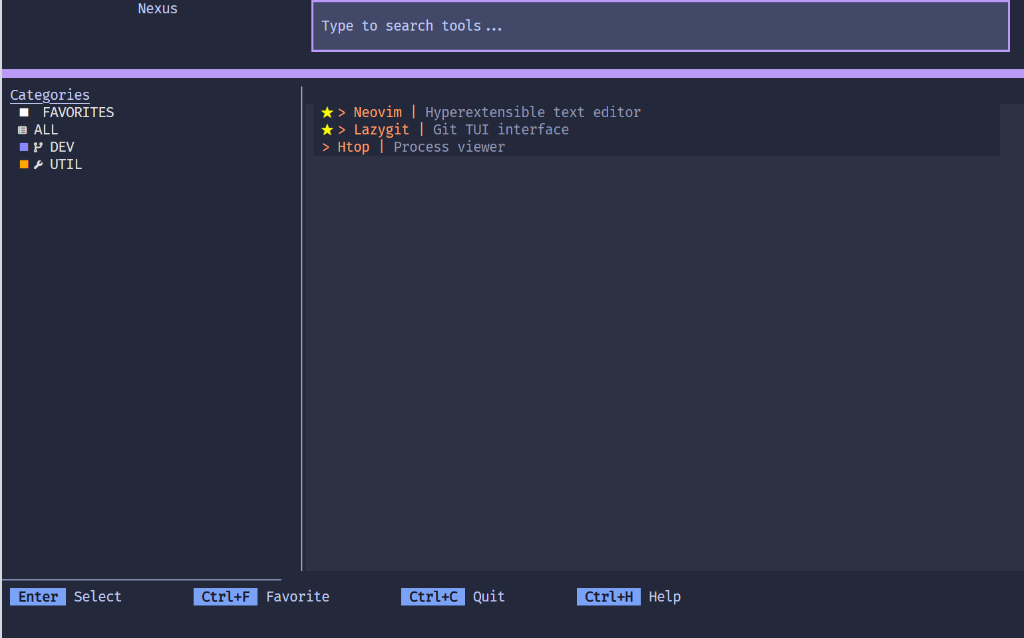 Caption: Main dashboard showing projects and tools.
- Python 3.12 or newer.
- The
uvpackage manager. - Recommended: A modern terminal emulator with TrueColor support (e.g., Windows Terminal, ghostty, Kitty, or WezTerm).
- Recommended: A Nerd Font for optimal icon rendering.
It is recommended to use uv, a fast Python package and tool manager (similar to pipx), for a clean, isolated global installation.
# Install globally so you can run 'nexus' from anywhere
uv tool install nexus-tui
Alternative (Standard pip):
You can also install via pip, though it is recommended uv or pipx to keep dependencies isolated.
pip install nexus-tuiTo update to the latest version:
uv tool upgrade nexus-tui- Smart Search: Instantly find tools with fuzzy matching and a built-in Command Palette (
Ctrl+P). - Dynamic Flags: Pass custom arguments (e.g.,
--verbose,--dry-run) to your tools at launch time. - Advanced Project Browser: Browse your entire filesystem or scan defined roots to find project context. Supports selecting both folders and individual files.
- Responsive Design System: Fully themeable interface with support for Tokyo Night (Dark, Storm, Light) and automatic system preference detection.
- Secure Secrets: Seamless integration with Infisical for environment variable management.
- Persistence: Nexus remembers your recently accessed projects for quick re-launching.
Nexus utilizes a tools.toml file for configuration.
# Define where your code projects live
project_root = "~/Projects"

# Add a tool with placeholder support
[[tool]]
label = "Edit"
category = "DEV"
description = "Open project in Neovim"
command = "nvim {project}"
requires_project = true
supports_flags = trueYou can use the following placeholders in your command strings:
{project}: Replaced by the absolute path of the selected project or file.{flags}: Replaced by any custom arguments you enter at launch.
- Arrow Keys: Navigate through lists.
- Enter: Confirm selection or launch tool.
- Ctrl+P: Open the global Command Palette.
- Ctrl+B: Open the Advanced Project Browser (when in project picker).
- Ctrl+T: Open the Theme Picker.
- TypeAnywhere: Instantly filter tools by typing.
- Esc: Go back or return to the previous view.
- Ctrl+Q: Exit the application (with confirmation).
- F1: Show Help / Controls.
No. You must define your tools in tools.toml so you have full control over what appears in your dashboard.
No. Nexus is a dashboard. When you launch a tool, it temporarily suspends itself to let the tool take over your terminal. When the tool exits, Nexus returns.
Ensure you are using a Nerd Font and that your terminal emulator is configured to use it.
To configure the development environment:
-
Synchronize dependencies:
uv sync
-
Run the application locally:
uv run nexus
-
Execute the comprehensive test suite:
uv run pytest --cov=nexus
-
Perform static analysis and type checking:
uv run ruff check .
uv run mypy .