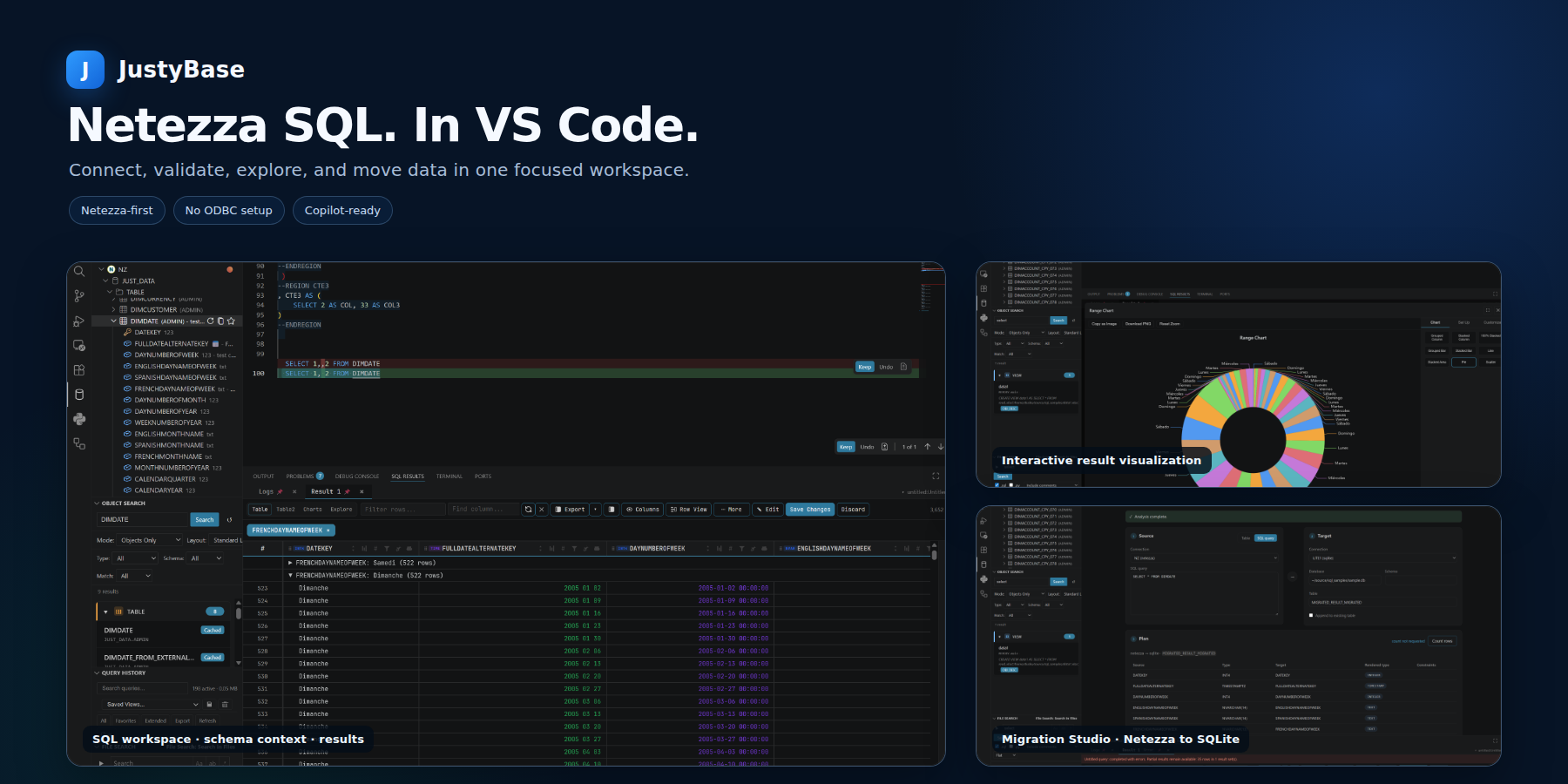
A professional, zero-configuration SQL workspace for IBM Netezza and PureData System for Analytics — directly inside VS Code.
Connect without installing an ODBC driver, write and validate Netezza SQL, explore query results, browse schemas, and manage warehouse workflows from one familiar editor.


Website · Documentation · Marketplace · Publisher
Open the complete JustyBase documentation portal — user workflows, reference tables, Web Editor administration, and developer guidance.
- Connect in minutes — the core extension includes a pure JavaScript/TypeScript Netezza driver, so no IBM ODBC installation is required.
- Work with database context — browse databases, schemas, tables, views, procedures, sequences, columns, keys, and object definitions from the Schema Browser.
- Write safer SQL — use Netezza-aware completion, hover information, formatting, snippets, semantic highlighting, and parser-backed diagnostics while you work.
- Go from query to insight — inspect results, profile columns, build pivots, explore time-based data, export to Excel or Parquet, and keep useful queries in history.
- Install JustyBase SQL Editor (Netezza) from the VS Code Extensions view.
- Open the JustyBase view in the Activity Bar and select Connect.
- Enter the Netezza host, user, password, and database.
- Open or create a
.sqlfile and run the current statement or selection withCtrl+Enter/F5.
No external Netezza driver is required for the core extension.
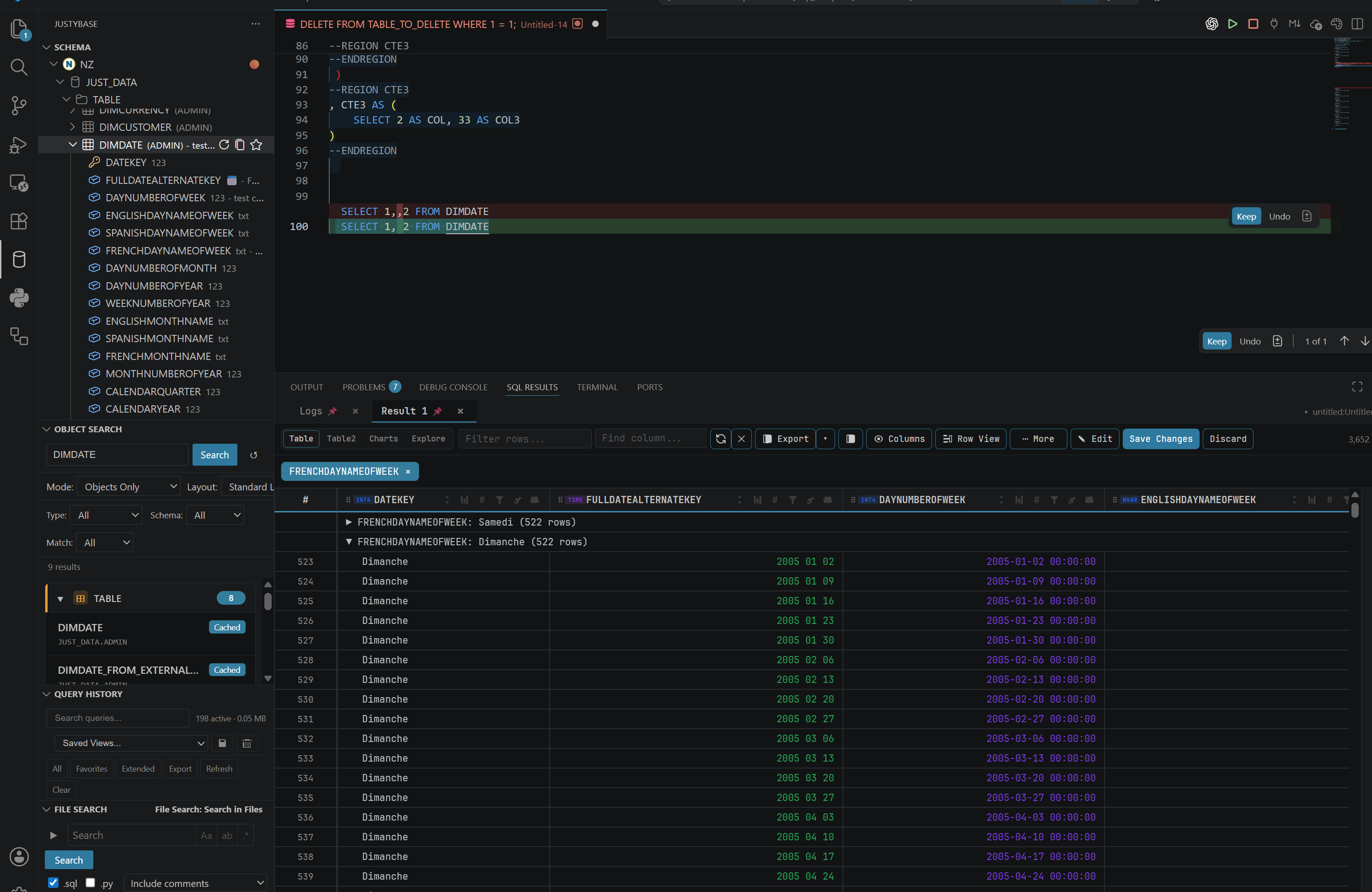
Browse database objects, write SQL, and inspect results without leaving VS Code.
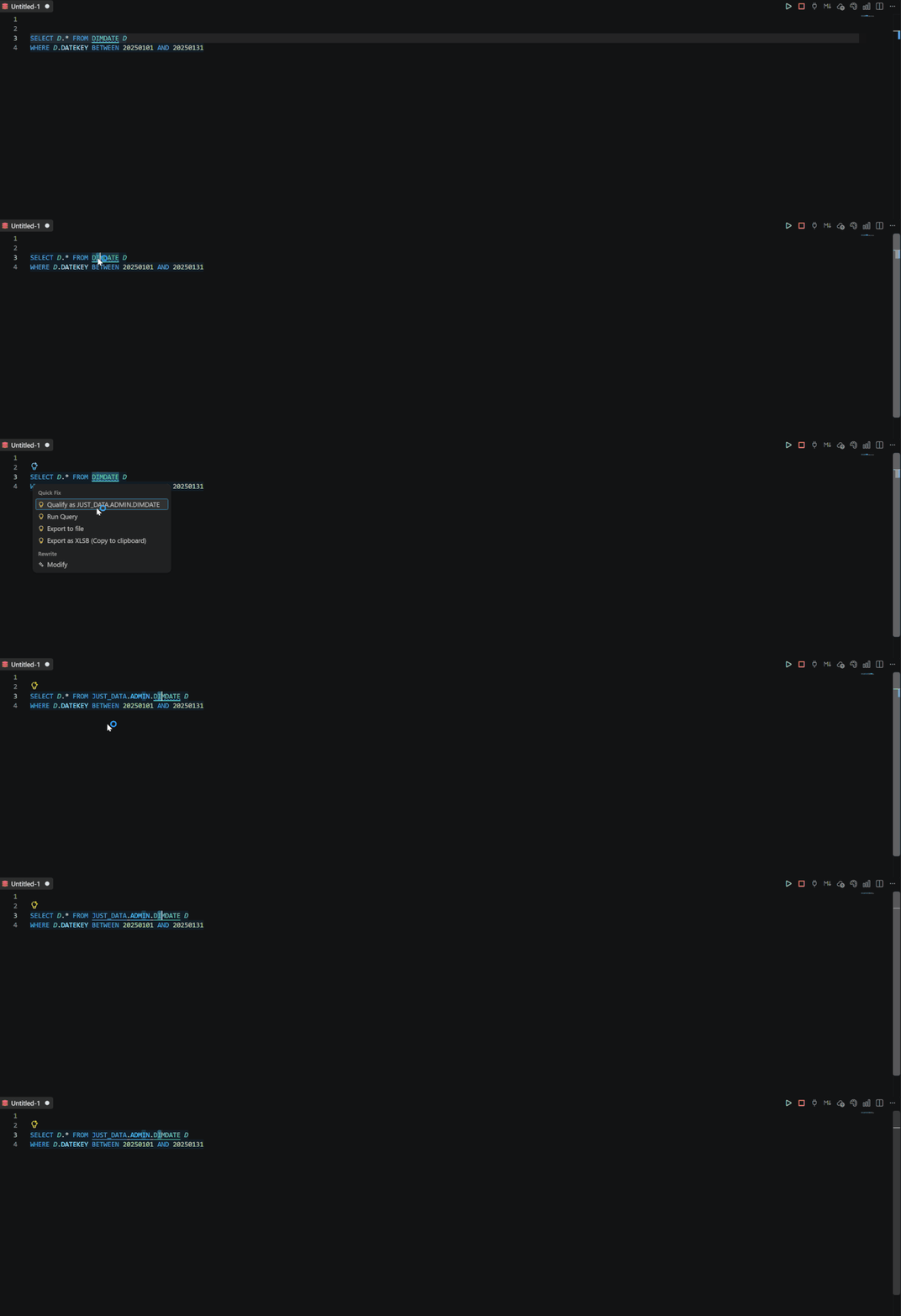
Completion, semantic context, snippets, formatting, and parser-backed diagnostics help catch mistakes before execution.
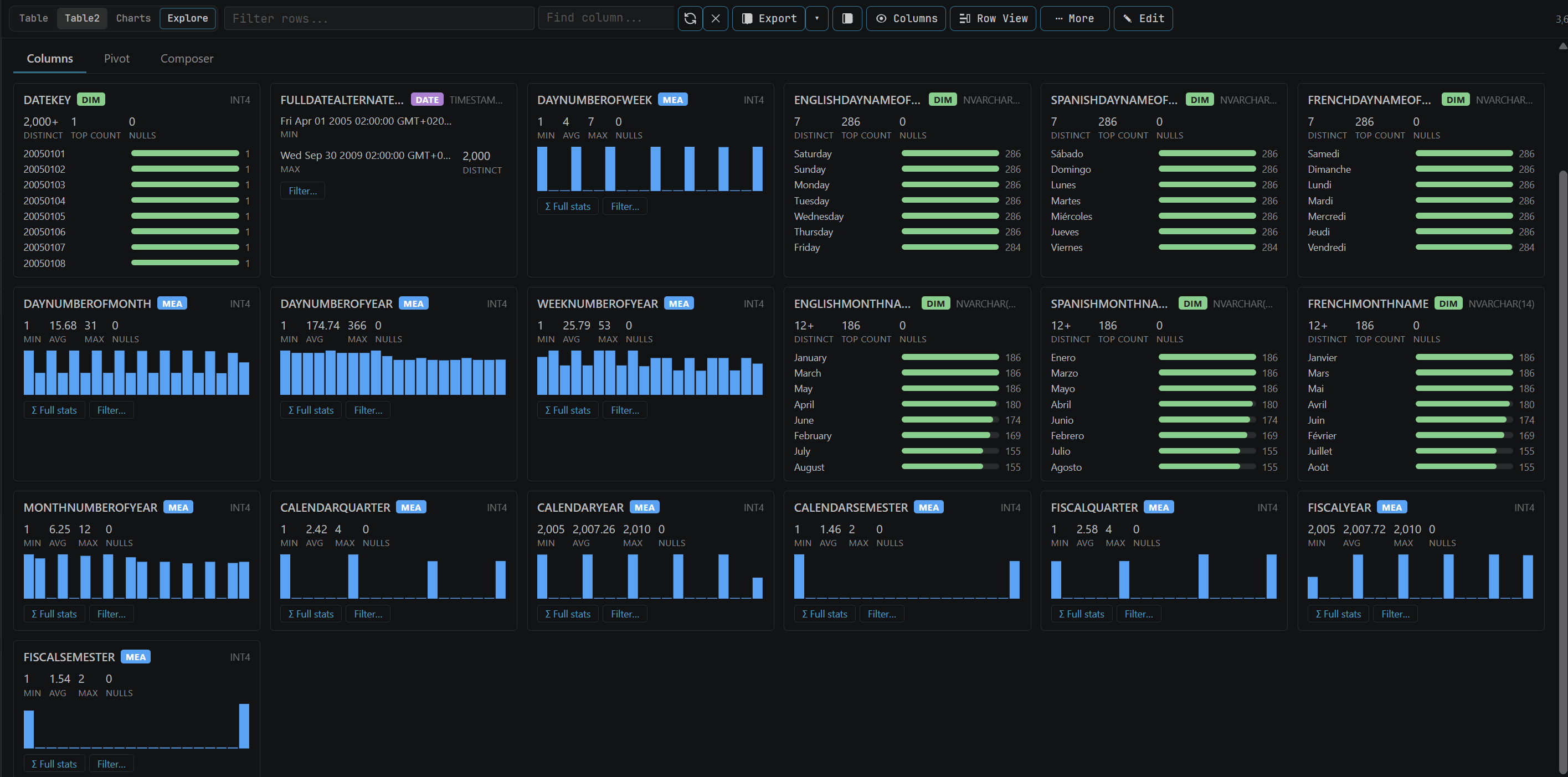
Inspect types, cardinality, distinct values, null counts, summaries, distributions, pivots, and time-based views.
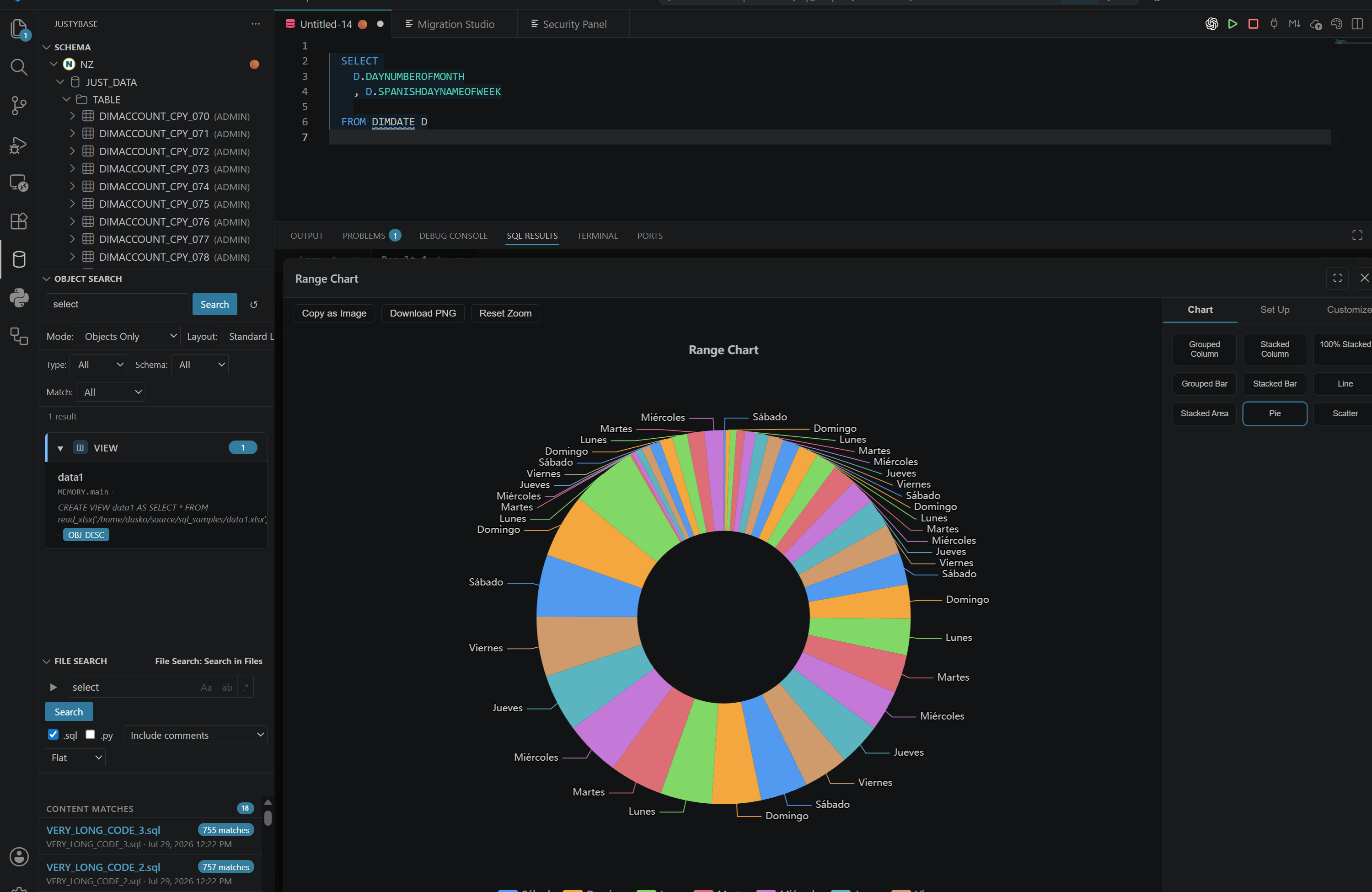
Turn result sets into interactive charts and compare patterns without leaving the SQL workspace.
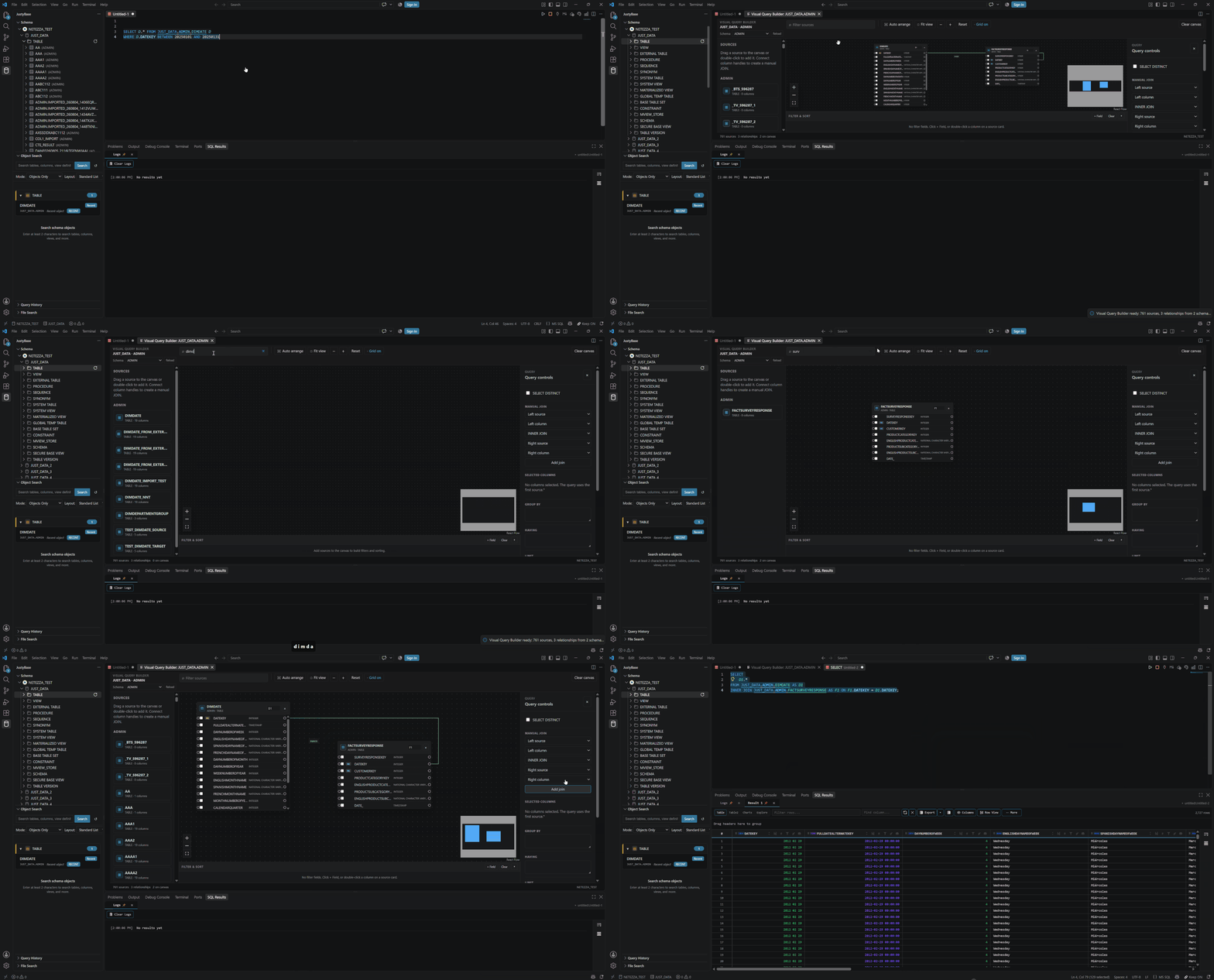
Compose multi-table SELECT queries by dragging tables or views onto a canvas, connecting columns to create joins, selecting fields, and adding filters, sorting, aggregates, GROUP BY, HAVING, and LIMIT clauses. Open the generated SQL in the editor, copy it, or run it immediately.
Read the Visual Query Builder guide for the complete workflow.
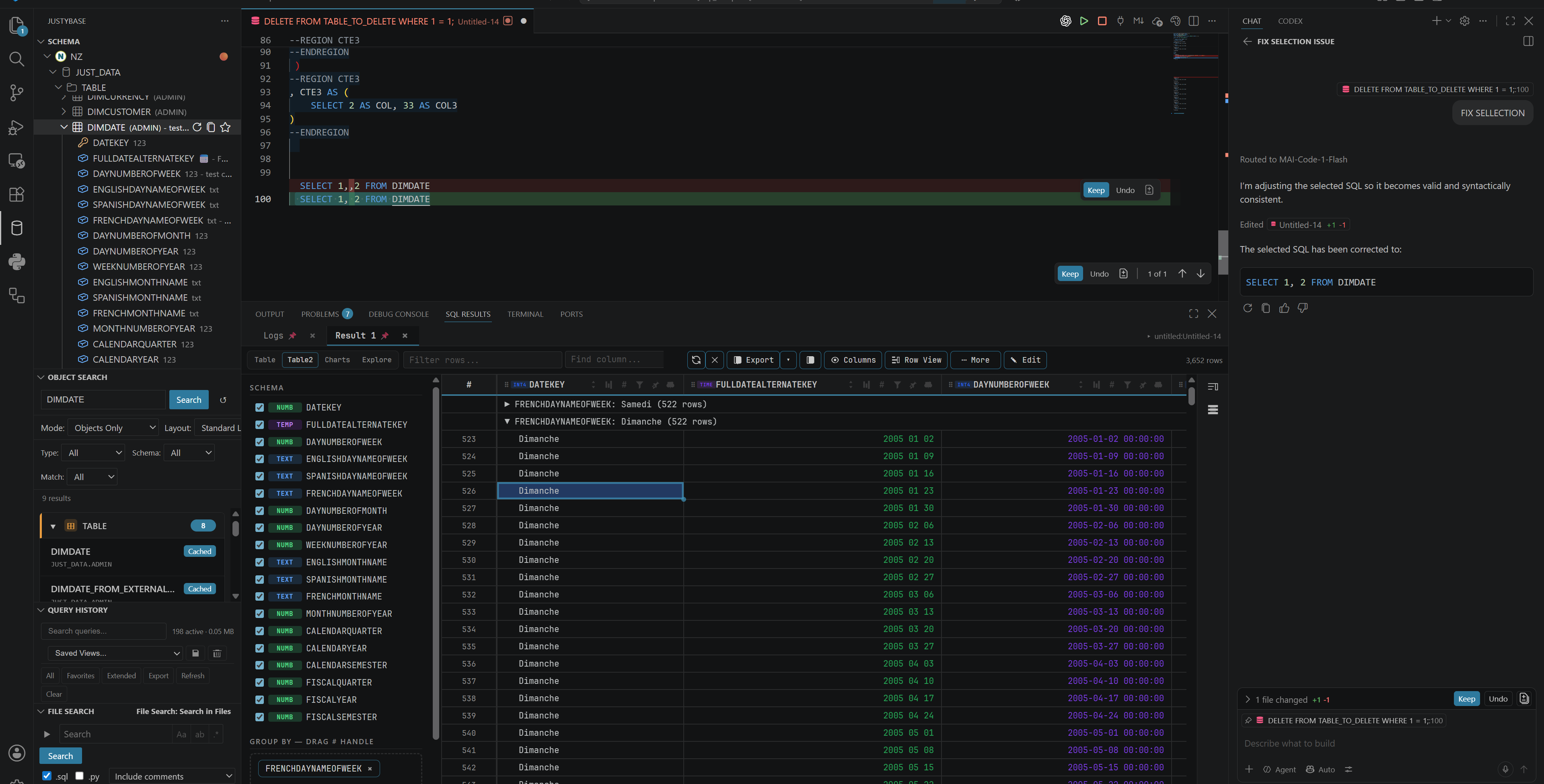
Use GitHub Copilot to explain, fix, optimize, or generate SQL while keeping the final decision and execution in your hands.
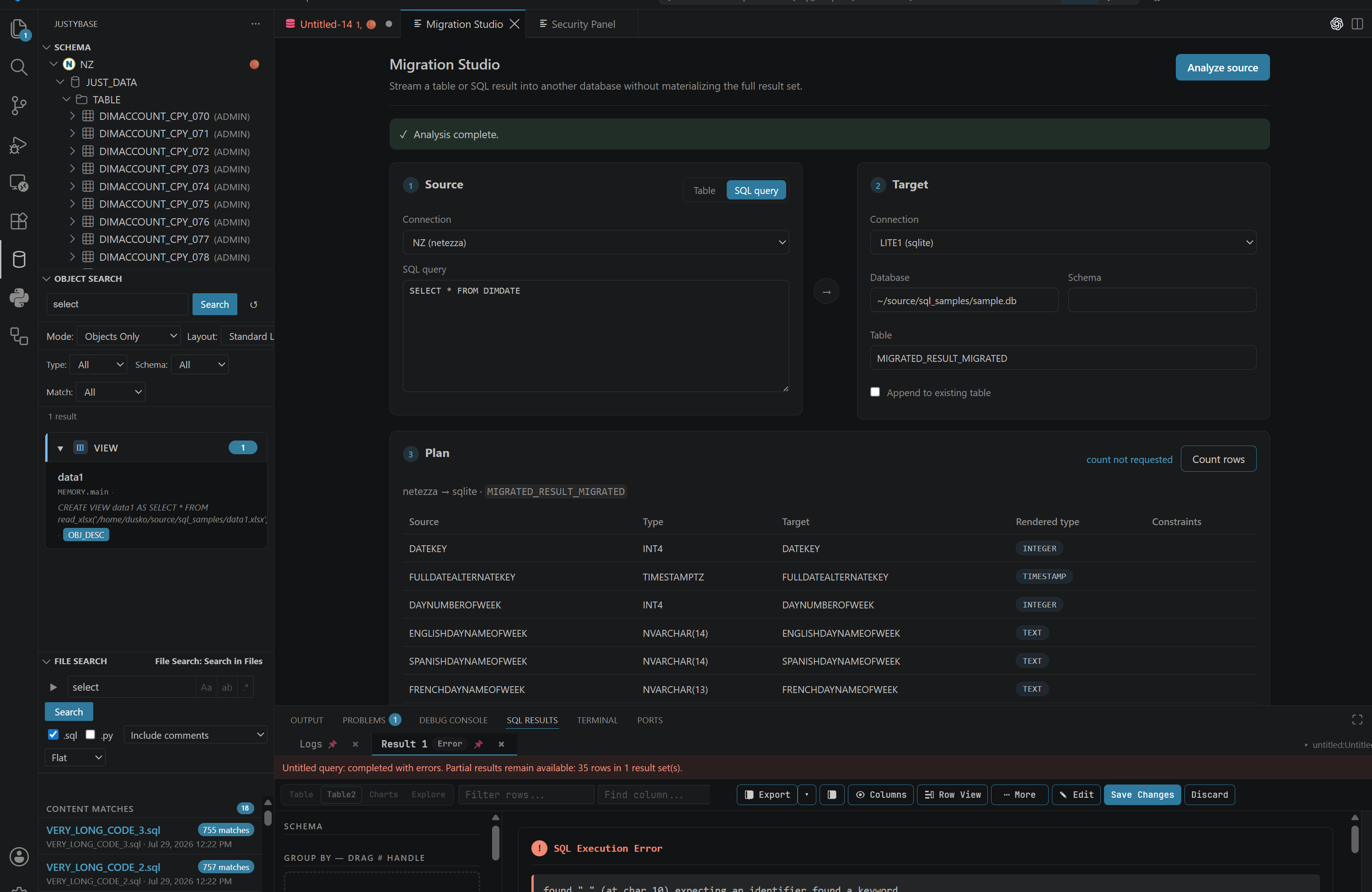
Stream a table or SQL result into another database with an explicit source, target, column mapping, and execution plan.
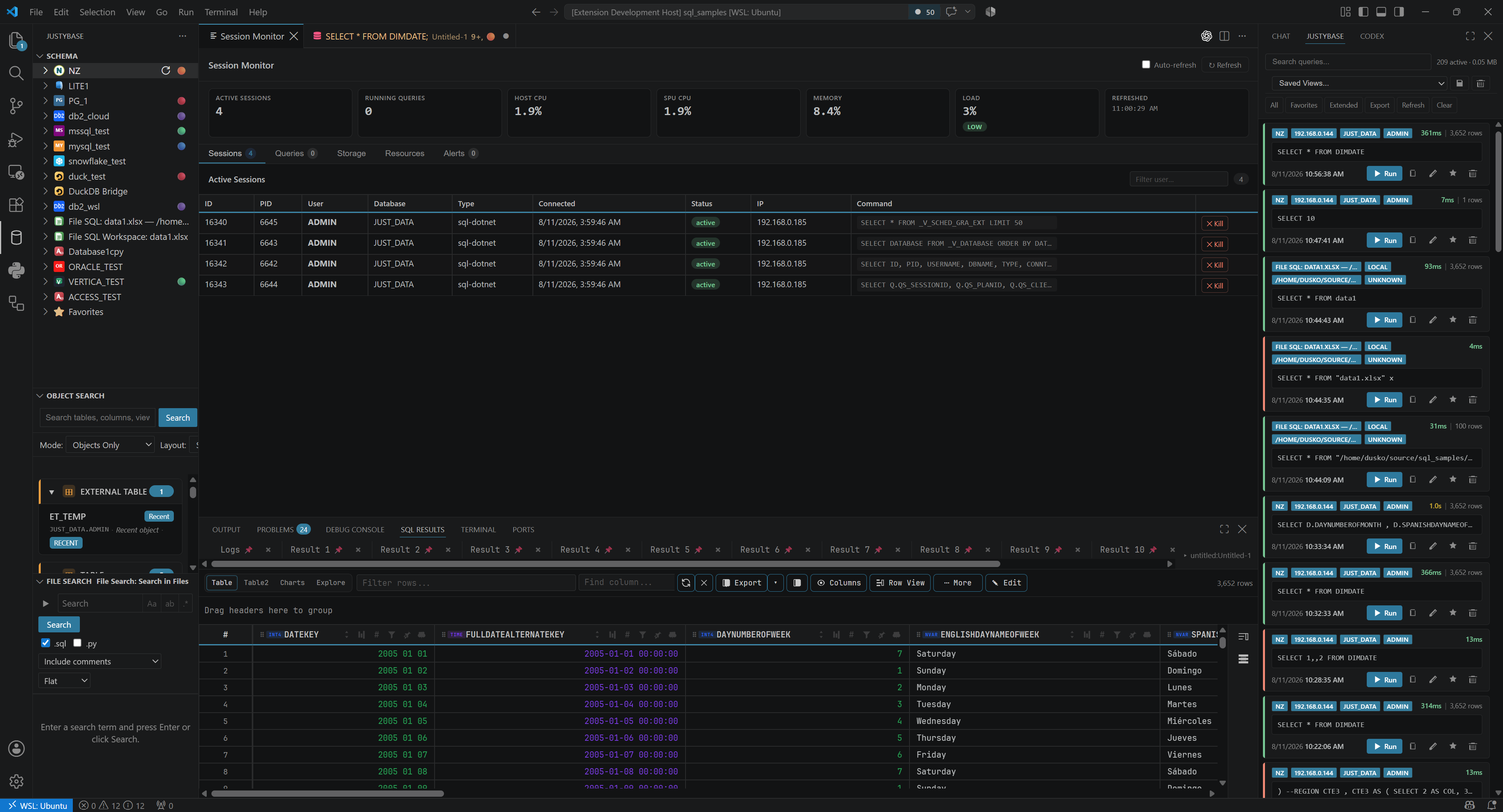
Inspect active sessions, running queries, host and SPU utilization, memory, and query details from a single dashboard, with controls for refreshing the view and stopping a session.
- Run a statement, selection, or multi-statement batch with progressive results.
- Cancel long-running queries and recover from broken connections.
- Switch database and connection per SQL tab.
- Format SQL with
Shift+Alt+Fand inspect explain plans withCtrl+L. - Get real-time SQL and Netezza diagnostics for unknown objects, ambiguous references, invalid types, unsafe patterns, and NZPLSQL issues.
Read the Getting started and query execution guide and SQL Linter Reference.
- Filter and sort result grids, select cells, view rows, and compare multiple result sets.
- Explore column profiles, distributions, distinct values, summaries, pivots, and time-based compositions.
- Export to XLSB/XLSX, CSV, JSON, XML, SQL
INSERT, Markdown, and Apache Parquet. - Open Parquet, Excel, and
.nzpreviewfiles in the built-in data previewer.
See the SQL Results Filtering guide and Export & Import Reference.
- Generate DDL for tables, views, and procedures.
- Create and validate NZPLSQL procedures with procedure-aware diagnostics.
- Compare table structures and procedure definitions.
- View and edit table data with safeguards.
- Run GROOM, generate statistics, inspect data skew, manage constraints, and maintain object comments.
- Generate ERDs for schemas and build repeatable visual ETL workflows.
Install the optional DuckDB + Files pack, open Data Workspace Manager, and create a persistent DuckDB workspace. Add one local Excel/CSV/TSV/Parquet/Access (.mdb or .accdb) file or several files as sources, then query the materialized tables with SQL. For XLSX, CSV/TSV, and Access sources, Edit source opens a separate editor for the original file; save it first, then use Refresh to rematerialize the local table. Parquet, Avro, and Netezza sources remain read-only. Access sources are read-only in the DuckDB File SQL dialect; the same workspace can also materialize saved Netezza tables, views, and read-only SELECT/WITH queries.
For quick inspection, the existing Open in Data File Preview action remains available from the Explorer for CSV and Excel files. The preview includes Add to Data Workspace, which lets you choose a new or existing workspace.
Install the optional Microsoft Access pack to query and edit .mdb and .accdb files through the native TypeScript reader and embedded DuckDB mirror. No Java runtime or JAR is required.
Read the File SQL guide and Access guide.
The optional AI workflows integrate with GitHub Copilot Chat and can:
- explain, fix, optimize, rewrite, and generate SQL;
- inspect schema, columns, tables, DDL, plans, diagnostics, and table statistics;
- analyze procedures locally before you compile or run them manually;
- expose a read-only Netezza MCP server for Copilot Chat, Cursor, Claude Desktop, OpenCode, and other MCP clients.
AI features transmit SQL, schema information, selected metadata, and limited query history to external Microsoft/GitHub services. Privacy confirmations are shown before transmission and AI features can be disabled with justybase.copilot.enabled.
Read the Copilot SQL Assistant guide, MCP Server guide, and Procedure Compilation guide.
- SQL Notebooks — execute SQL cells with inline results in
.sqlnbor.nzsql-nbfiles. See Notebooks. - Query History — search, filter, tag, favorite, parameterize, and export previously executed queries.
- Favorites and snippets — save tables, views, procedures, and parameterized SQL snippets; sync favorites through
.vscode/netezza-favorites.json. - SAS-like macros — use
%let,%if/%do/%end,%export,%include,%python,%SQL,%SQLLIST, and related workflow helpers. See SAS-like macros. - File Search — search and replace across SQL and Python files with comment/string-aware modes.
The core extension is Netezza-first. Optional packs plug into the shared connection panel, Schema Browser, query runner, result grid, and export workflows. SQL editor depth varies by dialect.
| Database | Package | Notes |
|---|---|---|
| Oracle | Oracle support pack | Dedicated SQL/PL/SQL parser and advanced workflows |
| PostgreSQL | PostgreSQL support pack | Dedicated parser, metadata, DDL, COPY, and explain tooling |
| Db2 LUW | Db2 support pack | Dedicated parser, maintenance, and quality rules |
| Files / DuckDB / SQLite | Files support pack | Local Excel, CSV, Parquet, Avro, and file SQL workflows |
| MS SQL Server | MS SQL support pack | Companion runtime with T-SQL authoring and shared result workflows |
| MySQL | MySQL support pack | Companion runtime with dialect-aware authoring and metadata |
| Microsoft Access | Access support pack | Local MDB/ACCDB reader and editing workflows |
See the Editor Capability Matrix for current parity details.
- VS Code
1.103.2or newer. - No external Netezza driver for the core extension.
- The Microsoft Access pack uses the Node.js runtime supplied by VS Code; no Java runtime is required.
- Optional database packs may require their own native or JavaScript driver package.
Apache-2.0
For contributors and maintainers
The repository uses esbuild for bundling and Jest for tests. The standard validation flow is:
npm install
npm run check-types
npm run lint
npm run build
npm run test:validate
Optional support packs live under extensions/. Their build, test, and packaging commands are documented in the relevant pack README files. Version synchronization is managed by the repository workflow; do not use npm version locally.
See Release Process, Dialect Development, and Metadata Cache Contract.