
A web application similar to Teams having features like video conferencing, team chat, meeting conversations, file storage and many more team related features.
Link for the application https://teamclone-web.herokuapp.com/
Link for demo https://www.youtube.com/watch?v=Yq2HIAp6u3o
Link for presentation https://docs.google.com/presentation/d/1VdDZepWEJqsne2g_gn-bICqpBbRyp979xhdyQRCmH0Q/edit?usp=sharing
- NodeJs - Evented I/O for the backend
- Express - Fast node.js network app framework
- Socket.io - Package used to create real-time calls and chats.
- WebRTC - Open-source project for real time communication.
- MongoDB - NoSQL Database
- React.js - Javascript llibrary to build user frameworks.
- GoogleOAuth - Open Authorization from Google
- MaterialUI - React components based on Material Design, responsive web application for all screen sizes.
Install the Node Package Manager latest version
$ npm install npm@latest-g
Fork this repo and clone it
$ git clone https://github.com/<Your User Name>/TClone.git
Open the folder TClone and install the dependencies.
$ cd ./TClone
$ npm install
$ npm start
Environment variables : https://docs.google.com/document/d/1VMlx0EXCyKuWdIhteIIxjzSK4pK2-BX1VkQCsi5To9o/edit?usp=sharing
Open the client folder in different terminal and install the dependencies
$ cd ./TClone/client
$ npm i
$ npm start
The backend server and client server run at ports 3000 and 3001 i.e. http://localhost:3000/ and http://localhost:3001/ respectively.
The major features of the project are:
- Authentication
- Teams
- One to One video conversations
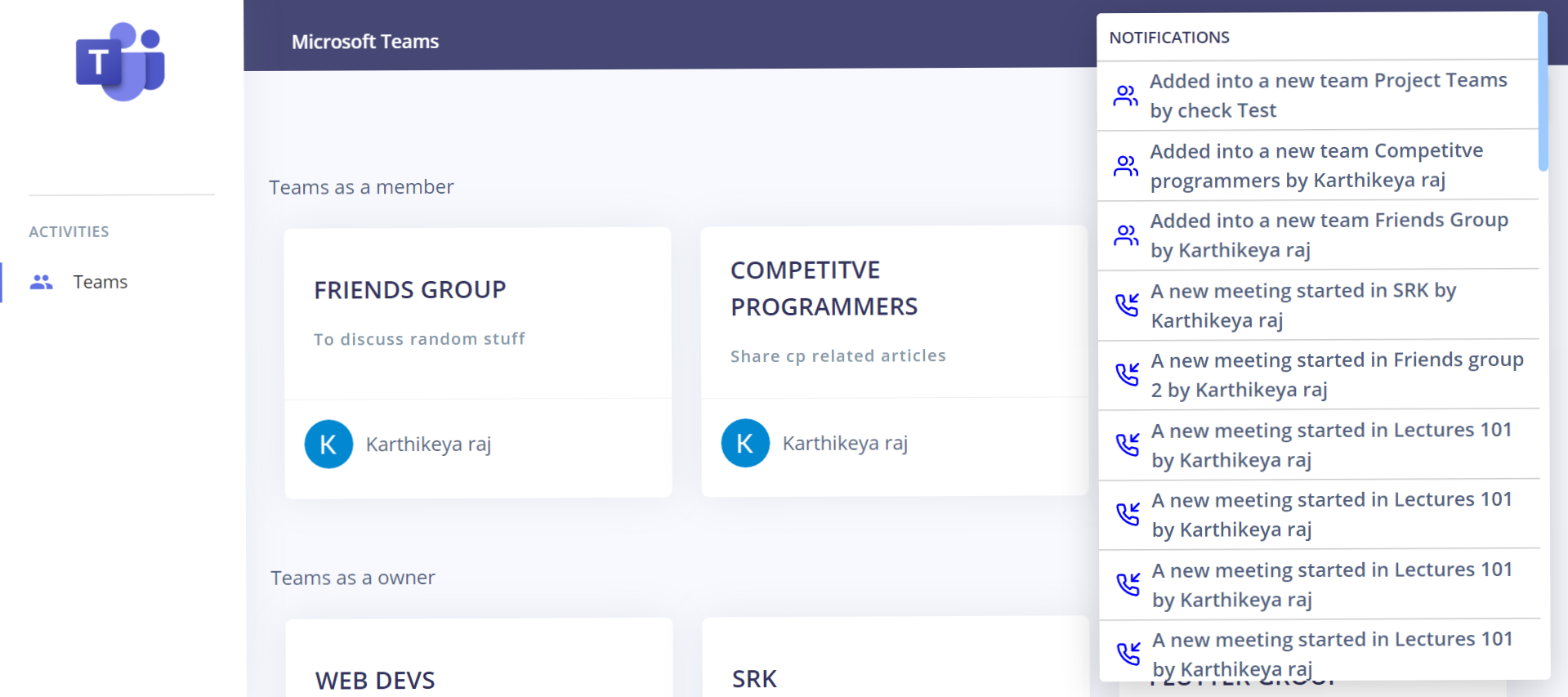
- Live Notifications
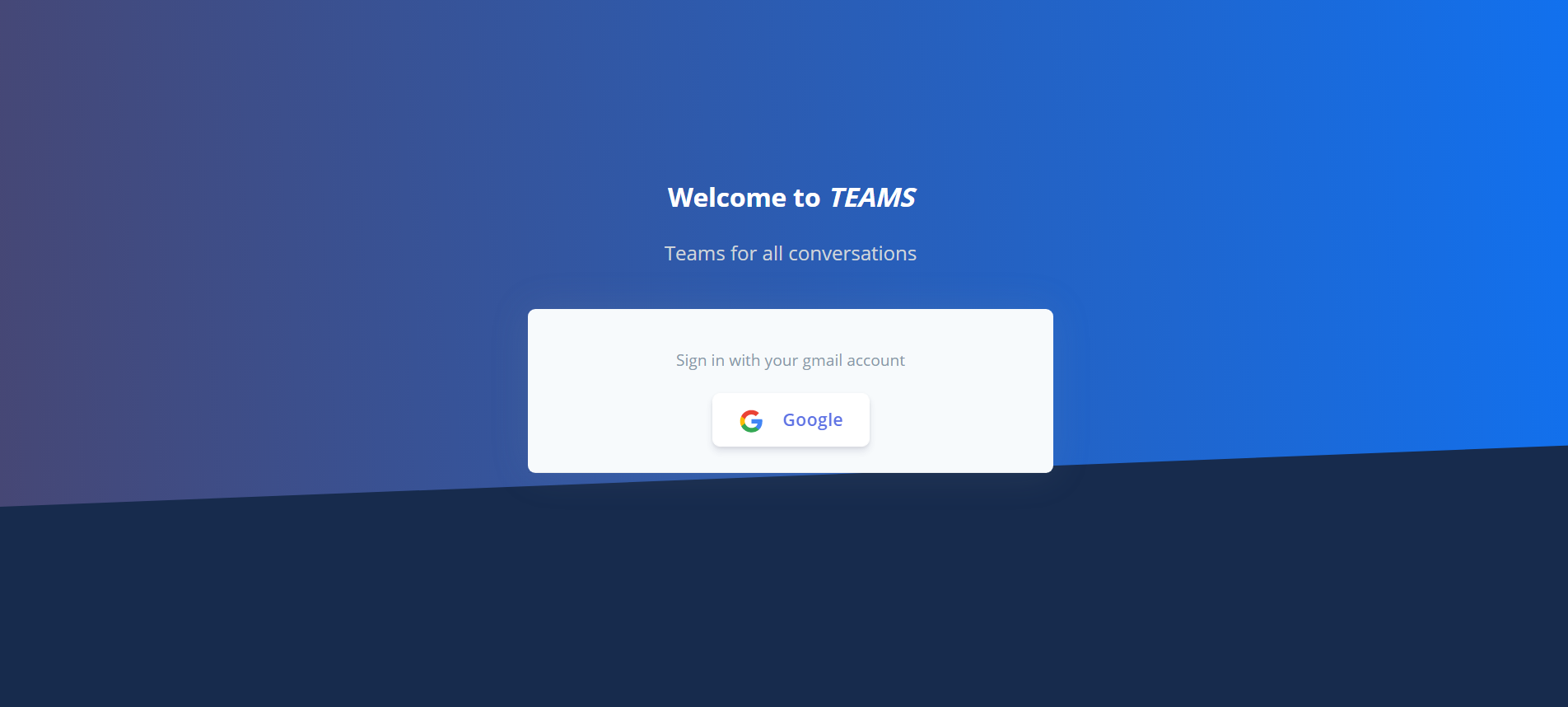
The application uses Google OAuth for signing in. The authentication is done using jwt auth, server sends a jwt token to the client which is used to keep the user logged in.
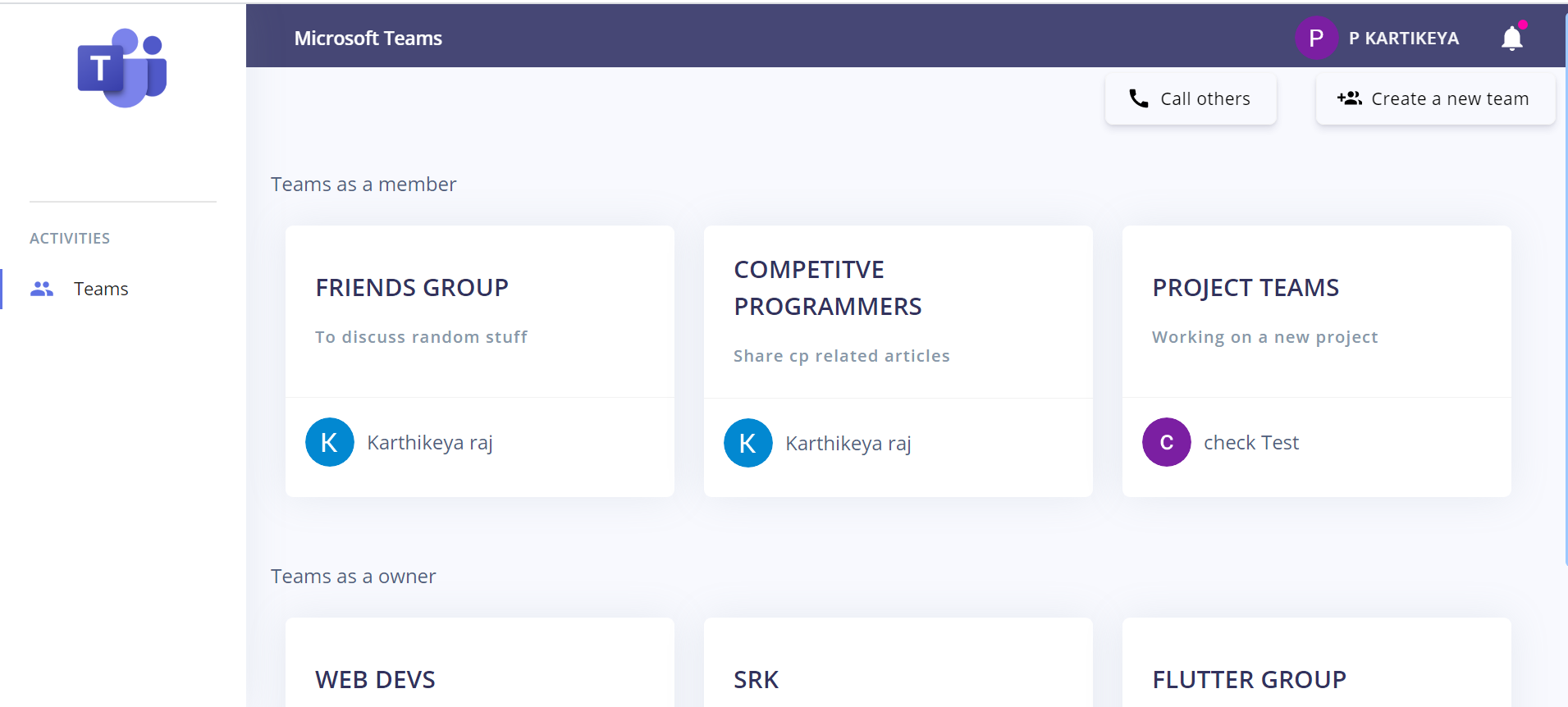
The home pages shows list of teams that a user is in as a member and the teams owned by the user.
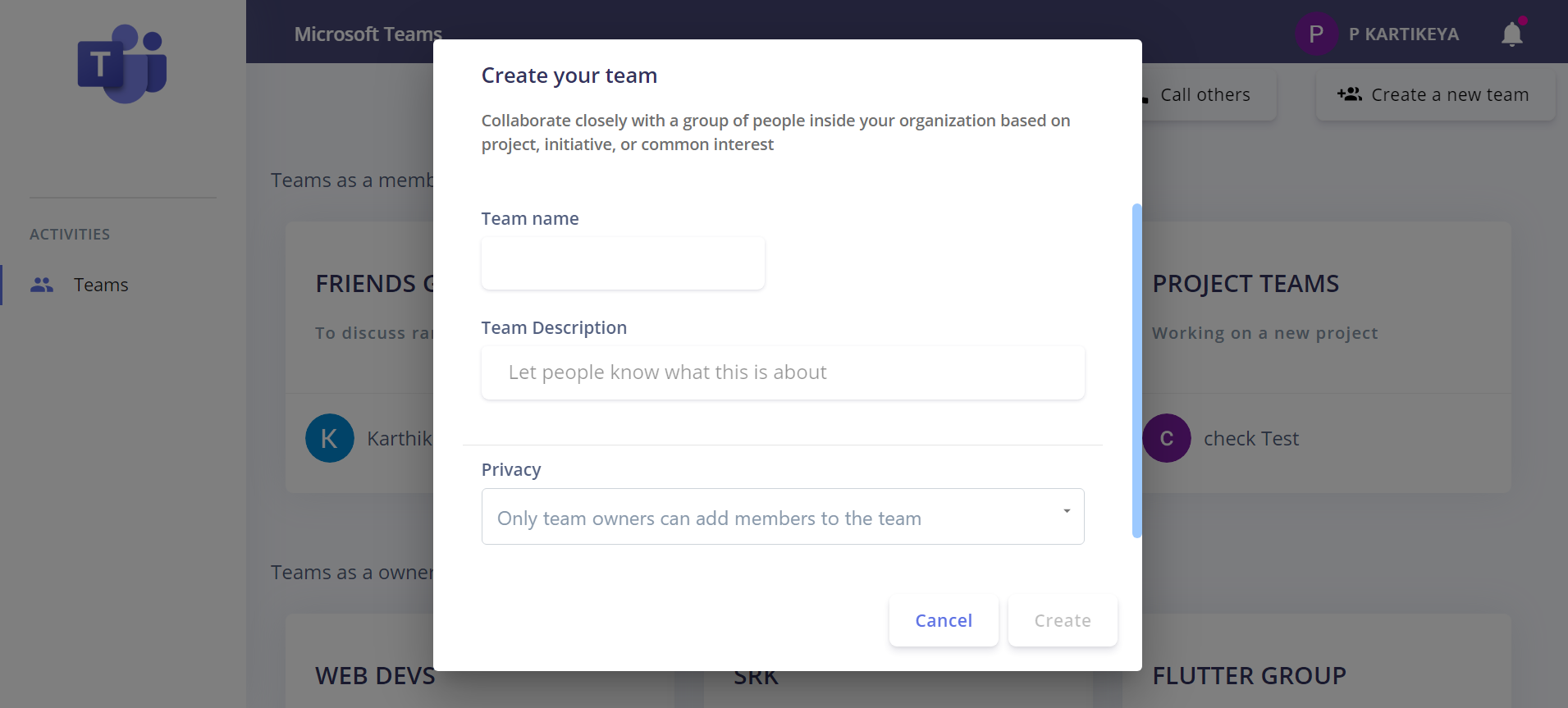
A user can create a new team by clicking on Create a new team button. User should specify a team name, team description and privacy. Privacy of a team specifies whether only team owner or any team member can add other people into the team.
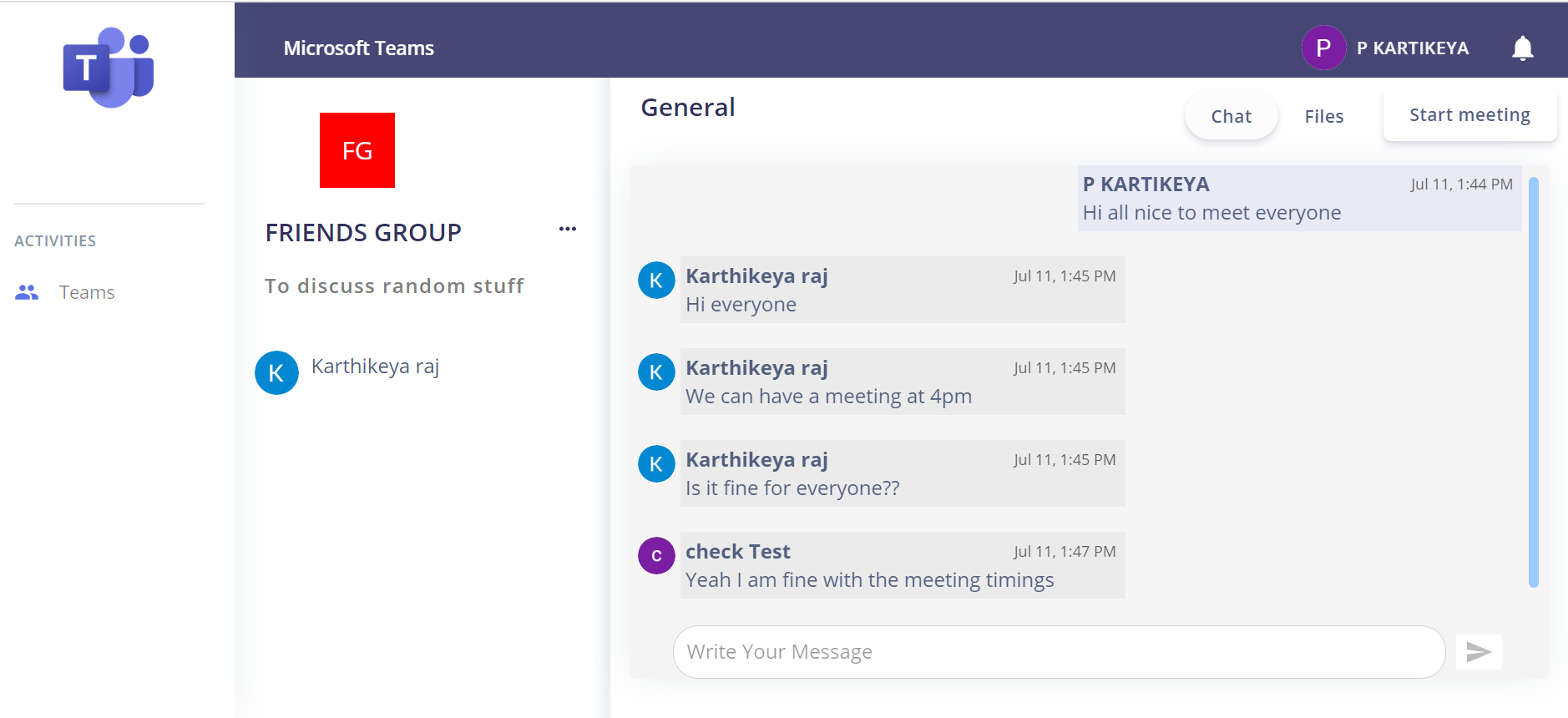
The major contents of a team include team details, chat room, files storage, and option to start a meeting.
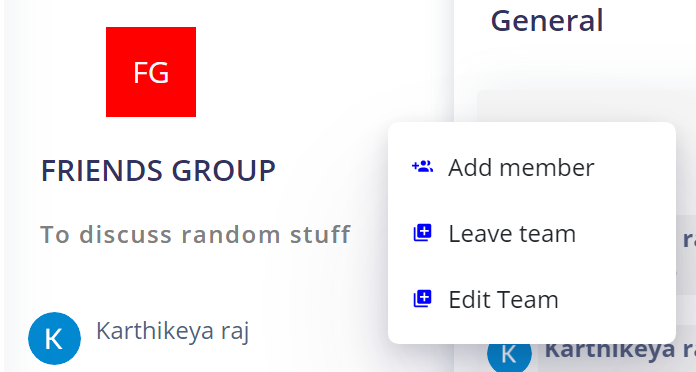
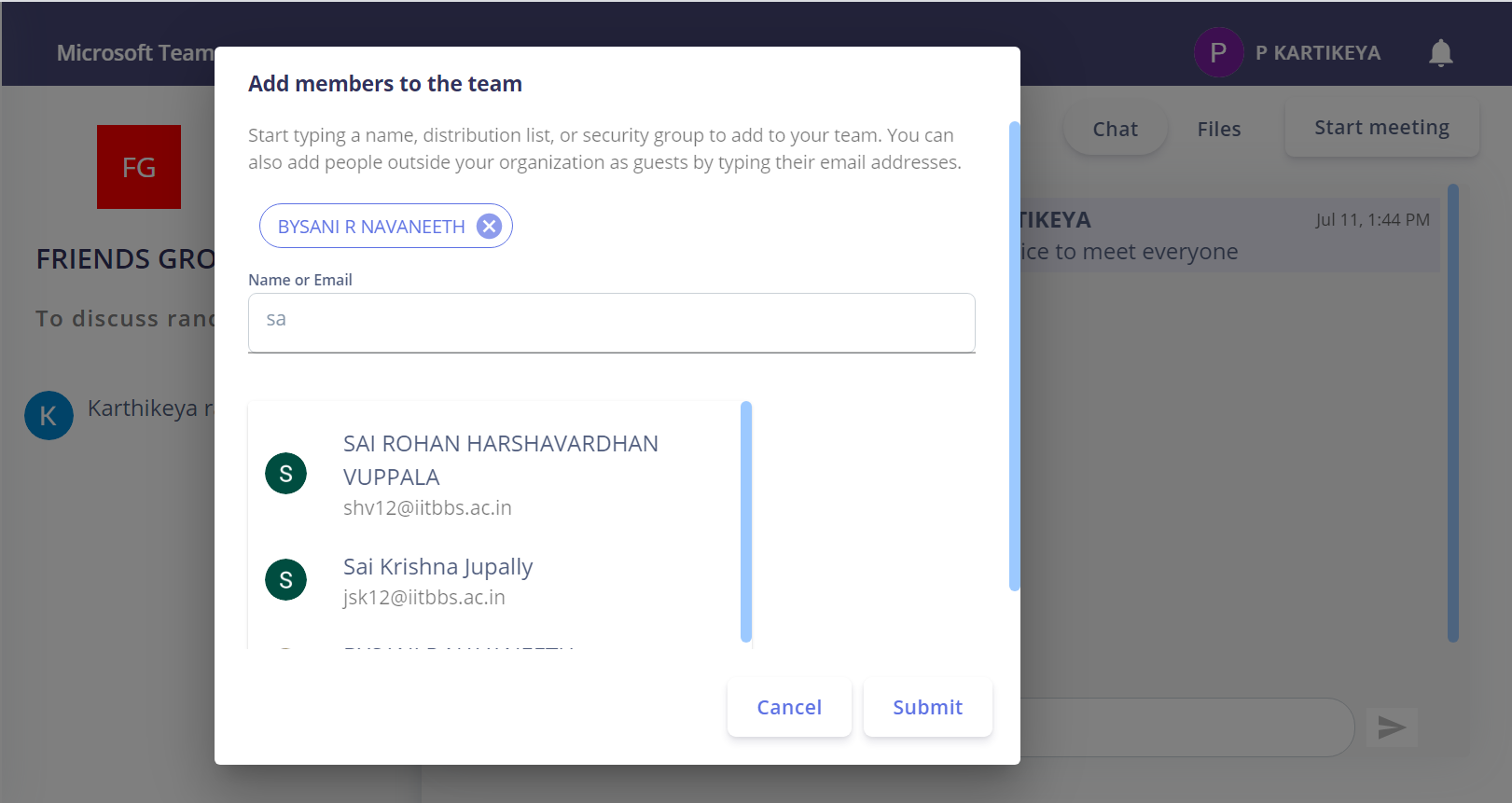
If the team is private then this option is only available to the team owner else all the team members can add people into the team. User can search by name or email to add people into the group. Click on submit to add the members into the team.
Every team member except the owner has this option to leave a team. On clicking on leave team a dialog opens for confirmation.
Only the team owner has this feature to delete team. Once a team is deleted then all the members of the team will not have access to the team.
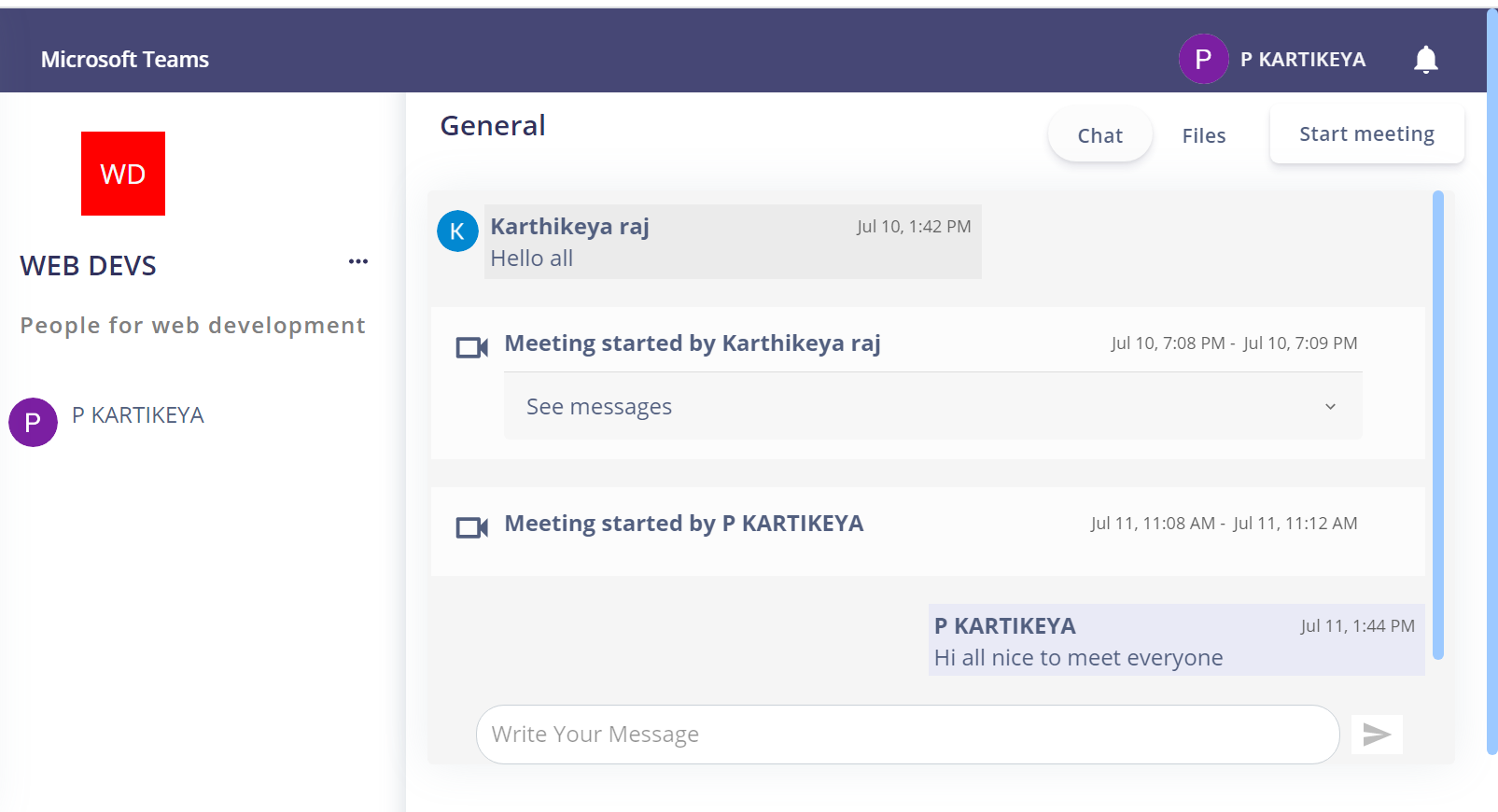
Team members can start group chat with all the team members. Chat also includes the meeting history and the meeting chat.
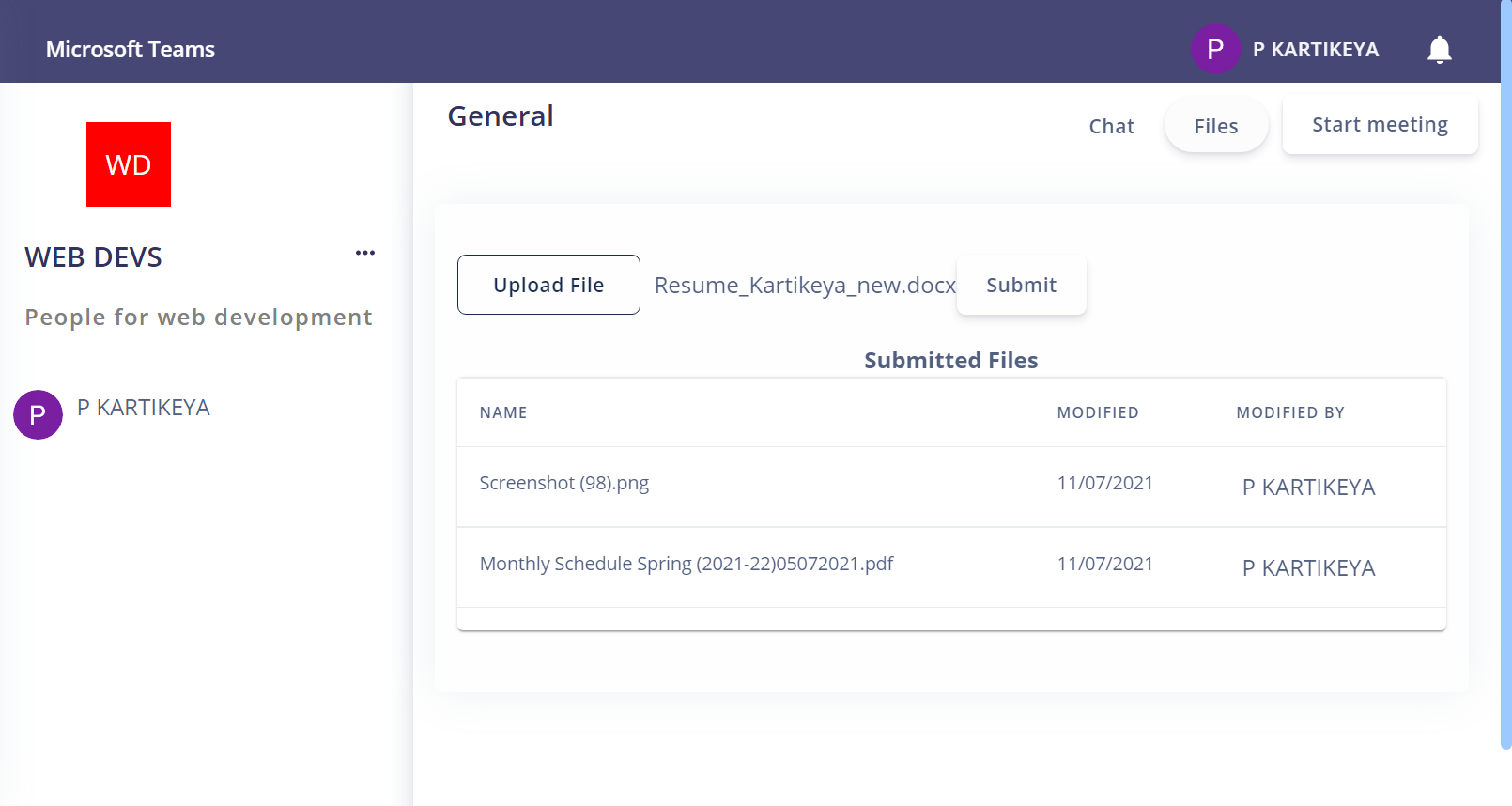
Team members can upload files and only members of the team can view the uploaded files. Select a file by clicking on upload button and then click on submit to upload the file.
Any team member can start a meeting by clicking the link. Once the meeting is started all the team members recieve a notification and also dialog opens up with a ringtone. Members can click on join meeting button which will be redirect to the team meeting room. User can disable audio/video before joining the meet. Click on JOIN to enter into the meeting.
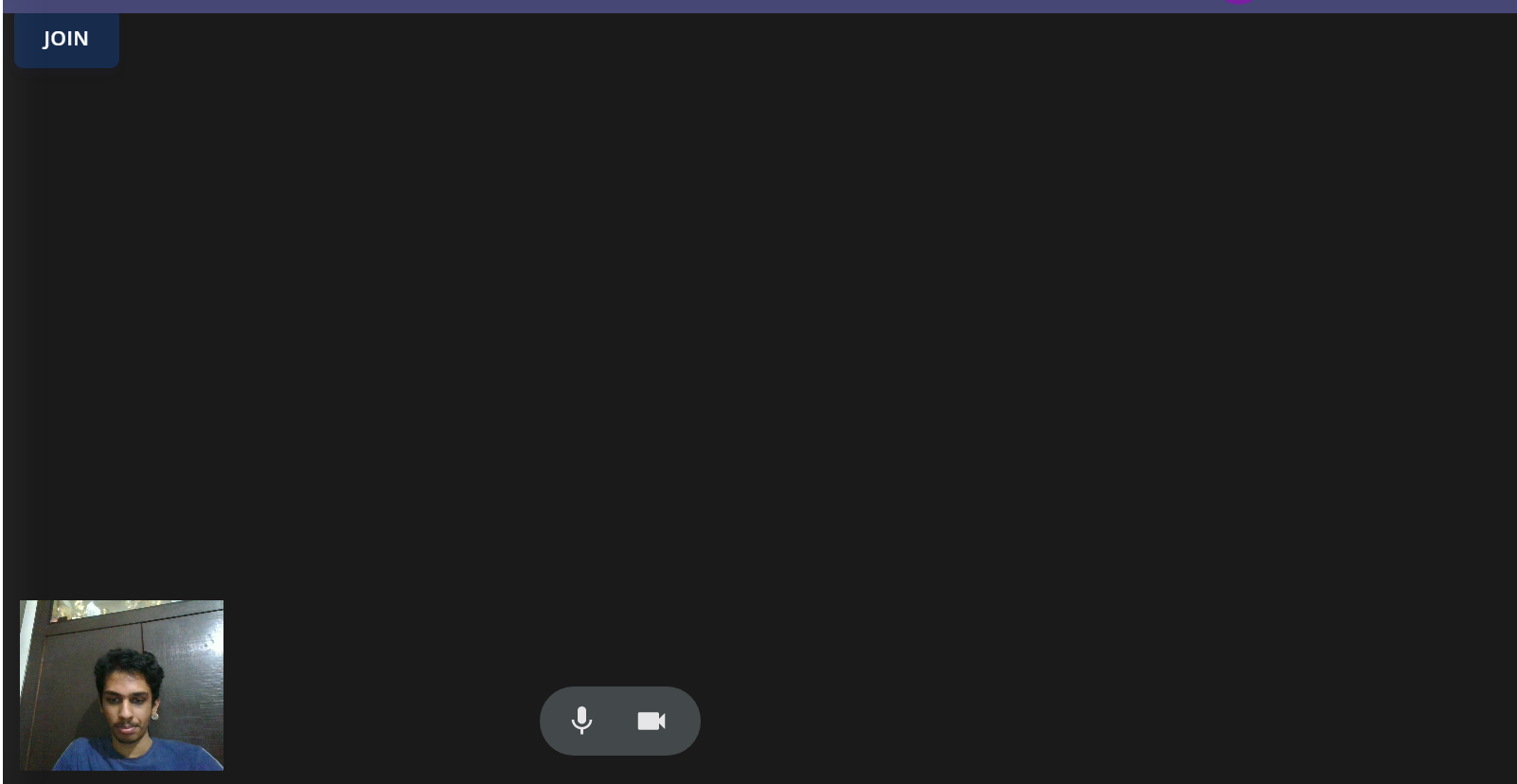
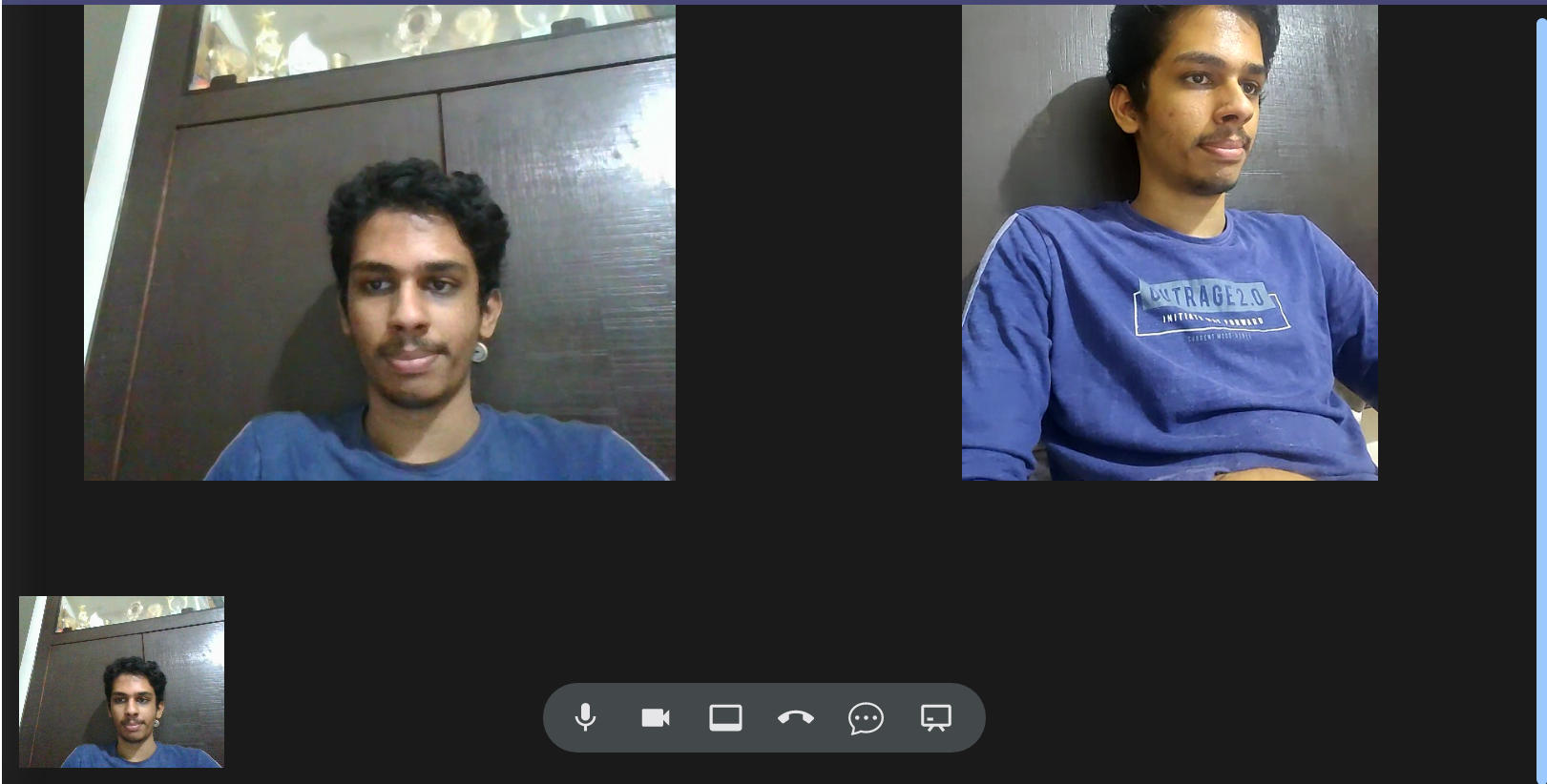
Users can disable their video and audio anytime by clicking on the microphone and video buttons. Once a user disables his/her video then a blank screen will be visible to others.

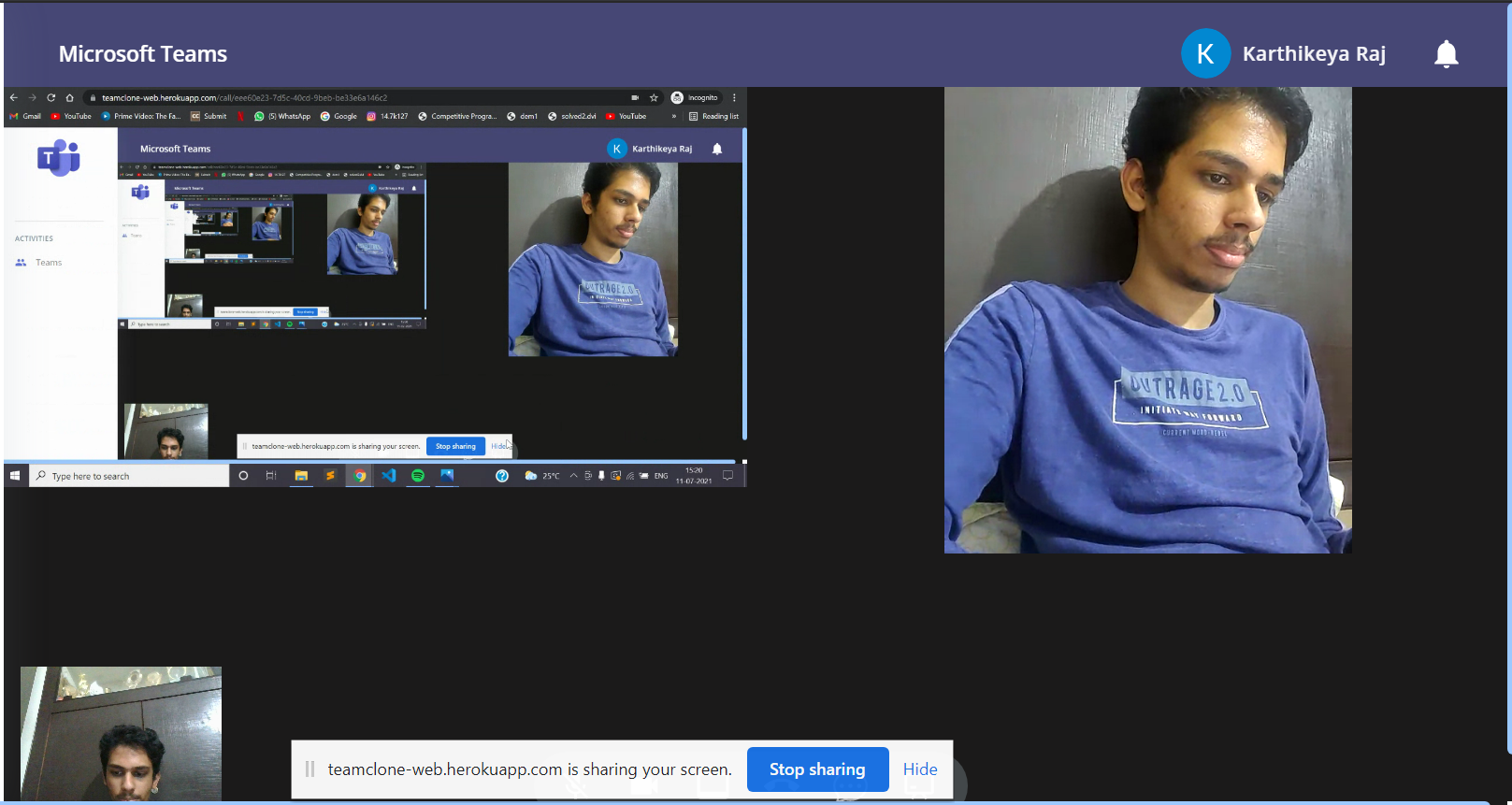
Users can share their screen anytime by clicking on the third button. To stop screen share click on the same button again.
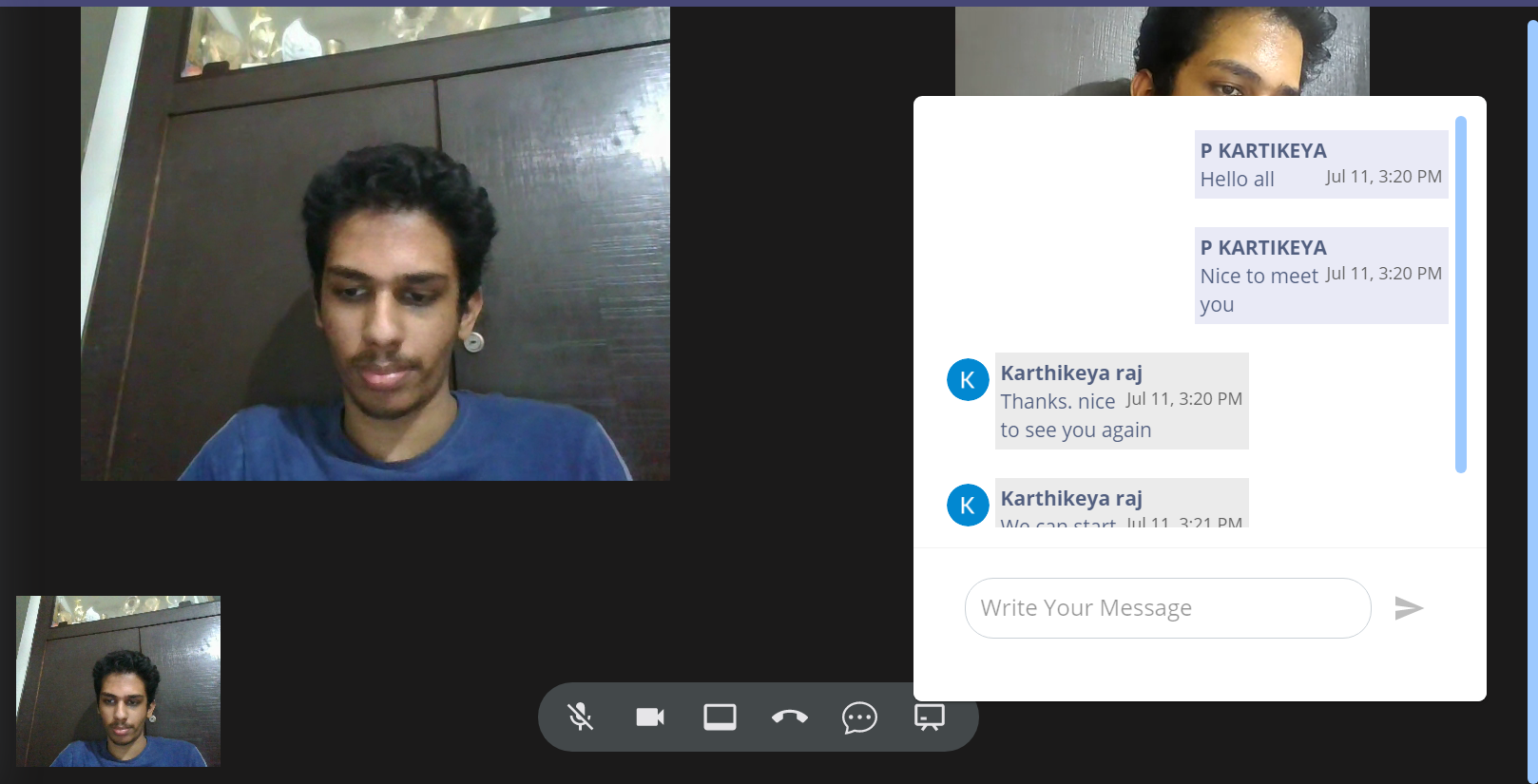
Members currently in the team meeting can start a group chat by clicking on the fourth button. Once the meeting is ended (meeting ends when the number of members in the meeting becomes 0) the meeting chat will be visible along with the meeting history in the general team chat.
Another interesting feature of the project is blue board. Users can open the blue board by clicking on the last button. We should first open the blue board and if someone starts drawing then we can see what others are drawing on it and viceversa.
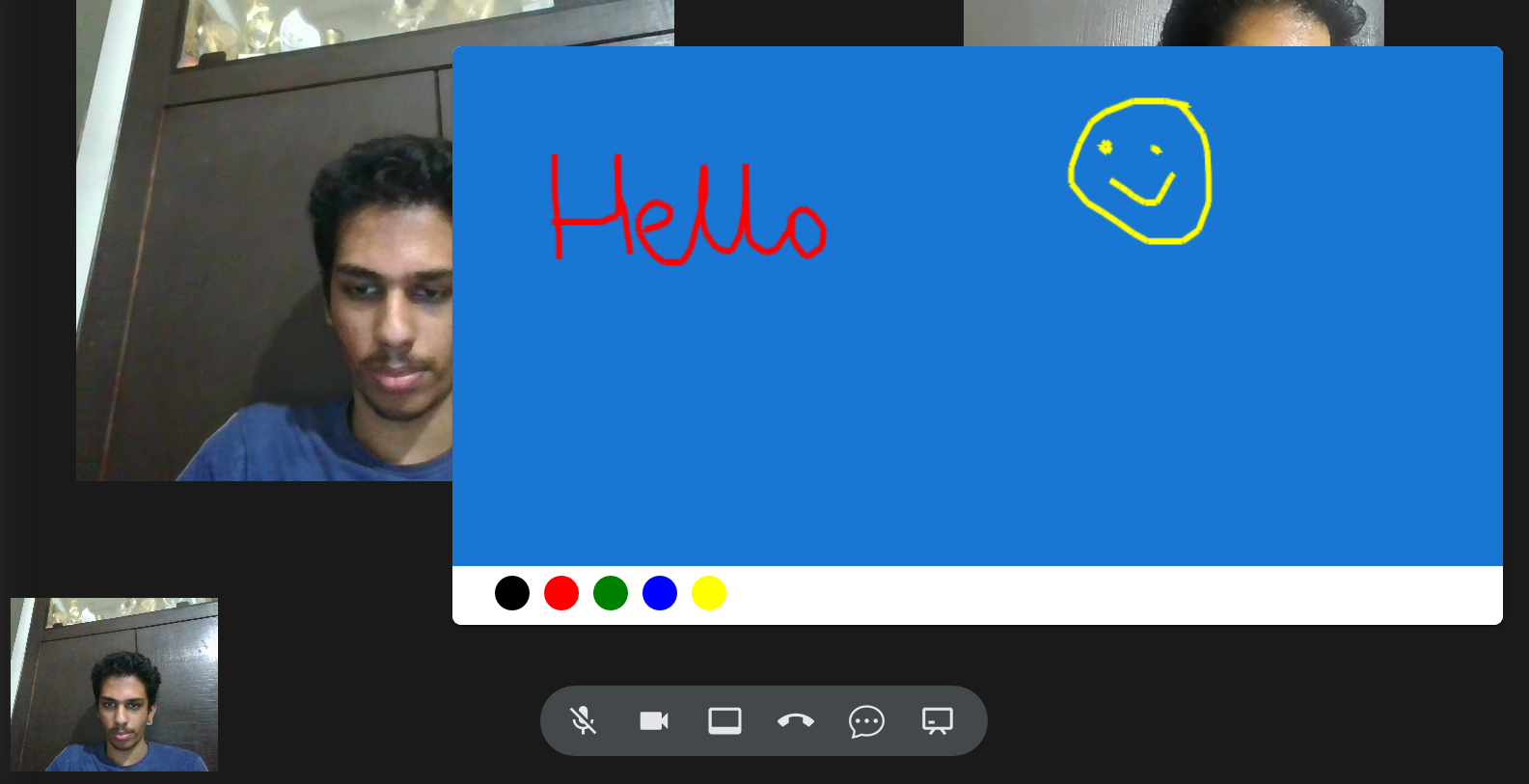
Once a user ends the call they will be redirected back to the team.
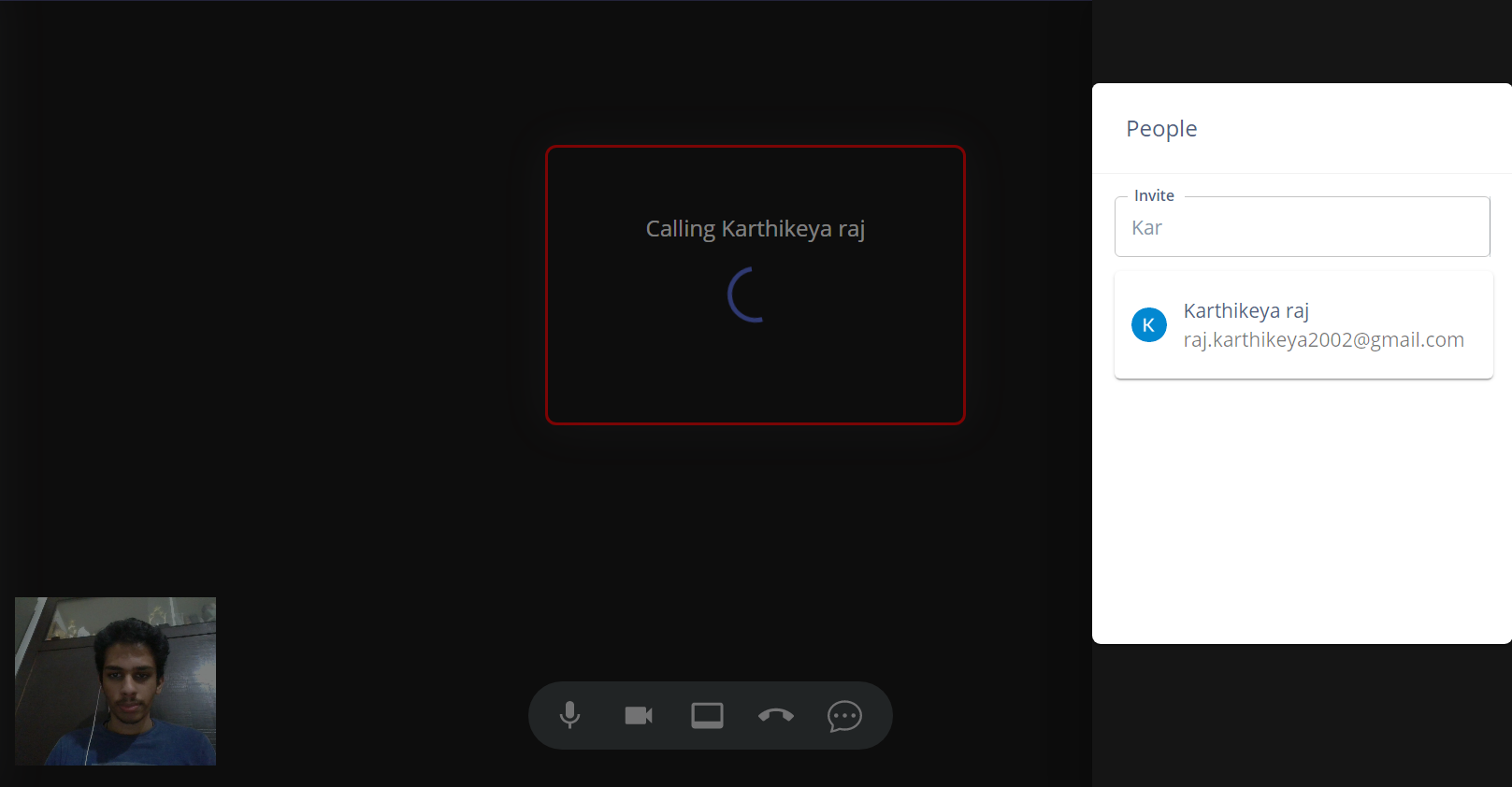
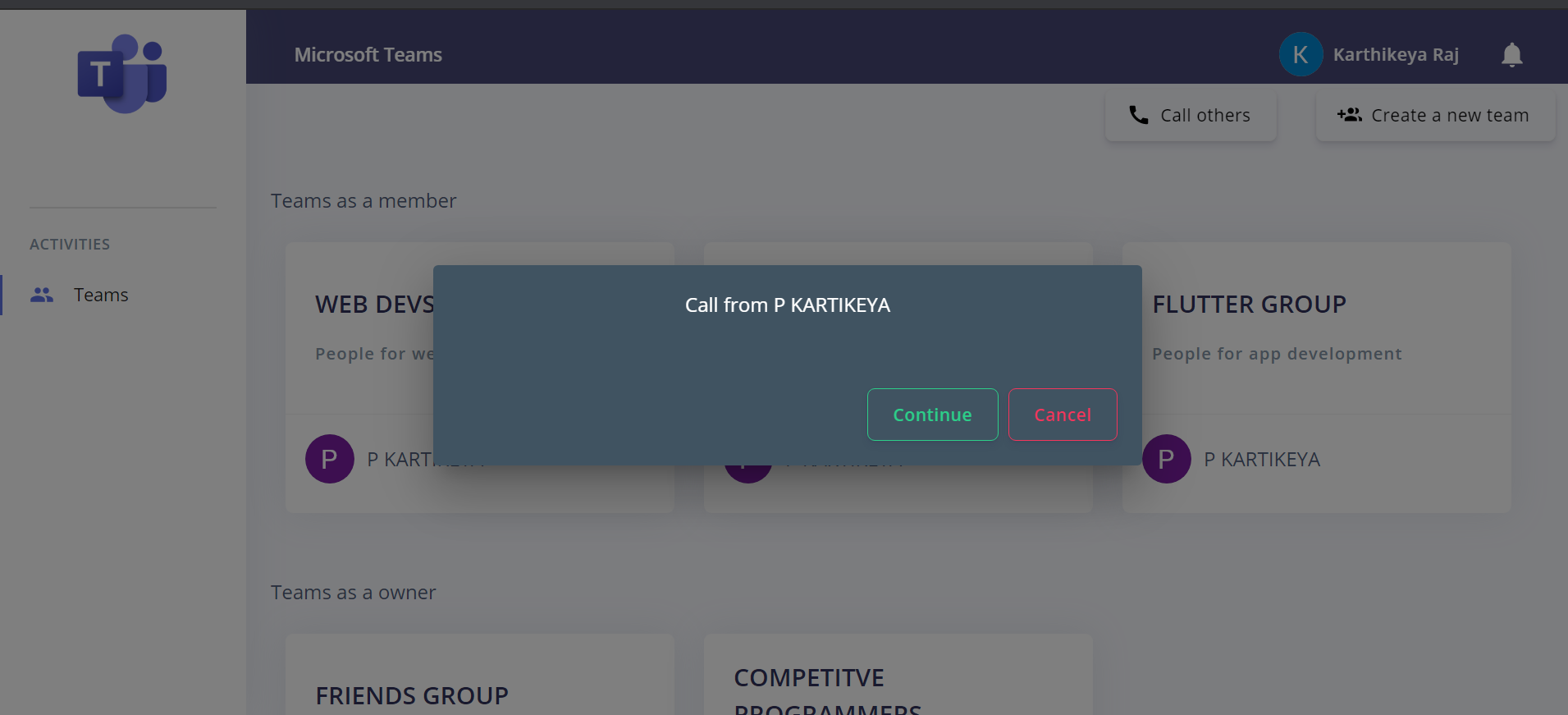
To start a direct call click on CALL OTHERS button on the main teams page. To call others click on the last button which will open a dialog where a user can search for other users by name/email and click on them to start a call. The other user will recive a incoming calling dialog with a ringtone sound and he/she can either continue or reject the call.
Incomming call modal recieved
If the call is rejected then the user gets notified about the rejection. If the other user clicks on continue they will be directed to a call room and then clicking on Accept will start a one to one call between both the users.
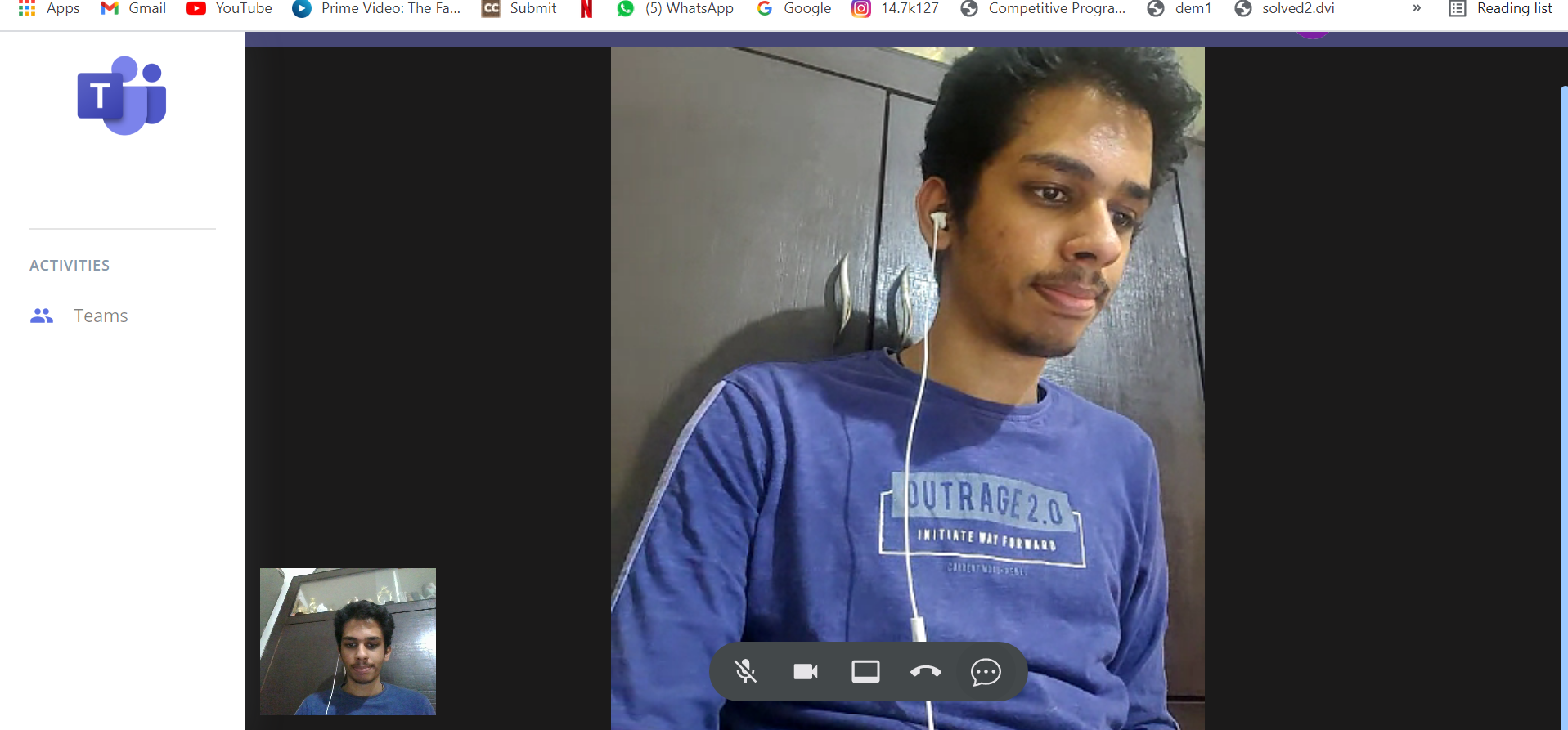
Features like screen share and chat are also available in one to one call.
Notifications are recieved when a team meeting is started in a group or if the user is added into a team.
## Contributor