It's a simple tool that allows you to run multiple instances of signal-desktop (four additional accounts) on your laptop/PC. All major platforms are supported (Windows, Linux, Mac).
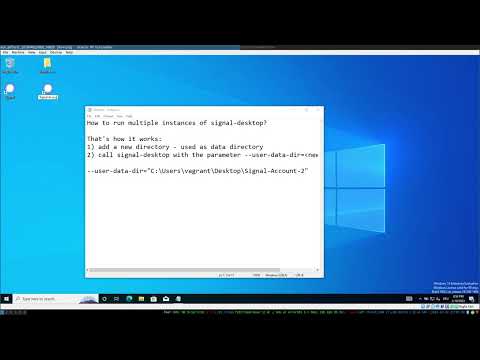
Then, please follow this tutorial on YouTube: https://www.youtube.com/watch?v=TejhH80jktE
- First, download
signal-acccount-swichterfrom the release page. You can also use these direct download links:
- Download for Windows
- Download for Linux. If you're using Arch Linux, you can use the AUR package.
- Download for Mac (ARM)
- Download for Mac (amd/x64)
- After downloading it, you can find the
signal-account-swichterapplication your Downloads directory. You don't need to installsignal-account-switcher. It's just this single file. You can move the file wherever you want (like to your Desktop). - To run
signal-account-switcher, check the following notes:
-
If you're on Windows, please watch this video tutorial: https://www.youtube.com/watch?v=DG4Lsqlrq3Y
- Comment: In the video, you can't see the actual Signal Desktop window. There is a Signal symbol in the taskbar/system tray though. This is a security feature by Signal that prevents screen recording of the Signal app. It was added after Microsoft introduced Recall.
-
If you're on Linux, go into your Downloads directory, right click
signal-account-switcher, go to "Properties", then "Permissions" and enable the "Allow run this file as a program" checkbox. Then double clicksignal-account-switcherin your file explorer to start it.
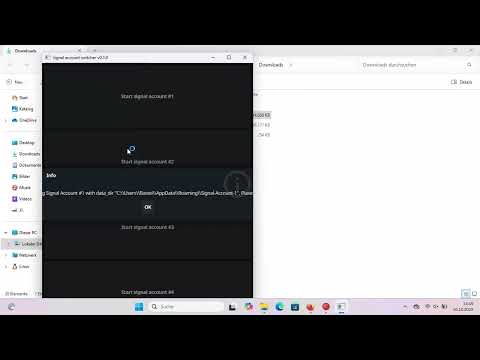
In signal-desktop, you cannot just add a new signal account. But you can start the signal-desktop application with a command line parameter to specify a different data directory. This is what signal-account-switcher is doing:
- Start
signal-account-switcher. Click on "Start signal account #1" - For the new signal account, a new data directory is created (
$working_dir/Signal-Account-1) signal-desktopis executed with the parameter--user-data-dir=$working_dir/Signal-Account-1
Depending on your operating system, $working_dir is ~/.config (Linux), $HOME/Library/Application (Mac) or %AppData% (Windows). The data directory of the main Signal account is called Signal.
Please read the "How does it work?" section to find Signal's data directory. If you want to remove all data from a Signal account, just delete the directory in the working directory. If you want to back up the Signal account or move it to a different computer, you just have to copy/move the data directory to a backup disk or a different computer.

If you're on Linux/Mac, just use:
go build -o signal-account-switcher ./main.go
strip signal-account-switcher
file signal-account-switcher
signal-account-switcher: ELF 64-bit LSB executable, x86-64, version 1 (SYSV), dynamically linked, interpreter /lib64/ld-linux-x86-64.so.2, BuildID[sha1]=c60867bc53ad2ff8f56622bf24c85842f2cec213, for GNU/Linux 4.4.0, strippedTo cross-compile it for Windows and Mac, use fyne-cross (needs Docker)
go install github.com/fyne-io/fyne-cross@latest
ls $GOPATH/bin/fyne-cross
Cross-compilation for Windows:
sudo $GOPATH/bin/fyne-cross windows -name signal-account-switcher.exe
[i] Target: windows/amd64
[i] Cleaning target directories...
[✓] "bin" dir cleaned: /home/kmille/projects/signal-account-switcher/fyne-cross/bin/windows-amd64
[✓] "dist" dir cleaned: /home/kmille/projects/signal-account-switcher/fyne-cross/dist/windows-amd64
[✓] "temp" dir cleaned: /home/kmille/projects/signal-account-switcher/fyne-cross/tmp/windows-amd64
[i] Checking for go.mod: /home/kmille/projects/signal-account-switcher/go.mod
[✓] go.mod found
[i] Building binary...
[✓] Binary: /home/kmille/projects/signal-account-switcher/fyne-cross/bin/windows-amd64/signal-account-switcher.exe
[i] Packaging app...
[✓] Package: /home/kmille/projects/signal-account-switcher/fyne-cross/dist/windows-amd64/signal-account-switcher.exe.zip
kmille@linbox:signal-account-switcher file /home/kmille/projects/signal-account-switcher/fyne-cross/bin/windows-amd64/signal-account-switcher.exe
/home/kmille/projects/signal-account-switcher/fyne-cross/bin/windows-amd64/signal-account-switcher.exe: PE32+ executable (GUI) x86-64 (stripped to external PDB), for MS Windows, 12 sections
kmille@linbox:signal-account-switcher
Cross-compilation for Mac:
Hmpf, the docs say
you need the "Command Line Tools for Xcode". I can't get them without an account...
sudo docker rmi fyneio/fyne-cross:1.3-windows
sudo docker rmi fyneio/fyne-cross:1.3-base-llvm