| Deliverable | Due Date |
|---|---|
| Briefing Slides (uploaded to your team's website and Canvas) | Monday, March 16th at 1:00PM EST |
| Briefing (8 min presentation + 3 min Q&A) | Monday, March 16th during Lab Hours |
| Pushed code to Git | Monday, March 16th at 11:59PM EST |
| TA Checkoff | Wedensday, March 18th at 11:59PM EST |
| Team Member Assessment | Wednesday, March 18th at 11:59PM EST |
From outside the Docker container on your laptop run: docker compose pull
From outside the Docker contain on the car run: sudo docker pull staffmitrss/racecar2026
Run these two commands in the home directory on the racecar (but not in the Docker)
touch constantBashRCtouch .tmux.conf
Please add the highlighted lines in the run_rostorch

Anything you would have done in a .bashrc inside the Docker (i.e., adding aliases, sources, etc.) you should instead put in the file titled tempBashRC. tempBashRC lives inside the Docker on the same level as racecar_ws. If you want to make modifications to .tmux.conf, it should remain consistent throughout Docker sessions.
Welcome to Lab 4, where you will learn how to use the camera to allow the racecar to park in front of a colored cone and follow a line.
In this lab, your team will do the following:
- Experiment/Prototype with several types of object detection algorithms
- Learn how to transform a pixel from an image to a real world plane using homography matrices
- Develop a parking controller to park your robot in front of an orange cone
- Extend your parking controller into a line following controller
This lab has a lot. We encourage parallelization by breaking up the components of the lab into 4 distinct modules, which you will combine. Each module tackles an interesting problem in computer vision/controls, and is designed to be implemented (initially) by itself. You should be thinking ahead to what data you will need to bag, what metrics you will use to characterise the performance of each module, and automated tests that let you verify that the module is working correctly. Afterward, we can combine all parts into a working visual navigation algorithm!
- Module 1: Cone detection via color segmentation
- Module 2: Object detection via template matching, SIFT, and YOLO
- Module 3: Transforming pixels to a plane via homography matrices
- Module 4: Writing a parking controller.
- Synthesis: Deploying all components together. Application to line following.
Here's how they fit together: Modules 1 and 2 cover object detection algorithms. Module 3 teaches you how to convert a pixel to a plane in the real world. Combining 1 and 3 will tell you where a cone is relative to your robot. Module 4 will park your robot in front of a simulated cone. Combine modules 1, 3, and 4 to park in real life. Now make some modifications to follow a line instead!
Lab 4 will require a briefing and no report. See the deliverables chart at the top of this page for due dates and times.
You can view the rubric for the briefing for more details on specific grading criteria. You will receive a grade out of 10 points for each. Your final lab grade will also be out of 10 points, based on the following weights:
| Deliverable Grade | Weighting |
|---|---|
| Briefing grade (out of 10) | 80% |
| Technical Grade (satisfactory completion of all modules) | 20% |
The elements you should include in your Lab 4 presentation include:
- Explanation and analysis of vision algorithm strengths and weaknesses. Why does each algorithm perform as it does on each dataset?
- Explanation and analysis of the homography transformation. How do we convert pixels to plane coordinates? What is the error metric that you used to assess performance, and what is the error of your homography?
- Demonstration of parking controller performance. Make sure you explain and justify the design choices you made in your controller.
Hint: include error plots from
rqt_plot - Demonstration of the line-follower. Describe any adjustments you needed to make to your perception and control modules to follow lines.
Hint: include error plots from
rqt_plot
Please include video, screen shots, data visualizations, etc. in your presentation as evidence of these deliverables. A good presentation will make quantitative and qualitative evaluations of your results.
We provide you with some resources to help you present an effective analysis of your Lab 4 system:
We've provided some code to test the Intersection over Union (IOU) scores of your vision algorithms on the three datasets provided.
IOU is a measure of how accurate bounding boxes are, and is a choice metric for analysis of object detection algorithms.
Go into visual_servoing/computer_vision/ and run:
python3 cv_test.py citgopython3 cv_test.py conepython3 cv_test.py map
To test all three of your algorithms against our Citgo, cone, and Stata basement datasets respectively. Results will be
outputted to .csv files in scores/. Some algorithms on some datasets won't get any/good results. This is expected, and we would like
to know why each works for what it does in your presentation.
When you write the parking controller (module 4), you will publish provided error messages. Use rqt_plot to generate some plots.
Try running the following experiments:
- Put a cone directly in front of the car (~3-5 meters away). Your car should drive straight forward and stop in front of the cone. Show us plots (and not just the result of a single run!) of x-error and total-error (x and y error) over time, and be prepared to discuss.
- Run the car on one of our tracks, and check out the plots for any interesting error signals. Compare plots at different speeds, and see how error signals change with speed.
In lecture, we learned different ways to detect objects. Sometimes it pays to train a fancy neural net to do the job. Sometimes we are willing to trust SIFT features to find the object. Template matching can be cool too.
Sometimes simple algorithms are the correct choice. For our purposes, identifying the cone by its distinctive color will prove most effective. Your job in this module will be to identify cones (and other orange objects) and output bounding boxes containing them.
Take a peek at visual_servoing/computer_vision/color_segmentation.py. Here you will find your starter code, though there is very little of it.
There is a considerable degree of freedom in implementing your segmentation algorithm, and we will try to guide you at a high level.
When it comes to opencv functions and examples, googling will not disappoint. Keywords like Python and OpenCV3 will help you avoid C++ and
older OpenCV versions of functions.
The cool thing about this module is that you can build up your algorithm incrementally. Display the original image. Modify, convert, filter, etc. and see what it looks like. Try a different opencv function. See what that does to the already changed image.
Here are some helpful hints:
- As we've seen in lecture, there are different color spaces. You are probably used to RGB/BGR,
but you'll find the HUE in HSV varies less with lighting. Try the
cvtColor. - The images here are BGR, not RBG.
- Use
cv2.inRangeto apply a mask over your image, keeping the colors you want. - Erosion and dilation are a great way to remove outliers and give your cone a bit more of a defined shape.
- OpenCV contour functions can prove very helpful.
cv2.findContoursandcv2.boundingRectcan be a powerful combination.
Don't forget conventions! Image indexing works like this (in this lab):

We will use the Intersection Over Union (IOU) metric for own evaluation of your bounding box detector. Run python3 cv_test.py cone color to test your algorithm against our dataset. We print out the IOU values for you. We expect some sort of analysis involving this metric in your presentation. Don't worry if you don't get them all. 100% accuracy is not necessary for a great parking controller.
We've taught you some interesting ways to discover objects, and now it's time to play with them. We want you understanding two critical pieces of information from this module:
- Why these two algorithms are super useful
- Why these two algorithms fail to detect the cone super well
Since the best learning comes from doing, we will be having you use each algorithm where it's particularly effective.
Check out visual_servoing/computer_vision/test_images_localization and visual_servoing/computer_vision/test_images_citgo to see pictures
from two datasets. One dataset contains pictures of the Boston CITGO sign from various angles. The other contains scraps of the stata basement (2D) map.


CITGO: Imagine a drone, on a delivery mission. Your target, a workman, called for a sandwich while changing the bulbs in the C on Boston's most iconic advert. He took a snapshot of the nearest landmark on his cellphone, and we are using that (template) to find him with our camera.
STATA: A wheeled robot needs to find its location on a map. It takes a laser scan, and comes up with a local view of what it can see. It tries to locate the local (template) scan on a big map, knowing that the center pixel of the highest scoring bounding box will correspond to its current location. By converting from pixels to meters, the robot will know where it is.
We have two algorithms to implement, SIFT and Template Matching. The goal for this lab will be to get a better feel of the strengths and weaknesses of each algorithm.
Check out computer_vision/sift_template.py in the visual_servoing folder. In there you will find two partially completed functions.
Each function tries to find a templated image in a larger background image, and returns the bounding box coordinates of the target object in
the background.
On Implementing SIFT:
Test your algorithm against the CITGO dataset. This dataset should give you the stronger results.
Run python3 cv_test.py citgo sift
On Implementing Template Matching:
Test your algorithm against the STATA dataset. Run python3 cv_test.py map template
Testing on Datasets:
We have implemented a few datasets for you to test your algorithms. To run the SIFT tests, type (inside the computer_vision/ directory):
python3 cv_test.py cone siftpython3 cv_test.py citgo siftpython3 cv_test.py map sift
To test your template matching:
python3 cv_test.py cone templatepython3 cv_test.py map templatepython3 cv_test.py citgo template
Some of these algorithm + dataset combinations will not produce good results. Each algorithm has different strong suits. Do you see why?
Note: The templates are all greyscale. We are not doing anything with color in these algorithms.
This module lets you run YOLO, a modern machine learning object detection model, on the live ZED camera feed in ROS2. The goal is for you to learn what YOLO detection outputs look like and how to use detections in a robotics pipeline.
In this part, you will implement a ROS node that performs the following:
- Subscribes to the ZED image topic:
/zed/zed_node/rgb/image_rect_color - Converts ROS images to OpenCV format using
cv_bridge - Runs YOLO inference on the input camera feed
- Converts YOLO outputs into a Detection format (class name, confidence, and bounding box pixel coordinates)
- Publishes an annotated image showing the detections to
/yolo/annotated_image
The code is located in visual_servoing/yolo_annotator.py, and the launch script is located in launch/yolo_annotator.launch.xml.
Missing pieces of code are highlighted in # TODO: comments:
- Choose object classes of interest. Modify
get_class_color_map()to choose a custom set of classes to detect and their corresponding colors in the detected image. - Convert the YOLO model outputs into a List of Detections. Modify
results_to_detections()to convert the YOLO model outputs into a List ofDetectiondataclasses defined at the top ofyolo_annotator.py. - Draw annotations. Modify
draw_detections()to draw bounding boxes and their corresponding class names and confidence values to the output image.
You may also modify the conf_threshold and iou_threshold parameter values in launch/yolo_annotator.launch.xml.
Feel free to experiment! How do these values affect the output detections?
If you have any trouble please ask a TA! We are here to help.
- Spin up the Docker using
./run_rostorch.sh, and connect to a terminal either through the noVNC page or using theconnectcommand. - Run the respective command for your camera. For the
camera_modelargument, silver cameras usezed, and black cameras usezed2:
# for ZED:
ros2 launch zed_wrapper zed_camera.launch.py camera_model:=zed- It might take up to 15 minutes for the camera to optimize and download the files it needs. This only happens once.
- After that, the camera should be streaming images. The terminal where you ran this command should be occupied by the ZED processes and should be left running until you want to stop streaming.
- If you see red or an error that there is no config file, call over a TA.
- If you get an error regarding a missing display, run
unset DISPLAYbefore launching the zed. - Verifying that the camera is working
- Open RQT by running
rqt; use the image view plugin to view the camera feed. - Alternatively, you can use RViz and add in an Image topic.
- Open RQT by running
- The ZED publishes to many topics which you can learn about here.
To view them, select the topic name through the dropdown menu. Do not use the depth image for this lab. The one you probably want to use is
the default rectified camera:
/zed/zed_node/rgb/image_rect_color.
The ZED camera publishes messages of type Image from sensor_msgs.
Learn about this message with the command, ros2 interface show sensor_msgs/msg/Image.
The image data is in ROS message data-structure, which is not directly recognized by OpenCV. You might have also learned that OpenCV image representations are
sometimes unique (e.g. BGR instead of RGB). To convert between CV image data structures(mat) to ROS image representations(ROS Message structures)
you may find CV bridge helpful.
First, launch the ZED camera as described in the section above.
ros2 launch zed_wrapper zed_camera.launch.py camera_model:=zedThen, launch the YOLO annotator node using
ros2 launch visual_servoing yolo_annotator.launch.xmlNote that your racecar may need to be connected to the internet during the first launch to download the YOLO model.
Now, on RViz or rqt_image_view, you should be able to view the annotated image on the topic /yolo/annotated_image.
- Demonstrate YOLO detecting objects on the live ZED feed
- Show a clean annotated output image topic
- A high level explanation of how the detections are represented
- An understanding of how YOLO's confidence and IOU thresholds affect the output detections
In this section, you will use the camera to determine the position of a cone relative to the racecar. This module of the lab involves working on the car.
If you recall from lecture, a camera is a sensor that converts 3D points (x,y,z) into 2D pixels (u,v). If we put on our linear algebra hats, we can project a 3D point onto a 2D plane as follows:

In robotics, we are generally concerned with the inverse problem. Given a 2D (image) point, how can we extract a 3D (world) point? We need some tools and tricks to make that sort of calculation, as we lost (depth) information projecting down to our 2D pixel. In this lab, we will use another interesting fact about linear transformations to find the X-Y positions of pixels.
The racecar can't roll over or fly (no matter how cool it might look), so the ZED camera will always have a fixed placement with
respect to the ground plane. By determining the exact placement, we can compute a function that takes in image pixel coordinates
(u,v) and returns the coordinates of the point on the floor (x,y) relative to the car. In other words, the (x,y) coordinate
projects onto the pixel (u,v). It's important to remember that the (x, y) is relative to the car, i.e., the base_link frame. To know the coordinates of the point in some global reference frame, we'll need to know where the car is!
This function is called a homography. We can't determine arbitrary 3D points from 2D pixels without lots of extra work. But, we can find 2D world points if those points lie on a plane (and can therefore be thought of as 2D) that is fixed with respect to our camera.
Check out this illustration of a camera and world plane. There exists a linear transformation between the camera projection and the world plane, since the world plane has two dimensions like an image plane.

To find the homography matrix, you should first determine the pixel coordinates of several real world points. You should then measure the physical coordinates of these points on the 2D ground plane. If you gather enough of these point correspondences (at least 4), you have enough information to compute a homography matrix:

Many existing packages including OpenCV
can be used to compute homography matrices. In visual_servoing/homography_transformer.py, you've been provided a node that calls this function
for you and makes the conversion between pixel-frame and robot-frame coordinates. You task is to fill in the point correspondences measured from
your system.
rqt_image_view will be a useful debugging tool here. If you enable mouse clicking (there is a checkbox next to the topic name),
then you can publish the pixel coordinates of points you click on in the image to a topic like this: /zed/rgb/image_rect_color_mouse_left.
Publish a marker in the robot frame to RViz computed from this pixel (we've provided you with a function draw_marker in visual_servoing/homography_transformer.py that adds a marker in robot coordinates to the visualisation), and you should be able to quickly eyeball the result if your homography matrix is doing its job. You should also record a ROS bag of camera data and write a script to automatically compute a metric for your homography matrix from the camera data in the bag. Please report what this accuracy is in your briefing and lab report.
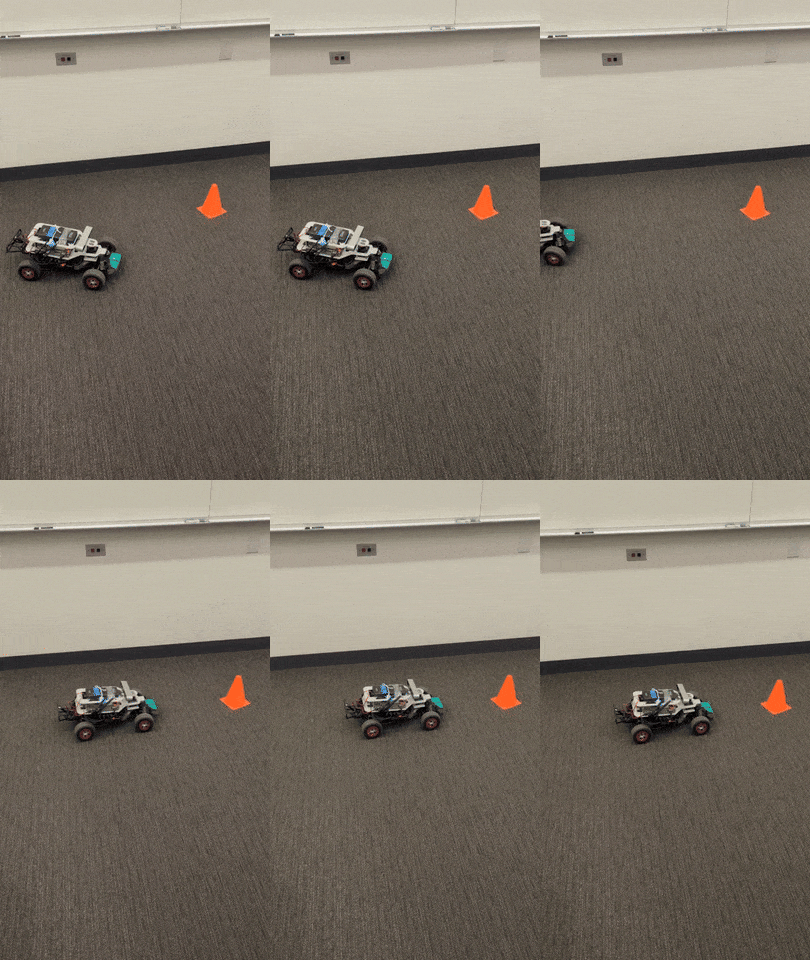
While your teammates are putting together the computer vision algorithms and localizing the cone, you will also implement a parking controller for the robot. We want you to implement a parking controller that parks your robot in front of a cone at a given distance. The robot will start with the cone in the field of view of the camera and should drive directly to the cone and park in front of it (1.5 - 2 feet from the front). Parking means facing the cone at the correct distance, not just stopping at the correct distance. See an example video here.

The distance and angle don't act independently, so consider carefully how you should make them work together.
Whenever possible, we want to develop controllers in simulation before deploying on real (breakable) hardware. That is what we'll do here. After you download (and make) the lab 4 ROS package, fire up your simulator, and RViz.
First, run racecar simulator:
ros2 launch racecar_simulator simulate.launch.xml
Now run
ros2 launch visual_servoing parking_sim.launch.xml
In RViz, press publish point (top options bar) and watch our representation of a cone appear.
- Make sure to add the marker
/cone_markerto RViz - Make sure you are in the
mapframe in RViz
If you ros2 topic echo /relative_cone, you should be able to see the relative coordinates of the cone in the base_link frame.
Open up visual_servoing/parking_controller.py, We've subscribed to the /relative_cone topic for you, and have set up the publisher/callback
as well. Your job is to take the ConeLocation message (either print or use a ros2 interface show vs_msgs/msg/ConeLocation to find out what is in it),
and write a control policy that parks in front of the cone. Publish desired steering angles and velocity just like in lab2.
We aren't aiming to give you a specific algorithm to run your controller, and we encourage you to play around. Try answering these questions:
- What should the robot do if the cone is far in front?
- What should the robot do if it is too close?
- What if the robot isn't too close or far, but the cone isn't directly in front of the robot?
- How can we keep the cone in frame when we are using our real camera?
A good parking controller will work in simulation even when the cone is behind the robot. Of course, when we put this module together with the rest of the lab on the real robot, you won't have the luxury of knowing the cone location when the camera can't see it.
Please keep your desired velocities below 1 (meters/sec). Even though the simulator will behave at higher speeds, your real robot will not.
The last thing for you to do is publish the x_error, y_error, and distance_error (sqrt(x**2 + y**2)). Use the plot visualization
plugin in rqt. You will have ability to view a live plot of (numerical) ROS messages. As an example of how it works, you can type
/parking_error/x_error into the text field in order to plot the x_error over time. The button next to the text field allows you to add
multiple topics to plot them at the same time.

These plots are super useful in controller tuning/debugging (and any other time you need to plot some quantity over time).
Tips:
- Type in the topic you want to graph in the top left of the GUI.
- Adjust the axes with the icon that looks like a green checkmark (top left menu bar).
You will be using these plots to demonstrate controller performance for your presentation, and remember that we'll be looking for evaluation on multiple trials.
With your modules in hand, it is time to make your robot park in front of a cone and follow a line.
You can see how your modules will fit together in the following rqt graphs:
Simulation (after launching parking_sim.launch.xml):

- When you use the PublishPoint tool in RViz, a global location is published to
/clicked_point. - The
/cone_sim_markernode converts/clicked_pointto the robot frame and publishes it to/relative_cone. - The
/parking_controllernode converts the cone location/relative_coneinto an appropriate drive command. - Simulated parking only requires completion of module 4 (control)
Deployment (after launching parking_deploy.launch.xml):

- Now, the cone is localized relative to the real car using your vision algorithm and homography transform.
- The
/cone_detectornode reads frames from the ZED camera; copy over your color segmentation algorithm to extract a cone location in pixels. The pixel cone location is published to/relative_cone_px. - The
/homography_transformernode converts/relative_cone_pxfrom the image (pixel) frame to the robot frame and publishes it to/relative_cone. - The
/parking_controllernode converts the cone location/relative_coneinto an appropriate drive command (just like in simulation!). - Deployed parking requires completion of modules 1 and 3 (perception) as well as 4 (control)
Now that you and your team have put your modules together to park in front of a cone, a quick modification of your code will create a line follower. The idea is to make the parking controller think that there is always a cone a fixed distance ahead, positioned on the line you want to follow! Like a donkey chasing a carrot, if you restrict the view of your robot to what is a little ahead of it, your parking controller will follow an orange line.
This works by setting a lookahead distance that is greater than your desired parking distance.


Check out this demo of what your robot can do. There will be several tape "courses" set up throughout the lab. Your racecar should be able to drive around them in a controlled manner - not getting lost or cutting corners. Once you can drive around the course, see how fast you can go. You are required to demonstrate successful line following for the orange line.
- Verify your perception system independently after implementing modules 1 and 3 before trying to run it together with the controller. You should be able to move the cone around on the floor and accurately determine its position relative to the car using just the camera. Make sure to visualize the published Marker representing the cone in RViz. The RViz cone should appear where the real cone does.
- You can verify your parking controller independently as well by running
parking_sim.launch.xmland placing cones in RViz using the PublishPoint tool. In simulation, your car may observe that a cone is behind it or off to the side; in practice, the car will only know the cone's location when it is in the camera frame. You should design a parking controller that works in all cases! - When both perception and control work independently, run them together on the car using
parking_deploy.launch.xml. - Modify module 1 such that your robot can follow a line instead of a cone. This should require minimal modification to your parking code! Some suggestions are in the module 1 section below.
- Improve your line following controller to see how fast you can navigate a circular track.
The actual cones and orange tape tracks != dataset cones. One useful debug step is to publish live pictures
(particularly, the HSV mask). This should let you debug in realtime. We have included a basic debug pipeline already in the template code.
We also have included a node in the parking_deploy.launch.xml file that compresses the image so it can streamed to your computer at a
much higher rate. In rqt image view select cone_debug_img_compressed/compressed to view the compressed topic.
We always publish a stream of zeros to the controller at some rate for safety reasons. However, this sometimes causes some "stuttering" when you are running your controller, since it is periodically switching between your commands and a zero command. This usually happens when your callback is happening too slowly due to delays in the data stream (especially with cameras). As data is always susceptible to latency, in many robotics settings you do want to make sure that your commands are being published at a fixed rate instead of awaiting an incoming message.
If you are affected by this, you should first make sure your callbacks are not taking an excessive amount of time. Otherwise, you can
address this by maintaining a stateful variable x containing the previous drive message. Then, instead of publishing the drive command,
your sensor callback can just modify x. You can then have a separate timer callback that publishes x at a fixed Hz. For example:
class MyNode(Node):
	def __init__(self, *args, **kwargs):
		# ...
		initial_drive_kwargs = dict(...)
		self.drive_cmd = AckermanDriveStamped(**inital_drive_kwargs)
		hz = 20 # this should be sufficient, but you can go higher
		self.timer = self.create_timer(1 / hz, self.node_callback)
	def lidar_callback(self, msg):
		cmd = self.process_lidar(msg) # handle lidar data
		self.drive_cmd = cmd
	def timer_callback(self):
		self.drive_pub.publish(self.drive_cmd)
Note that this should only affect the real racecar. In sim, the previous drive command is always assumed.