Lodge is a lightweight clipboard manager for macOS and a hard fork of Maccy by p0deje. All credit for the original app belongs to the Maccy contributors.
Lodge works on macOS Sonoma 14 or higher.
| Text preview with detail panel | Image preview | OCR text search in images |
|---|---|---|
 |
 |
 |
| Split view with content preview, source app, word count, and timestamps. | Full image preview with metadata. | Search finds text inside images using built-in OCR. |
- Fork Notice
- Differences from Maccy
- Features
- Install
- Usage
- Advanced
- FAQ
- Why doesn't it paste when I select an item in history?
- When assigning a hotkey to open Lodge, it says that this hotkey is already used in some system setting.
- How to restore hidden footer?
- How to ignore copies from Universal Clipboard?
- My keyboard shortcut stopped working in password fields. How do I fix this?
- Translations
- Motivation
- License
Lodge is a hard fork of Maccy. This repository exists to explore independent changes while crediting the original project. For the official releases and upstream updates, use Maccy.
- Rebranded as Lodge (name and documentation).
- New popup style: split view with a detail panel showing previews and metadata (source app, content type, counts, timestamps).
- Optional application icons in the history list.
- History list no longer shows the shortcut badges column.
- Performance work: cached previews, precomputed text stats, and search caching for large histories.
- New bundle identifier (
com.nklmilojevic.Lodge) and Lodge Xcode scheme.
- Lightweight and fast (inherited from Maccy)
- Keyboard-first workflows
- Split view with an adjustable divider, or an optional compact view
- Full text search and a separate action to view long text
- OCR text search in images
- Pinned items with quick actions
- Optional source-application icons
- Secure and private
- Native UI
- Open source and free
brew install nklmilojevic/lodge/lodgeDownload the latest release from the GitHub releases page.
xcodebuild -scheme Lodge -configuration DebugFor GitHub releases, notarization, and Sparkle appcast setup, see docs/distribution.md.
Usage is currently the same as Maccy, with the addition of the split view detail panel. Keyboard shortcuts are unchanged.
- SHIFT (⇧) + COMMAND (⌘) + C to popup Lodge or click on its icon in the menu bar.
- Type what you want to find.
- To select the history item you wish to copy, press ENTER, or click
the item, or use COMMAND (⌘) +
nshortcut. - To choose the history item and paste, press OPTION (⌥) +
ENTER, or OPTION (⌥) + CLICK the item, or use
OPTION (⌥) +
nshortcut. - To choose the history item and paste without formatting, press
OPTION (⌥) + SHIFT (⇧) + ENTER, or
OPTION (⌥) + SHIFT (⇧) + CLICK the item, or use
OPTION (⌥) + SHIFT (⇧) +
nshortcut. - To delete the history item, press OPTION (⌥) + DELETE (⌫).
- To read an item, use the detail panel in split view. For text longer than 5,000 characters, select View full text. Search includes the full text.
- To pin the history item so that it remains on top of the list, press OPTION (⌥) + P. The item will be moved to the top with a random but permanent keyboard shortcut. To unpin it, press OPTION (⌥) + P again.
- To clear all unpinned items, select Clear in the menu, or press
OPTION (⌥) + COMMAND (⌘) + DELETE (⌫). To clear
all items including pinned, select Clear in the menu with
OPTION (⌥) pressed, or press SHIFT (⇧) + OPTION (⌥)
- COMMAND (⌘) + DELETE (⌫).
- To disable Lodge and ignore new copies, click on the menu icon with OPTION (⌥) pressed.
- To ignore only the next copy, click on the menu icon with OPTION (⌥) + SHIFT (⇧) pressed.
- To customize the behavior, check the Preferences window, or press COMMAND (⌘) + ,.
In Appearance settings, enable Compact view to show only the history list. In split view, drag the divider to change the list width.
Storage settings include a history data limit of 512 MB by default. This limit includes copied data, search text, and previews. Lodge removes the oldest unpinned items to stay within the limit. Pinned items are kept. A notice appears if pinned items exceed the limit. Database files can use additional disk space.
For development, tests, and performance checks, see docs/architecture.md.
You can tell Lodge to ignore all copied items:
defaults write com.nklmilojevic.Lodge ignoreEvents true # default is falseThis is useful if you have some workflow for copying sensitive data. You can set
ignoreEvents to true, copy the data and set ignoreEvents back to false.
You can also click the menu icon with OPTION (⌥) pressed. To ignore only the next copy, click with OPTION (⌥) + SHIFT (⇧) pressed.
By default Lodge will ignore certain copy types that are considered to be confidential or temporary. The default list always include the following types:
org.nspasteboard.TransientTypeorg.nspasteboard.ConcealedTypeorg.nspasteboard.AutoGeneratedType
Also, default configuration includes the following types but they can be removed or overwritten:
com.agilebits.onepasswordcom.typeit4me.clippingde.petermaurer.TransientPasteboardTypePasteboard generator typenet.antelle.keeweb
You can add additional custom types using settings. To find what custom types are used by an application, you can use free application Pasteboard-Viewer. Simply download the application, open it, copy something from the application you want to ignore and look for any custom types in the left sidebar. Here is an example of using this approach to ignore Adobe InDesign.
By default, Lodge checks clipboard every 500 ms, which should be enough for
most users. If you want to speed it up, you can change it with defaults:
defaults write com.nklmilojevic.Lodge clipboardCheckInterval 0.1 # 100 ms- Make sure you have "Paste automatically" enabled in Preferences.
- Make sure Lodge is added to System Settings -> Privacy & Security -> Accessibility.
When assigning a hotkey to open Lodge, it says that this hotkey is already used in some system setting.
- Open System settings -> Keyboard -> Keyboard Shortcuts.
- Find where that hotkey is used. For example, "Convert text to simplified Chinese" is under Services -> Text.
- Disable that hotkey or remove assigned combination (screenshot).
- Restart Lodge.
- Assign hotkey in Lodge settings.
How to restore hidden footer?
- Open Lodge window.
- Press COMMAND (⌘) + , to open preferences.
- Enable footer in Appearance section.
If for some reason it doesn't work, run the following command in Terminal.app:
defaults write com.nklmilojevic.Lodge showFooter 1How to ignore copies from Universal Clipboard?
- Open Preferences -> Ignore -> Pasteboard Types.
- Add
com.apple.is-remote-clipboard.
If your shortcut produces a character (like Option+C → "ç"), macOS security
may block it in password fields. Use
Karabiner-Elements to remap your
shortcut to a different combination like Cmd+Shift+C. See detailed
solution.
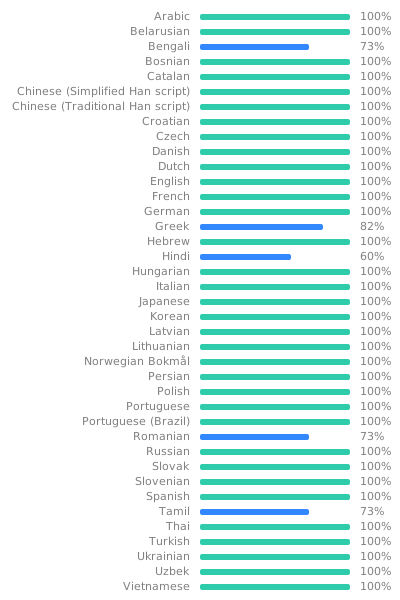
Translations are maintained in the upstream Maccy project on Weblate. This fork currently inherits those translations; please contribute there so the original project is credited.
This section is preserved from the upstream Maccy README for attribution:
There are dozens of similar applications out there, so why build another? Over the past years since I moved from Linux to macOS, I struggled to find a clipboard manager that is as free and simple as Parcellite, but I couldn't. So I've decided to build one.
Also, I wanted to learn Swift and get acquainted with macOS application development.