A custom Home Assistant card for displaying Flightradar flight information.





This card requires the Flightradar24 integration to be installed and configured in Home Assistant.

- Open HACS in your Home Assistant instance
- Search for "Flightradar Flight Card"
- Click "Install"
- Refresh your browser
- Download
flightradar-flight-card.jsfrom the latest release - Copy it to your
config/wwwfolder - Add the resource in Home Assistant:
- Go to Settings → Dashboards → Resources
- Click Add Resource
- URL:
/local/flightradar-flight-card.js - Resource Type: JavaScript Module
Add the card to your dashboard:
type: custom:flightradar-flight-card
entities:
- entity_id: sensor.flightradar24_current_in_areaCard will look for a flights attribute in the entity provided, in case it doesn't find, it'll try the next entity. This is useful for cases where you maintain a list of current in area, and no flight is actually in the area at that moment, so the card will pick the next entity so that the card can always have something to render.
| Option | Type | Required | Default | Description |
|---|---|---|---|---|
entities |
array | Yes | - | List of flight sensor entities (see below) |
units |
object | No | - | Unit display preferences (see below) |
carousel |
object | No | - | Carousel behavior options (see below) |
show_flightradar_link |
boolean | No | true |
Show link to Flightradar24 flight page |
show_airline_info_column |
boolean | No | true |
Show airline information column |
show_airline_logo |
boolean | No | true |
Show airline logo |
show_aircraft_photo |
boolean | No | true |
Show aircraft photo |
show_progress_bar |
boolean | No | true |
Show flight progress bar |
show_distance |
string | No | closest |
Which distance to show: off, closest (closest distance to area), or current (current distance) |
show_country_flags |
string | No | false |
Show country flags: false (off), image, or emoji |
colors |
object | No | - | Color customization options (see below) |
template_airline_logo_url |
string | No | - | Custom airline logo URL template (see Templating below) |
Each entity in the entities array supports the following options:
| Option | Type | Required | Description |
|---|---|---|---|
entity_id |
string | Yes | The entity ID of your flight sensor |
title |
string | No | Custom title for this flight card |
When multiple flights are available, you can enable a carousel to cycle through them:
| Option | Type | Default | Description |
|---|---|---|---|
enable |
boolean | false |
Enable carousel mode for multiple flights |
show_controls |
boolean | true |
Show navigation controls (prev/next buttons) |
loop |
boolean | false |
Loop back to first flight after reaching the end |
autoplay |
boolean | false |
Automatically cycle through flights |
autoplay_delay |
number | 5000 |
Delay between slides in milliseconds |
You can customize the display units for altitude, distance, and ground speed:
| Option | Type | Default | Options | Description |
|---|---|---|---|---|
altitude |
string | ft |
ft, FL, m |
Altitude display unit |
distance |
string | km |
km, NM |
Distance display unit |
ground_speed |
string | kts |
kts, kmh, mph, M |
Ground speed unit |
Unit descriptions:
- Altitude:
ft(Feet),FL(Flight Level),m(Meters) - Distance:
km(Kilometers),NM(Nautical Miles) - Ground Speed:
kts(Knots),kmh(Kilometers per hour),mph(Miles per hour),M(Mach)
You can customize the colors used throughout the card:
| Option | Type | Default | Description |
|---|---|---|---|
primary |
string | var(--primary-text-color) |
Primary text color |
secondary |
string | var(--secondary-text-color) |
Secondary text color |
accent |
string | var(--accent-color) |
Accent color for highlights |
accent_light |
string | var(--state-active-color) |
Light accent color |
progress_bar_light |
string | var(--secondary-background-color) |
Progress bar background color |
All color options accept any valid CSS color value (hex, rgb, rgba, hsl, CSS variables, etc.).
type: custom:flightradar-flight-card
entities:
  - entity_id: sensor.flightradar24_current_in_area
    title: Flights Nearby
  - entity_id: sensor.flightradar24_most_tracked
    title: Most Tracked
units:
  altitude: ft
  distance: km
  ground_speed: kts
carousel:
  enable: true
  show_controls: true
  loop: true
  autoplay: true
  autoplay_delay: 5000
colors:
  primary: var(--primary-text-color)
  secondary: rgba(var(--rgb-primary-text-color), 0.7)
  accent: var(--accent-color)
  accent_light: var(--state-active-color)
  progress_bar_light: var(--secondary-background-color)
show_flightradar_link: true
show_airline_info_column: true
show_airline_logo: true
show_aircraft_photo: true
show_progress_bar: true
show_distance: closest  # or 'off' or 'current'
show_country_flags: false # or 'image' or 'emoji'The template_airline_logo_url option allows you to use a custom URL template for airline logos. The following variables are available for replacement:
| Variable | Description |
|---|---|
{ICAO} |
The airline's ICAO code (e.g., TAP, UAL) |
Example usage:
type: custom:flightradar-flight-card
entities:
  - entity_id: sensor.flightradar24_current_in_area
template_airline_logo_url: 'https://example.com/logos/{ICAO}.png'You can track the history of flights that flew by your home using this method.
With that new sensor, you can combine the sensor.flightradar24_current_in_area that comes by default with the integration, and then with the new sensor just created. That will make the card to display the currently in area first, and if no flight is around your home, it'll show the last flight.
Yaml example:
type: custom:flightradar-flight-card
entities:
  - entity_id: sensor.flightradar24_current_in_area
    title: Flights Nearby
  - entity_id: sensor.flightradar24_area_history
title: Last FlightNote: Airhex no longer provides logos without authorization — a paid account is required to use this feature.
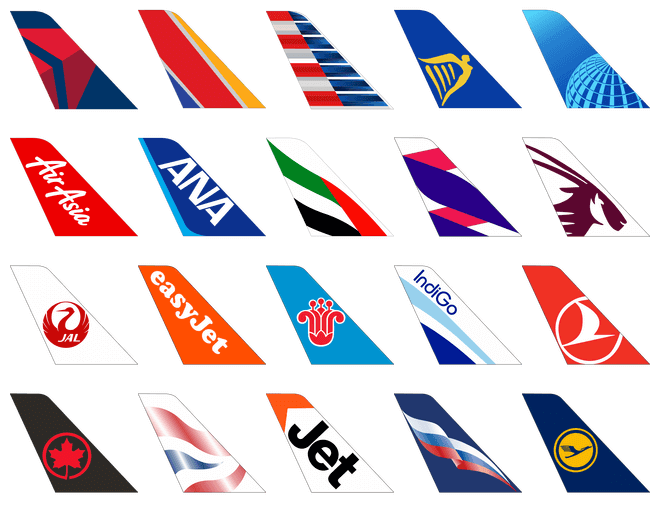
If you prefer different airline logos, you can use Airhex tail logos by setting the template_airline_logo_url option:
template_airline_logo_url: 'https://content.airhex.com/content/logos/airlines_{ICAO}_40_40_f.png'If you have devices (like wall-mounted tablets) that don't have internet access but still need to display airline logos, you can host the logos locally on your Home Assistant instance.
- Download the airline logos from this repository's
public/flightaware_logosfolder - Copy the logos to your Home Assistant
config/www/flightaware_logos/folder - Configure the card to use the local path by setting the
template_airline_logo_url:
template_airline_logo_url: '/local/flightaware_logos/{ICAO}.png'This way, all airline logos will be served directly from your Home Assistant instance, ensuring they display correctly even on devices without internet access.
Huge thanks for potseeslc that inspired me to create this custom card. The design is heavily inspired by his version.
Contributions are welcome! Please see CONTRIBUTING.md for development setup and guidelines.
MIT License - see LICENSE for details.