
Part of @sahil87's open source toolkit — see all projects there.



Your tmux, in the browser and on your phone. run-kit is a remote console for the machine you actually work on — every tmux session and pane as a live terminal, in a sidebar, from your desk or your couch. It's the modern, terminal-native answer to the old server web-console: nothing to configure, no database, state read straight from tmux.
What makes it sing in 2026 is what you tend to run in those panes: AI coding agents, many at once. rk riff spawns each one in its own git worktree, and the dashboard lets you watch the whole fleet. But run-kit never wraps the agent — a pane is just a pane. It's equally a build, a REPL, an ssh session, htop. The agent is one of the things you run, not the thing run-kit is. That's the point: when the agent tooling churns underneath you (and it does, monthly), the terminal layer stays put.
| run-kit | |
|---|---|
| It is | A remote, phone-first console for your tmux — agent-agnostic, no database, state derived from tmux + filesystem. A spawner (run-kit riff) and a dashboard (run-kit serve) that compose. |
| It isn't | An agent wrapper. It doesn't speak any agent's protocol, parse any agent's output, or care what's in the pane. That's deliberate — it's what makes it outlive whichever agent you run. |
- A remote terminal console, not an agent wrapper — run-kit exposes your tmux, full stop. Drive an agent in one pane, a dev server in the next, an ssh session in a third. Because it's agent-agnostic, it outlives whatever coding agent you're running this month.
- One command per parallel agent —
run-kit riffcreates a worktree, opens a tmux window in it, and launches your agent.run-kit riff -N 3spawns three workspaces in parallel; failures roll back cleanly. - Watch a whole fleet, from anywhere — every tmux session and pane shows up in a sidebar. Click for a live browser terminal; pin several into a board to watch three agents side-by-side; open the same dashboard on your phone over Tailscale.
- Mobile-first, keyboard-first —
Cmd+Kcommand palette is the primary discovery surface. Touch targets are tuned for mobile so you can steer a session from your phone while away from your desk. - No database, no daemon magic — state is derived from tmux and the filesystem, the way a good console mirrors the system it manages. Sessions survive
run-kitrestarts because the daemon never touches them. - The dashboard layer over
fab-kitandwt—run-kit riff --skill /fab-ffflaunches a full fab-kit pipeline in an isolated worktree. Reach for run-kit when you have more parallel changes than one terminal can hold.


run-kit is two independent halves that compose (the command is run-kit; rk is the fully interchangeable short alias people tend to type):
run-kit riff         run-kit serve
  ▼                    ▼
spawns agent        runs the
workspaces ─────►   browser dashboard
(tmux + worktree)   (watches tmux)
You can run either alone. Run run-kit riff in any tmux session without ever starting run-kit serve — you get the spawning behavior, no dashboard. Run run-kit serve and never call run-kit riff — you get a tmux browser dashboard for sessions you spawn manually. The two are designed to compose, not depend on each other.
From a clean install to a working dashboard with one agent running:
brew install sahil87/tap/run-kit     # install
run-kit agent-setup             # optional, once per machine: agent busy/waiting/idle in the dashboard
run-kit daemon start            # start the dashboard daemon on :3000
open http://localhost:3000      # open the dashboard in your browser

# in any tmux session:
run-kit riff --skill /fab-discuss    # spawn an agent workspace
The new workspace appears in the sidebar; click into it to drive the agent — or any command — from the browser.
The formula also installs rk as a fully interchangeable short alias of run-kit, so every command here works the same whether you type run-kit or rk.
To upgrade later, run run-kit update — pulls the latest version via Homebrew and restarts the daemon so the new binary takes effect immediately.
See the install & access guide for prerequisites, run-kit doctor, development setup, and driving run-kit from your phone over Tailscale HTTPS.
One invocation gives you a git worktree, a tmux window inside it, and one or more panes ready to go. The default pane runs your coding agent, but a pane can run anything — run-kit riff is a workspace launcher, not an agent launcher.
Pane array model. --skill and --cmd are repeatable. Each occurrence adds one pane; argv order (left to right) becomes pane order. Bare --skill opens a blank agent session; bare --cmd drops into $SHELL.
Layouts. auto (default), tiled, even-horizontal, even-vertical, main-horizontal, main-vertical. Set with --layout.
Presets. Common pane/layout combos go in fab/project/config.yaml under riff.presets.<name>. Invoke as run-kit riff <name> or run-kit riff --preset <name>.
Parallel. -N <N> spawns N workspaces in parallel; failures roll back successful ones before exiting.
wt passthrough. Flags after -- go to wt create verbatim (e.g. --base, --reuse, --worktree-name).
Examples:
run-kit riff                                         # 1 pane, default skill (/fab-discuss)
run-kit riff --skill /fab-fff                        # 1 pane, specific slash-command
run-kit riff --skill /fab-fff --cmd "just dev"       # 2 panes (agent + dev server)
run-kit riff --skill /a --cmd x --cmd y --layout main-vertical
run-kit riff ship                                    # invoke the 'ship' preset
run-kit riff ship -N 3                               # 3 parallel ship workspaces
run-kit riff -- --worktree-name pacing-canyon        # name the worktree
Prerequisites: must be inside a tmux session, wt on PATH, and the launcher (default claude --dangerously-skip-permissions) available. Override the launcher per-project via agent.spawn_command in fab/project/config.yaml — point it at any agent CLI, or any command at all.
See the riff guide for the full reference.
Start the HTTP server in the foreground. Configurable via RK_HOST (default 127.0.0.1) and RK_PORT (default 3000).
run-kit serve                                # foreground on 127.0.0.1:3000
RK_HOST=0.0.0.0 RK_PORT=8080 run-kit serve   # bind all interfaces, port 8080
To run it in the background, use the run-kit daemon subcommands:
run-kit daemon start                         # background daemon in a tmux session
run-kit daemon restart                       # stop and start
run-kit daemon stop                          # graceful shutdown
run-kit daemon status                        # show daemon state and port owner
The daemon runs in its own dedicated tmux server (rk-daemon), completely separate from your sessions. Restart the daemon and everything you're running keeps running — the console reconnects automatically.
Each window in the sidebar, dashboard, and pane panel carries a single status dot that tells you where it sits in the fab → PR lifecycle and how healthy it is — using two orthogonal channels:
- Hue = phase (where in the journey):
intake →
execution (apply/review) + completion (hydrate) →
shipping (ship/review-pr) →
the live PR. A plain window with no fab change is gray — color is reserved for the journey.
- Shape = status (health), one vocabulary across every phase: ring = pending · solid circle = active/ready · dashed ring + red center = failed · square = done/merged · gray ring = skipped/closed.


Exactly one signal drives the dot, in precedence order PR > fab > tmux.
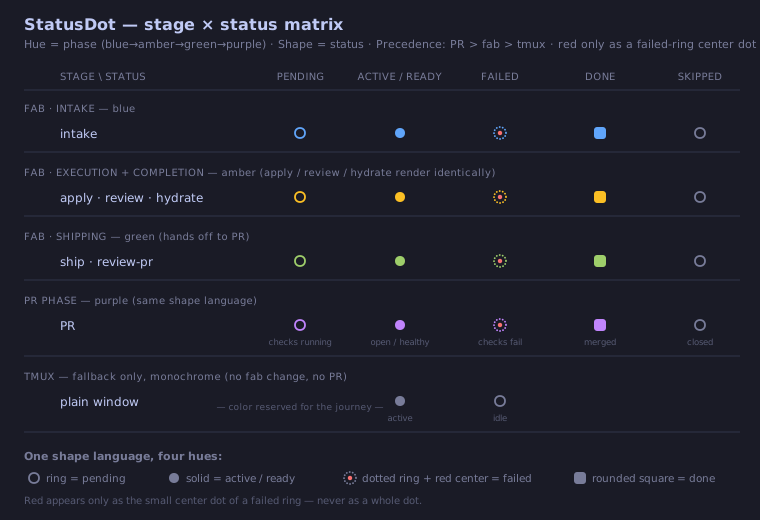
See the status dot reference for the full matrix, the per-state rendering, and the design rationale.
Windows running an AI agent can report a live lifecycle state in the sidebar and pane panel: active (turn in progress), waiting (blocked on you — a permission prompt or question), or idle (turn done, with elapsed duration). waiting is the state worth a glance at your phone: the agent isn't working, it's waiting for you.
This is opt-in and needs a one-time setup per machine:
run-kit agent-setup              # shows the settings diff, asks before writing
run-kit agent-setup --uninstall  # removes exactly the run-kit-owned entries
It installs agent-harness hooks into your user-global agent config (v1: Claude Code, ~/.claude/settings.json) that stamp a @rk_agent_state tmux pane option on lifecycle events. Each hook is a thin, stable wrapper that delegates to run-kit agent-hook — a stable interface whose logic (the pid resolution, the value write) lives in the binary. No run-kit server is needed at fire time, and because the logic is in the binary, hook fixes track brew upgrade run-kit with no settings changes and no session restarts. They work for any session, in any repo, under any workflow. Idempotent: re-running updates run-kit's entries in place (recognizing and replacing older-generation entries too) and never touches your other hooks. Until it's run (and agents are restarted so new sessions pick up the hooks), agent state shows —.
Upgrading from an earlier run-kit? Older installs had the hook logic inlined in
settings.json. Runrun-kit agent-setuponce more to swap in the new delegating wrapper, then restart your agent sessions (harnesses snapshot hook config at session start). This is the last time a hook logic change needs a re-setup — future fixes ship in the binary. (Changes to which events map to which state still need a re-setup, since that mapping lives in the settings entries.)
The cross-repo convention is documented in docs/specs/agent-state.md.
A board is a named, cross-server pane dashboard. Pin any tmux window from any server into a board, and the board renders all pinned panes side-by-side in a horizontally-scrollable layout — perfect for watching three parallel agent sessions, or comparing a just dev server's output against the agent that's editing it.
Three ways to pin a window to a board:
- Sidebar pin icon — every window row in the sidebar has a pin icon. Click it to open a popover listing existing boards (click to pin/unpin), plus a "Pin to new board…" input that creates a new board on first pin.
- Command palette (
Cmd+K) —Board: Pin Current Window,Board: Unpin Current Window,Board: Switch to <name>,Board: Leave Board View. - Board pane header — each pinned pane shows an unpin button in its header for one-click removal.
Inside a board:
Cmd+]/Cmd+[cycles pane focus to the next / previous pane (wraps).- Click a pane to focus it; keystrokes route to that pane's terminal.
- Drag the pane edge to resize (desktop only; widths persist per-board in
localStorage). - On mobile, panes render as a single-pane swipe carousel.
Pin state lives in tmux (via the @rk_board window option) so it follows the window, not the browser — open the same board URL on your phone and you see the same panes. Pane widths are intentionally local to each device.
Some browser features (clipboard, secure context) require HTTPS. Accessing run-kit from another machine on your tailnet also requires HTTPS:
- Enable HTTPS at DNS > HTTPS Certificates.
- Run
tailscale serve --bg http://localhost:3000. - Open
https://<machine>.<tailnet>.ts.neton your phone or another laptop.
For a stable custom hostname or public access via Funnel, see the Tailscale guide.
Any process on the box can push a real OS-level notification to your phone or desktop — even when the RunKit PWA tab is closed — via Web Push:
run-kit notify "deploy finished" --title "CI"run-kit notify POSTs to the local server, which fans the message out to every
subscribed browser using the Web Push protocol (signed with a server-side VAPID
key persisted under ~/.rk/). It is fail-silent: if the server is
unreachable or returns an error it exits 0 and prints nothing, so it never
stalls a calling script or agent loop.
Opt in from the browser: click the bell icon in the top bar (or open the
command palette with Cmd+K and run Notifications: Enable push). This
requests notification permission and subscribes the current device. There is no
settings page — the bell dropdown and the palette are the opt-in gestures. The
bell dropdown also offers Send test notification (a local test that bypasses
the server) and a Notifications help link.
See the notifications guide for setup and the common "it says sent but nothing appears" troubleshooting (almost always an OS-level notification block — e.g. macOS Focus mode).
Secure-context requirement: Web Push (service worker +
PushManager) only works in a secure context — that means HTTPS orlocalhost. Hitting run-kit onlocalhost:3000or behind a TLS reverse proxy (e.g.tailscale serve, see Drive it from your phone) both qualify. Over plain HTTP to a remote host, the browser silently refuses to register the service worker and the Enable push command will report that a secure context is required.
run-kit shell-init <shell> emits eval-safe tab-completion for your shell (it registers completion for both run-kit and the rk alias). Add this line to your rc file:
eval "$(run-kit shell-init zsh)"   # in ~/.zshrc
eval "$(run-kit shell-init bash)"  # in ~/.bashrc
Supports zsh, bash, fish, and powershell. Completion-only — run-kit has no shell function wrapper; every subcommand is reached via run-kit <subcommand> (or the rk alias).
💡 Have other sahil87 tools?
shll shell-installhandles all of their shell integrations and autocompletions at once.
| Command | What it does |
|---|---|
run-kit riff |
Create a worktree + tmux window + agent/command pane(s). |
run-kit serve |
Start the HTTP server (foreground or daemon). |
run-kit status |
Show a tmux session summary. |
run-kit context |
Print agent-optimized environment info (server URL, ports, etc.) — designed to be read by AI agents inside a run-kit-spawned workspace. |
run-kit notify |
Send a Web Push notification to your subscribed devices (see Push notifications). Fail-silent. |
run-kit doctor |
Check runtime dependencies. Run this first when something breaks. |
run-kit agent-setup |
Install agent-harness hooks (v1: Claude Code) so panes report busy/waiting/idle state (see Agent state). Once per machine; --uninstall reverses it. |
run-kit init-conf |
Scaffold default tmux.conf and tmux.d/ drop-in directory to ~/.rk/. Optional. |
run-kit update |
Upgrade via Homebrew and restart the daemon. |
run-kit completion |
Generate shell completion scripts (or use run-kit shell-init for eval-safe output). |
run-kit help |
Help about any command. |
Every command is also reachable via the short rk alias (e.g. rk riff). Run run-kit <command> --help for full flag details, or see the full command reference for every command and flag.
run-kit rifffails with "not in a tmux session" — riff requires$TMUXto be set. Start tmux first (tmux new -s work), then runrun-kit riffinside it.run-kit rifffails with "wt not found" — installwtviabrew install sahil87/tap/wt, or via the toolkit meta-formulabrew install sahil87/tap/all.- Agent state shows
—for every window — runrun-kit agent-setuponce on the machine, then start a fresh agent session (hooks apply to new sessions, not already-running ones). A pane sitting at a plain shell also reads—by design — state clears when the agent exits. - Anything else broken — run
run-kit doctor. It checks tmux,wt, the launcher binary, port availability, and prints per-dependency status.
run-kit's daemon runs in a dedicated tmux server (rk-daemon), separate from your sessions (runkit). Restarts use kill-and-restart (no polling loop or signal files), are idempotent (--restart works whether or not a daemon is running), and never touch your tmux sessions — everything you're running survives daemon restarts unaffected.