A Git automation platform with interactive commits, scheduled sync, custom command orchestration, file locking, and a visual GUI.
Install globally via npm:
npm install -g zen-gitsync- Visual GUI — Full graphical interface for Git operations
- Branch management — Create, switch, and track local/remote branches
- Stash management — Save and restore stashes with locked-file filtering
- Tag management — Create lightweight and annotated tags
- Merge support — Detect and complete in-progress merges
- Flow orchestration — Drag-and-drop visual workflow designer
- NPM scripts panel — Discover and run npm scripts from
package.json - Built-in terminal — Run commands with real-time streaming output
- Custom commands — Save, parameterize, and reuse shell commands
- Project startup — Auto-run commands or workflows when a project opens
- Built-in code editor — Monaco-based file editor with Markdown preview
- Source map — AI-generated interactive codebase dependency graph
- Workbench — task-driven Claude execution with prompt presets, subtask splitting, isolated bypass-permissions windows, live stdout streaming, AI-generated presets, and sub-task file attachments
- Reset to remote — One-click
git reset --hard origin/<branch>from the Git panel (auto-refreshes branch info first to avoid wrong-target resets) - AI commit message — Generate commit message from staged diff automatically
- Selection-scoped diff — AI commit message and quick commit/push use only the diff of currently selected files when the Git view is the active tab
- Commit templates — Save type/scope/description/message templates
- Theme & language — Light/dark theme and Chinese/English UI; one-click theme toggle in the header (no need to dig into settings)
- Network error banner — Global banner appears when the backend is unreachable, with one-click retry and relative-time status
- Accessibility (WCAG 2.1 AA) — Dialog focus trap & restore, role-based separators, keyboard-only panel resize (
← → ↑ ↓), screen-reader friendly commit context menu, ARIA-pressed toggle buttons, commit buttonaria-busyduring in-flight commits, Git SHA hashes meet ≥ 4.5:1 contrast in both light and dark themes - Faster cold start —
monaco-editor/@vue-flow/flow-mindmap/dagreare split into independent chunks and lazy-loaded so the Git panel boots without waiting on the code editor or visual workflow designer
Detailed per-release change log (a11y/perf fixes, i18n missing translations, dead-code removals, etc.) lives in CHANGELOG.md.
$ g ui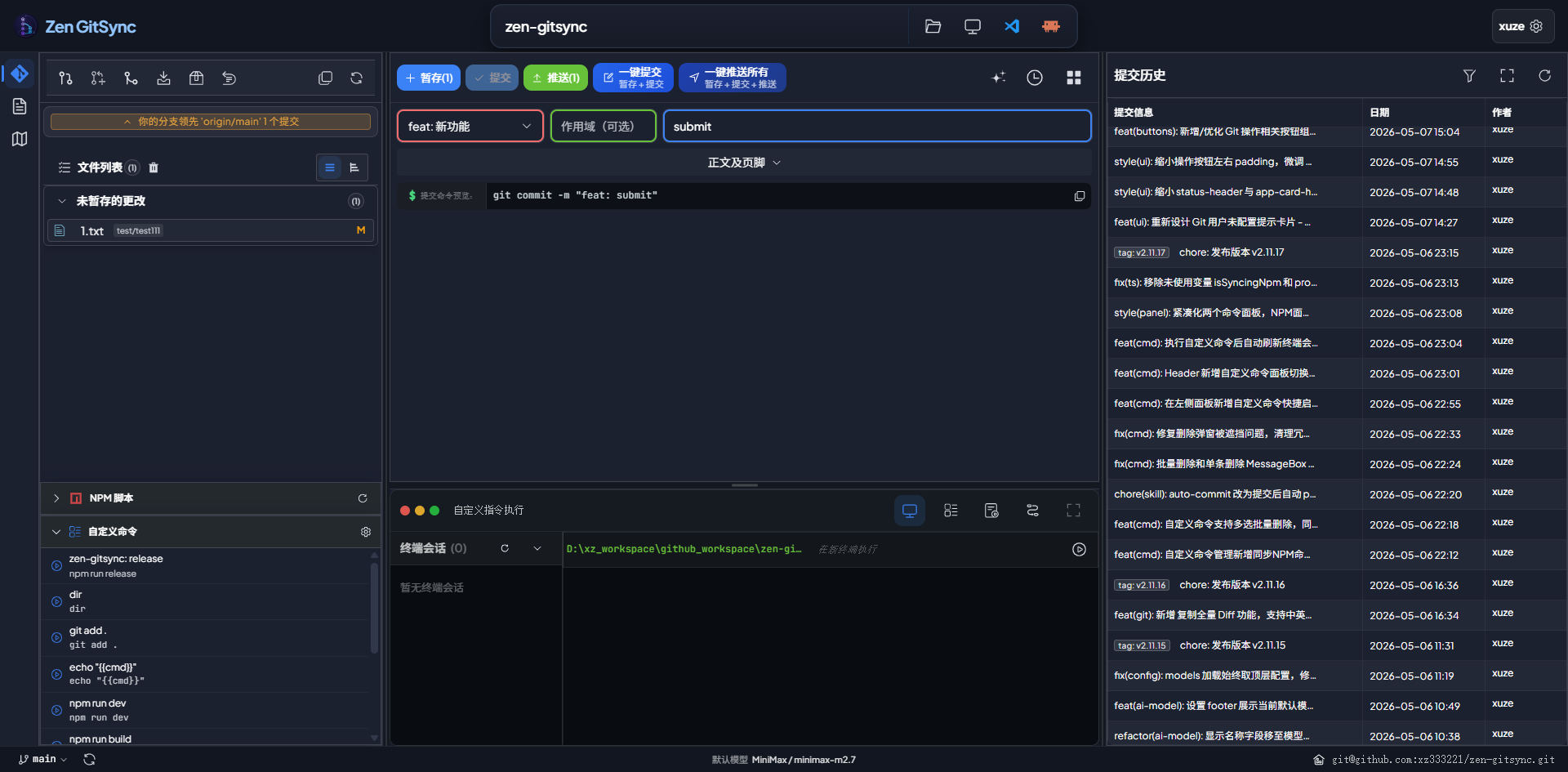
The GUI runs as a local web server and opens in your default browser. It attaches to the current Git repository automatically. The activity bar on the left switches between four views: Git, Editor, Source Map, and Workbench.
| Feature | Description |
|---|---|
| File list | Shows all changed files grouped by staged / unstaged / untracked / conflicted |
| View toggle | Switch between flat list and directory tree view (persisted) |
| Selection mode | Multi-select files to stage or stash only chosen files. When the Git view is the active tab, Quick Commit / Quick Push and AI commit message automatically scope their action to the current selection (button label switches to Commit Selected / Push Selected). |
| Per-file actions | Stage, unstage, or revert individual files |
| Stage | Stage all or selected files (respects locked files) |
| Commit | Structured form (type / scope / description / body / footer) or free-text |
| AI commit message | Generate commit message from staged diff using an AI model |
| Push | Push to remote with live progress modal |
| Quick commit+push | One-click stage → commit → push |
| Pull / Fetch | Pull from or fetch the upstream branch |
| Reset to remote | One-click git reset --hard origin/<branch>; auto-refreshes branch info first to avoid stale-branch targets; hidden when working tree is clean and no unpushed commits |
| Merge | Merge another branch; detects and surfaces in-progress merge state |
| Diff viewer | Monaco-based side-by-side diff for any changed file |
| Commit log | Browse commit history with author, date, branch tags, and changed files |
| Remote URL | Display and one-click copy the remote repository URL |
| Auto-refresh | Silently refreshes status and branch info when the window gains focus, the tab becomes visible, or you switch back to the Git view in the Activity Bar |
The commit form supports two modes toggled by a switch:
- Standard mode — separate fields for type (
feat/fix/docs/style/refactor/test/chore), scope, short description, body, and footer — produces a Conventional Commits message automatically - Free-text mode — single text area for any commit message
In either mode, click AI Generate to fill in the fields automatically based on the staged diff.
- View all local and remote branches
- Create a new branch from any base branch
- Switch branches
- Track upstream status (commits ahead / behind)
- Save stash with an optional message
- Optionally include untracked files
- Optionally exclude locked files from stash
- Apply, pop, or drop individual stash entries
- Create lightweight or annotated tags
- Target a specific commit
- List, push, or delete tags
Save reusable templates for:
- Type —
feat,fix,chore, … - Scope — component or module name
- Description — short summary
- Full message — complete commit message


Create, manage, and run shell commands from the sidebar:
- Define commands with a name, shell command, and working directory
- Add parameters with names, descriptions, and default values (referenced via
{{paramName}}) - Run a command instantly in a new terminal session
- Save command templates for quick reuse
Build automated pipelines with a drag-and-drop canvas:
| Node type | Purpose |
|---|---|
| Start | Entry point of the flow (one per flow, not deletable) |
| Command | Execute a saved custom command |
| Wait | Pause execution for 1–3600 seconds |
| Version | Bump package.json version (patch / minor / major) or modify a dependency |
- Nodes are executed in topological order
- Flows are saved and editable
- Each node can be individually enabled or disabled
- Automatically discovers all
package.jsonfiles in the project tree - Lists their
scriptsentries - Run any script with one click
- Configure the scan root and exclusion patterns per package
- Open new terminal sessions from within the GUI
- Commands stream output in real time (Server-Sent Events)
- Running processes are tracked and can be stopped individually
- Cross-platform: uses
cmd.exeon Windows,shon Unix
Configure commands or workflows to run automatically when a project is opened:
- Toggle auto-run on / off
- Drag to reorder startup items
- Mix custom commands and flow workflows in any order
A full IDE-like editor (second icon in the activity bar) for browsing and editing project files without leaving the tool:
| Feature | Description |
|---|---|
| File tree | Collapsible directory tree with file-type icons |
| File search | Type in the sidebar search box to filter the tree (180 ms debounce); matched substrings are highlighted in node names; Ctrl+F / Cmd+F focuses the box; Esc clears the query or blurs the input |
| Multi-tab editing | Open multiple files simultaneously; tabs show unsaved (●) indicator |
| Monaco editor | Syntax highlighting for JS, TS, Vue, Python, Go, JSON, CSS, and more |
| Markdown preview | Toggle between source and rendered preview for .md files |
| Save | Ctrl+S to save; optional auto-save on focus loss |
| Create | New file or folder inline in the file tree |
| Rename / Delete | Rename or delete any file or folder directly from the tree |
| Resizable sidebar | Drag the divider to adjust file tree width |
| Theme sync | Editor theme follows the global light / dark setting |
A dedicated view (third icon in the activity bar) that uses an AI model to build a visual dependency graph of your project:
| Feature | Description |
|---|---|
| File scanner | Recursively scans all source files and builds a file tree |
| AI analysis | Sends file contents to an OpenAI-compatible model to infer structure |
| Dependency graph | Interactive node-edge graph (drag, zoom, fit-view, minimap) |
| Subsystems | Automatically clusters files into color-coded subsystems |
| Node detail | Click a node to view its source code in a Monaco editor panel |
| Tech stack | Detects the language and frameworks in use |
| Entry point | Identifies the main entry file and function |
| Analysis log | Real-time progress log during scanning and analysis |
| Resizable panels | File tree, graph, and source panels are all independently resizable |
Configure the model endpoint, API key, and model name in Settings → AI.
A dedicated view (fourth icon in the activity bar) for batch-running Claude against your repo. Define a task, split it into ordered subtasks, attach a reusable prompt preset, then click Run task — each subtask launches in its own terminal window with claude --permission-mode bypassPermissions, so context never piles up.
| Feature | Description |
|---|---|
| Task list | Create, edit, delete tasks; each shows its subtask count; click the Simple / Complex badge on any task to flip its type in place (Complex → Simple with subtasks asks for confirmation and clears them; Simple → Complex is instant) |
| Top-bar type switch | A segmented control (Complex / Simple) lives in the task header, right next to Run task, so you can flip the current task's type without going back to the sidebar; the same confirmation rule (Complex → Simple with subtasks) applies |
| AI split (promoted) | The "AI split" action is now a dedicated accent button with a sparkle icon and a subtle pulse, sitting between the type switcher and the primary Run task button — it is always enabled for complex tasks with a non-empty title |
| Description collapsible by default | Selecting a task collapses the description + attachment area into a one-line summary "Task description (optional)" to free up vertical space; click the summary to expand. When the description is filled or attachments are present, an "Filled" badge and the attachment count appear on the right of the summary |
| Minimal task & chat layout | The task execution view is now stripped of redundant borders / shadows: a flatter sidebar, transparent title input and textarea, and a clean left/right execution body. Visual reference follows the Claude Code desktop app |
| Subtask breakdown | Add / edit / remove subtasks per task, with per-subtask status; the empty state ships a centered illustration card with a primary "Add subtask" CTA and a secondary "Split with AI" shortcut |
| Subtask attachments | Attach up to 9 files per subtask (image / PDF / text / Markdown / CSV / JSON / log, ≤ 5 MB each); their absolute paths are appended to the prompt so Claude reads them directly. Right-click an image attachment to copy it to the system clipboard (image/png / jpeg / webp / gif) |
| Prompt presets | Reusable prompt templates with {{task.title}} / {{task.desc}} / {{sub.title}} / {{sub.desc}} / {{repo.path}} / {{branch}} variable interpolation |
| AI prompt generation | "New / Edit preset" dialog has an AI Generate button — the server reads the current project tree (depth 2) + README + manifests (package.json / pyproject.toml / go.mod / Cargo.toml / …) and asks the configured LLM to draft a project-aware preset (name + body) |
| Per-subtask override | Override the preset's content for a specific subtask in its description field |
| Sequential execution | Runs subtasks in declared order; the next one starts only after the previous process exits |
| Pipe-mode launcher | Spawns claude -p "<prompt>" --output-format text --permission-mode bypassPermissions --dangerously-skip-permissions with stdout/stderr piped to the server — no external terminal window is opened, so output streams directly into the UI |
| Isolated windows | Every subtask runs as its own detached process with fresh context, so memory and conversation state never accumulate across subtasks |
| Live log | Each subtask has a "执行日志 / Execution log" panel that opens by default and auto-scrolls, showing accumulated stdout + stderr (capped at 256 KB server-side, last 64 KB rendered client-side) |
| Live status | Subtask status (todo / pending / running / done / error) and PID stream in real time over SSE |
| Running animation | Subtasks in running state get a breathing primary-color glow + a sliding progress bar on top of the card; the status badge uses a shimmer gradient with a pulsing white dot and outer halo, easing back to neutral on completion |
| Cross-view indicator | While any Workbench subtask is running, a pulsing dot appears on the Workbench icon in the Activity Bar so you can see job state from the Git or Editor view |
| Execution log manager (dialog) | The "Execution logs" button in the workbench top bar (replaces the previous standalone tab) opens a dialog with the list / filter / batch delete / clear / retention-policy UI; the task execution view stays mounted so no work-in-progress state is dropped |
| Continue chat (simple task) | After a simple task finishes (done / error / cancelled), the detail panel grows an Exit button and a follow-up composer; sending a follow-up message spawns claude --resume <session_id> -p <newPrompt> to continue the prior conversation, and each new turn appears as its own card stacked into a chat-style flow. The session_id is captured from claude's stream-json system.init event and persisted on the job |
Prompt presets and tasks are persisted to ~/.zen-gitsync/prompts.json and ~/.zen-gitsync/tasks.json (cross-project, shared across repos).
| Setting | Description |
|---|---|
| Git user | Set user.name and user.email |
| Default commit message | Fallback message when none is provided |
| Theme | Light / dark (follows system preference by default) |
| Language | Chinese / English |
| File locking | Lock files so they are never staged or stashed |
| NPM paths | Configure where to look for package.json files |
The footer version chip in the GUI checks npm for newer releases once per session. When an update is available, a Upgrade button appears next to the version; clicking it streams npm install -g zen-gitsync output into a modal dialog. On success, the dialog switches to a "Restart and reload now" CTA that calls POST /api/app-restart (which gracefully exits the Node process — your launcher / desktop shell brings it back up) and then reloads the browser tab so the new SPA bundle takes effect. The footer version also updates instantly to the new number so you can see the bump even before restarting.
On macOS / Linux, the global install is run under sudo -n (non-interactive); if sudo can't authenticate non-interactively, re-launch the GUI with admin rights and try again.
The repo ships a .gitattributes that locks source files to LF and Windows scripts (.bat / .cmd / .ps1) to CRLF. This takes precedence over core.autocrlf, so the working tree is identical on Windows, macOS, and Linux — generated files like auto-imports.d.ts and components.d.ts will not show up as "modified" just because the dev server rewrote them with different line endings.
If you change .gitattributes rules, renormalize the index in one shot:
git add --renormalize .$ g
Enter your commit message: fix login page style$ g -y$ g -m <message>
$ g -m=<message>$ g --set-default-message="update"$ g get-config$ g -h
$ g --help$ g -y --interval
$ g -y --interval=<seconds>$ g --path=<path>
$ g --cwd=<path>start /min cmd /k "g -y --path=<your-folder> --interval"start /min cmd /k "g --cmd=\"echo hello\" --cmd-interval=5" # every 5 seconds
start /min cmd /k "g --cmd=\"echo at-time\" --at=23:59" # once at 23:59
start /min cmd /k "g --cmd=\"echo daily\" --at=23:59 --daily" # daily at 23:59$ g --no-diff$ g log
$ g log --n=5# Lock a file (locked files are excluded from commits and stashes)
$ g --lock-file=config.json
# Unlock a file
$ g --unlock-file=config.json
# List all locked files
$ g --list-locked
# Check if a file is locked
$ g --check-lock=config.jsonzen-gitsync 是一个 Git 自动化工作平台,支持交互式提交、定时同步、自定义命令编排、文件锁定与可视化 GUI 界面。
通过 npm 全局安装:
npm install -g zen-gitsync- 可视化 GUI — 完整的 Git 图形操作界面
- 分支管理 — 创建、切换、追踪本地/远程分支
- Stash 管理 — 储藏与恢复变更,支持排除锁定文件
- Tag 管理 — 创建轻量/附注标签
- 合并支持 — 自动检测并引导完成进行中的合并
- 可视化流程编排 — 拖拽式工作流设计器
- NPM 脚本面板 — 发现并运行
package.json中的脚本 - 内置终端 — 实时流式输出的命令执行终端
- 自定义命令 — 保存、参数化并复用 Shell 命令
- 项目启动 — 打开项目时自动运行命令或工作流
- 内置代码编辑器 — 基于 Monaco 的文件编辑器,支持 Markdown 预览
- 源码地图 — AI 生成的交互式代码库依赖关系图
- 工作台 — 任务驱动的 Claude 执行视图:提示词预置、子任务拆分、独立 bypass-permissions 进程、stdout 实时回传、AI 自动生成预置提示词、子任务附件、任务字段自动保存、简单/复杂任务分类
- 重置到远程 — 在 Git 面板一键执行
git reset --hard origin/<branch>(点击前会先自动刷新分支信息,避免重置到陈旧分支) - AI 生成提交信息 — 基于 staged diff 自动生成提交消息
- 选择模式差异 — 当 Git 视图为当前激活标签时,AI 生成提交信息与一键提交/推送仅作用于当前勾选文件的 diff
- 提交模板 — 保存类型/范围/描述/完整提交信息模板
- 主题与语言 — 支持明/暗主题,中英文界面切换;header 一键切换主题(无需进入设置)
- 网络错误横幅 — 后端不可达时全局弹出横幅,支持一键重试与相对时间状态
- 可访问性(WCAG 2.1 AA) — 弹窗焦点陷阱与归还、
role="separator"键盘可达的分隔条、纯键盘(← → ↑ ↓)调整面板宽度、屏幕阅读器友好的提交右键菜单、ARIA-pressed 切换按钮、提交按钮在提交过程中挂aria-busy、Git 提交哈希在明/暗主题下对比度均 ≥ 4.5:1 - 更快的冷启动 —
monaco-editor/@vue-flow/flow-mindmap/dagre拆分为独立 chunk 并按需懒加载,Git 面板首屏不再等待代码编辑器或可视化流程编排模块
每个版本的详细变更日志(可访问性/性能修复、i18n 漏译、死代码清理等)见 CHANGELOG.md。
$ g ui
GUI 以本地 Web 服务器形式运行,自动在浏览器中打开,并附加到当前 Git 仓库。左侧 Activity Bar 可在四个视图之间切换:Git、编辑器、源码地图、工作台。
| 功能 | 说明 |
|---|---|
| 文件列表 | 按已暂存/未暂存/未追踪/冲突分组显示所有变更文件 |
| 视图切换 | 平铺列表与目录树形视图切换(持久化保存) |
| 选择模式 | 多选文件,仅对选中文件执行暂存或储藏。在 Git 视图下,一键提交 / 一键推送 与 AI 生成提交信息 会自动仅作用于当前勾选的文件(按钮文案切换为「一键提交所选」/「一键推送所选」) |
| 单文件操作 | 对每个文件独立执行暂存、取消暂存或还原 |
| 暂存 | 暂存全部或选中文件(自动排除锁定文件) |
| 提交 | 结构化表单(类型/范围/描述/正文/页脚)或自由文本 |
| AI 生成提交信息 | 基于 staged diff 自动生成提交消息 |
| 推送 | 推送到远程,实时显示进度弹窗 |
| 快速提交+推送 | 一键完成暂存 → 提交 → 推送 |
| 拉取 / Fetch | 从上游拉取或仅获取远程信息 |
| 重置到远程 | 一键执行 git reset --hard origin/<branch>;点击前会先刷新分支信息,避免重置到陈旧分支;当工作区干净且无未推送提交时按钮自动隐藏 |
| 合并 | 合并其他分支,自动检测并引导处理合并中间状态 |
| Diff 查看器 | 基于 Monaco 编辑器的并排文件差异视图 |
| 提交日志 | 浏览历史提交(作者、时间、分支标签、变更文件) |
| 远程地址 | 显示并一键复制远程仓库 URL |
| 自动刷新 | 窗口获得焦点、标签页重新可见,或从 Activity Bar 切回 Git 视图时,自动静默刷新文件状态与分支信息 |
提交表单支持通过开关切换两种模式:
- 标准模式 — 分别填写类型(
feat/fix/docs/style/refactor/test/chore)、范围、简短描述、正文和页脚,自动组合成符合 Conventional Commits 规范的提交信息 - 自由模式 — 单一文本框,输入任意提交信息
两种模式下均可点击 AI 生成 按钮,根据当前 staged diff 自动填充提交信息。
- 查看所有本地和远程分支
- 从任意基础分支创建新分支
- 切换分支
- 追踪上游状态(领先/落后提交数)
- 创建 stash,支持自定义备注
- 可选是否包含未追踪文件
- 可选排除已锁定的文件
- 应用(apply)、弹出(pop)或删除(drop)单条 stash
- 创建轻量标签或附注标签
- 可指定特定 commit
- 列出、推送或删除标签
为以下内容保存可复用模板:
- 类型 —
feat、fix、chore等 - 范围 — 组件或模块名
- 描述 — 简短说明
- 完整信息 — 完整提交消息
在侧边栏创建、管理并运行 Shell 命令:
- 定义命令(名称、Shell 命令、工作目录)
- 添加参数(名称、描述、默认值,通过
{{paramName}}引用) - 一键在新终端会话中执行命令
- 保存命令模板快速复用
通过拖拽画布构建自动化流程:
| 节点类型 | 用途 |
|---|---|
| 开始节点 | 流程入口(每个流程唯一,不可删除) |
| 命令节点 | 执行一个已保存的自定义命令 |
| 等待节点 | 暂停执行 1–3600 秒 |
| 版本节点 | 修改 package.json 版本号(patch/minor/major)或依赖版本 |
- 节点按拓扑顺序执行
- 流程可保存并二次编辑
- 每个节点可单独启用/禁用
- 自动扫描项目中所有
package.json文件 - 列出其中的
scripts条目 - 一键运行任意脚本
- 可配置扫描根路径和排除规则
- 在 GUI 内直接打开新的终端会话
- 命令输出实时流式显示(Server-Sent Events)
- 追踪运行中的进程,随时可以停止
- 跨平台:Windows 使用
cmd.exe,Unix 使用sh
配置在项目打开时自动执行的命令或工作流:
- 一键开启/关闭自动运行
- 拖拽调整启动项顺序
- 可混合使用自定义命令与流程工作流
Activity Bar 第二个视图,在 GUI 内直接浏览并编辑项目文件:
| 功能 | 说明 |
|---|---|
| 文件树 | 可折叠的目录树,附带文件类型图标 |
| 文件搜索 | 在侧边栏搜索框中输入关键字过滤文件树(180ms 防抖),命中片段会在节点名中高亮;Ctrl+F / Cmd+F 聚焦搜索框,Esc 清空内容或失焦 |
| 多标签页 | 同时打开多个文件,未保存文件显示 ● 标记 |
| Monaco 编辑器 | 支持 JS、TS、Vue、Python、Go、JSON、CSS 等语法高亮 |
| Markdown 预览 | .md 文件可切换源码与渲染预览模式 |
| 保存 | Ctrl+S 手动保存;可选失去焦点时自动保存 |
| 新建 | 在文件树中内联创建文件或文件夹 |
| 重命名 / 删除 | 在树中直接对文件或文件夹重命名、删除 |
| 侧边栏调整 | 拖拽分隔条自由调整文件树宽度 |
| 主题同步 | 编辑器主题跟随全局明/暗设置 |
Activity Bar 第三个视图,调用 AI 模型将项目代码库生成可交互的依赖关系图:
| 功能 | 说明 |
|---|---|
| 文件扫描 | 递归扫描所有源码文件并构建文件树 |
| AI 分析 | 将文件内容发送到 OpenAI 兼容接口,推断项目结构 |
| 依赖关系图 | 可拖拽、缩放、适配视图的节点边图(带缩略图导航) |
| 子系统聚类 | 自动将文件聚类为颜色区分的子系统 |
| 节点详情 | 点击节点在右侧 Monaco 面板中查看对应源码 |
| 技术栈检测 | 识别项目使用的语言和框架 |
| 入口点识别 | 标记主入口文件和入口函数 |
| 分析日志 | 扫描与分析过程实时输出进度日志 |
| 多面板布局 | 文件树、关系图、源码三个面板均可独立拖拽调整宽度 |
在 设置 → AI 中配置模型接口地址、API Key 和模型名称。
Activity Bar 第四个视图,用于在当前仓库上批量调度 Claude:定义任务、拆成有序子任务、绑定可复用的提示词预置,点 执行任务 后按顺序依次执行。
| 功能 | 说明 |
|---|---|
| 任务列表 | 新建、编辑、删除任务;每条任务显示子任务数量;点击徽标可在「简单(绿色)/ 复杂(紫色)」间即时切换,复杂→简单且带子任务时弹窗确认并清空子任务 |
| 顶部类型切换器 | 任务头部增加 segmented control(复杂 / 简单),无需回到左侧即可切换当前任务类型;切换逻辑与左侧徽标共享,复杂→简单且带子任务时同样弹窗确认 |
| AI 拆分(升级) | AI 拆分升级为带 sparkle 图标 + 轻微 pulse 动效的 accent 按钮,位置紧贴主「执行任务」按钮;只要标题非空,复杂任务下始终可点 |
| 任务描述默认折叠 | 选中任务后默认仅显示一行「任务描述(可选)」摘要,节省首屏纵向空间;点击 summary 展开后即可看到描述输入框和附件区;已填写描述或挂有附件时摘要右侧会出现「已填写」徽标和附件数量 |
| 极简任务 / 对话样式 | 任务执行视图整体极简化:减少冗余边框与阴影、标题 / 描述输入框透明化、执行主体左右两段式分列;视觉参考 Claude Code 桌面版 |
| 执行中状态点 pill | 任务行 / 详情区 pill 退化为 8px 彩色圆点(无文字),running 时由外层行边框跑马灯 + 圆点呼吸两层动效传达"进行中",避免文字 pill 与动效叠加产生视觉歧义 |
| 任务字段自动保存 | 标题 / 描述 / 预置提示词 / 简单任务覆盖 改动后 1.5s 防抖落盘,标题右侧显示「保存中 / 已保存 / 有未保存的更改」状态徽标;切换任务或关页面前自动 flush(含 navigator.sendBeacon 兜底) |
| 简单任务 | 新建任务时选「简单(直接执行)」即跳过子任务拆分;执行时把 task.desc 拼成单 sub 走 /tasks/:id/run-simple;可填「覆盖预置提示词」独立覆写预置模板;主任务附件 + 描述 + 覆盖三者合并驱动 Claude;运行中详情区状态条末尾带「停止」按钮(带二次确认),与复杂任务子任务停止按钮对齐 |
| 子任务拆分 | 增删改子任务,实时显示每个子任务的执行状态;空态提供居中插画卡片、主 CTA「添加子任务」与「用 AI 自动拆分」次级入口(仅复杂任务显示) |
| 子任务附件 | 每个子任务最多挂 9 个附件(图片 / PDF / 文本 / Markdown / CSV / JSON / log,单个 ≤ 5 MB);同 originalName + size 已存在则直接复用,跳过重复上传;执行时绝对路径会自动追加到 prompt 末尾,Claude 直接按路径读取。右键图片附件可一键复制到系统剪贴板(支持 png / jpeg / webp / gif) |
| 提示词预置 | 可复用提示词模板,支持 {{task.title}} / {{task.desc}} / {{sub.title}} / {{sub.desc}} / {{repo.path}} / {{branch}} 变量插值 |
| AI 生成预置 | 「新建 / 编辑预置」对话框内置 AI 生成项目架构说明 按钮 + 编辑指令 按钮:服务端递归识别当前项目里的所有子项目(含 .git 或 9 种 manifest 之一的目录),为每个子项目独立读取关键文件(manifest 20 KB / README 8 KB / 2 层目录树),并发调 LLM 产出各子项目架构说明,多子项目场景再合并成一份整体说明;用户可点「编辑指令」自定义生成策略(持久化到 ~/.zen-gitsync/ai-instruction.json);max_tokens=4000,单次请求最多 20 分钟 |
| 子任务覆盖 | 在子任务描述框可独立覆盖预置提示词的内容 |
| 顺序执行 | 按声明顺序依次执行子任务;上一个进程退出后才启动下一个 |
| 管道模式启动 | 直接以 claude -p "<prompt>" --output-format text --permission-mode bypassPermissions --dangerously-skip-permissions 拉起进程,stdout / stderr 通过管道回传服务端,不再弹外部终端窗口 |
| 独立上下文 | 每个子任务都是独立的 detached 进程,上下文与状态不会跨子任务累积 |
| 实时日志 | 子任务的「执行日志」面板默认展开(不再仅在运行中展开),方便随时回看上次执行结果;面板内自动滚到底,展示累积的 stdout / stderr(服务端缓存 256 KB,客户端渲染最近 64 KB) |
| 实时状态 | 子任务状态(todo / pending / running / done / error)和 PID 通过 SSE 实时推送 |
| 执行中动效 | 状态为 running 的子任务卡片整体呈现蓝色呼吸光晕 + 顶部流动进度光带;状态徽章为渐变 shimmer + 脉冲白点 + 外发光,停下后平滑恢复 |
| 跨视图指示 | 任意子任务运行中时,Activity Bar 上的工作台图标会显示脉动小圆点;切换到 Git 或编辑器视图也能看到运行状态 |
| 执行日志管理(弹窗) | 顶部「执行日志」按钮(替代原独立 tab)唤起弹窗:列表 / 过滤 / 批量删除 / 清空 / 保留策略全部可在此一次性管理;弹窗关闭后任务执行视图常驻,避免切换时不必要的卸载 |
| 简单任务继续对话 | 简单任务执行完(done / error / cancelled)后,详情区底部出现「退出」按钮和续聊输入框;点退出走 clearJobsByTask 一键清空整段对话回到 idle;输入续聊消息发送则后端用 claude --resume <session_id> -p <newPrompt> 续接历史会话,新一轮 = 新 job(subId 形如 __simple__r${n}),多轮纵向堆叠成对话流。session_id 在 stream-json 的首条 system.init 事件里捕获并持久化到 job |
提示词预置与任务数据持久化到 ~/.zen-gitsync/prompts.json 和 ~/.zen-gitsync/tasks.json(跨项目共享)。子任务附件落盘在 ~/.zen-gitsync/workbench-images/<subId>/。
| 设置项 | 说明 |
|---|---|
| Git 用户信息 | 设置 user.name 和 user.email |
| 默认提交信息 | 未填写时的回退提交消息 |
| 主题 | 明亮/暗黑模式(默认跟随系统) |
| 语言 | 中文 / English |
| 文件锁定 | 锁定文件,使其永远不被暂存或储藏 |
| NPM 路径 | 配置 package.json 的扫描位置 |
GUI 底栏版本号每个会话会向 npm 查询一次最新版本。检测到更新时版本旁会出现 升级 按钮,点击后在弹窗里实时回传 npm install -g zen-gitsync 的输出;升级成功后弹窗会切换为「立即重启并刷新」主 CTA,调用 POST /api/app-restart 让 Node 进程优雅退出(外层 launcher / desktop 壳会自动拉起新版本),再 reload 当前 tab 让新 SPA 资源生效。同时底栏版本号会立刻刷新到新版本号,重启前就能看到。
macOS / Linux 上全局安装需要 sudo,前端会用
sudo -n非交互式尝试;如非免密 sudo,请以管理员权限重启 GUI 后再试。
仓库根的 .gitattributes 把所有源代码锁定为 LF(.ts .js .vue .json .md 等),Windows 脚本锁定为 CRLF(.bat / .cmd / .ps1)。.gitattributes 的优先级高于 core.autocrlf,所以无论本地 git 怎么配,签出与提交的行尾都一致;dev server 重新生成的 auto-imports.d.ts、components.d.ts 不会再因为行尾不一致而显示为"内容相同的 modified"。
如果你修改了 .gitattributes 的规则,需要一次性重新归一索引:
git add --renormalize .$ g
请输入你的提交信息: 修复了登录页样式问题$ g -y$ g -m <message>
$ g -m=<message>$ g --set-default-message="提交"$ g get-config$ g -h
$ g --help$ g -y --interval
$ g -y --interval=<seconds>$ g --path=<path>
$ g --cwd=<path>start /min cmd /k "g -y --path=你要同步的文件夹 --interval"start /min cmd /k "g --cmd=\"echo hello\" --cmd-interval=5" # 每5秒执行一次
start /min cmd /k "g --cmd=\"echo at-time\" --at=23:59" # 在23:59执行一次
start /min cmd /k "g --cmd=\"echo daily\" --at=23:59 --daily" # 每天23:59执行一次$ g --no-diff$ g log
$ g log --n=5# 锁定文件(锁定后的文件不会被暂存或储藏)
$ g --lock-file=config.json
# 解锁文件
$ g --unlock-file=config.json
# 查看所有锁定的文件
$ g --list-locked
# 检查文件是否被锁定
$ g --check-lock=config.json