Project Cockpit
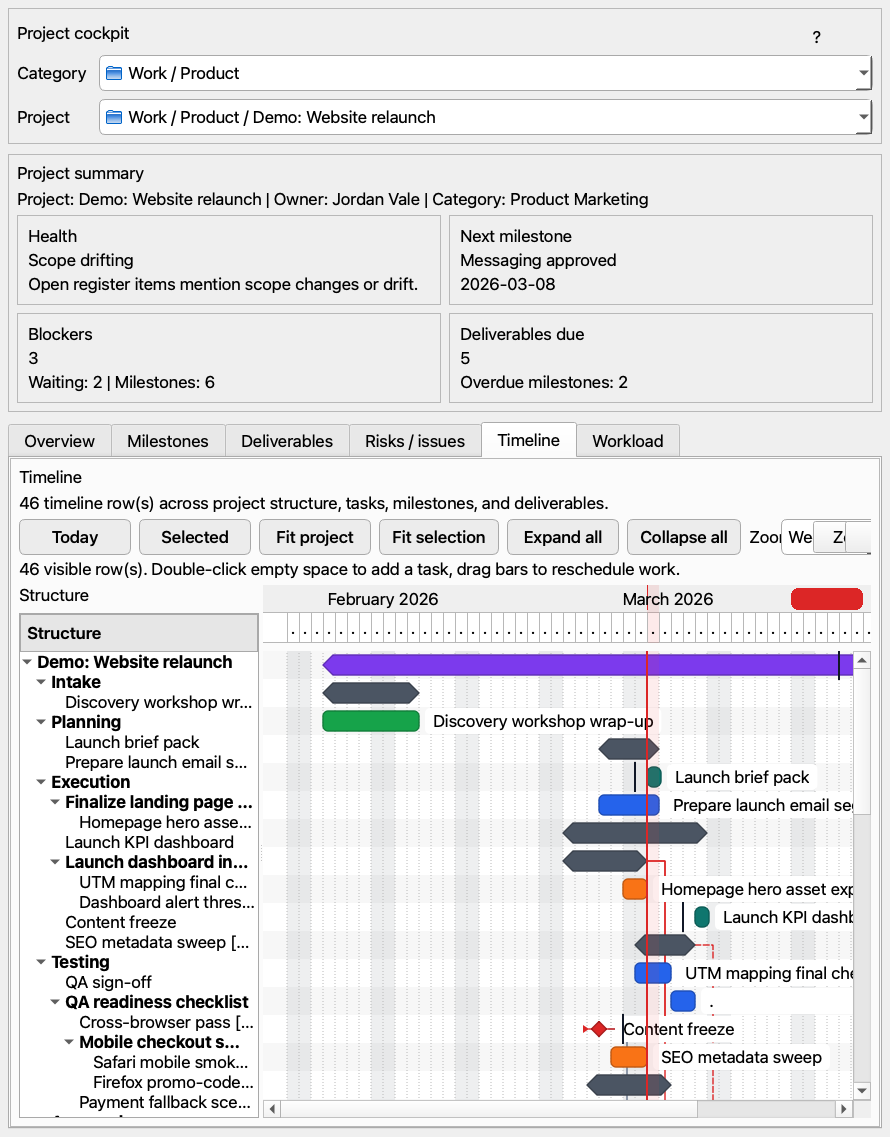
The Project cockpit turns a selected top-level task into a structured local project workspace.
Use the Project cockpit when a task becomes a real project with:
- Multiple phases
- Milestones or deliverables
- Dependencies
- Target dates and baseline tracking
- Risks, issues, or assumptions worth tracking explicitly
The cockpit stores more than task metadata. It can hold:
- Objective
- Scope and out-of-scope statements
- Owner and stakeholders
- Target date
- Success criteria
- Background / summary
- Category
- Health override
Phases provide project lifecycle structure. Typical use:
- Intake
- Planning
- Execution
- Testing
- Approval
- Closure
Tasks can be assigned to phases so cockpit filtering and timeline interpretation stay clear.
Gridoryn keeps milestones and deliverables distinct from generic tasks.
Milestones track:
- Title and description
- Target date and baseline date
- Completion state
- Linked task
- Phase
- Dependencies
Deliverables track:
- Due date
- Acceptance criteria
- Linked work
- Version or reference text
The cockpit includes structured registers for:
- Risks
- Issues
- Assumptions
- Decisions
This keeps planning detail queryable and reviewable instead of hiding it inside notes.
The timeline is a major part of the cockpit, not a decorative chart.
Capabilities include:
- Hierarchy tree on the left and time canvas on the right
- Day, week, and month zoom levels
- Today marker and selection controls
- Horizontal drag to reschedule work
- Edge resize to adjust task start and due dates
- Double-click empty chart space to create a task at that date
- Context menu actions for new tasks, child tasks, milestones, deliverables, dependencies, archive, delete, and navigation
- Selection synchronization back into the task tree, details panel, and relationship inspector
Keyboard support includes chart zoom and day-based timeline nudging.
The app derives project signals from child work and schedule state, including:
- Health warnings
- Blocked state
- Stalled state
- No-next-action warnings
- Child progress rollups
- Workload pressure
These signals appear beyond the cockpit too, including the main task list and related context surfaces.
- Promote or select a top-level project task
- Fill in project definition fields
- Create phases
- Add milestones and deliverables
- Build the schedule in the timeline
- Track risks and issues during execution
- Use the summary sheet and timeline export for reporting