Key bindings
HTML Designer contains a dynamic key binding system.
Events in the editor can be bound and customised at will, and the custom key configurations are stored within the [config registry].
| Target | Mac | Windows | Linux |
|---|---|---|---|
| EDITOR_REQUEST_CLOSE | Meta+W | Ctrl+W | Ctrl+W |
| EDITOR_NEXT | Alt+Tab | Alt+Tab | Alt+Tab |
| EDITOR_PREVIOUS | Alt+Shift+Tab | Alt+Shift+Tab | Alt+Shift+Tab |
| EDITOR_TOGGLE_DIRECT | Meta+E | Ctrl+E | Ctrl+E |
| Menu > HTML Designer > Run a Task... | Meta+Shift+A | Ctrl+Shift+A | Ctrl+Shift+A |
| Menu > HTML Designer > Soft Restart... | Meta+Shift+R | Ctrl+Shift+R | Ctrl+Shift+R |
| Menu > HTML Designer > Registry... | Meta+. | Ctrl+. | Ctrl+. |
| Menu > HTML Designer > Exit | Meta+Esc | Ctrl+Esc | Ctrl+Esc |
| Menu > Tools > Live Server > Enable debug server | Meta+R | Ctrl+R | Ctrl+R |
| Menu > View > Show bottom dock | Meta+B | Ctrl+B | Ctrl+B |
| Menu > Project > Open in Finder | Meta+Alt+O | Ctrl+Alt+O | Ctrl+Alt+O |
| Menu > Project > Close Project | Meta+Alt+W | Ctrl+Alt+W | Ctrl+Alt+W |
| Menu > Project > Registry... | Meta+Alt+. | Ctrl+Alt+. | Ctrl+Alt+. |
| Menu > Editor > Undo | Meta+Z | Ctrl+Z | Ctrl+Z |
| Menu > Editor > Redo | Meta+Shift+Z | Ctrl+Y | Ctrl+Y |
| Menu > Editor > Save | Meta+S | Ctrl+S | Ctrl+S |
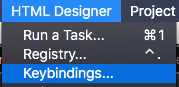
Key bindings can be customised and edited via the option in the menu bar.
The dialog displays all key bindings currently saved in your config. It allows you to edit the entries, and create new ones.
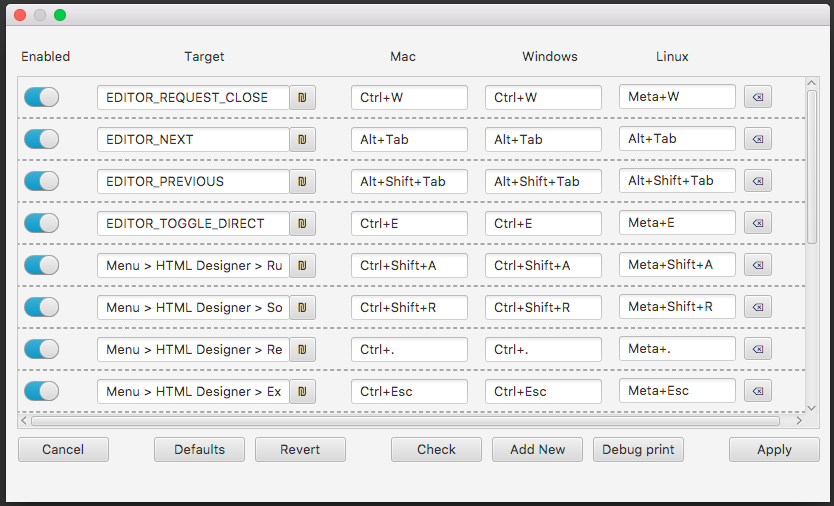
The buttons at the bottom have tooltips, in case they're confusing.
Let's say you want to bind to a menu item. Open the dialog and click Add New. You'll see a new blank entry at the top of the list.

The toggle switch on the left will disable the key binding, if you so wish.
Target could be entered manually, but if you're not a wizard that already knows what to type then the button to the right of the field will open a second dialog where you can choose the target.
In this case, our target is a menu item. The dialog presents a copy of the menu bar, were you can select the item you want to bind to. Select it, and click OK.
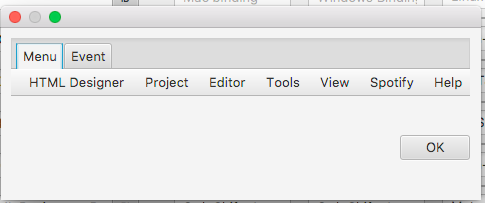
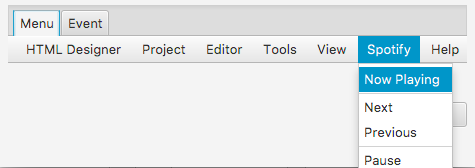
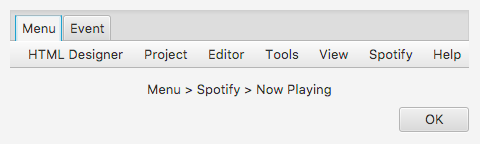
The option you chose will show in the target box.

The key binding can be typed into the other boxes on the right. The First box, for Mac OS, is required & is used as the default value if other values aren't provided.
If your input is invalid, you'll be notified when the text box loses focus.
Once you're happy, click Apply to save and close the dialog.
If there's a problem with the configuration, the dialog will refuse to apply. But don't worry, if you fuck up the configuration too much you can revert to your previous configuration or revert to Defaults to restore the configuration to factory.
Within the configuration, the key bindings are stored in text in the following format :
[TARGET],[MAC],[WINDOWS],[LINUX];
For example :
EDITOR_NEXT,Alt+Tab,Alt+Tab,Alt+Tabs;
EDITOR_REQUEST_CLOSE,Meta+W,Ctrl+W,Ctrl+W;
Menu > HTML Designer > Run a Task...,Meta+Shift+A,Ctrl+Shift+A,Ctrl+Shift+A;
Target is the destination trigger of the key combination. This system supports either a menu item or a key event (see below).
For menu items, the target is specified as a path traversing the menu bar by text. The path starts with 'Menu > ', followed by the text found within the menu, submenu's and the target item, with each sub menu separated with '>'.
For example :
Menu > Editor > Save, and Menu > HTML Designer > Debug > IDE > Throw and exception.
Menu item key bindings are assigned into JavaFX as accellerators through MenuItem.accellerator. This causes the key binding to be displayed on the MenuBar, and provides user feedback when pressed if supported.
For global events triggered by key bindings, the name of the enumerated event is the target.
For example :
EDITOR_REQUEST_CLOSE, or EDITOR_NEXT
Users of different platforms will expect different key combinations, so this standard accepts different combinations for Mac OS, Linux, and Windows. The IDE will determine which to use when loading the configuration.
Some key bindings may not be desired to be a menu bar item, and for these cases an event system is implemented.
The KeyBindings file contains an enumeration of events, which can be triggered on a key binding. Systems within the IDE can listen for these events to trigger an action.
For example, the EditorManager uses CMD+TAB to switch to the next editor. To do so, it enumerates an event, EDITOR_NEXT, then binds that event to the binding in the config
EDITOR_NEXT,Alt+Tab,Alt+Tab,Alt+Tab;
Then, to trigger the editor switching the EditorManager binds to the event
bindKey(KeyBindings.KeyEvent.EDITOR_NEXT) { nextEditor() }These key bindings are assigned into JavaFX as accelerators through the main scene.
To summarise, to create a global key event :
- Create an enumeration in the KeyBindings
- Create a key binding that will trigger it in the Config
- Bind your code to the event in your system.
Objects within the editor may bind to key events at anytime after boot, such as an Editor when it is created.
However, there are many static systems in the IDE that may want key bindings too. These static systems are only created once so initialisers cannot be used to bind to key configure bindings the bindings will not be re-configured if the IDE is soft restarted.
// i.e this is bad
init {
    bindKey(...) {...}
}
To solve this issue, use the KeybindingListener interface on static systems (object classes) that use key event bindings.
object EditorManager : KeybindingListener {

    override fun bindKeybindings() {
        bindKey(KeyBindings.KeyEvent.EDITOR_REQUEST_CLOSE) { activeEditor()?.requestClose() }
        ...
    }

  ...
}