Standalone Edit Mode
Standalone edit mode is a method of editing elements on your web page by themselves, where only the selected element is visible.
This is useful when you want to focus on a single element, and not be distracted by the rest of the page.
Within the Tag Hierarchy, right-click on the element you want to edit, and select Edit alone.

You'll notice the editor change.
When the editor is in stand alone edit mode, the editor's view will show only a a single color, with your item in the centre.
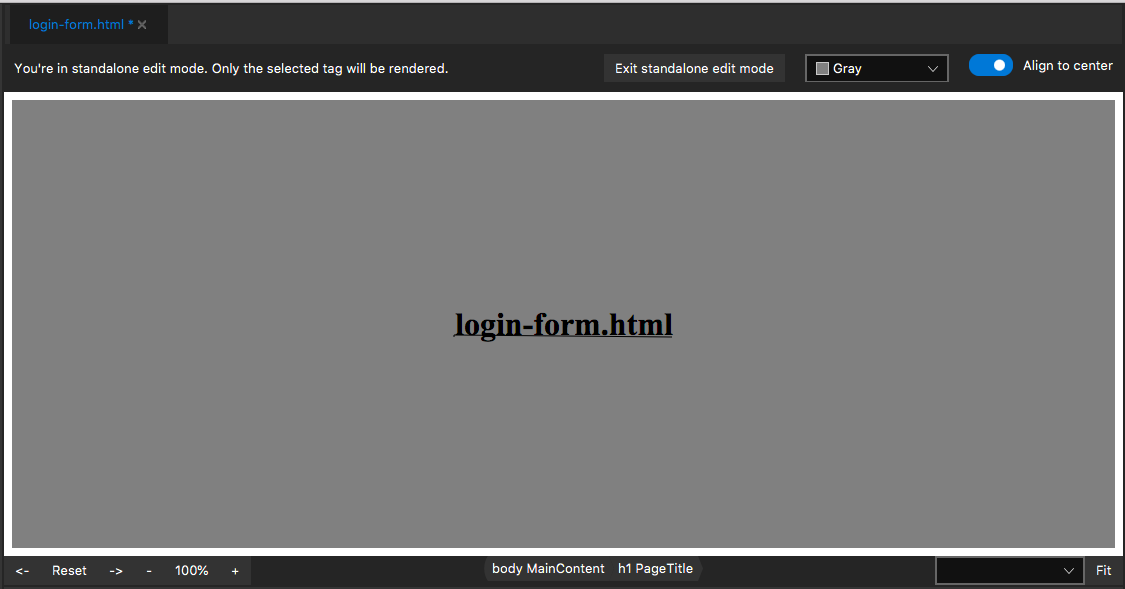
At the top, a few extra controls appear:
-
Color picker - This color picker will change the color of the editor's background. Note that this does not effect your document, rather it's for creating a higher contrast to make your element easier to view.
-
Align to Center- When toggled, your element will be centered in the editor, regardless of rules governing the element's position on screen. When untoggled, your element will be free to be aligned within the editor in conforming with it's layout options. -
Exit standalone edit mode- This will exit standalone edit mode, and return you to the normal editor view. The mode does not exit automatically.
Note that the stand-alone edit mode shows not just the element that you right-clicked, but the element that is currently selected. This means that you can click other elements whilst this mode is active, and they will then appear in the view instead.