Container widgets
The scroll view of the FScrollView class allows users to view content
that is larger than the visible area. The FScrollView widget displays
the horizontal and vertical scroll bar by default, only if the content size
requires it. You can controll this behavior by the two methods
setHorizontalScrollBarMode() and setVerticalScrollBarMode().
setHorizontalScrollBarMode (finalcut::ScrollBarMode);
setVerticalScrollBarMode (finalcut::ScrollBarMode);
You pass the scroll bar visibility mode as a value of the enum type
finalcut::ScrollBarMode.
enum class ScrollBarMode
{
  Auto   = 0,  // Shows a scroll bar when area is larger than viewport
  Hidden = 1,  // Never shows a scroll bar
  Scroll = 2   // Always shows a scroll bar
};
You can add widgets to an FScrollView object as child objects and place
them (with a widget positioning method) on the scrollable area. If a client
widget gets the focus, it automatically scrolls the viewport to the focused
widget. You can use the methods scrollTo(), scrollToX(), scrollToY()
and scrollBy() to set the scroll position of the viewport directly.
The FButtonGroup widget uses FScrollView to display more buttons
in the frame than the height allows.
File: scrollview.cpp
#include <utility>
#include <final/final.h>

using namespace finalcut;

class dialogWidget : public FDialog
{
  public:
    explicit dialogWidget (FWidget* parent = nullptr)
      : FDialog{parent}
    {
      scrollview.setGeometry(FPoint{1, 1}, FSize{22, 11});
      scrollview.setScrollSize(FSize{60, 27});
      // Attention: getColorTheme() requires an initialized terminal
      const auto& wc = getColorTheme();
      setColor (wc->label.inactive_fg, wc->dialog.bg);
      scrollview.clearArea();
      FColorPair red (FColor::LightRed, wc->dialog.bg);
      FColorPair black (FColor::Black, wc->dialog.bg);
      FColorPair cyan (FColor::Cyan, wc->dialog.bg);

      static std::vector<direction> d
      {
        {"NW", FPoint{3,  13}, FPoint{1,  1},  black},
        {"N",  FPoint{10, 13}, FPoint{21, 1},  red},
        {"NE", FPoint{17, 13}, FPoint{41, 1},  black},
        {"W",  FPoint{3,  15}, FPoint{1,  10}, black},
        {"*",  FPoint{10, 15}, FPoint{21, 10}, black},
        {"E",  FPoint{17, 15}, FPoint{41, 10}, black},
        {"SW", FPoint{3,  17}, FPoint{1,  19}, black},
        {"S",  FPoint{10, 17}, FPoint{21, 19}, cyan},
        {"SE", FPoint{17, 17}, FPoint{41, 19}, black}
      };

      for (auto&& b : d)
      {
        scrollview.print() << std::get<2>(b) + FPoint{10, 5}
                           << std::get<3>(b) << std::get<0>(b);
        auto edit = new FLineEdit("direction " + std::get<0>(b), &scrollview);
        edit->setGeometry(std::get<2>(b) + FPoint{1, 1}, FSize{17, 1});
        auto btn = new FButton(std::move(std::get<0>(b)), this);
        btn->setGeometry(std::get<1>(b), FSize{4, 1});
        btn->unsetShadow();
        btn->addCallback
        (
          "clicked",
          this, &dialogWidget::cb_button, std::get<2>(b)
        );
      }
    }

  private:
    typedef std::tuple<FString, FPoint, FPoint, FColorPair> direction;

    void initLayout()
    {
      setText ("Dialog");
      setGeometry (FPoint{28, 2}, FSize{24, 21});
      FDialog::initLayout();
    }

    void cb_button (const FPoint& p)
    {
      scrollview.scrollTo(p);
    }

    FScrollView scrollview{this};
};

auto main (int argc, char* argv[]) -> int
{
  FApplication app(argc, argv);
  app.initTerminal();  // Terminal initialization
  dialogWidget dialog(&app);
  FWidget::setMainWidget(&dialog);
  dialog.show();
  return app.exec();
}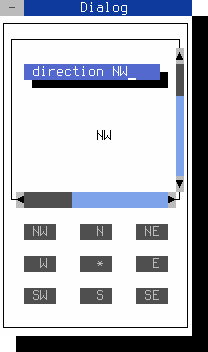
Figure 15. Dialog with a scrolling viewport
Note
You can close the dialog with the mouse, Shift+F10 or Ctrl+^
After entering the source code in scrollview.cpp you can compile the above program with gcc:
g++ scrollview.cpp -o scrollview -O2 -lfinal -std=c++14