Event Processing
Calling FApplication::exec() starts the FINAL CUT main event loop.
While the event loop is running, the system checks all the time whether
an event has occurred and sends it to the application's currently focused
object. The events of the terminal, such as keystrokes, mouse actions, or
terminal size changing, are translated into FEvent objects, and are sent to
the active FObject. It is also possible to use FApplication::sendEvent()
or FApplication::queueEvent() to send a specific event to an object.
FObject-derived objects process incoming events by reimplementing the
virtual method event(). The FObject itself can only call its own events
onTimer() and onUserEvent() and ignores all other events. The
FObject-derived class FWidget also reimplements the event() method
to handle further events. FWidget calls the FWidget::onKeyPress method
when you press a key, or the FWidget::onMouseDown method when you click
a mouse button.
An event in FINAL CUT is an object that inherits from the base class
FEvent. There are several event types, represented by an enum value.
For example, the method FEvent::type() returns the type
Event::MouseDown when you press down a mouse button.
Some event types have data that cannot be stored in an FEvent object.
For example, a click event of the mouse requires to store which button was
triggered and the position of the mouse pointer at that time. In classes
derived from FEvent, such as FMouseEvent(), we store this data.
Widgets get their events from the event() method inherited from FObject.
The implementation of event() in FWidget forwards the most common event
types to specific event handlers such as FMouseEvent(), FKeyEvent() or
FResizeEvent(). There are many other event types. You can create your own
event types and send them to other objects and widgets.
enum class Event
{
  None,              // invalid event
  KeyPress,          // key pressed
  KeyUp,             // key released
  KeyDown,           // key pressed
  MouseDown,         // mouse button pressed
  MouseUp,           // mouse button released
  MouseDoubleClick,  // mouse button double click
  MouseWheel,        // mouse wheel rolled
  MouseMove,         // mouse move
  FocusIn,           // focus in
  FocusOut,          // focus out
  ChildFocusIn,      // child focus in
  ChildFocusOut,     // child focus out
  FailAtChildFocus,  // No further focusable child widgets
  TerminalFocusIn,   // terminal focus in
  TerminalFocusOut,  // terminal focus out
  WindowActive,      // activate window
  WindowInactive,    // deactivate window
  WindowRaised,      // raise window
  WindowLowered,     // lower window
  Accelerator,       // keyboard accelerator
  Resize,            // terminal resize
  Show,              // widget is shown
  Hide,              // widget is hidden
  Close,             // widget close
  Timer,             // timer event occur
  User               // user defined event
};The following example starts a periodic timer that triggers an FTimerEvent()
every 100 ms. The virtual method onTimer() is then called each time in the
same dialog object.
File: timer.cpp
#include <final/final.h>

using namespace finalcut;

class dialogWidget : public FDialog
{
  public:
    explicit dialogWidget (FWidget* parent = nullptr)
      : FDialog{parent}
    {
      label.setAlignment (Align::Right);
      id = addTimer(100);
    }

  private:
    void initLayout()
    {
      setText ("Dialog");
      setGeometry (FPoint{25, 5}, FSize{23, 4});
      label.setGeometry (FPoint{1, 1}, FSize{10, 1});
      value.setGeometry (FPoint{11, 1}, FSize{10, 1});
      FDialog::initLayout();
    }

    void onTimer (FTimerEvent* ev) override
    {
      if ( id == ev->getTimerId() && n < 9999999999 )
      {
        value.setNumber(n);
        value.redraw();
        n++;
      }
    }

    FLabel label{"Counter: ", this};
    FLabel value{"0", this};
    long n{0};
    int id{0};
};

auto main (int argc, char* argv[]) -> int
{
  FApplication app(argc, argv);
  dialogWidget dialog(&app);
  FWidget::setMainWidget(&dialog);
  dialog.show();
  return app.exec();
}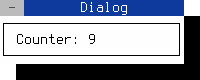
Figure 5. FObject::onTimer event handler
Note
You can close the dialog with the mouse, Shift+F10 or Ctrl+^
After entering the source code in timer.cpp you can compile the above program with gcc:
g++ timer.cpp -o timer -O2 -lfinal -std=c++14You can use the FUserEvent() to create a individual event and send it to a
specific object. If you want to create more than one user event, you can
specify an identification number (0 in the example below) to identify the
different events. Afterwards this number can be retrieved with getUserId().
User events should be generated in the main event loop. For this purpose,
the class FApplication provides the virtual method
processExternalUserEvent(). This method can be overwritten in a derived
class and filled with user code.
The following example reads the average system load and creates a user event
when a value changes. This event sends the current values to an FLabel
widget and displays them in the terminal.
File: user-event.cpp
#include <stdlib.h>
#include <final/final.h>
#define _BSD_SOURCE 1
#define _DEFAULT_SOURCE 1

using LoadAvg = double[3];
using namespace finalcut;

class extendedApplication : public FApplication
{
  public:
    extendedApplication (const int& argc, char* argv[])
      : FApplication(argc, argv)
    { }

  private:
    void processExternalUserEvent() override
    {
      if ( getMainWidget() )
      {
        if ( getloadavg(load_avg, 3) < 0 )
          FApplication::getLog()->error("Can't get load average values");

        if ( last_avg[0] != load_avg[0]
          || last_avg[1] != load_avg[1]
          || last_avg[2] != load_avg[2] )
        {
          FUserEvent user_event(Event::User, 0);
          user_event.setData (load_avg);
          FApplication::sendEvent (getMainWidget(), &user_event);
        }

        for (std::size_t i = 0; i < 3; i++)
          last_avg[i] = load_avg[i];
      }
    }

    // Data member
    LoadAvg load_avg{}, last_avg{};
};


class dialogWidget final : public FDialog
{
  public:
    explicit dialogWidget (FWidget* parent = nullptr)
      : FDialog{"User event", parent}
    { }

  private:
    void initLayout()
    {
      FDialog::setGeometry (FPoint{25, 5}, FSize{40, 6});
      loadavg_label.setGeometry (FPoint{2, 2}, FSize{36, 1});
      FDialog::initLayout();
    }

    void onUserEvent (FUserEvent* ev) override
    {
      const auto& lavg = ev->getData<LoadAvg>();
      std::setlocale(LC_NUMERIC, "C");
      loadavg_label.clear();
      loadavg_label << "Load average: " << lavg[0] << ", "
                                        << lavg[1] << ", "
                                        << lavg[2] << " ";
      loadavg_label.redraw();
    }

    FLabel loadavg_label{this};
};

auto main (int argc, char* argv[]) -> int
{
  extendedApplication app(argc, argv);
  dialogWidget dialog(&app);
  FWidget::setMainWidget(&dialog);
  dialog.show();
  return app.exec();
}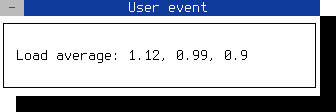
Figure 6. User event generation
Note
You can close the dialog with the mouse, Shift+F10 or Ctrl+^
After entering the source code in user-event.cpp you can compile the above program with gcc:
g++ user-event.cpp -o user-event -O2 -lfinal -std=c++14