Widget Layout
The positioning of a widget in the terminal works via a coordinate
system. It consists of x characters in the horizontal and y
characters in the vertical. The upper left corner has the coordinates
(1, 1). With the commands getDesktopWidth() and getDesktopHeight(),
the width and height of the terminal get retrieved. These two values
result in the position of the lower right terminal corner. The position
of a widget is retrievable with getX(), getY(), and getPos() or
is definable with setX(), setY(), and setPos(). The data type for
each coordinate is an int. All positions represent an FPoint
object. The positioning of the widget is always relative to its parent
widget. The top parent widget in a chain of children contains the
terminal desktop. There the absolute terminal positions are still
identical to the relative positions (getPos() = getTermPos()). In
the case of a child widget, the positioning is corresponding to the
upper left corner of the parent widget plus a possible padding space
(can be determined with getLeftPadding() and getTopPadding()).
If you want to ignore padding spaces, you have to force this with the
ignorePadding() method.

Figure 11. Widget coordinates
int              getX() const;
int              getY() const;
const FPoint     getPos() const;
int              getTermX() const;
int              getTermY() const;
const FPoint     getTermPos() const;
virtual void     setX (int x, bool adjust = true);
virtual void     setY (int y, bool adjust = true);
virtual void     setPos (const FPoint& p, bool adjust = true);
If you set the value of adjust to false when calling setX(),
setY(), or setPos(), this will prevent the explicit call of
adjustSize() afterward. This is important to avoid adjustSize()
loops or to block the adjustSize() call from being repeated
unnecessarily often.
The dimensions of a widget can be retrieved and defined separately in
width and height. The methods getWidth() and getHeight()
respectively setWidth() and setHeight() are used for this. Because
a length cannot be negative, all lengths are of type std::size_t.
The maximum size of a child widget automatically results from the size
of the parent widget, which is retrievable with getClientWidth() and
getClientHeight(). Some widgets have a border, a title bar, or both,
which can reduce the maximum size of the child widget.
widget width ≥ client widget width
widget height ≥ client widget height
Corresponding padding space ensures the correct distance here. The
padding space can be retrieved separately for all four sides with
the widget methods getTopPadding(), getLeftPadding(),
getBottomPadding(), and getRightPadding(). You can set the
required padding space for the widget using the setTopPadding(),
setLeftPadding(), setBottomPadding() and setRightPadding()
methods.
widget width = left padding + client width + right padding
widget height = top padding + client height + bottom padding

Figure 12. Width and height of a widget
std::size_t    getWidth() const;
std::size_t    getHeight() const;
std::size_t    getClientWidth() const;
std::size_t    getClientHeight() const;
int            getTopPadding() const;
int            getLeftPadding() const;
int            getBottomPadding() const;
int            getRightPadding() const;
virtual void   setWidth (std::size_t width, bool adjust = true);
virtual void   setHeight (std::size_t height, bool adjust = true);
void           setTopPadding (int top, bool adjust = true);
void           setLeftPadding (int left, bool adjust = true);
void           setBottomPadding (int bottom, bool adjust = true);
void           setRightPadding (int right, bool adjust = true);
If the value of adjust is set to false for setWidth(),
setHeight(), setTopPadding(), setLeftPadding(),
setBottomPadding() or setRightPadding(), then adjustSize() is
not explicitly called afterward. This is important to prevent
adjustSize() loops or to avoid that adjustSize() is called
unnecessarily often.
The terminal area in which a widget appears determines its geometry.
The geometry of a widget is composed of its position and its size.
A widget position is always of object type FPoint and a widget
size of type FSize. The widget geometry can be retrieved as FRect
object via the widget method getGeometry() and set with the method
setGeometry(). The getTermGeometry() method gets the total values
of the terminal geometry.
If you are only interested in the size of a widget, you can also use
the method getSize(). To set the widget size, you can use the method
setSize().
The position of a shadow is outside the widget. The shadow size itself
as FSize object is retrievable via the getShadow() method. You
can set the widget shadow size with the setShadowSize() method. If
you want to get the geometry values of a widget, including its shadow,
you can use the method getGeometryWithShadow() from the FWidget
class. If you want to have the entire geometry with shadow for the
absolute geometry values as a FRect object, you can call the method
getTermGeometryWithShadow().
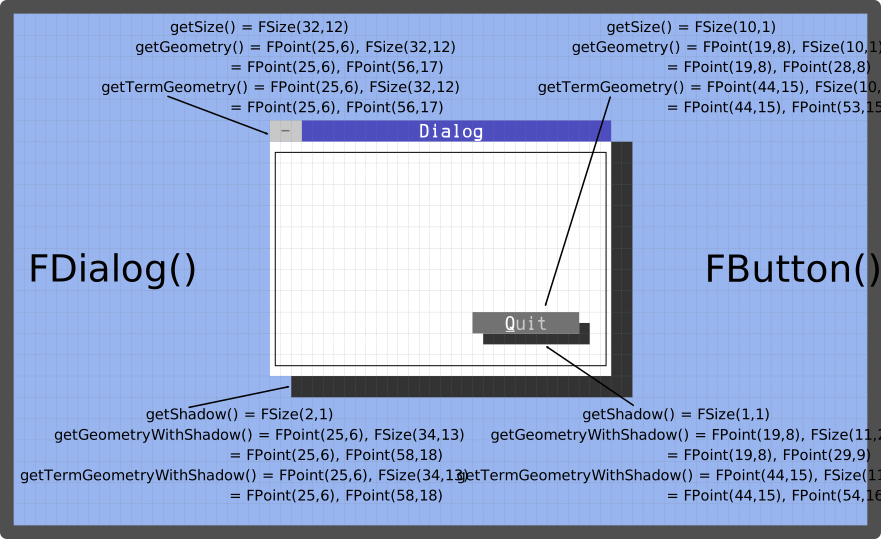
Figure 13. Geometry of widgets
const FSize    getSize() const;
const FSize    getClientSize() const;
const FRect&   getGeometry() const;
const FRect&   getTermGeometry();
const FSize&   getShadow() const;
const FRect&   getGeometryWithShadow();
const FRect&   getTermGeometryWithShadow();
virtual void   setSize (const FSize& size, bool adjust = true);
virtual void   setGeometry (const FRect& box, bool adjust = true);
virtual void   setGeometry (const FPoint& p, const FSize& s, bool adjust = true);
virtual void   setShadowSize (const FSize& size);
If you explicitly set the value of adjust to false when
using the setSize(), setGeometry() or setShadowSize()
mutators, the adjustSize() method is no longer called automatically.
This can be used to prevent recursive adjustSize() calls or to
avoid unnecessary adjustSize() calls.
A modern terminal emulation like xterm has no fixed resolution.
They offer the possibility to change the height and width of the
terminal at any time. That triggers a resize-event that calls
the adjustSize() method. This method allows adapting the widget
to a changed terminal size. You can override the adjustSize()
method to adjust the size and position of the widget. The method
adjustSize() will also be called indirectly via calling methods
setGeometry(), setX(), setY(), setPos(), setWidth(),
setHeight(), setSize(), setTopPadding(), setLeftPadding(),
setBottomPadding(), setRightPadding(), or setDoubleFlatLine().
Scalable dialogs derived from FDialog can change the dialog size by
clicking on the lower right corner of the window. You can intercept
a scaling action by overriding the setSize() method and adjusting
the client widgets.
File: size-adjustment.cpp
#include <final/final.h>

using namespace finalcut;

class dialogWidget : public FDialog
{
  public:
    explicit dialogWidget (FWidget* parent = nullptr)
      : FDialog{parent}
    { }

  private:
    void initLayout()
    {
      setText ("Dialog");
      setResizeable();
      button.setGeometry (FPoint{1, 1}, FSize{12, 1}, false);
      input.setGeometry (FPoint{2, 3}, FSize{12, 1}, false);
      // Set dialog geometry and calling adjustSize()
      setGeometry (FPoint{25, 5}, FSize{40, 12});
      setMinimumSize (FSize{25, 9});
      FDialog::initLayout();
    }

    inline void checkMinValue (int& n)
    {
      if ( n < 1 )  // Checks and corrects the minimum value
        n = 1;
    }

    void centerDialog()
    {
      auto x = int((getDesktopWidth() - getWidth()) / 2);
      auto y = int((getDesktopHeight() - getHeight()) / 2);
      checkMinValue(x);
      checkMinValue(y);
      setPos (FPoint{x, y}, false);
    }

    void adjustWidgets()
    {
      const auto bx = int(getWidth() - button.getWidth() - 3);
      const auto by = int(getHeight() - 4);
      button.setPos (FPoint{bx, by}, false);
      input.setWidth (getWidth() - 4);
      const auto ly = int(getHeight() / 2) - 1;
      input.setY (ly, false);
    }

    void adjustSize() override
    {
      // Calling super class method adjustSize()
      FDialog::adjustSize();
      // Centers the dialog in the terminal
      centerDialog();
      // Adjust widgets before drawing
      adjustWidgets();
    }

    void draw() override
    {
      // Calling super class method draw()
      FDialog::draw();

      print() << FPoint{3, 3}
              << FColorPair{FColor::Black, FColor::White}
              << "Text on "
              << FColorPair{FColor::Blue, FColor::Yellow}
              << "top";
    }

    FLineEdit input{"Middle", this};
    FButton button{"&Bottom", this};
};

auto main (int argc, char* argv[]) -> int
{
  FApplication app(argc, argv);
  dialogWidget dialog(&app);
  FWidget::setMainWidget(&dialog);
  dialog.show();
  return app.exec();
}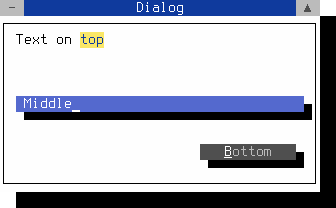
Figure 14. Dynamic layout
Note
You can close the dialog with the mouse, Shift+F10 or Ctrl+^
After entering the source code in size-adjustment.cpp you can compile the above program with gcc:
g++ size-adjustment.cpp -o size-adjustment -O2 -lfinal -std=c++14